
Who can do what
Open IBC
In the left navigation, under EHS, choose IBC (the path is/ibc-projects). The page is headed Institutional Biosafety Committee and has three tabs: Projects, Members and Meetings. For admins the button in the top right follows the tab: Create IBC project, Add member or Schedule meeting. Before anything exists, the tabs show No IBC projects (with an Add a project shortcut), No IBC members and No meetings scheduled.
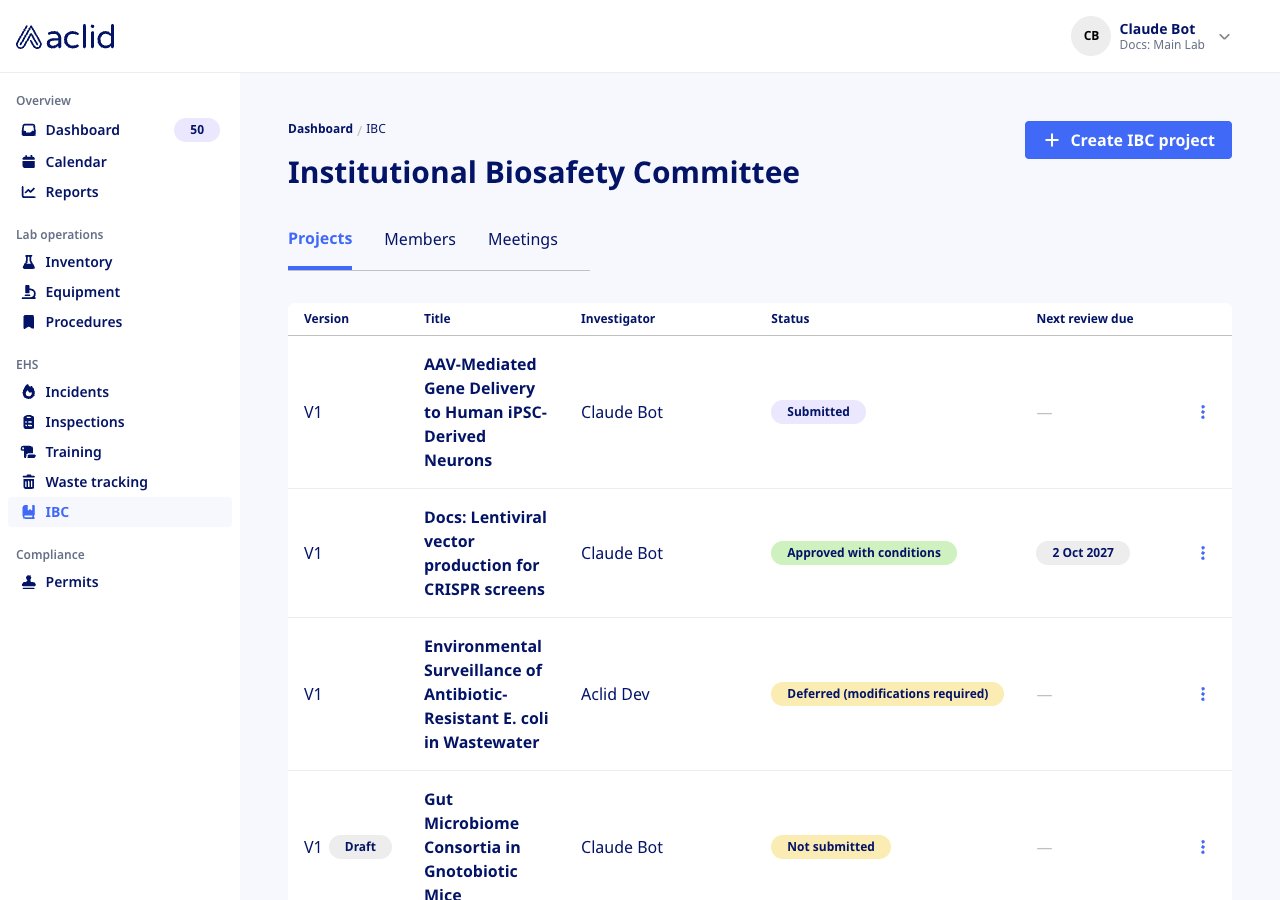
The Projects tab, one row per project with its status and next review date
Key concepts
- Project: one registration under committee review. It carries a title, a Principal investigator (a user of your organization), an Overview, linked Protocols and one registration document per version.
- Version: projects are numbered Version 1, Version 2 and so on. At most one version is a Draft, which only admins can see and edit; every other version is published and can no longer be changed. When a project has several versions a picker on its page lets you switch between them; the latest published one is marked (current) and the draft (draft). Opening a draft shows You’re viewing a working draft (Version N) of this project; opening an older version shows You’re viewing a previous version of this project (Version N). Previous versions can’t be edited.
- Status: the committee’s decision on the project. Not submitted (yellow badge), Submitted (grey), Approved (green), Approved with conditions (green), Deferred (modifications required) (yellow) and Disapproved (red). Publishing a draft sets the status back to Not submitted, since the committee has not yet seen that version.
- Review: a committee review of a published project, with a review date and an Outcome chosen from the statuses above. Recording a review sets the project’s status to the outcome and moves its renewal date to one year after the review date.
- Renewal date: when the project is next due in front of the committee. It appears in the Next review due column and in the project’s Renewals card.
- Committee role: the seat a member holds. The roles are Chair, Biosafety Officer, Biological Safety Officer (BSO), Principal Investigator (PI), Animal Expert, Plant Expert, Occupational Health Representative, Community Representative and Ad Hoc Member. A role may carry a Term start and Term end.
- Meeting: a sitting of the committee with a title, date, time and optional location. Each meeting records who was Present or Absent, any Guests, free-text Notes such as agenda items or minutes, and uploaded Documents.
Tasks
Create an IBC project
Admins only.
- On the Projects tab, click Create IBC project.
- Enter the Project title, choose the Principal investigator and pick the Project status. All three are required.
- Optionally drop the registration document on Upload or drop a file (PDF, DOC, DOCX or PAGES). When a document is attached, the project’s Overview is written from it automatically; you can edit the text on the draft.
- Click Create. The banner IBC project created appears and the project is listed as V1 with a Draft badge until you publish it.
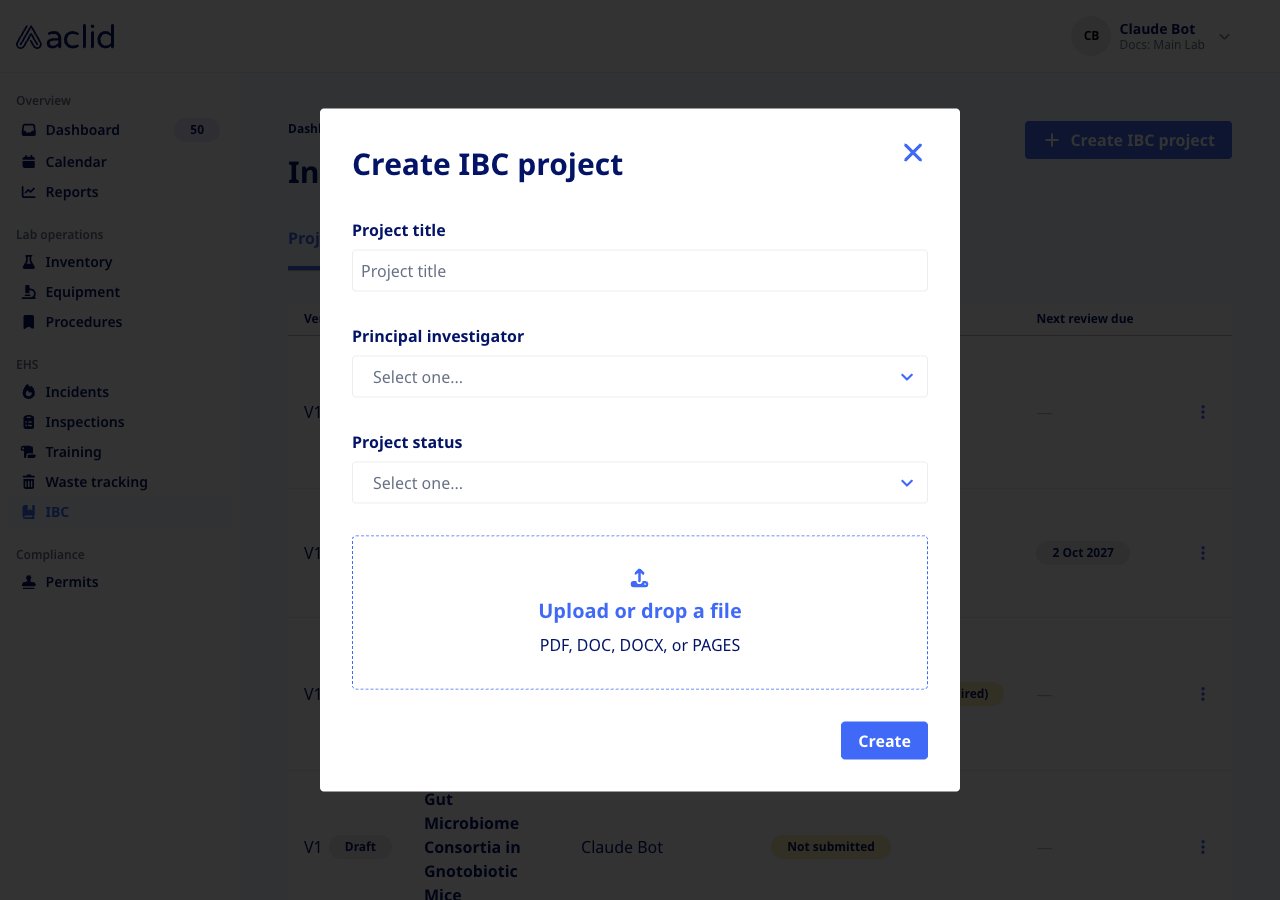
The Create IBC project dialog
Draft, edit and publish a version
Admins only.
- Open a project from the list. On its latest published version, click New draft to copy it into a new draft version; if a draft already exists the button reads Edit v2 draft (with the draft’s number) instead and takes you to it.
- On the draft, use Edit on the Overview card to change the Project title and Project overview, Edit on the Principal investigator card to pick another investigator, and Manage on the Protocols card to search published protocols and add or remove them under Linked protocols.
- In the version card on the right, click Upload (or Replace) to attach the registration document for this version. PDFs are previewed on the page; click View to open the file.
- Click Publish. The banner Version N of this project has been published appears, the version becomes the current one and its status resets to Not submitted.
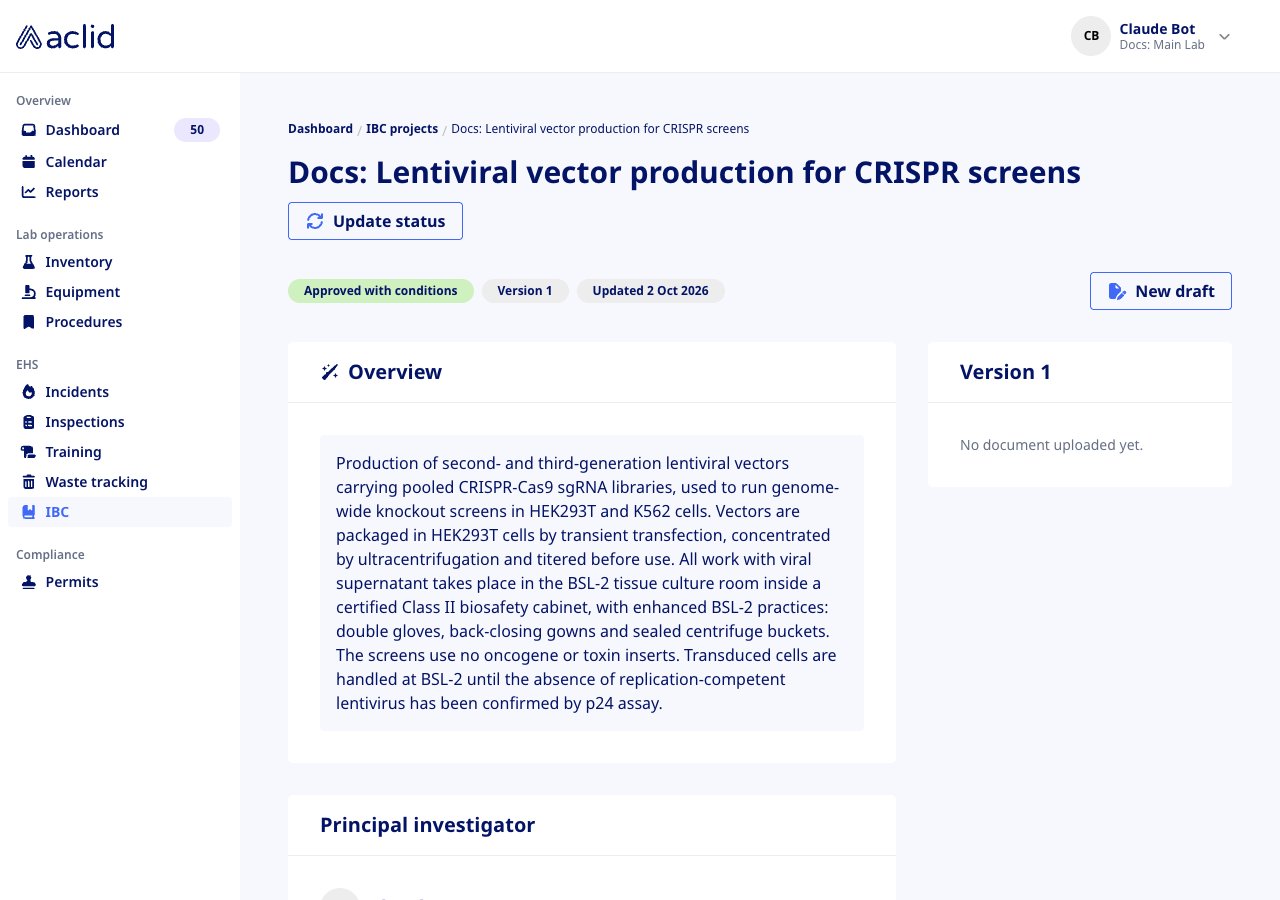
A published project: status badges, the version card and the New draft button
Update a project’s status
- Open the project and click Update status. Admins see the button on every project; a member sees it on projects where they are the principal investigator.
- Choose the new Project status and click Update status. The banner IBC project status updated confirms the change and the badge at the top of the page updates.
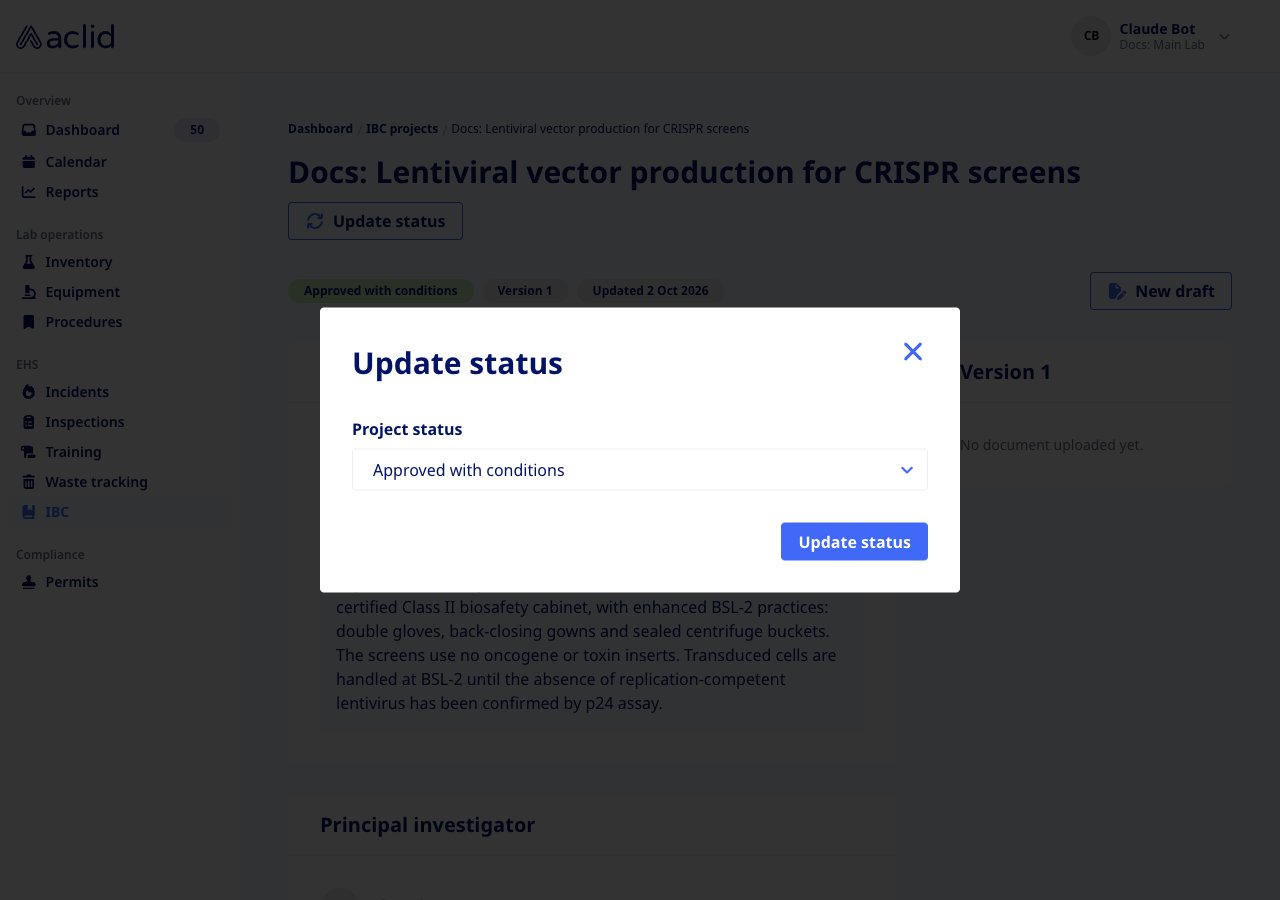
The Update status dialog
Track renewals
- Scroll to the Renewals card on the project’s current version. Last renewed is the date of the most recent review and Next renewal is the renewal date.
- Admins click Set date (or Edit date), pick the Renewal due date and click Save. The banner Renewal date set appears and the date shows in the Next review due column of the list.
- The table below lists every review on file with its Due date, Date completed, Outcome and Reviewer.
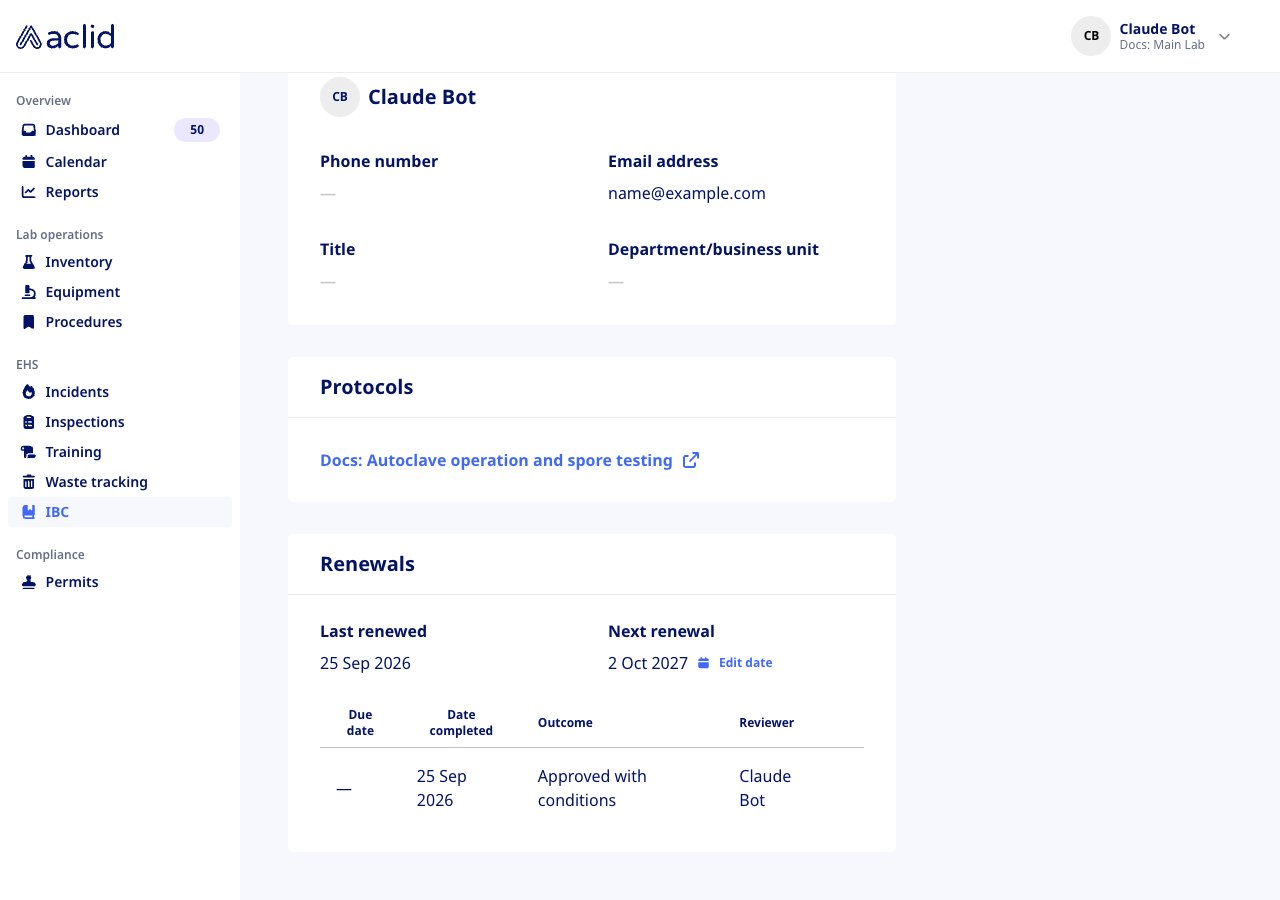
The Renewals card with the last review and the next renewal date
Add committee members
Admins only.
- On the Members tab, click Add member.
- In Add IBC member, choose the Member (only users not yet on the committee are offered), the Role, and optionally the Term start and Term end.
- Click Add member. A banner confirms who was added and in which role, and a card for the member appears, showing the role and the term as a range of years, for example Term 2025–2026, or Term 2025–present when no end date is set. Clicking a card opens the member’s user profile.
Schedule a meeting
Admins only.
- On the Meetings tab, click Schedule meeting.
- Enter the Title, Date and Time, and optionally the Location (optional). Click Schedule meeting; the banner Meeting scheduled appears.
- Every current committee member is added to the meeting’s attendance list. To change the details later, open the card’s menu, choose Edit and click Save changes; choose Delete and confirm with Yes, delete to remove a meeting and everything recorded on it.
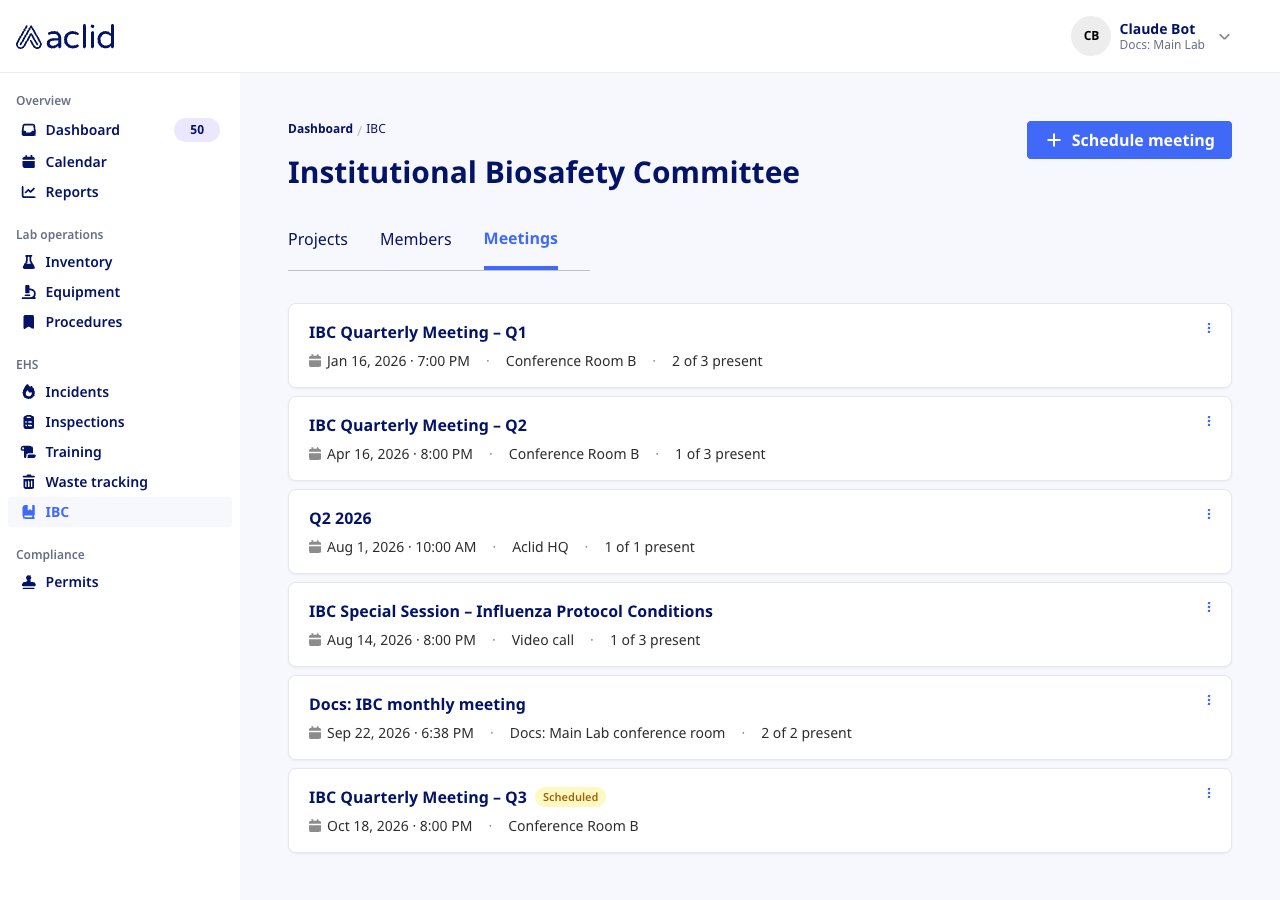
The Meetings tab: upcoming meetings are tagged Scheduled, past ones show attendance
Take attendance and keep minutes
Admins only.
- Open a meeting from the Meetings tab. In the Attendance card, click Present or Absent next to each member, or Mark all present to mark every committee member at once (the banner All members marked present confirms it).
- Click Add guest, pick a user under Select a user… and click Add to record someone who attended without holding a committee role. Guests are listed under Guests, marked present as soon as they are added and can be switched to Absent like any member; they are left out of the present count shown under Attendance.
- Under Notes, type the agenda, minutes or vote tallies and click Save note. Each note can be removed with its trash icon after confirming Yes, delete in the Delete note dialog.
- Under Documents, drop a file (PDF, DOC, DOCX or PAGES), give it a File name and click Upload; the banner Document uploaded appears. Documents open in a new tab and can be removed after confirming Delete document.
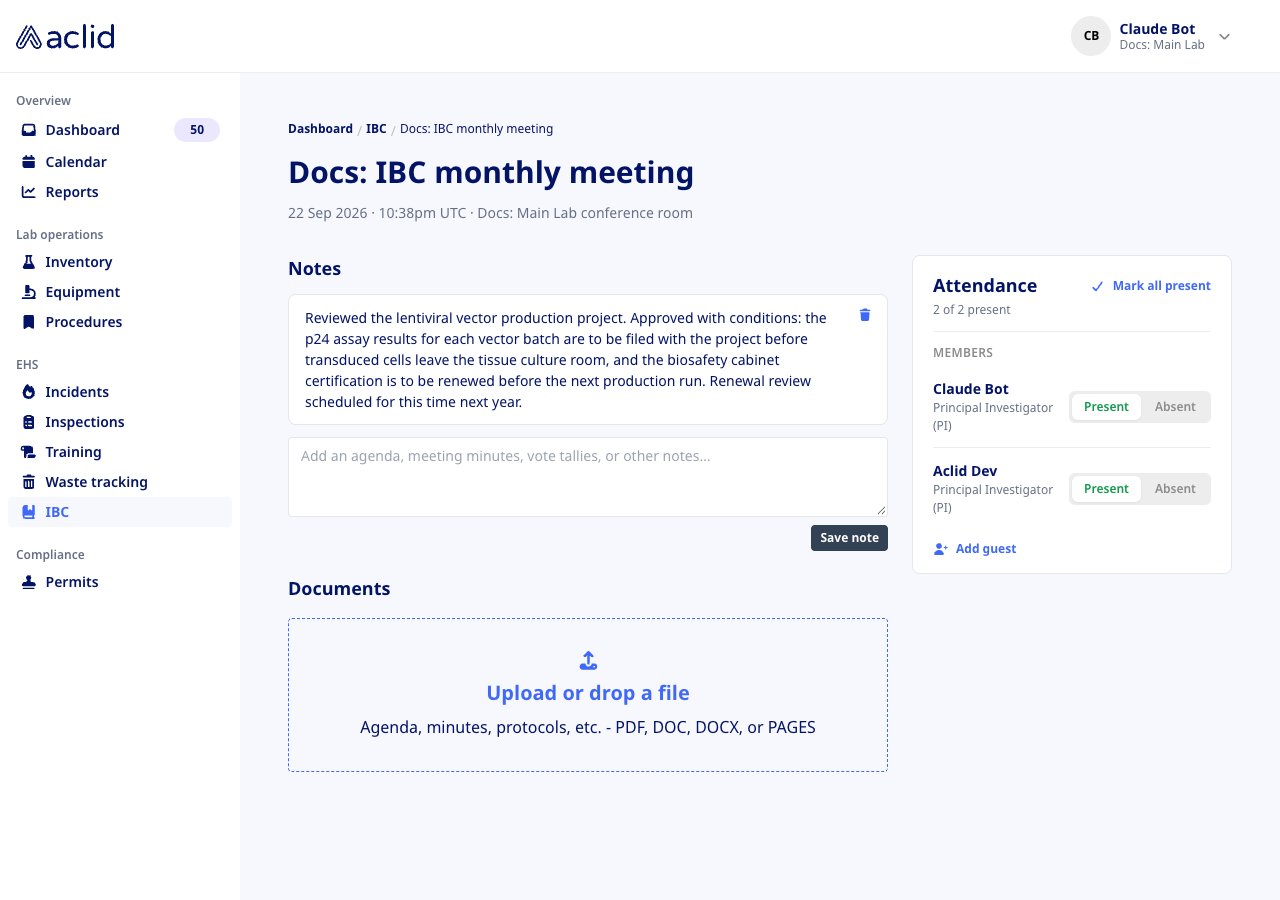
A past meeting with a note, the document drop area and attendance for both members
Reading the list
- Version: the project’s current version, V1, V2 and so on. A Draft badge means the newest version has not been published; members do not see these rows.
- Title and Investigator: the project name and its principal investigator. Clicking the row or choosing Details from the row menu opens the project.
- Status: the committee’s decision, coloured as listed under Key concepts.
- Next review due: the renewal date. The badge is red once the date has passed, amber when it falls within the next 30 days and grey otherwise; a dash means no date is set.
- Members cards show each member’s name, role and term.
- Meetings cards show the date, time and location. Future meetings carry a yellow Scheduled tag; past meetings show how many committee members were present, for example 2 of 3 present; guests are not counted.
Tips and limits
- A member who is not the principal investigator of any project does not see IBC in the navigation at all.
- A project can have only one draft at a time, and New draft is offered only on the latest published version. Overview, investigator, protocols and the document can be edited on a draft only.
- Manage protocols lists published protocols only; publish a protocol under Procedures before linking it.
- Project and meeting documents accept PDF, DOC, DOCX and PAGES files up to 25 MB.
- Set date and Edit date are available on the latest published version only, never on a draft or an earlier version.
- Recording a review is not available in the app yet; the Record button in the Renewals table does not appear. Recording a review sets the project’s status and its next renewal date at the same time, and the review is then listed in the table.
- Uploading or replacing a project’s document rewrites its Overview from the new file, replacing any text entered by hand.
- Each person holds one committee role. Add member does not offer people who already have one, and a role cannot be changed or removed from the app.
- Members added to the committee after a meeting was scheduled are not added to that meeting; record them with Add guest if they attended.
- Deleting a meeting removes its attendance, notes and documents and cannot be undone.
Related
- Users for the user profiles that member cards open
- Roles and sites for the admin and member roles
- File uploads for sending project and meeting documents through the API
- GraphQL reference: IbcProject
- GraphQL reference: IbcMeeting
- GraphQL reference: IbcMemberRole
- GraphQL reference: createIbcProjectReview
- GraphQL reference: deleteIbcMemberRole