
Who can do what
Open Training
Choose Training in the EHS group of the navigation. Admins land on the Team members tab, under three metric cards: Completion rate, Past due and Due in next 30 days. Members land on My trainings, which lists the trainings assigned to them (or No trainings assigned). Admins also get a Training templates tab and a + button to create one. When the organization has several sites and the header shows all of them, a site filter narrows the Team members and templates tabs.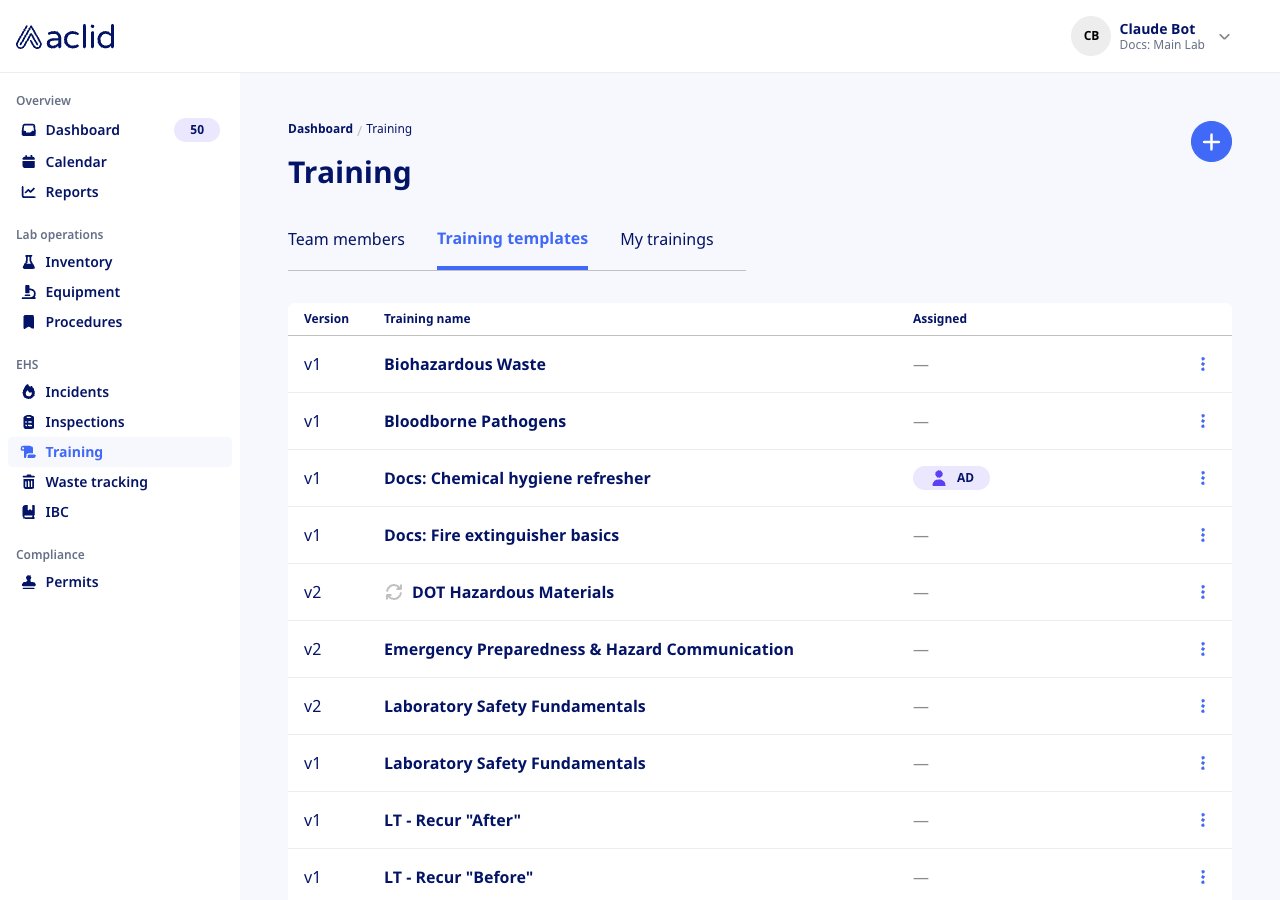
The Training templates tab, one row per template with its version and assignees
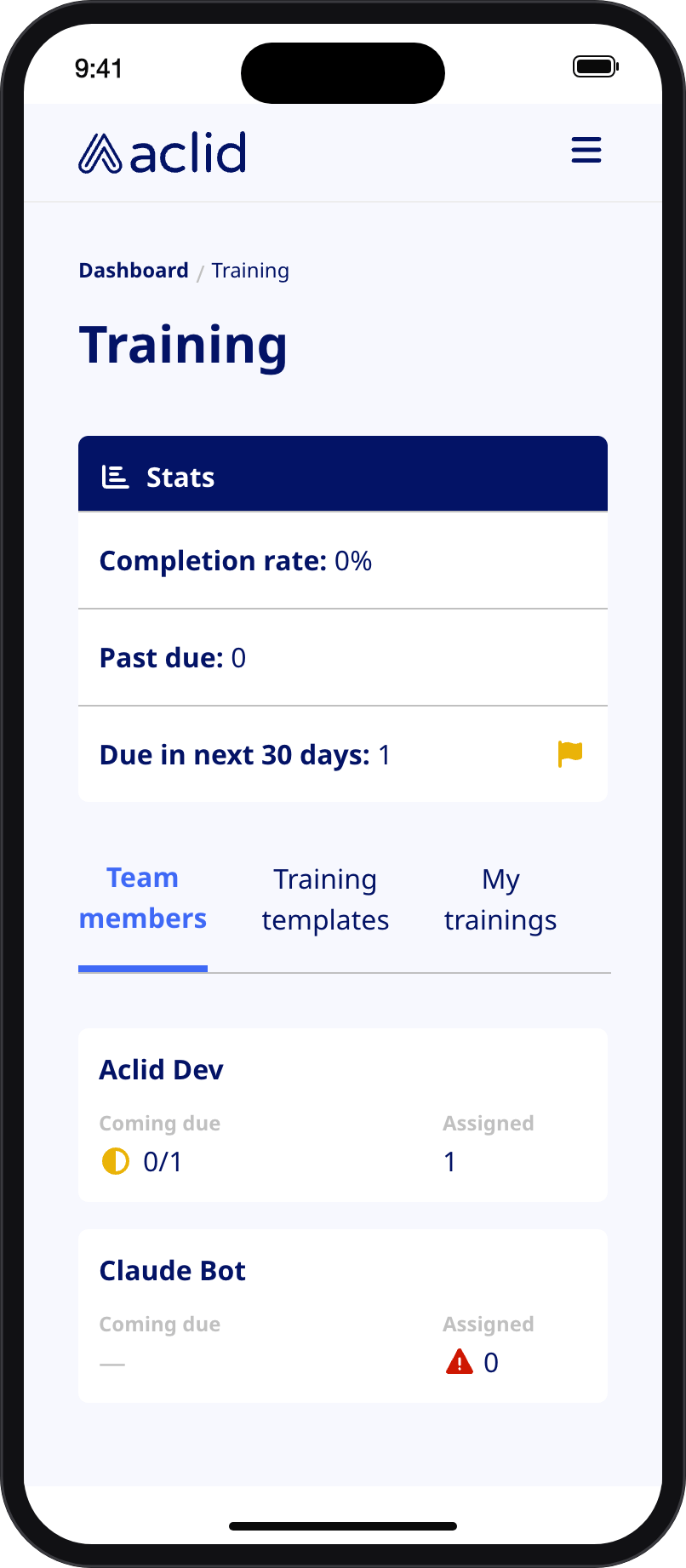
Training on a phone: the Stats card, then one card per team member
Key concepts
- Training template: one course, in one or more versions. Its page shows the Initial content, Refreshers, the Quiz, the Assignees and Site access.
- Draft and Published: a new template, and every New draft of a published one, starts as a draft that only admins see. Content, quiz and refreshers can only change while the version is a draft; Publish makes it the version learners receive and unlocks assigning. The badge reads Draft last updated or Published with the date, next to Version N.
- Online and In person: an online training is completed by the learner going through the content and quiz. An in-person training is completed when an admin marks attendance.
- Materials: one file per version, a PDF, a video (.mp4, .webm or .mov) or a SCORM package (.zip). PDFs and videos can be up to 2 GB; a SCORM package must be under 100 MB. Once a package has finished processing it shows its SCORM version (and its lesson count when it has more than one) and plays in the app.
- Quiz: multiple-choice questions with one correct answer each. Learners need at least 80% to pass and can retry.
- Assignment and occurrence: assigning a published training to a person (directly or through a group) creates an assignment; each time it falls due an occurrence is issued as an action with a due date.
- One-time and Recurs yearly: a training without refreshers is issued once. With refreshers it recurs every one, two or three years, either after the initial training’s due date or on a set date; each refresher opens 30 days before it is due.
- Site access: a template can be limited to some sites. Group members at other sites are skipped when the group is assigned.
Tasks
Create a training template
Admins only.
- On the Training templates tab, select the + button (or Add a training in the empty list).
- In Create training template, enter a unique Training name and choose the Initial training location (Online or In person). An organization with several sites also picks the Site access: one or more sites, or All.
- Select Create. The new draft opens with No content added, No refreshers added and No assignees; the yellow banner reminds you that you are viewing a working draft.
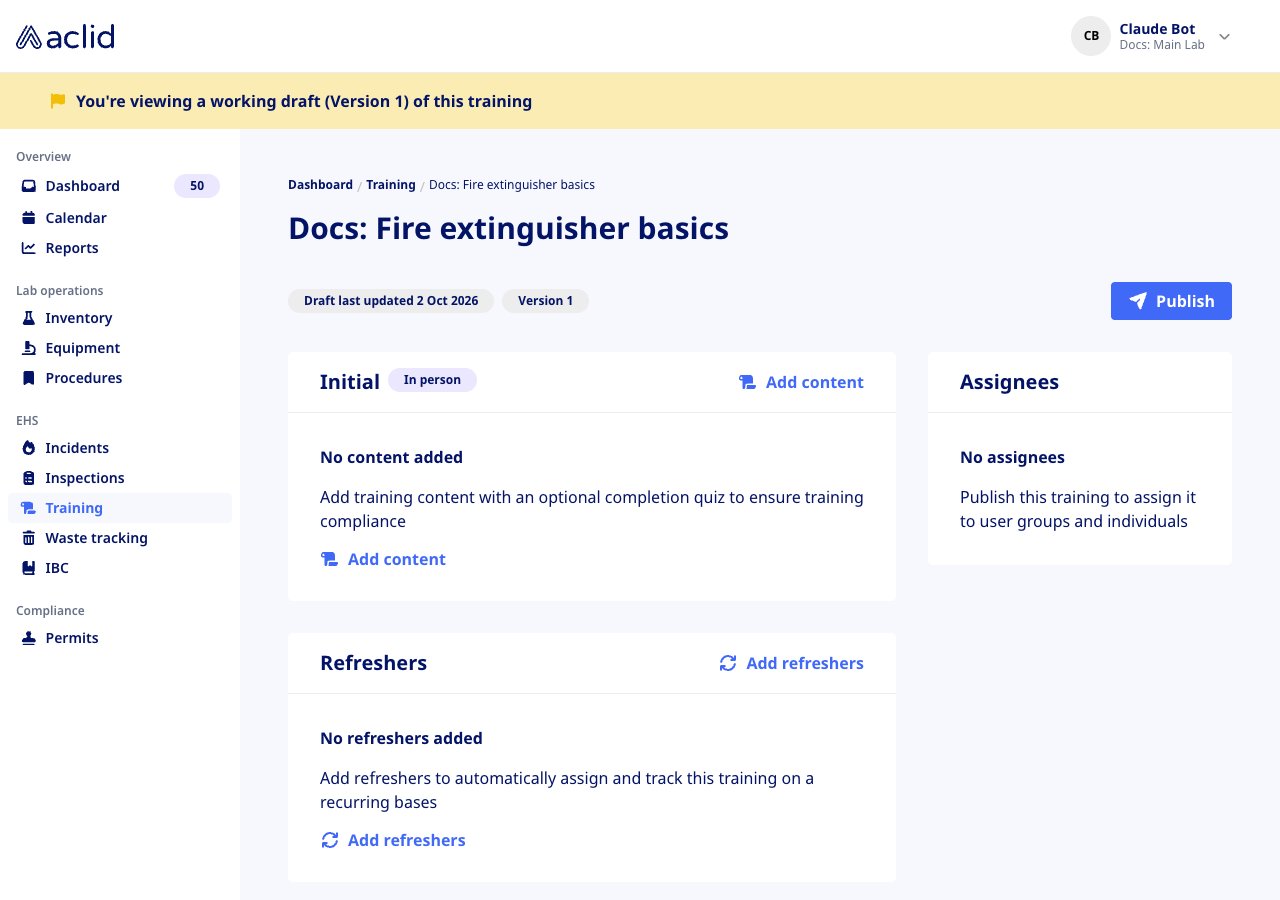
A new draft: Initial and Refreshers are still empty and Publish is available
Add content, a quiz and refreshers
Admins only.
- In Initial, select Add content and drop the PDF, video or SCORM file into Add initial training content. A PDF or video then shows in the box, a SCORM package gets a Play button, and Edit replaces the file (or renames the training) while the version is a draft.
- In Quiz, select Add quiz and fill in the Question and its Available answer options, marking the correct one; at least two options are required. Add question adds more and Delete quiz removes the whole quiz. A SCORM package that already grades its learners does not need one.
- In Refreshers, select Add refreshers. Choose the Refresher training location and the Refresher training recurrence: every N year(s) after the initial training’s due date or on a set date (month and day). The refresher reuses the initial content unless you give it its own.
- Select Publish when the draft is ready. Changing a recurrence later does not move refreshers already due in the next 30 days.
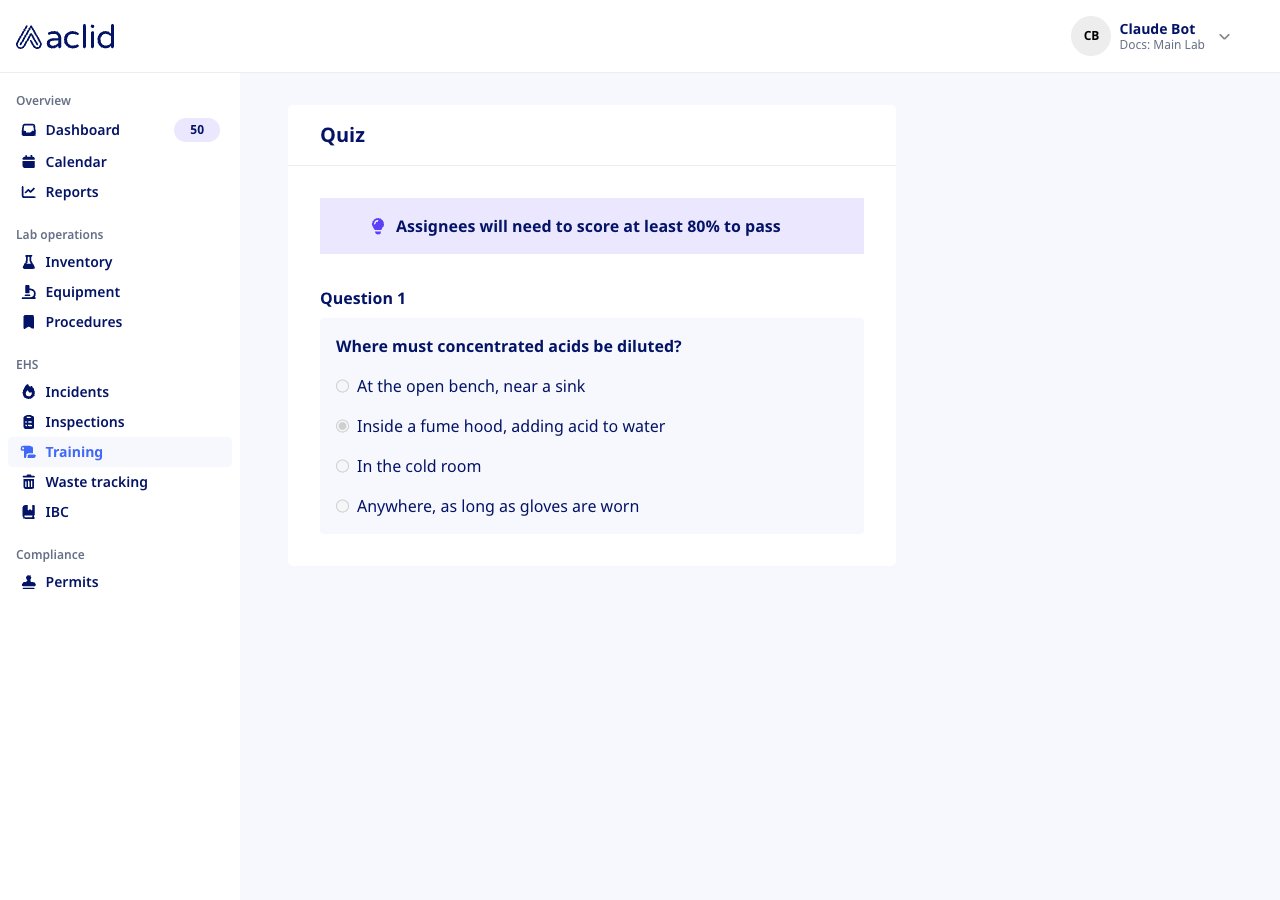
The Quiz box of a published training: the 80% pass mark and its question
Publish a training and manage versions
Admins only.
- With the draft open, select Publish. The badge turns green and reads Published with the date, learners can now be assigned, and the content, quiz and refreshers become read-only.
- To change a published training, select New draft: the next version opens as a draft and the published one keeps serving learners until you publish again. Renaming applies to every past and future occurrence once published.
- Use the version picker on the right to open any earlier version; previous versions cannot be edited, and Edit vN draft jumps back to the open draft.
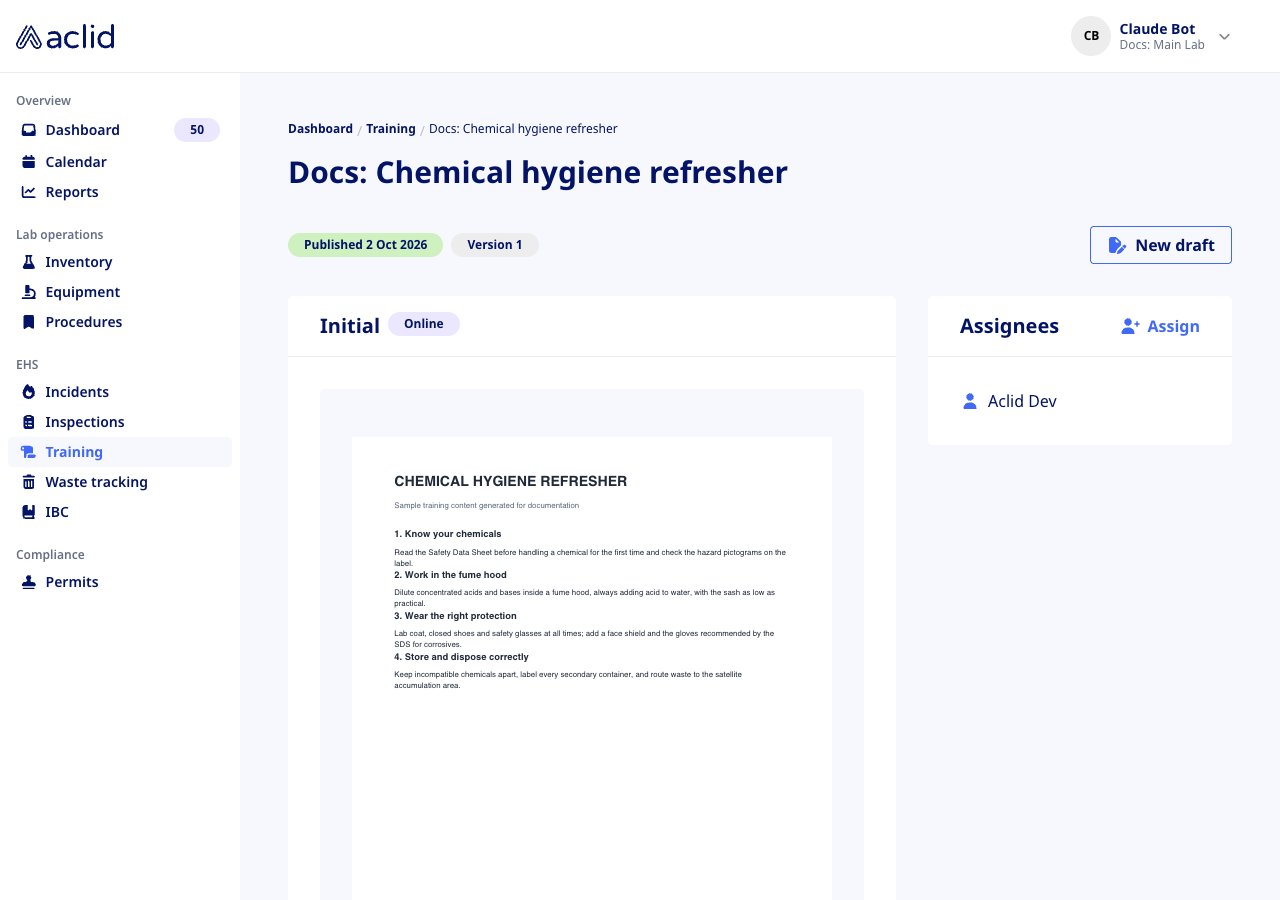
A published training: the Initial PDF on the left, its assignee on the right
Assign a training
Admins only.
- Open a published template and select Assign in the Assignees box.
- Pick Assign to user groups and Assign to individuals. Groups and people already on the training start out selected; remove one to unassign it (it reappears in the list marked Already assigned until you save), and anyone covered by a selected group is greyed out. The footer summarises what will change.
- Set the Due date and select Assign. Each person gets an occurrence due on that date, in their My trainings, their Dashboard actions and the Calendar.
- To assign from the other direction, open the menu on a row of Team members and choose Assign: Assign training(s) to that person lets you pick several published trainings with one Due date (optional).
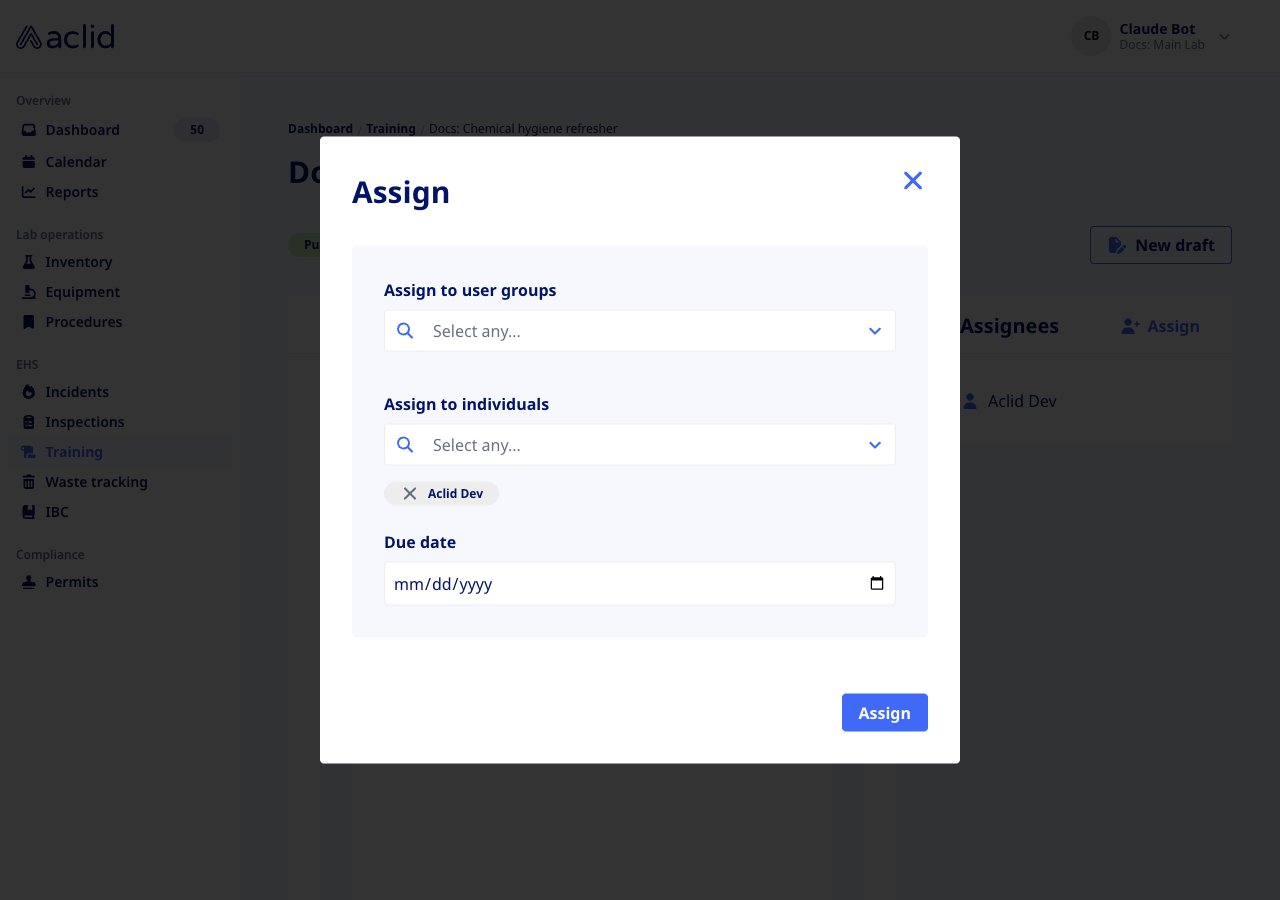
The Assign modal of a training that is already assigned to one person
Follow a team member’s progress
Admins only.
- On Team members, read Assigned (a red warning marks people with nothing assigned) and Coming due (completed out of issued occurrences).
- Select a row, or Details in its menu, to open that person’s page: Available & incomplete, Overdue trainings and Total assigned, then one card per training.
- For an in-person training choose Mark attended from the card menu; for an online training without content choose Mark as complete. History opens Training history for that person, with a Download button that prints it.
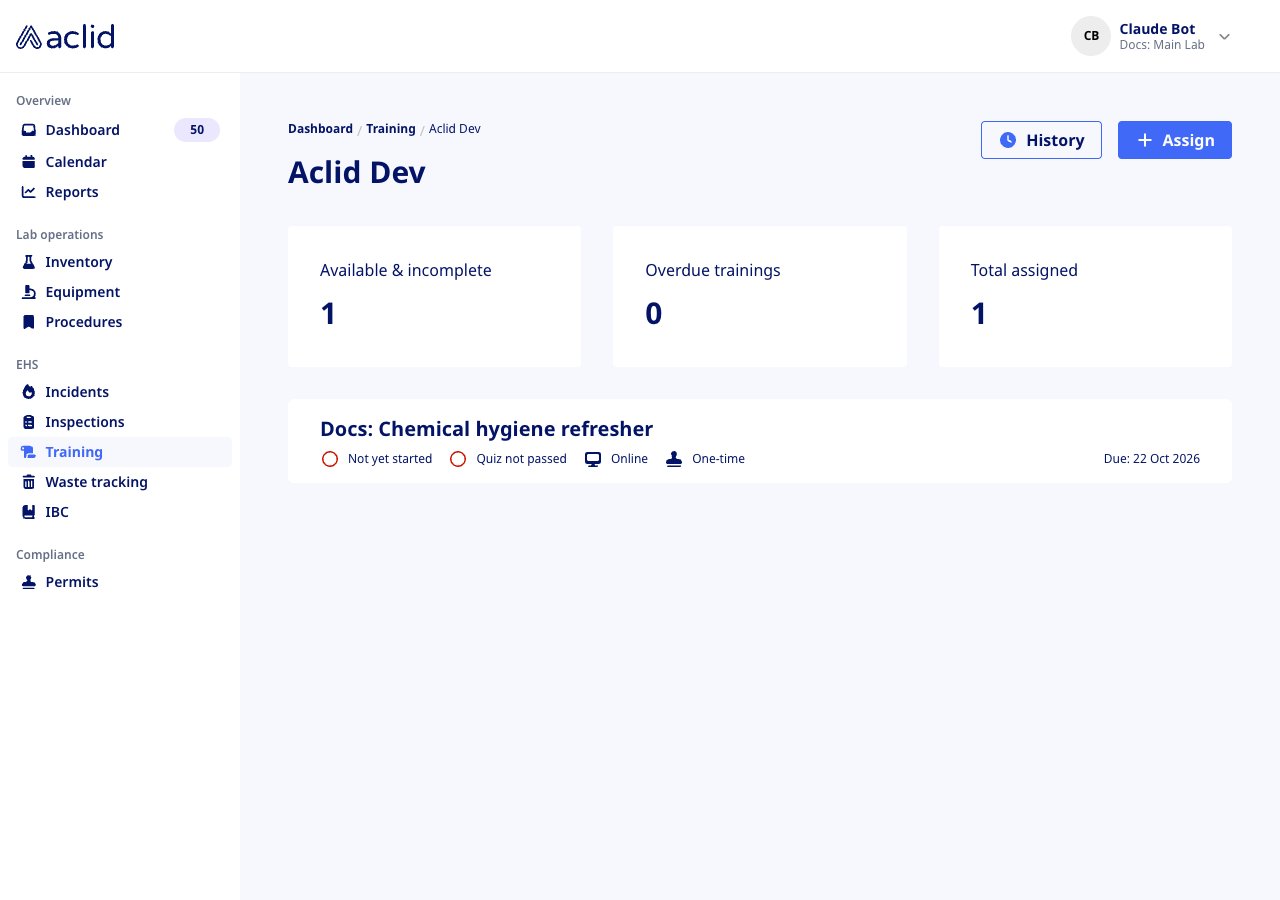
One person's trainings, with their status, format, frequency and due date
Complete a training as a learner
- Open My trainings and select Start on a card (Resume if you left part-way, Review once done).
- Go through the content. A PDF advances page by page with Next, which unlocks after a few seconds on each page, and the bar at the top shows the percentage complete; a video has to be watched to the end; a SCORM package reports back when it is finished and shows how much has been viewed.
- Select Take quiz (or Complete / Done when there is no quiz), answer every question under Let’s test your knowledge and Submit. Below 80% you can Try again; a pass completes the occurrence.
- Back on the card, Download certificate in the menu saves a completion certificate. History at the top lists every completed training with its certificate.
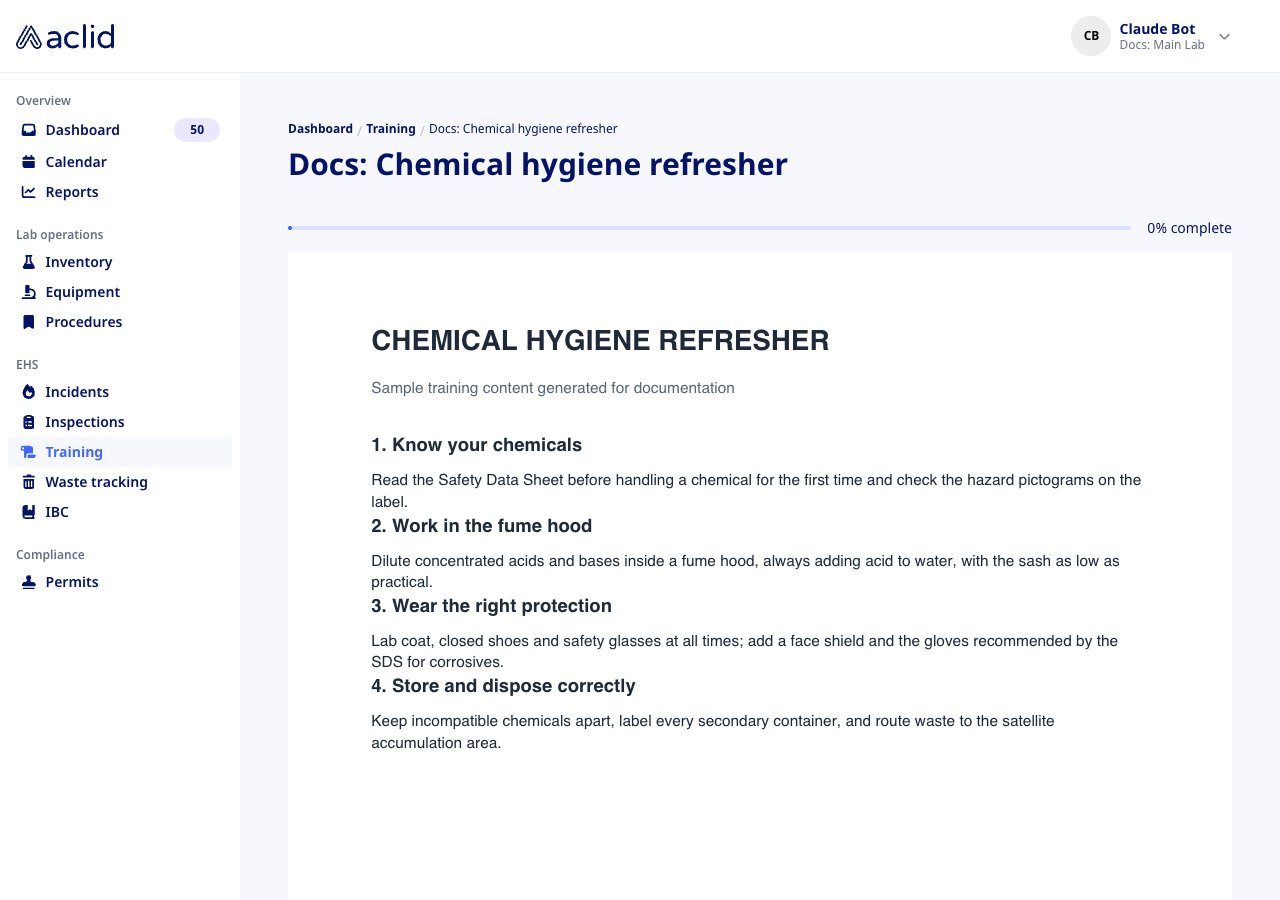
An online training opened as a learner, before the first page is read
Reading the list
- Training templates: Version is the latest version; a circular-arrows icon before the Training name marks a template with refreshers; Assigned shows group names and the initials of individually assigned people, with a +N chip for the rest; Site appears when the organization has several sites and the header shows all of them.
- Team members: Assigned counts assignments, Coming due reads completed/issued with a green check when everything issued is done.
- Training cards: the first line shows Not yet started, a % viewed figure (or Partially viewed for a SCORM package), Attended / Not attended for in-person trainings or Completed / Not completed for content-free ones; then Quiz passed / Quiz not passed; then Online or In person and One-time or Recurs yearly with its window; then Due: or Completed: with the date.
- Metrics: Completion rate is the share of assignments whose latest occurrence is complete; Past due and Due in next 30 days count open occurrences.
Tips and limits
- Only a published version can be assigned; a draft’s Assignees box says Publish this training to assign it to user groups and individuals.
- Publishing a template that has no content and no quiz gives learners nothing to open: their page says This training has no content, and an admin completes it for them with Mark as complete.
- A group member whose sites do not include the training’s site access is skipped when the group is assigned; the app tells you Some group members weren’t assigned.
- A refresher that falls within 30 days of assignment is issued immediately; otherwise the next occurrence waits until its window opens.
- SCORM packages must be .zip files and take a few seconds to process; Publish refuses a draft whose package is still processing or failed.
- In an organization with several sites, the Site access box on a template lists its sites (or All sites). Edit opens Edit site access; leave it empty to make the training available everywhere. Refreshers follow the same setting, and an admin whose own access is limited to some sites cannot change it.
Related
- Dashboard: training occurrences appear there as actions with a View training option.
- Calendar: due dates of issued occurrences.
- Users: user groups used for group assignment.
- GraphQL reference: Training
- GraphQL reference: TrainingAssignment
- GraphQL reference: assignTrainingToUsers