
Who can do what
Open Inspections
Inspections is in the EHS group of the left-hand navigation; members do not see the entry and get an access-restricted message if they open the address. The page shows a Trends button, a New button, two metric tiles and two tabs, Inspections and Templates. An organization with no results yet sees No inspections recorded with a Conduct inspection button.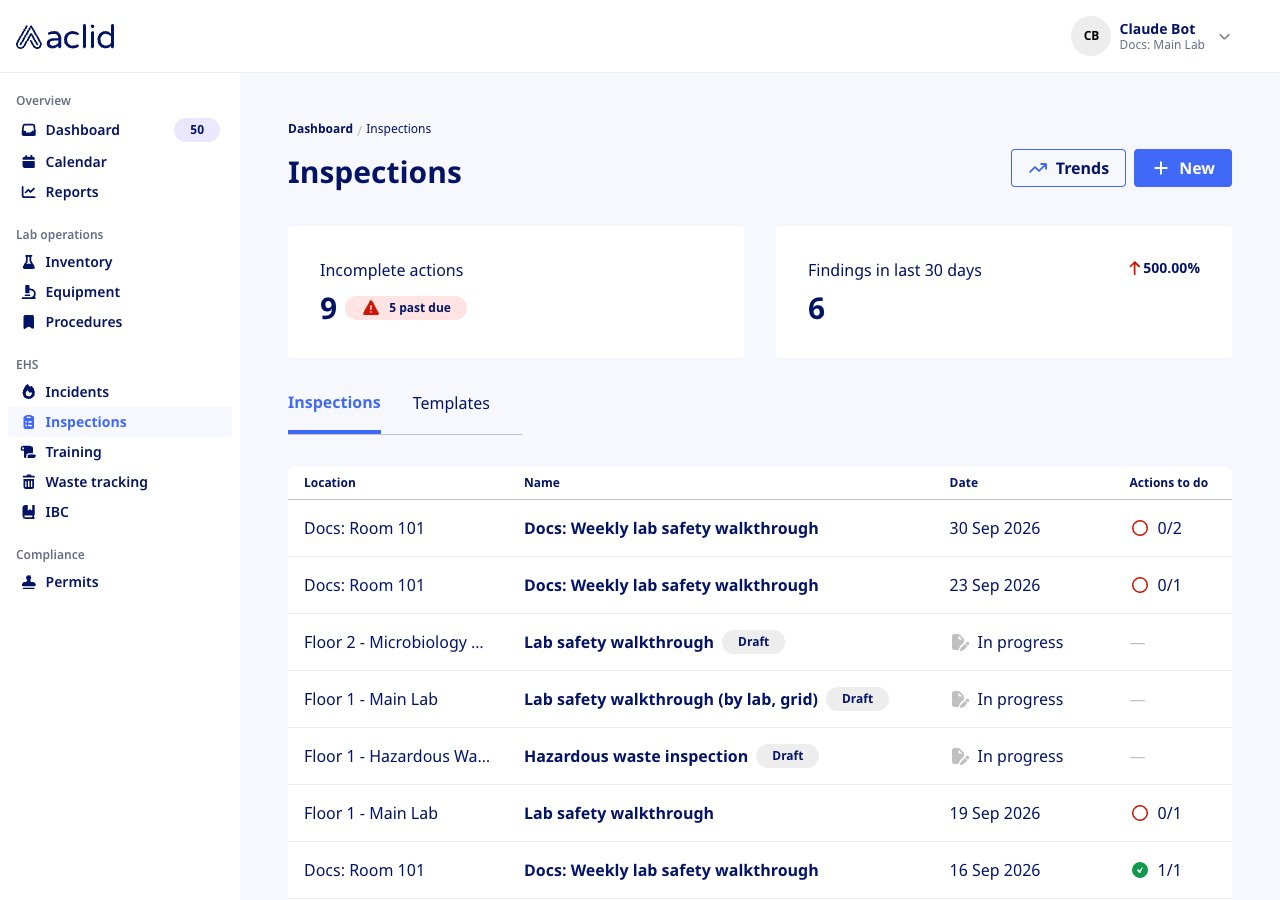
The Inspections tab: metrics above, most recent inspection first
Key concepts
- Template: the checklist an inspection follows. Each prompt is a question with optional helper text, answered Yes, in compliance, No, out of compliance or N/A. Templates are listed on the Templates tab by name and number of prompts.
- Sequential and grid templates: a sequential template asks one prompt per screen with Back and Next and a progress bar. A grid template shows every prompt as a tile at once, with a cross, a dash and a check for the three answers and, once a tile is answered, a paper clip that opens a drawer for findings, observations and photos. Templates you create are sequential; the style belongs to the template, not to the inspection.
- Single-location template: asks Which area are you inspecting? before the walkthrough, and the result is filed under that area. Other templates cover the site in general, so their results show Various in the Location column.
- Draft: an inspection that has been started but not submitted. It is saved for you as you go, shows Draft and In progress in the list, and only the person who started it can open it; anyone else sees Inspection being worked on.
- Completed: an inspection that was submitted. It cannot be edited afterwards, only its actions can.
- Pass, Fail, N/A: how each answer is shown on a completed inspection.
- Finding: a description of what was wrong, required whenever a prompt is answered No, out of compliance. A prompt can have several findings.
- Action: a follow-up task attached to a finding, with a Type of action (Corrective or Preventive), an optional assignee and an optional due date. Actions appear on the assignee’s Dashboard and count towards Actions to do and Incomplete actions.
- Observations: an optional note on a prompt answered Yes, in compliance or N/A.
- Inspection event: when your organization has a recurring inspection schedule, each occurrence appears on the Calendar as an Inspection event. Start Inspection on the event opens the form with the template already chosen, and View Results opens the completed inspection.
Tasks
Conduct an inspection
- Click New on the Inspections tab. The Conduct inspection form opens on Let’s start with some basics.
- Choose the template under What type of inspection would you like to conduct?. If it is a single-location template, also choose the area under Which area are you inspecting?.
- Check the Date conducted (it defaults to today and cannot be in the future) and click Next.
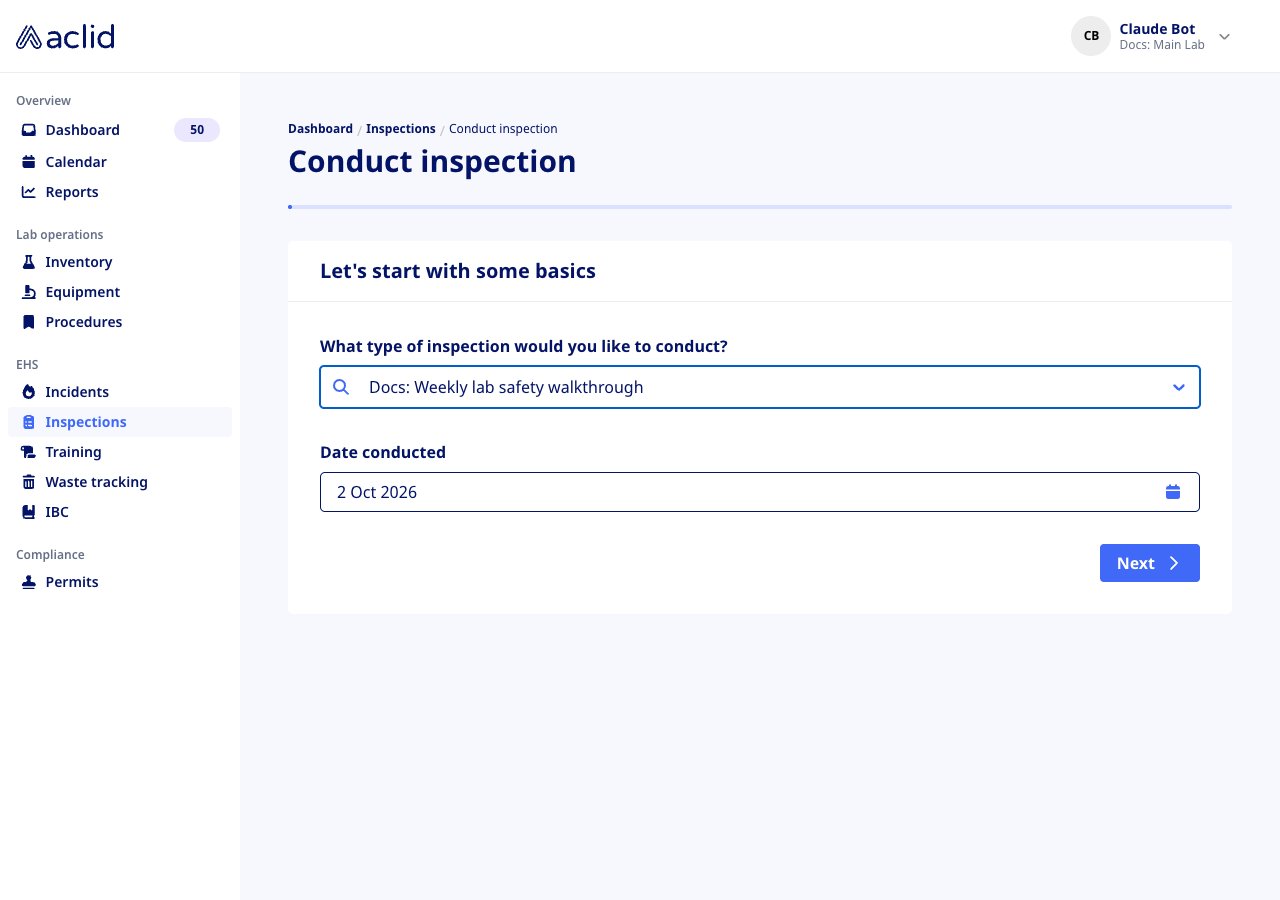
The basics: template and date
- Each screen shows one prompt with its helper text. Pick Yes, in compliance, No, out of compliance or N/A. A Yes or N/A answer offers Observations (optional).
- A No answer opens a Finding block. Fill in the Description of finding, then click Add action to add a Description of action, a Type of action, Assign to (optional) and Due by (optional). Add finding adds another finding to the same prompt; Remove takes an added finding or action away again.
- Use Add photo in the card header to attach a reference photo to the prompt.
- Click Next to move on; each prompt is saved as a draft as you leave it, so you can come back later from the list. On the last prompt the button reads Submit. A banner confirms recorded and the completed inspection opens.
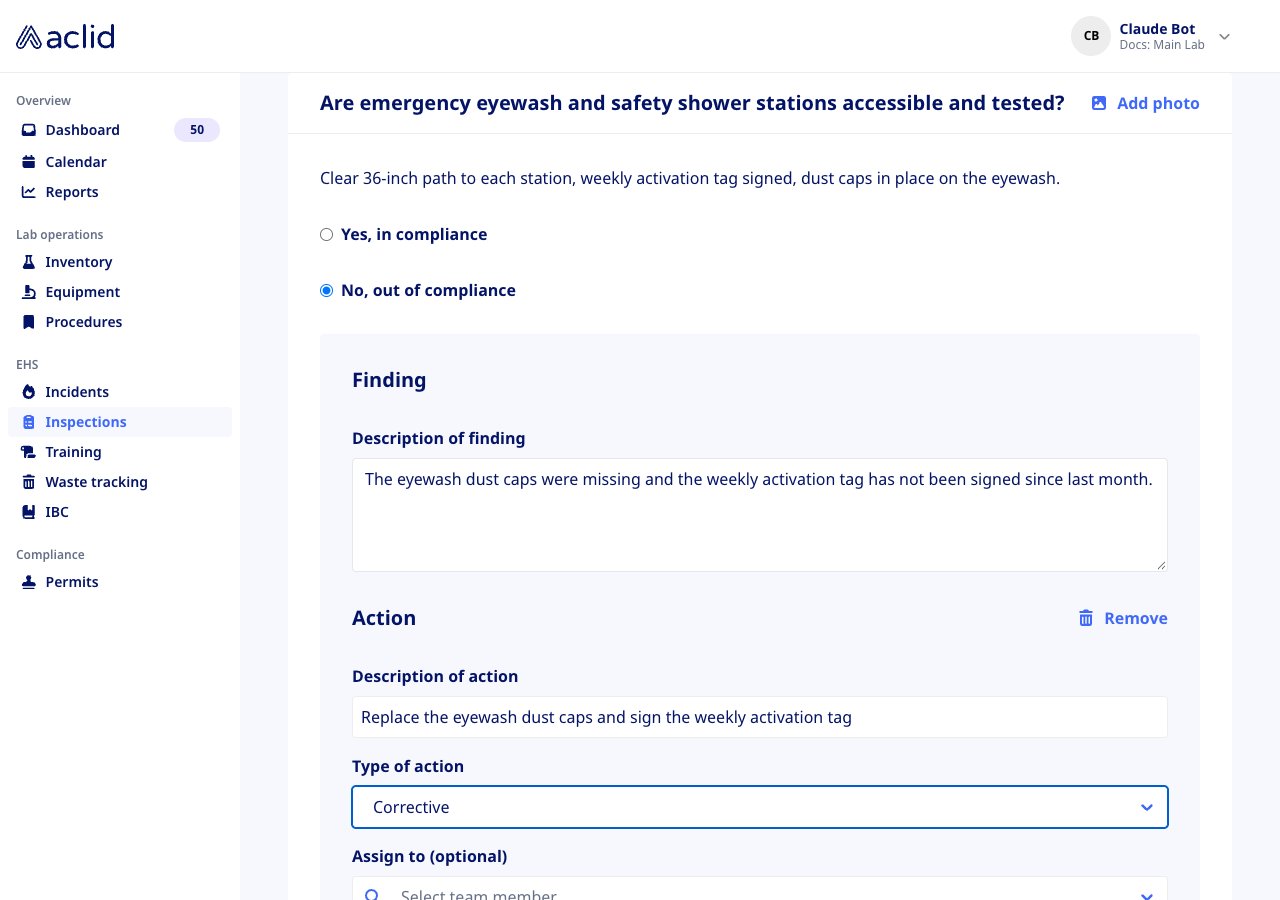
A prompt answered No, out of compliance, with its finding and an action
Conduct a grid inspection
- Start as above and choose a grid template. After Next, every prompt appears as a tile under the area’s name.
- On each tile click the check for Yes, in compliance, the dash for N/A or the cross for No, out of compliance. Click the chosen answer again to clear it.
- A cross opens the tile’s drawer on the Findings tab. Enter the Description of finding and click Add finding; then Add action opens the same action fields as the sequential form, and Save attaches the action to the finding. Once a tile has an answer, its paper clip reopens the drawer: Observations (with Add observation) for a Yes or N/A answer, and Photos for all answers. Badges on the tile count what you added.
- Answers are saved as a draft a few seconds after you make them. When every tile has an answer, click Submit.
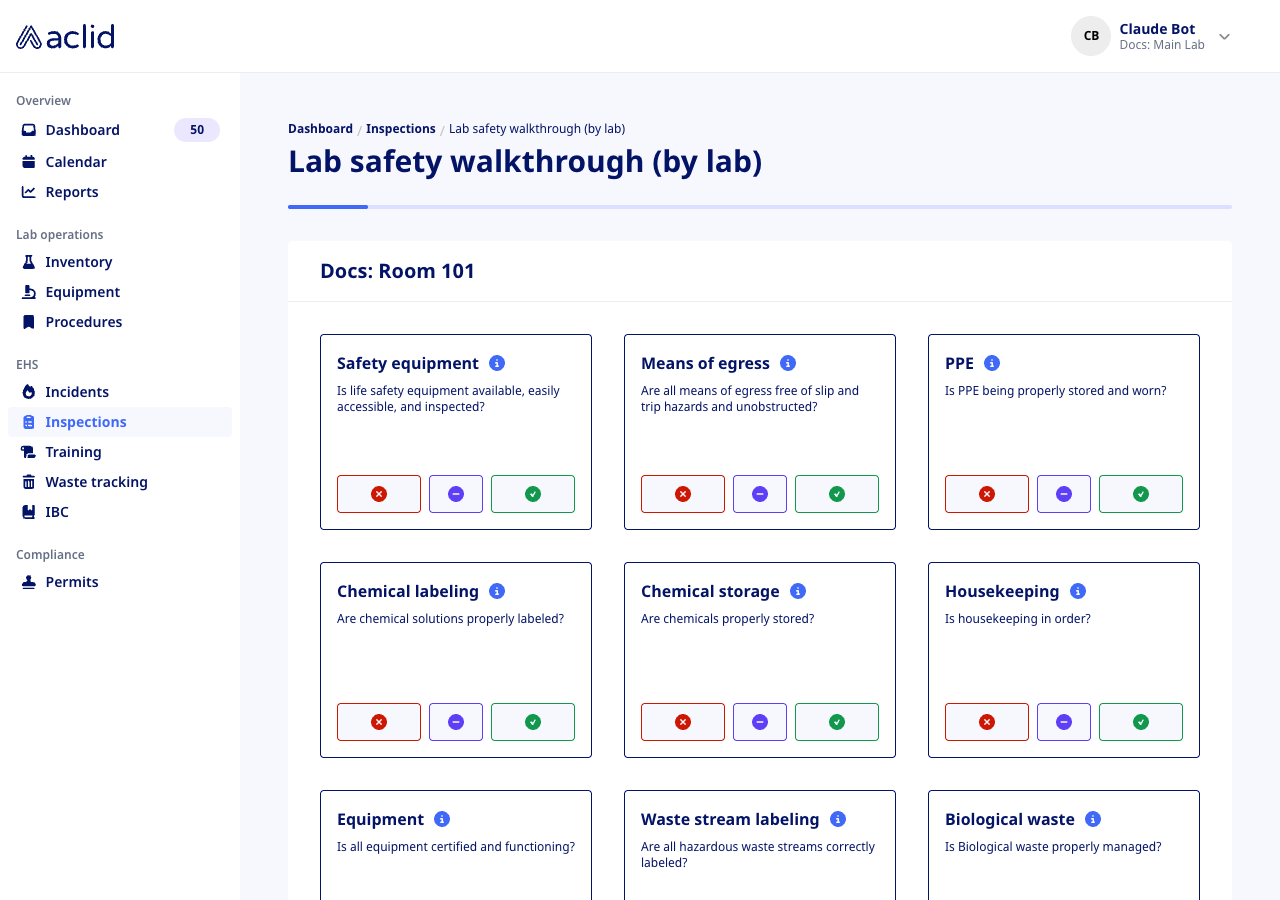
A grid template: all prompts on one screen
Review a completed inspection and its actions
- Click a row on the Inspections tab. The page shows the date, the location and the inspector as badges, the number of Prompts and Findings, then one card per prompt with its Pass, Fail or N/A badge, and the Actions card on the right.
- A Fail card lists each Finding, the Action raised from it with its assignee, and any photos; Observations show on the other cards.
- In the Actions card, click Mark as done when an action is finished, or use the pencil and the trash icons to edit or delete it. The card counts how many are done, for example 0 of 2.
- The download icon at the top right prints the inspection or saves it as a PDF.
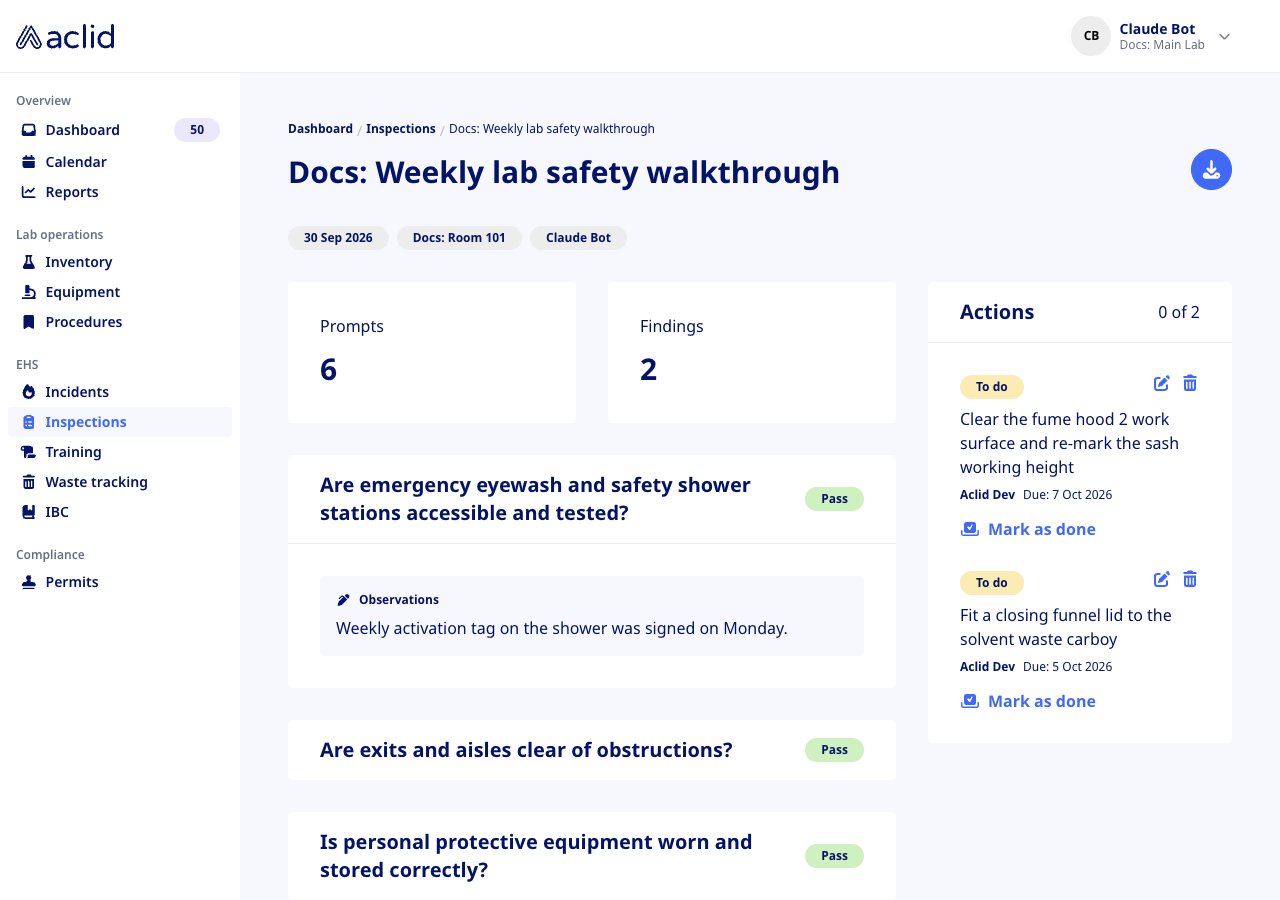
A completed inspection: badges, counts and the Actions card
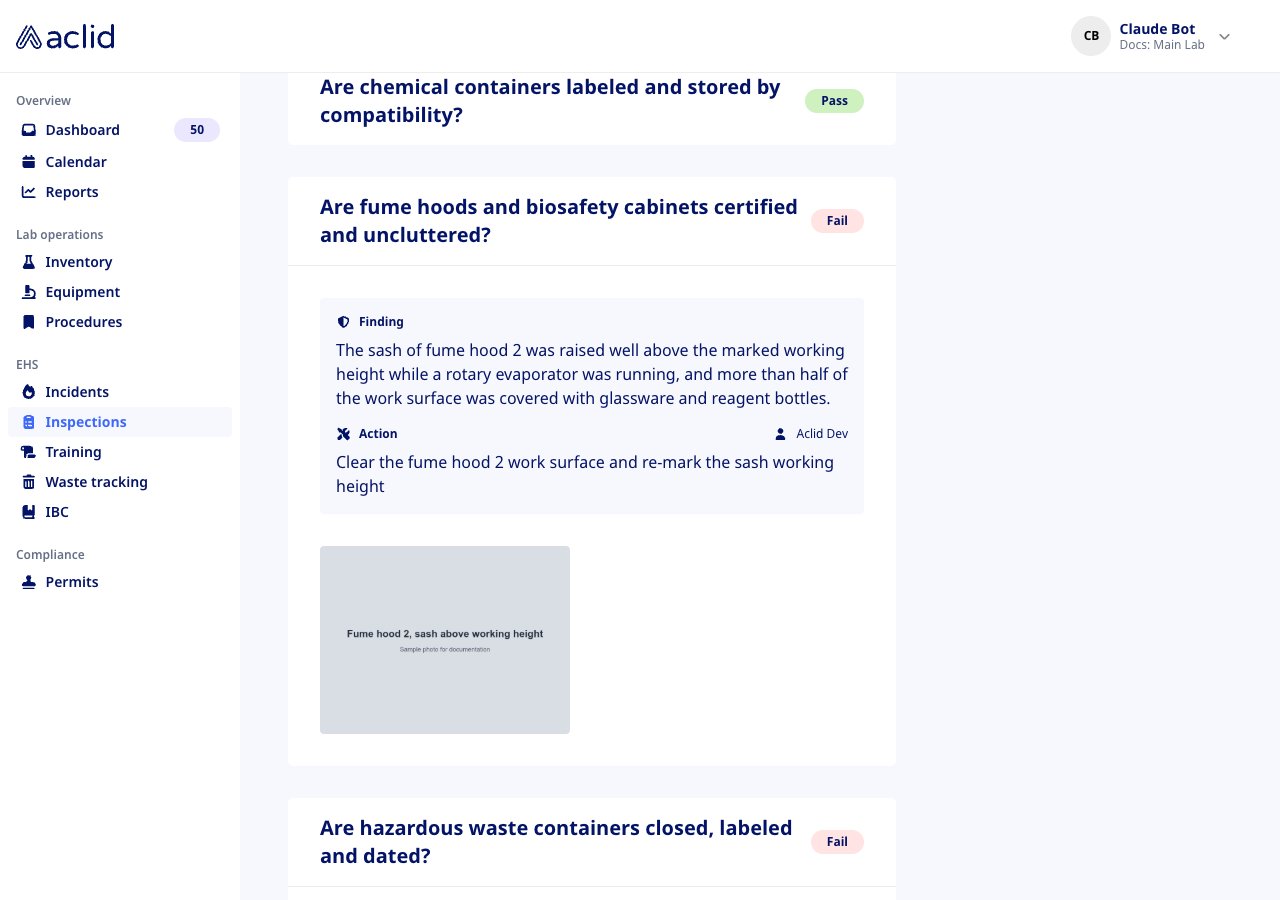
A failed prompt with its finding, action and photo
Create and edit a template
Admins only.
- Open the Templates tab and click New. In Create inspection template, enter a Template name and click Create template. Names must be unique; otherwise the modal says A template with this name already exists.
- The template page opens with No prompts added. Click Add first prompt or Add prompt, enter the Question and optional Helper text (optional), and click Add prompt. Every prompt gets the three standard answers.
- Use the pencil on a prompt to open Edit inspection prompt and Save, or the trash icon to Delete inspection prompt (confirm with Yes, delete).
- With two or more prompts, Re-order prompts lets you drag them by the handle; click Done to keep the order.
- Back on the Templates tab, the three-dot menu on a row offers Details, Clone (which opens Clone inspection template with the name suffixed (Clone); confirm with Clone template) and Archive. Archiving asks Are you sure you want to archive …?; confirm with Yes, archive. The template disappears from the picker, and existing inspections keep it.
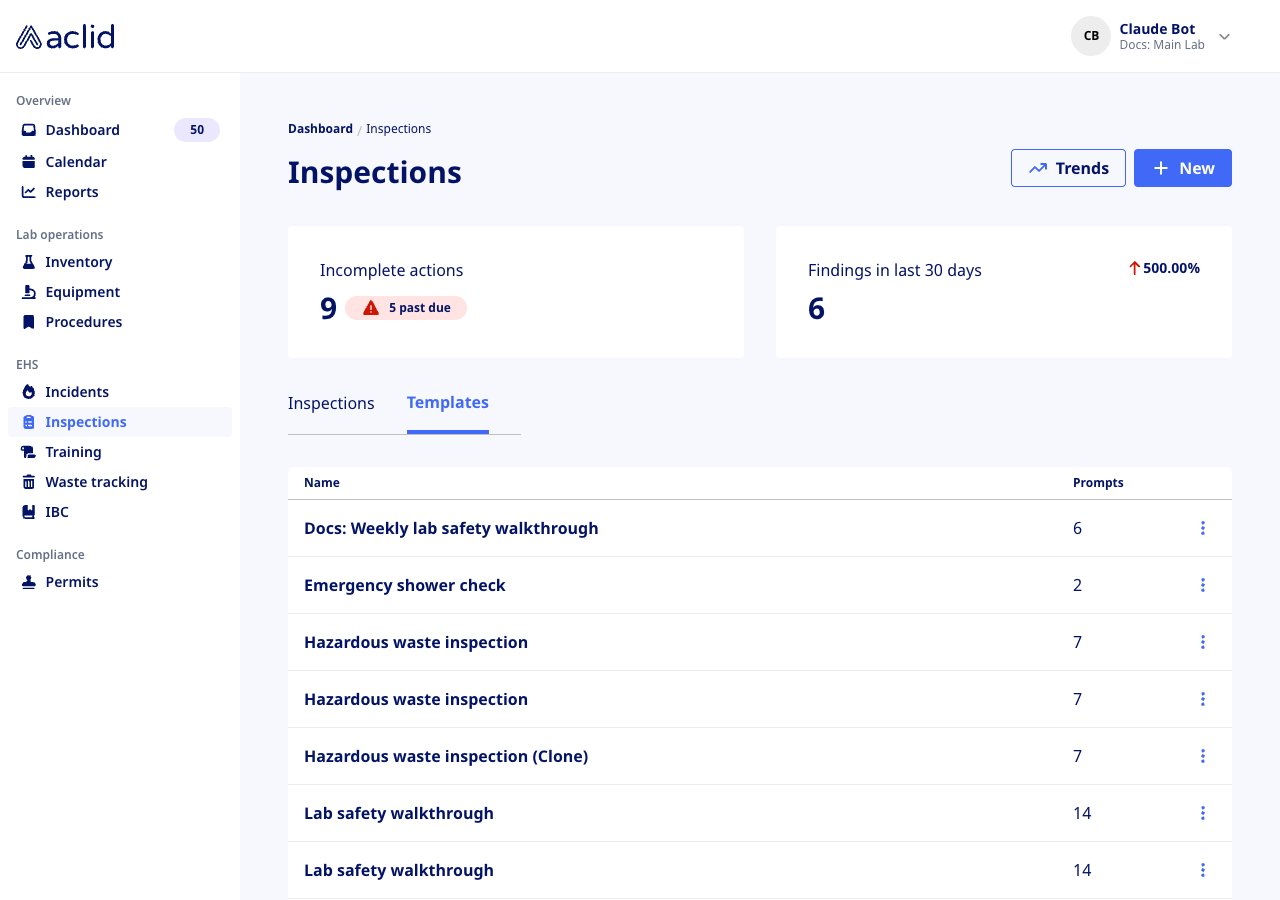
The Templates tab
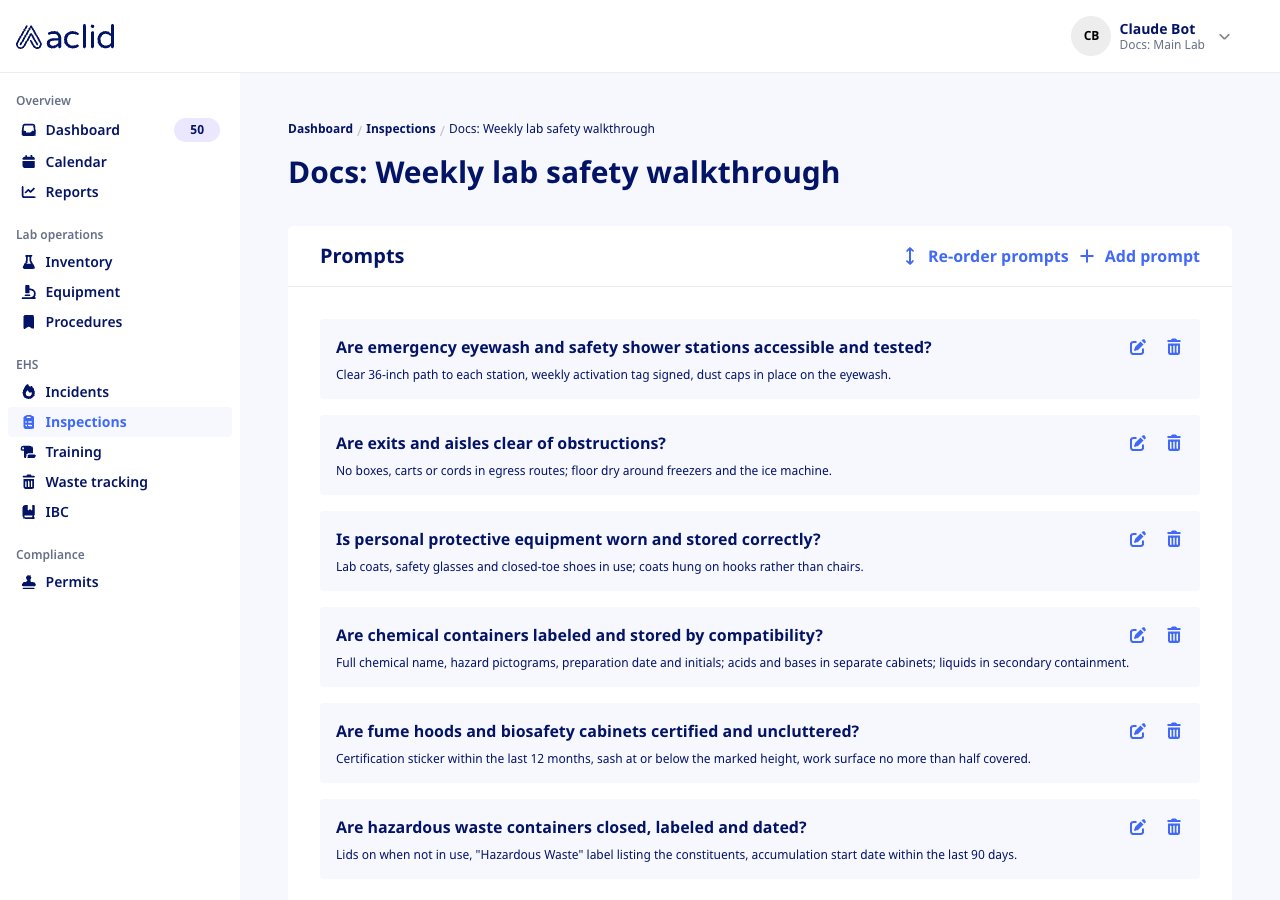
A template's prompts, with Re-order prompts and Add prompt
Reading the list
- Location: the area a single-location inspection was filed under, or Various.
- Name: the template, with a Draft badge while the inspection is in progress.
- Date: the Date conducted, or In progress for a draft.
- Actions to do: done over total actions raised from the inspection’s findings. An empty red circle means none are done, a half circle some, a green check all; a dash means the inspection raised no actions.
- Incomplete actions: open actions raised from inspection findings, with a red past due badge counting those past their due date.
- Findings in last 30 days: findings from inspections in the last 30 days, with the change against the 30 days before.
- Rows are newest first by date conducted. On a phone the tiles become a Stats card and each inspection is a card.
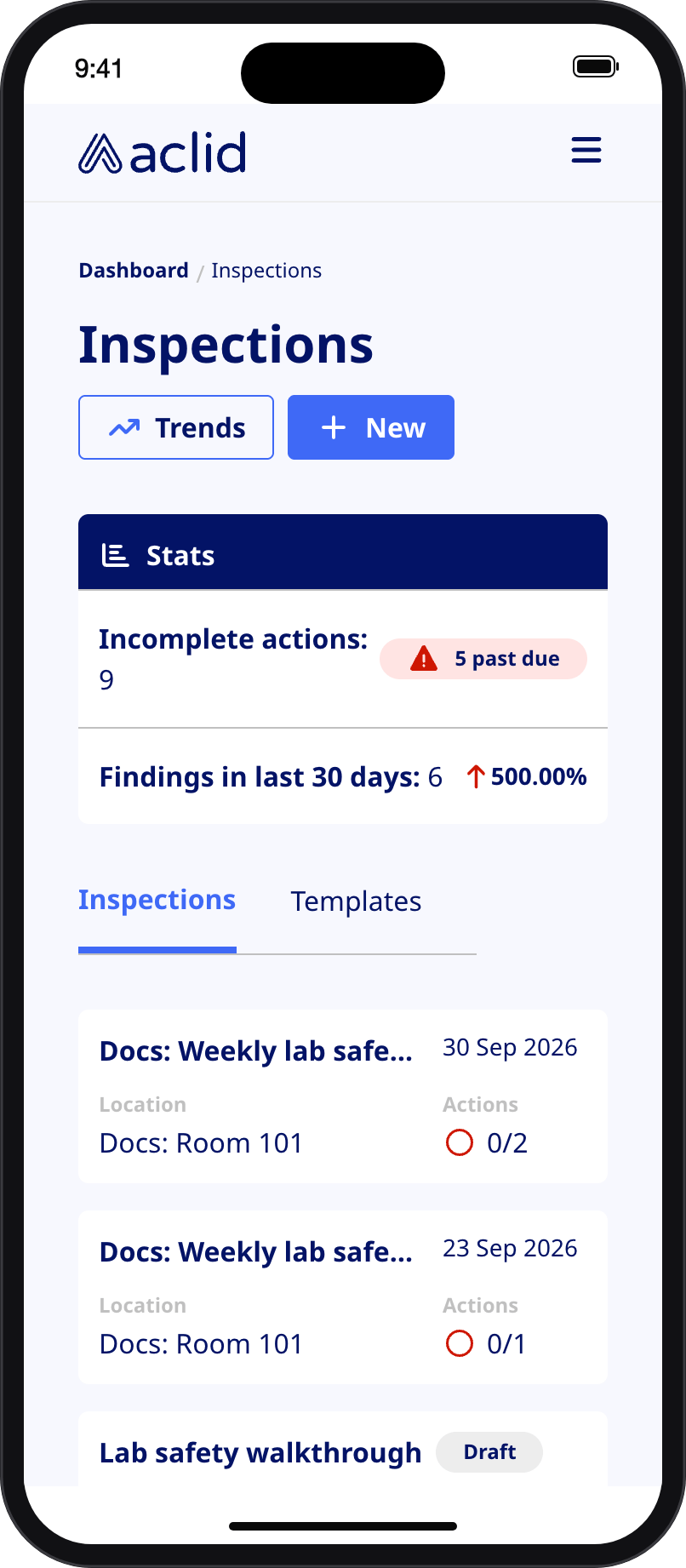
Inspections on a phone
Tips and limits
- Only the inspector who started a draft can open or finish it; other admins see Inspection being worked on when they click the row.
- A prompt answered No, out of compliance cannot be left without a finding: the sequential form requires the Description of finding, and a grid tile shows At least one finding required until one is added.
- Assignees are notified of their actions when the inspection is submitted, not while it is a draft.
- Photos are images only. The sequential form adds them per prompt with Add photo; the grid uses the Photos tab of the drawer.
- A completed inspection cannot be reopened or edited. Correct a mistake by conducting the inspection again, and edit or delete the actions on the result page.
- Some templates supplied with your account are locked: their page shows the prompts without Add prompt, edit or delete controls. Clone one to get an editable copy.
- Archived templates are hidden from the Templates tab and the template picker, and cannot be unarchived from the app.
- Grid and single-location templates are set up for you; the templates you create in the app are sequential and site-wide.
- Trends opens Reports on the Inspections tab, which charts findings by location and by template category.
Related
- Dashboard shows the actions raised from findings to their assignees.
- Calendar lists scheduled inspection events and lets you start one from the event.
- Reports charts findings over time, by location and by category.
- Roles and sites explains the admin and member roles.
- GraphQL reference: inspections
- GraphQL reference: createInspectionResult
- GraphQL reference: InspectionResult
- GraphQL reference: InspectionTemplate
- GraphQL reference: Finding