> ## Documentation Index
> Fetch the complete documentation index at: https://wiki.aclid.bio/llms.txt
> Use this file to discover all available pages before exploring further.
# Waste tracking
> Upload hazardous waste manifests, review what was read from each PDF, and watch your monthly generator limits.
Waste tracking keeps a record of every hazardous waste pickup from your organization. Each record is a **manifest**: the PDF your vendor handed you, plus the pickup date, the vendor and the waste streams (line items) read from it. You upload the PDF, the app reads the vendor, date and line items for you, and you confirm them before saving. The list then sums this month's shipments in pounds and compares them with the monthly Very Small Quantity Generator (VSQG) limits, so you can see how close you are before the next pickup.
## Who can do what
| Action | Admin | Member |
| - | - | - |
| See **Waste tracking** in the navigation | Yes, in organizations where the module is turned on | No |
| Browse manifests, search and filter by vendor | Yes | No |
| Upload a manifest and save what was read from it | Yes | No |
| Edit a manifest's vendor, pickup date and waste items | Yes | No |
| Open or download the manifest PDF | Yes | No |
## Open Waste tracking
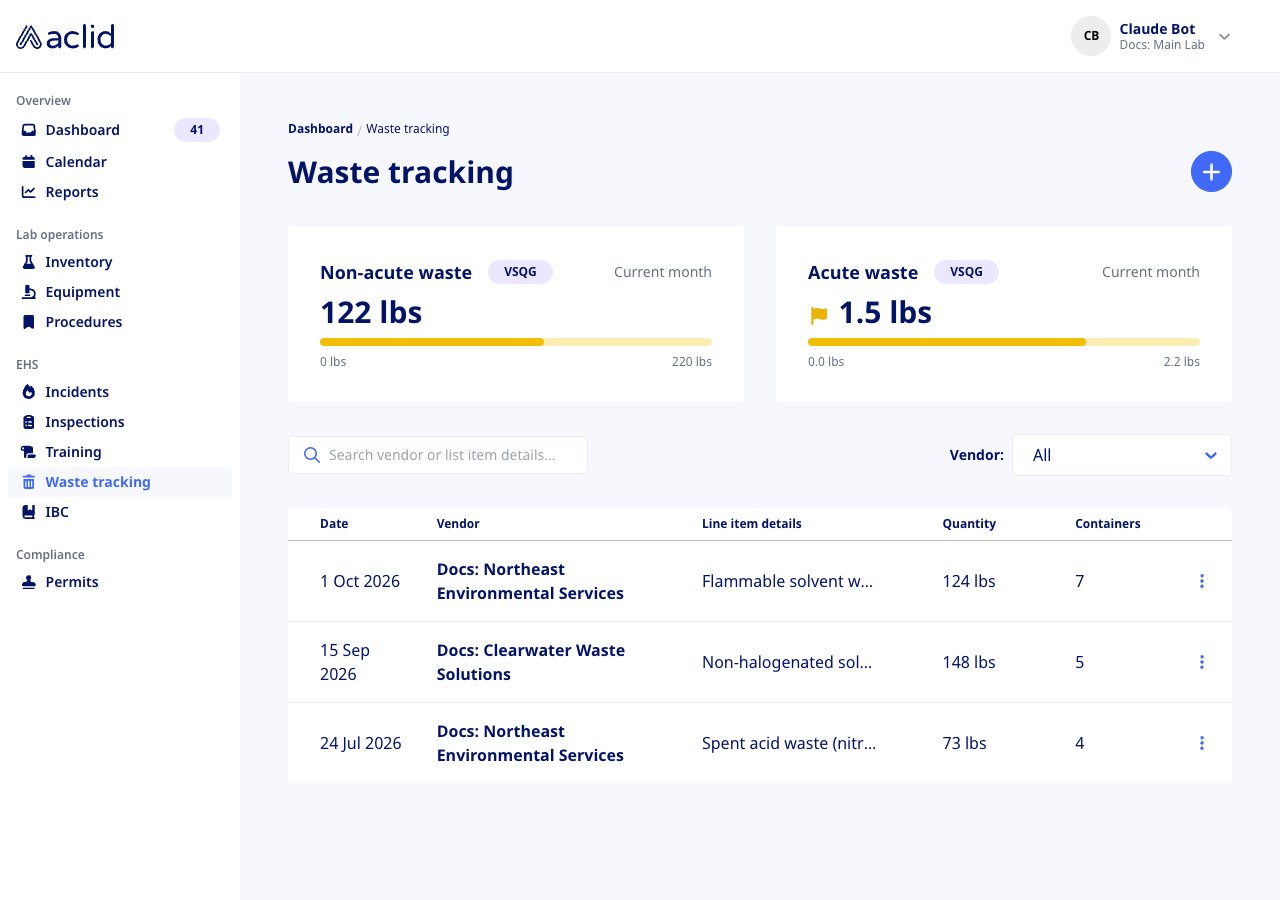
**Waste tracking** is in the **EHS** group of the left-hand navigation, at `/waste`. The page shows a **+** button next to the heading, the two limit tiles **Non-acute waste** and **Acute waste**, a search box, a **Vendor:** filter and the manifests table. An organization with no uploads yet sees **No waste records** with the hint *Manifests appear here once their tracking document PDFs have been uploaded*.
 ## Key concepts
* **Manifest**: one pickup, tied to one uploaded PDF. It has a **Pickup date**, a vendor and one or more waste items. Manifests are only created by uploading a PDF.
* **Vendor**: the facility the waste was shipped to, with its **US EPA ID**, **Address** and **Phone**. Vendors are shared across manifests: once added, a vendor can be picked from the list on the next upload, and the app tries to match the vendor printed on a new PDF to one you already have.
* **Waste item**: one line of the manifest. It has a **Description**, the number of containers (**No. containers**), a quantity (**Total wt/vol**) with a **Unit**, and its **RCRA waste codes (D, F, K, P, U)**.
* **Units**: the single-letter codes used on manifests. **G** (gal), **K** (kg), **L** (liter), **M** (tonne), **N** (m³), **P** (lbs), **T** (ton) and **Y** (yd³). The list and the tiles convert every quantity to pounds; volumes are converted as if they were water (1 kg per liter).
* **Waste codes**: EPA hazardous waste codes. Pick them from the list in the form; a code that is not on the list cannot be saved.
* **Acute** and **non-acute**: an item is acute if any of its codes is an acute hazardous waste code, which means every **P** code and **F020** to **F023**, **F026** and **F027**. Everything else is non-acute. The manifest page groups items under **Acute waste** and **Non-acute waste**.
* **VSQG limits**: the monthly thresholds a Very Small Quantity Generator must stay under: **220 lbs** (100 kg) of non-acute waste and **2.2 lbs** (1 kg) of acute waste. The tiles sum the items of manifests whose pickup date falls in the current calendar month.
## Tasks
### Upload a manifest
Admins only.
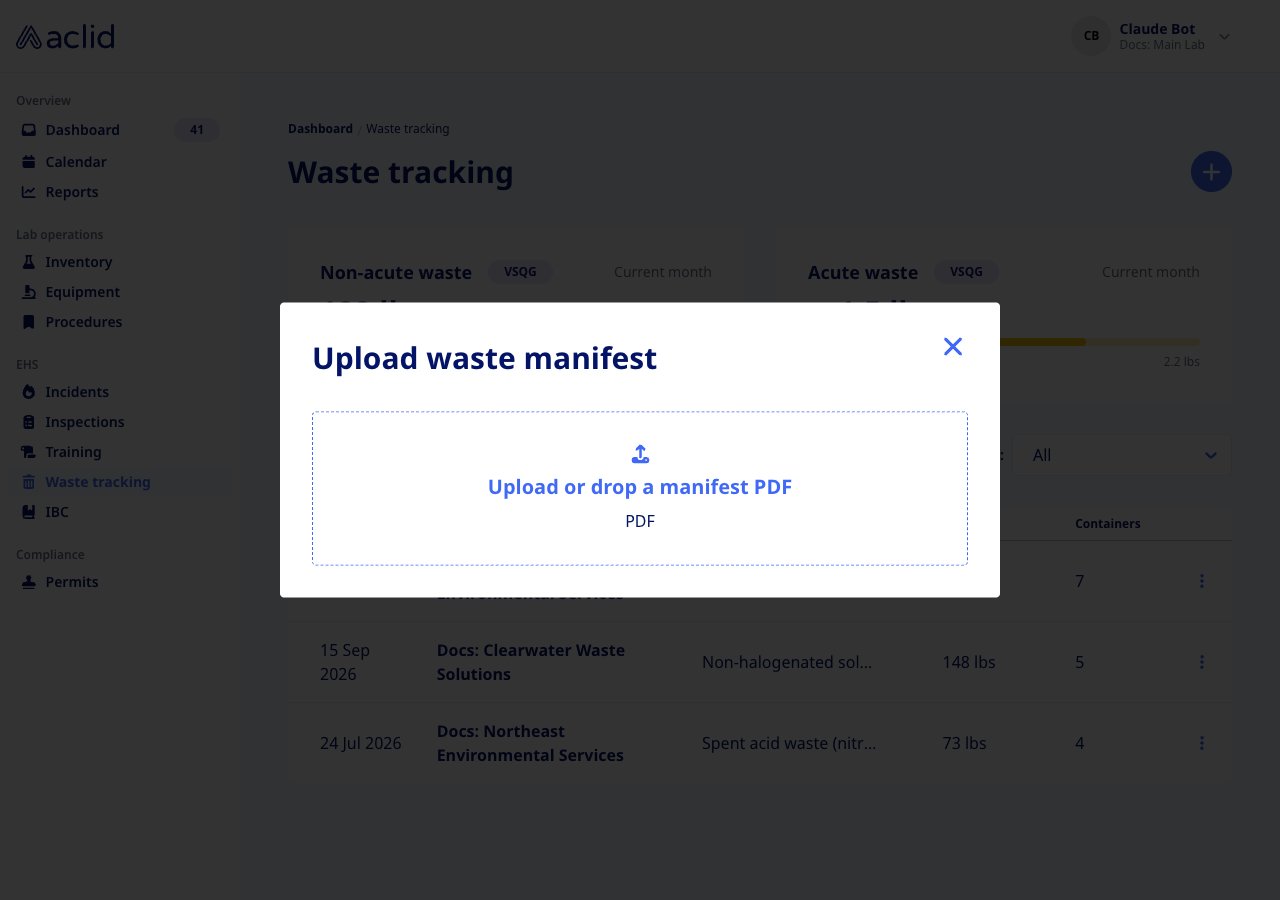
1. Click the **+** button next to the **Waste tracking** heading. The **Upload waste manifest** dialog opens.
2. Drop the vendor's PDF on **Upload or drop a manifest PDF**, or click it to pick a file. Only PDF files up to 25 MB are accepted.
3. Wait while the app reads the pages. The dialog shows *Reading the document and extracting waste data… this may take a few minutes*. If the PDF cannot be read, you see **This document could not be read automatically**; try the upload again with a clearer scan.
4. Review the form that appears beside the **Manifest preview** (use the zoom buttons to read the PDF). Under **Vendor**, confirm the **Vendor name** or pick another from **Select or add a vendor...**. If the vendor is new, type its name, choose **Add "…"** and fill in **US EPA ID**, **Address** and **Phone**. A **Verify the vendor** warning means no existing vendor matched the document.
5. Check the **Pickup date**. A **Verify the pickup date** warning means the date could not be read from the PDF or looks implausible, for example a date in the future.
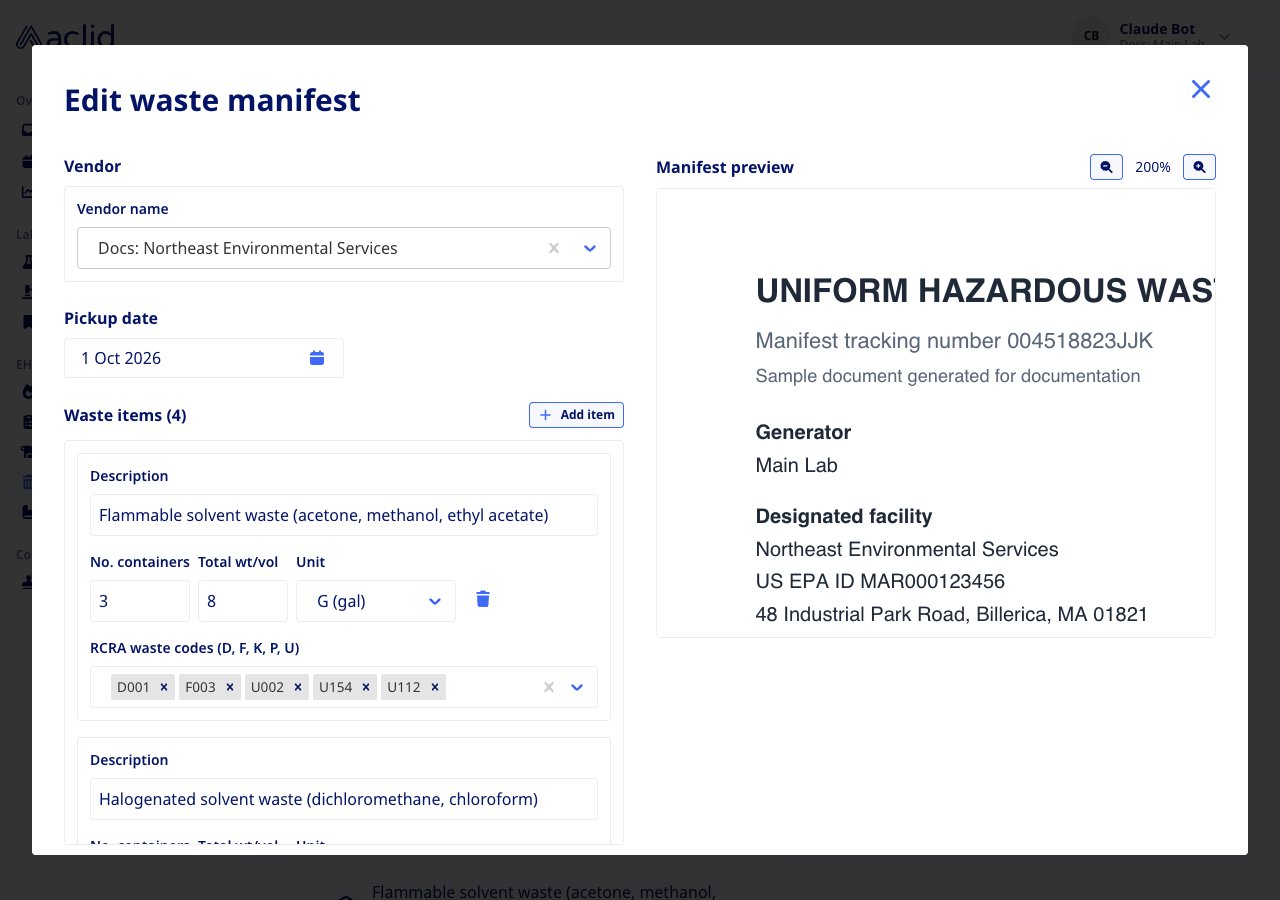
6. Under **Waste items** (the heading shows the item count), correct each item's **Description**, **No. containers**, **Total wt/vol**, **Unit** and **RCRA waste codes (D, F, K, P, U)**. Use **Add item** for lines the reader missed and the trash button to drop extra ones (the last remaining item cannot be removed). Every item needs a **Description**; the form shows **Required** and does not save until each one has it.
7. Click **Save manifest**. The dialog closes, the banner *Manifest has been uploaded* appears and the new row is added to the list.
## Key concepts
* **Manifest**: one pickup, tied to one uploaded PDF. It has a **Pickup date**, a vendor and one or more waste items. Manifests are only created by uploading a PDF.
* **Vendor**: the facility the waste was shipped to, with its **US EPA ID**, **Address** and **Phone**. Vendors are shared across manifests: once added, a vendor can be picked from the list on the next upload, and the app tries to match the vendor printed on a new PDF to one you already have.
* **Waste item**: one line of the manifest. It has a **Description**, the number of containers (**No. containers**), a quantity (**Total wt/vol**) with a **Unit**, and its **RCRA waste codes (D, F, K, P, U)**.
* **Units**: the single-letter codes used on manifests. **G** (gal), **K** (kg), **L** (liter), **M** (tonne), **N** (m³), **P** (lbs), **T** (ton) and **Y** (yd³). The list and the tiles convert every quantity to pounds; volumes are converted as if they were water (1 kg per liter).
* **Waste codes**: EPA hazardous waste codes. Pick them from the list in the form; a code that is not on the list cannot be saved.
* **Acute** and **non-acute**: an item is acute if any of its codes is an acute hazardous waste code, which means every **P** code and **F020** to **F023**, **F026** and **F027**. Everything else is non-acute. The manifest page groups items under **Acute waste** and **Non-acute waste**.
* **VSQG limits**: the monthly thresholds a Very Small Quantity Generator must stay under: **220 lbs** (100 kg) of non-acute waste and **2.2 lbs** (1 kg) of acute waste. The tiles sum the items of manifests whose pickup date falls in the current calendar month.
## Tasks
### Upload a manifest
Admins only.
1. Click the **+** button next to the **Waste tracking** heading. The **Upload waste manifest** dialog opens.
2. Drop the vendor's PDF on **Upload or drop a manifest PDF**, or click it to pick a file. Only PDF files up to 25 MB are accepted.
3. Wait while the app reads the pages. The dialog shows *Reading the document and extracting waste data… this may take a few minutes*. If the PDF cannot be read, you see **This document could not be read automatically**; try the upload again with a clearer scan.
4. Review the form that appears beside the **Manifest preview** (use the zoom buttons to read the PDF). Under **Vendor**, confirm the **Vendor name** or pick another from **Select or add a vendor...**. If the vendor is new, type its name, choose **Add "…"** and fill in **US EPA ID**, **Address** and **Phone**. A **Verify the vendor** warning means no existing vendor matched the document.
5. Check the **Pickup date**. A **Verify the pickup date** warning means the date could not be read from the PDF or looks implausible, for example a date in the future.
6. Under **Waste items** (the heading shows the item count), correct each item's **Description**, **No. containers**, **Total wt/vol**, **Unit** and **RCRA waste codes (D, F, K, P, U)**. Use **Add item** for lines the reader missed and the trash button to drop extra ones (the last remaining item cannot be removed). Every item needs a **Description**; the form shows **Required** and does not save until each one has it.
7. Click **Save manifest**. The dialog closes, the banner *Manifest has been uploaded* appears and the new row is added to the list.
 ### Find a manifest
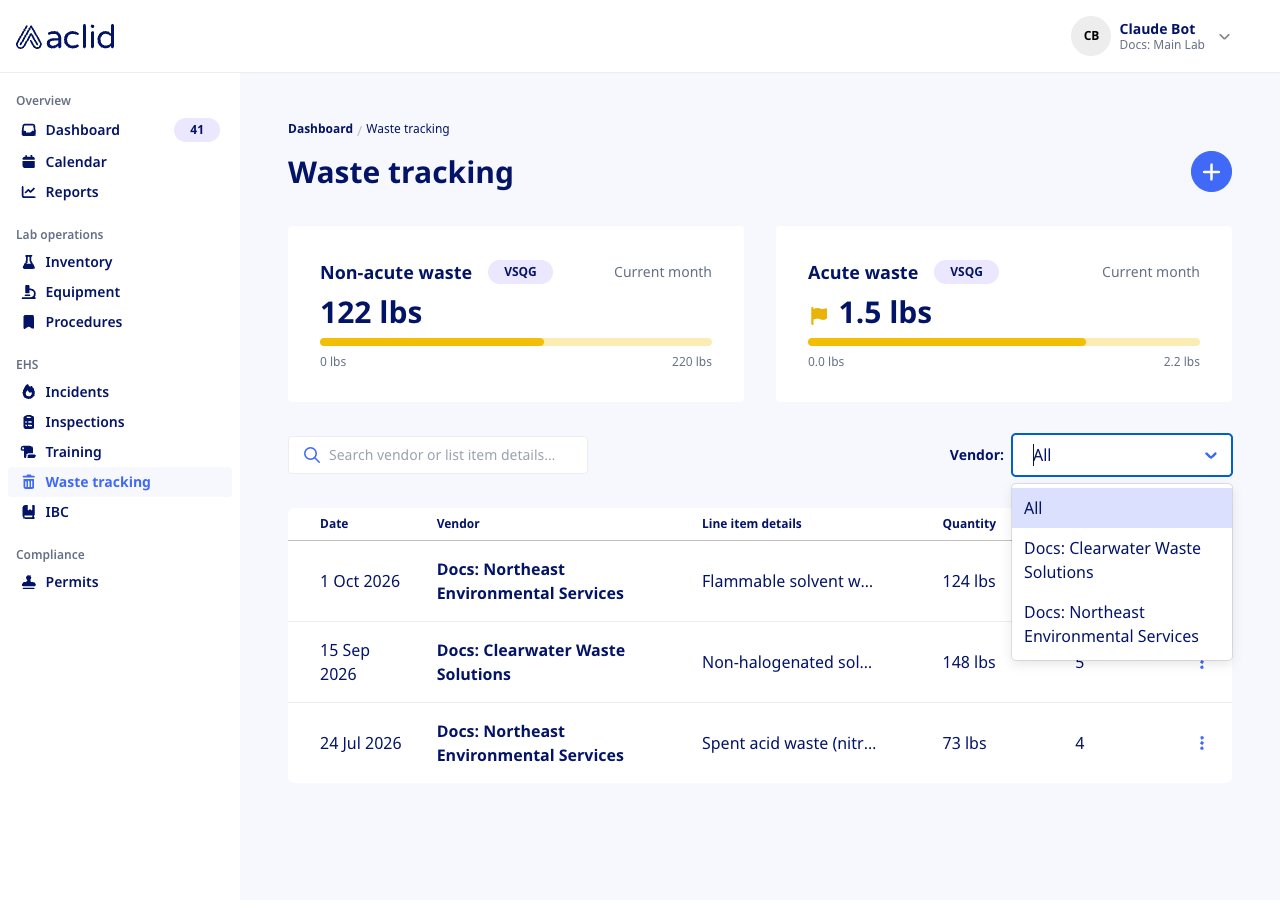
1. Type in **Search vendor or list item details…** to match vendor names, PDF file names and item descriptions. Results update as you type.
2. Use the **Vendor:** drop-down to show one vendor's pickups. It lists **All** plus every vendor that appears in the table.
3. If nothing matches, the table shows **No matches found** with a **Clear filters** button that resets both the search and the vendor.
### Find a manifest
1. Type in **Search vendor or list item details…** to match vendor names, PDF file names and item descriptions. Results update as you type.
2. Use the **Vendor:** drop-down to show one vendor's pickups. It lists **All** plus every vendor that appears in the table.
3. If nothing matches, the table shows **No matches found** with a **Clear filters** button that resets both the search and the vendor.
 ### Review a manifest
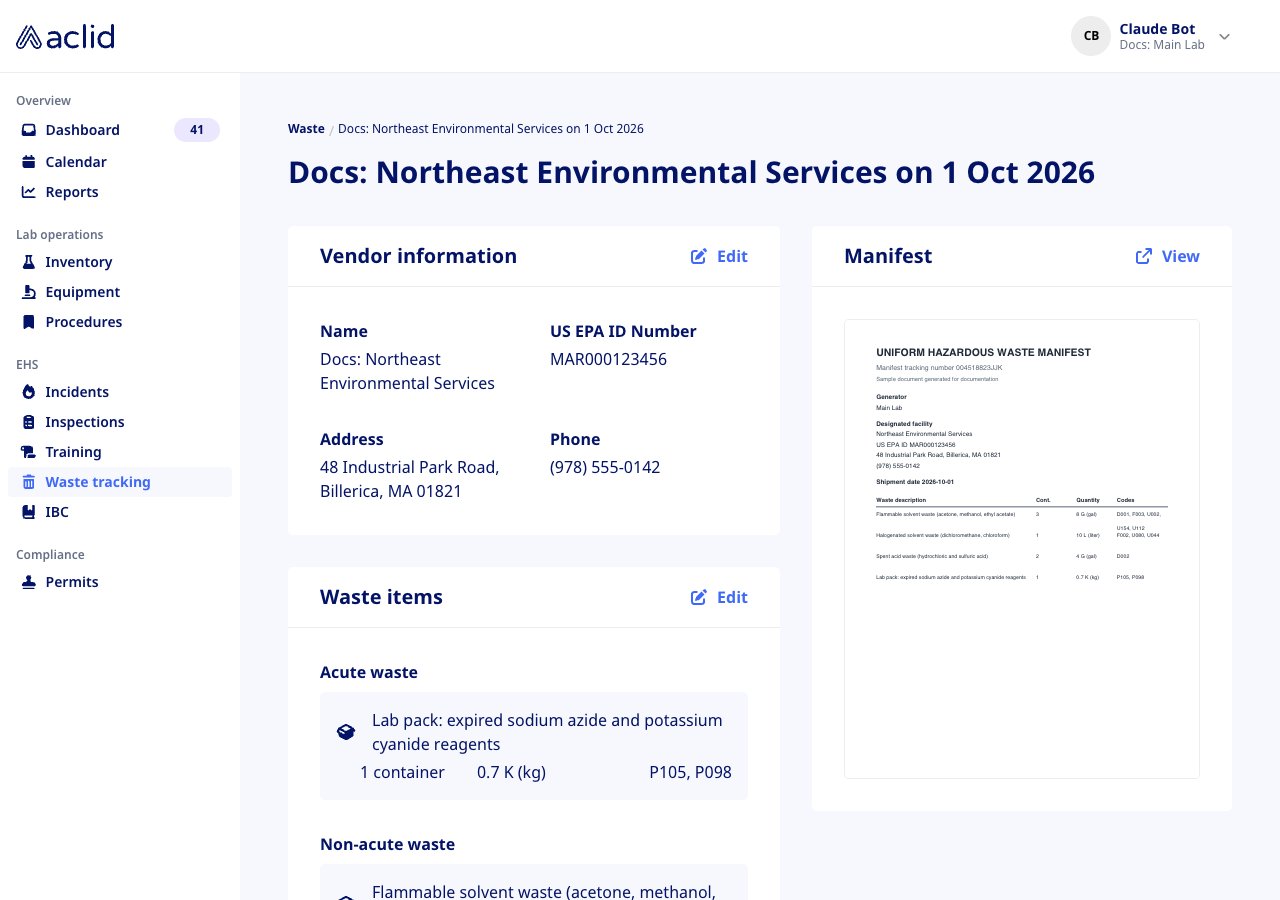
1. Click a row, or choose **Details** from its row menu (the three dots at the end of the row). The page is titled with the vendor name and pickup date.
2. **Vendor information** shows the **Name**, **US EPA ID Number**, **Address** and **Phone**.
3. **Waste items** lists each item with its containers, quantity, unit and codes, grouped under **Acute waste** and **Non-acute waste**.
4. The **Manifest** card previews the first page of the PDF. Click the preview or **View** to open the full document in a new tab. From the list, **View PDF** in the row menu does the same.
### Review a manifest
1. Click a row, or choose **Details** from its row menu (the three dots at the end of the row). The page is titled with the vendor name and pickup date.
2. **Vendor information** shows the **Name**, **US EPA ID Number**, **Address** and **Phone**.
3. **Waste items** lists each item with its containers, quantity, unit and codes, grouped under **Acute waste** and **Non-acute waste**.
4. The **Manifest** card previews the first page of the PDF. Click the preview or **View** to open the full document in a new tab. From the list, **View PDF** in the row menu does the same.
 ### Edit a manifest
Admins only.
1. On the manifest page, click **Edit** on the **Vendor information** or **Waste items** card. The **Edit waste manifest** dialog opens with the current values and the **Manifest preview**.
2. Change the vendor, the **Pickup date** or any waste item, exactly as when uploading. The items in the form replace all of the manifest's items when you save.
3. Click **Save changes**. The banner *Waste pickup data has been updated* confirms it. The PDF itself cannot be replaced; upload a new manifest instead.
### Edit a manifest
Admins only.
1. On the manifest page, click **Edit** on the **Vendor information** or **Waste items** card. The **Edit waste manifest** dialog opens with the current values and the **Manifest preview**.
2. Change the vendor, the **Pickup date** or any waste item, exactly as when uploading. The items in the form replace all of the manifest's items when you save.
3. Click **Save changes**. The banner *Waste pickup data has been updated* confirms it. The PDF itself cannot be replaced; upload a new manifest instead.
 ## Reading the list
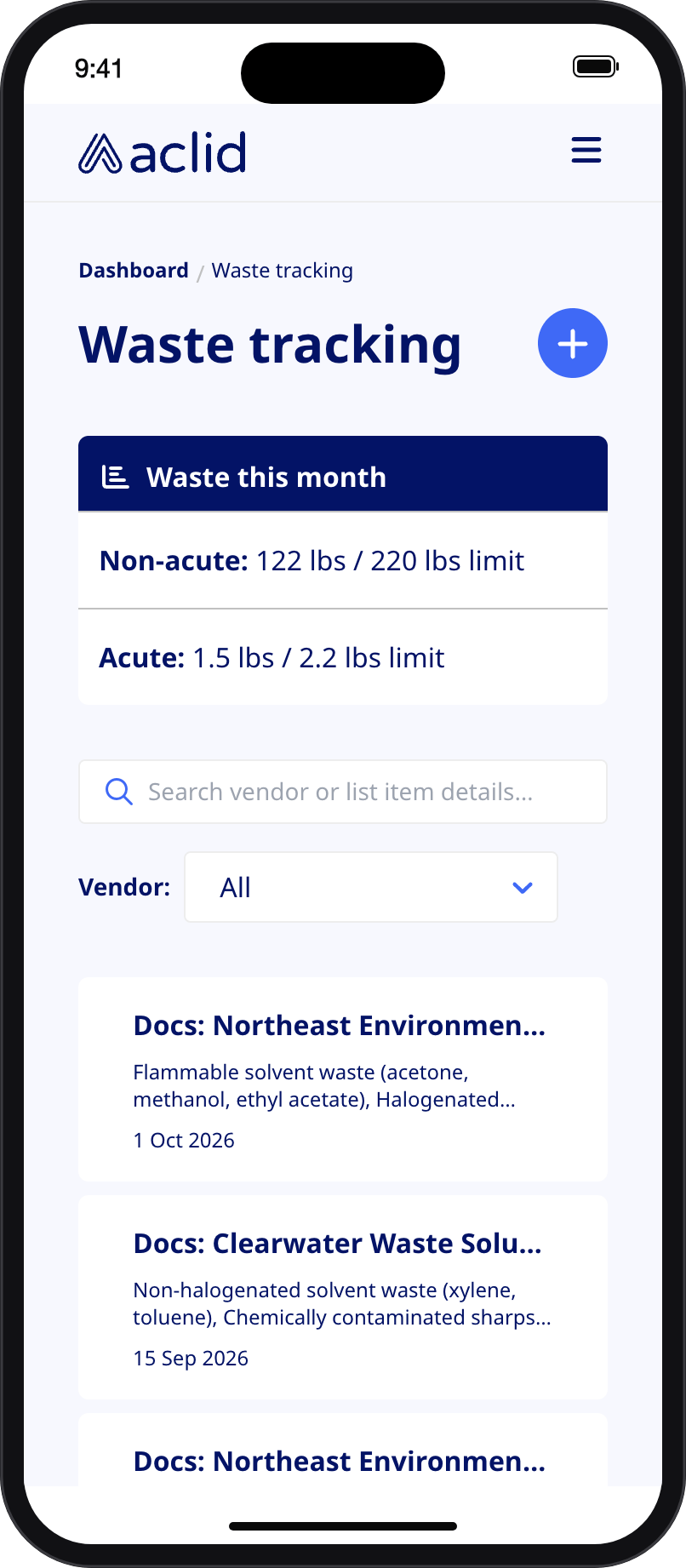
* **Non-acute waste** and **Acute waste** tiles: this month's total in pounds against the VSQG limit, with a progress bar from zero to the limit. At 60% of the limit a yellow flag appears next to the total; at 80% it becomes a red warning triangle. Hover either icon for the explanation. The **VSQG** badge and **Current month** label are reminders of what is being compared.
* On a phone the tiles are replaced by a **Waste this month** card with **Non-acute:** and **Acute:** totals against their limits. A red triangle appears there only once a limit is reached.
* **Date**: the pickup date.
* **Vendor**: the vendor's name. A red triangle with *Missing info* means the vendor could not be read; open the manifest and add it.
* **Line item details**: the item descriptions, comma-separated and truncated. Hover to read them all. *Missing info* appears when the manifest has no items.
* **Quantity**: the manifest's items converted to pounds and summed. **Containers**: the container counts summed. Either shows *Missing info* when none of the items carries that value.
* Rows are sorted by pickup date, newest first. The row menu offers **Details** and **View PDF**.
* On the manifest page, a red **Vendor details could not be read from the PDF. Review and enter manually.** or **Waste items could not be read from the PDF. Review and enter manually.** notice marks what the reader could not extract.
## Tips and limits
* Only PDFs can be uploaded, 25 MB at most, one per manifest. Images, scans saved as pictures and spreadsheets have to be converted first.
* Reading a PDF can take a few minutes for long or low-quality scans. Keep the dialog open; closing it discards the result.
* The tiles only count items that have both a quantity and a unit; items with a description but no quantity are listed but add nothing to the totals.
* The tiles follow the calendar month of the pickup date, not the day the manifest was uploaded. Backfilling last month's pickup does not change this month's total.
* Duplicate waste codes on an item are dropped. Only codes from the D, F, K, P and U lists are accepted.
* A vendor's details (**US EPA ID**, **Address**, **Phone**) are entered when the vendor is first added. Picking an existing vendor hides those fields.
* Manifests cannot be deleted from the app.
## Related
* [Incidents](/guides/incidents)
* [Uploads and files](/api/uploads)
* [Roles and sites](/api/roles-and-sites)
* [GraphQL reference: WasteManifest](/api/reference/types/WasteManifest)
* [GraphQL reference: wasteManifests](/api/reference/queries/wasteManifests)
* [GraphQL reference: parseWasteManifest](/api/reference/mutations/parseWasteManifest)
* [GraphQL reference: saveWasteManifest](/api/reference/mutations/saveWasteManifest)
This documentation is built and hosted on [Mintlify](https://mintlify.com), a developer documentation platform.
## Reading the list
* **Non-acute waste** and **Acute waste** tiles: this month's total in pounds against the VSQG limit, with a progress bar from zero to the limit. At 60% of the limit a yellow flag appears next to the total; at 80% it becomes a red warning triangle. Hover either icon for the explanation. The **VSQG** badge and **Current month** label are reminders of what is being compared.
* On a phone the tiles are replaced by a **Waste this month** card with **Non-acute:** and **Acute:** totals against their limits. A red triangle appears there only once a limit is reached.
* **Date**: the pickup date.
* **Vendor**: the vendor's name. A red triangle with *Missing info* means the vendor could not be read; open the manifest and add it.
* **Line item details**: the item descriptions, comma-separated and truncated. Hover to read them all. *Missing info* appears when the manifest has no items.
* **Quantity**: the manifest's items converted to pounds and summed. **Containers**: the container counts summed. Either shows *Missing info* when none of the items carries that value.
* Rows are sorted by pickup date, newest first. The row menu offers **Details** and **View PDF**.
* On the manifest page, a red **Vendor details could not be read from the PDF. Review and enter manually.** or **Waste items could not be read from the PDF. Review and enter manually.** notice marks what the reader could not extract.
## Tips and limits
* Only PDFs can be uploaded, 25 MB at most, one per manifest. Images, scans saved as pictures and spreadsheets have to be converted first.
* Reading a PDF can take a few minutes for long or low-quality scans. Keep the dialog open; closing it discards the result.
* The tiles only count items that have both a quantity and a unit; items with a description but no quantity are listed but add nothing to the totals.
* The tiles follow the calendar month of the pickup date, not the day the manifest was uploaded. Backfilling last month's pickup does not change this month's total.
* Duplicate waste codes on an item are dropped. Only codes from the D, F, K, P and U lists are accepted.
* A vendor's details (**US EPA ID**, **Address**, **Phone**) are entered when the vendor is first added. Picking an existing vendor hides those fields.
* Manifests cannot be deleted from the app.
## Related
* [Incidents](/guides/incidents)
* [Uploads and files](/api/uploads)
* [Roles and sites](/api/roles-and-sites)
* [GraphQL reference: WasteManifest](/api/reference/types/WasteManifest)
* [GraphQL reference: wasteManifests](/api/reference/queries/wasteManifests)
* [GraphQL reference: parseWasteManifest](/api/reference/mutations/parseWasteManifest)
* [GraphQL reference: saveWasteManifest](/api/reference/mutations/saveWasteManifest)
This documentation is built and hosted on [Mintlify](https://mintlify.com), a developer documentation platform.