> ## Documentation Index
> Fetch the complete documentation index at: https://wiki.aclid.bio/llms.txt
> Use this file to discover all available pages before exploring further.
# Procedures
> Write versioned lab protocols with materials, safety notes and steps, review them with comments, and publish policies with their documents.
The Procedures module holds your organization's written procedures in two forms. A **protocol** is a step-by-step method: an overview with quick tips, the materials it uses, its safety notes, the ordered steps and any attached files. Protocols are versioned: admins build a draft, publish it, and start a new draft when it needs to change, while anyone can leave review comments on a section or a step. A **policy** is a named document, typically a PDF, with a description and a named author. Both can be limited to particular sites in a multi-site organization.
## Who can do what
| Action | Admin | Member |
| - | - | - |
| See protocols and policies | Every version, drafts included | Published versions only |
| Create a protocol or policy | Yes | No |
| Edit a draft, start a **New draft**, **Publish** | Yes | No |
| Edit a policy's overview, author or document | Yes | No |
| Add and reply to comments | Yes | Yes |
| **Resolve** or **Reopen** a comment thread | The protocol's author | The protocol's author |
| Edit a comment | Its author | Its author |
| Delete a comment | Yes | Own comments only |
| Edit **Site access** | Yes, unless limited to a site | No |
## Open Procedures
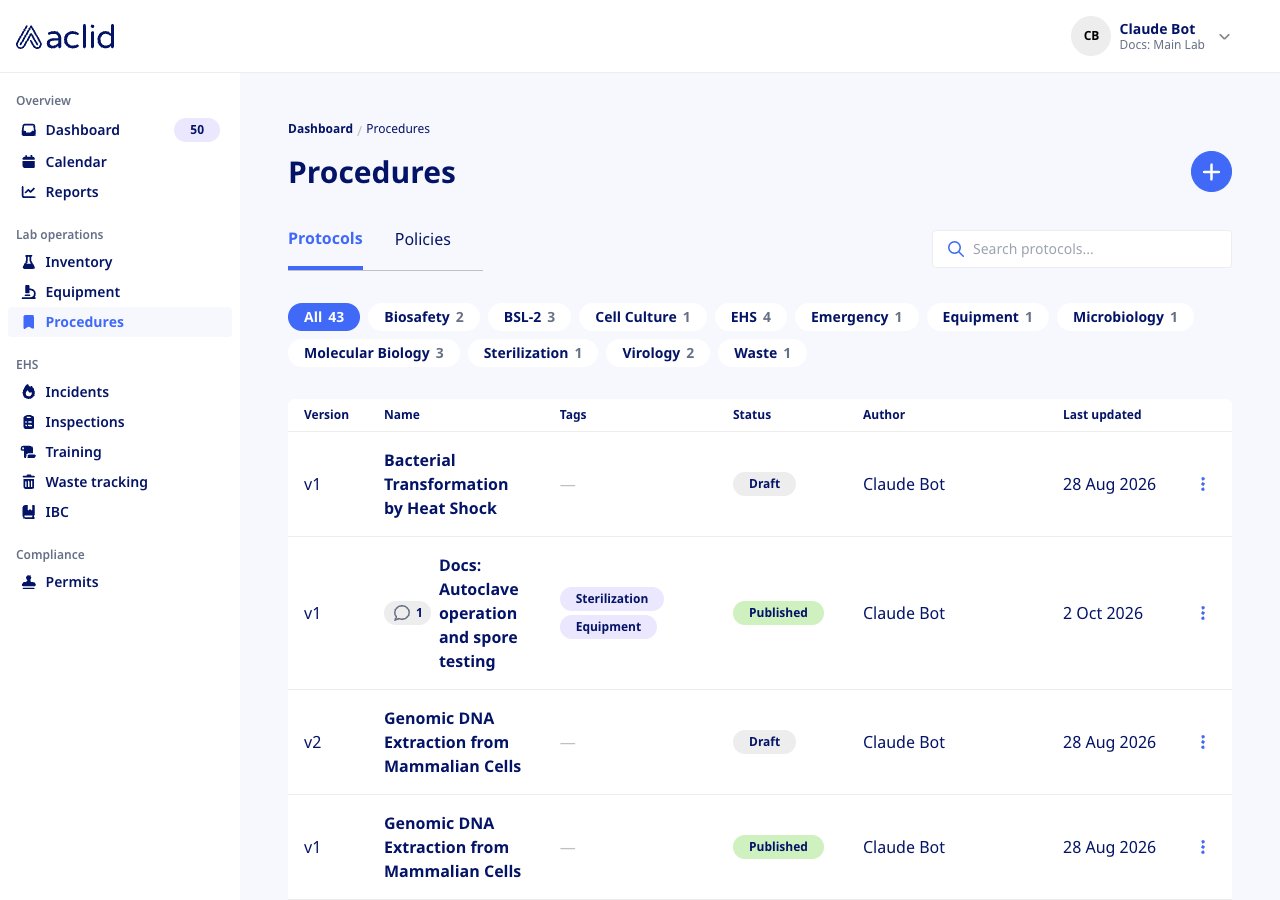
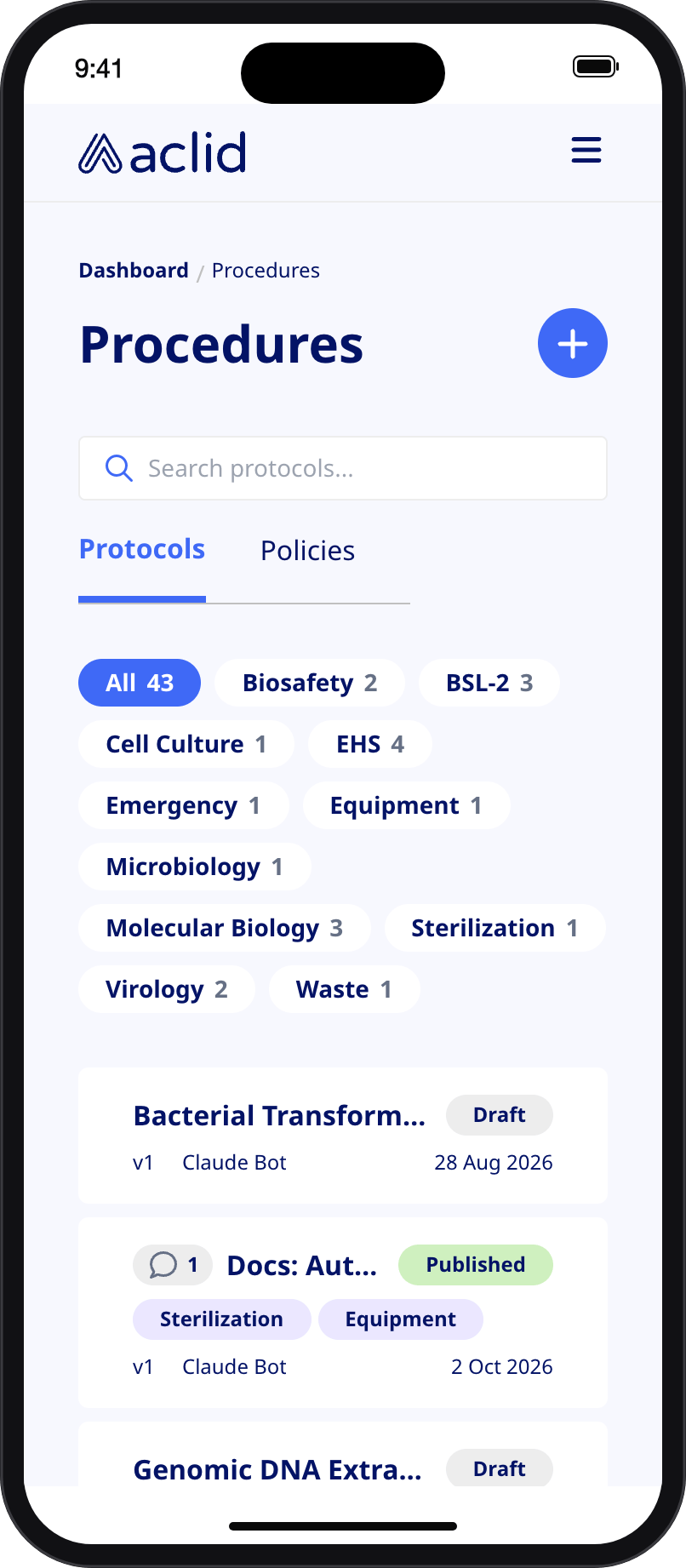
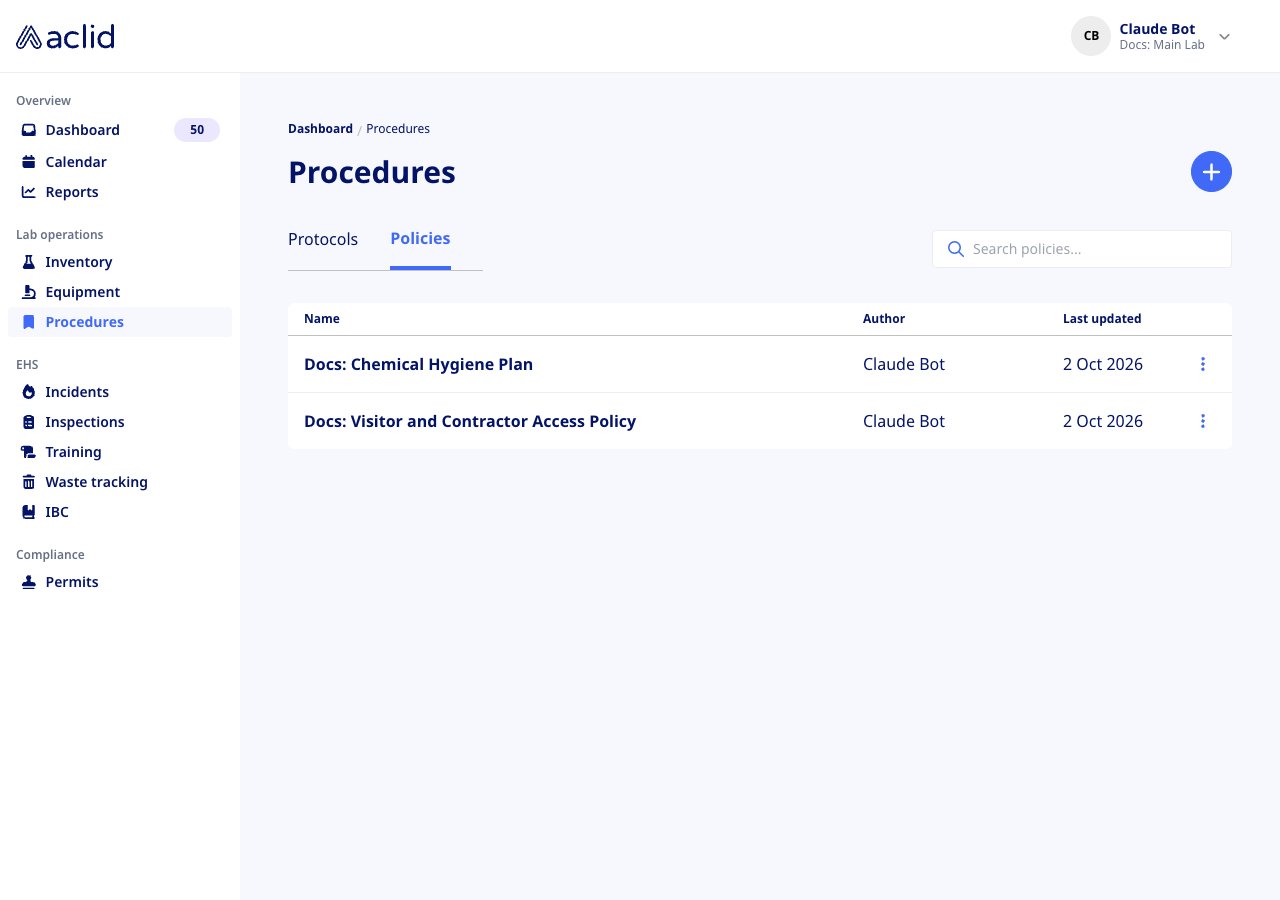
Procedures is in the **Lab operations** group of the left-hand navigation. The page opens on the **Protocols** tab, with a **Policies** tab beside it; the search box (**Search protocols...** or **Search policies...**) and the **+** button follow the active tab. Above the protocols table, one chip per tag filters the list. An organization with more than one site also gets a site selector (**All sites**) while the header is showing every site. With nothing to show yet, the tab reads **No protocols** or **No policies**.
 ## Key concepts
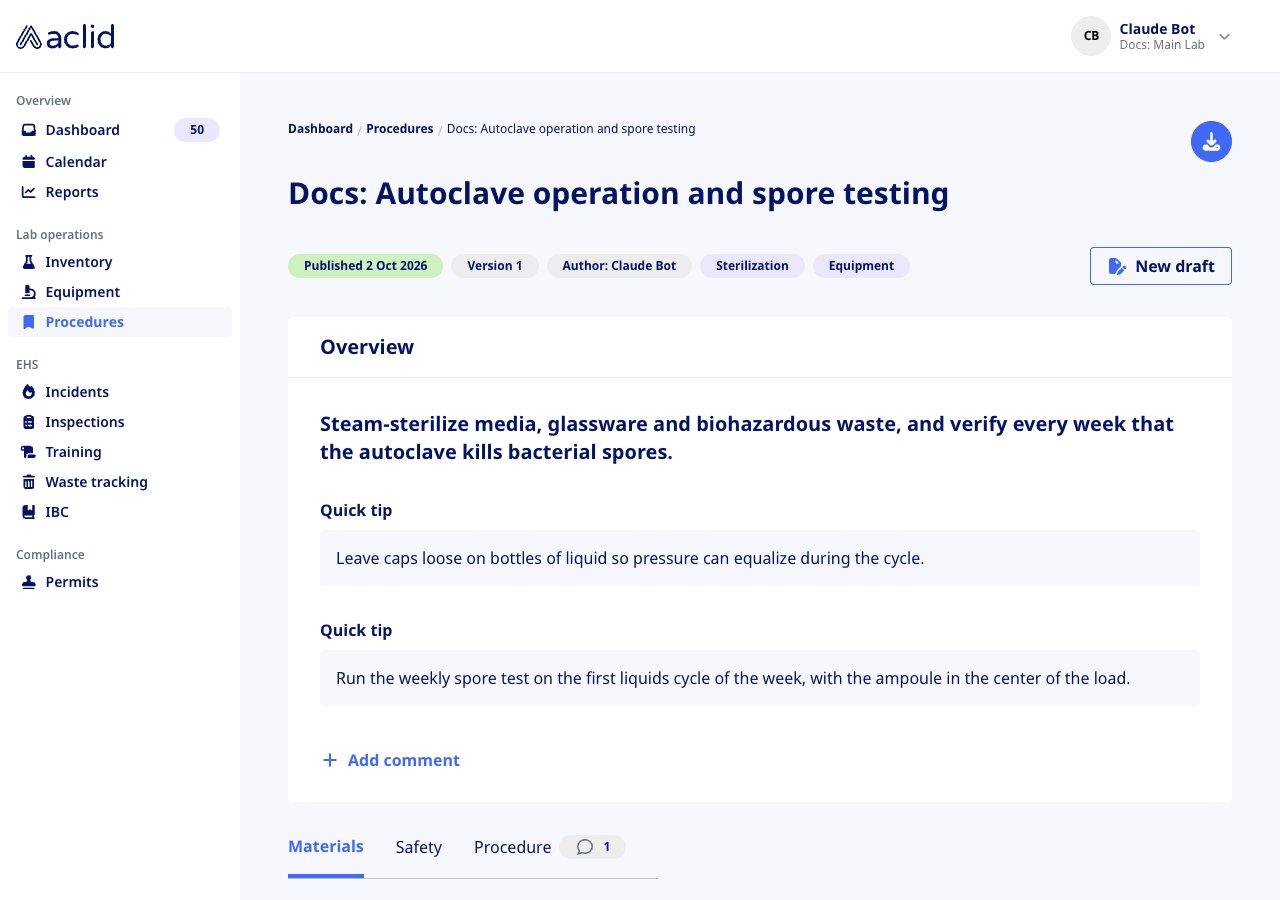
* **Version**: every protocol and policy carries a version number, starting at 1. A protocol's versions are listed in a picker on its page as **Version 1 (current)**, **Version 2 (draft)** and so on.
* **Draft**: the one editable version of a protocol. Only admins see it, and only one draft can exist at a time. Its page carries a *You're viewing a working draft* banner and the badge **Draft last updated** with the date.
* **Published**: a frozen version that everyone can read. The latest published version is the one the list opens; older ones show *Previous versions can't be edited*.
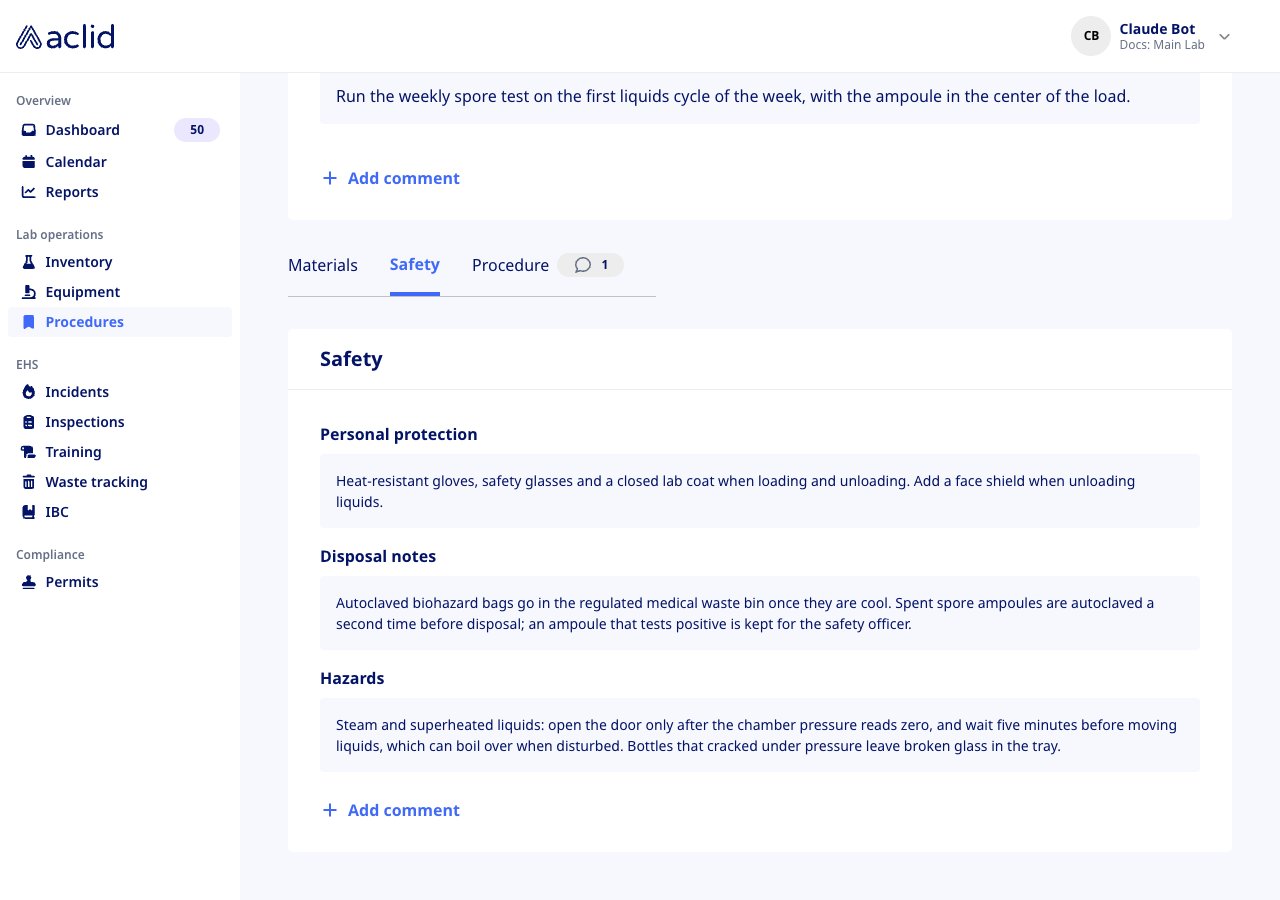
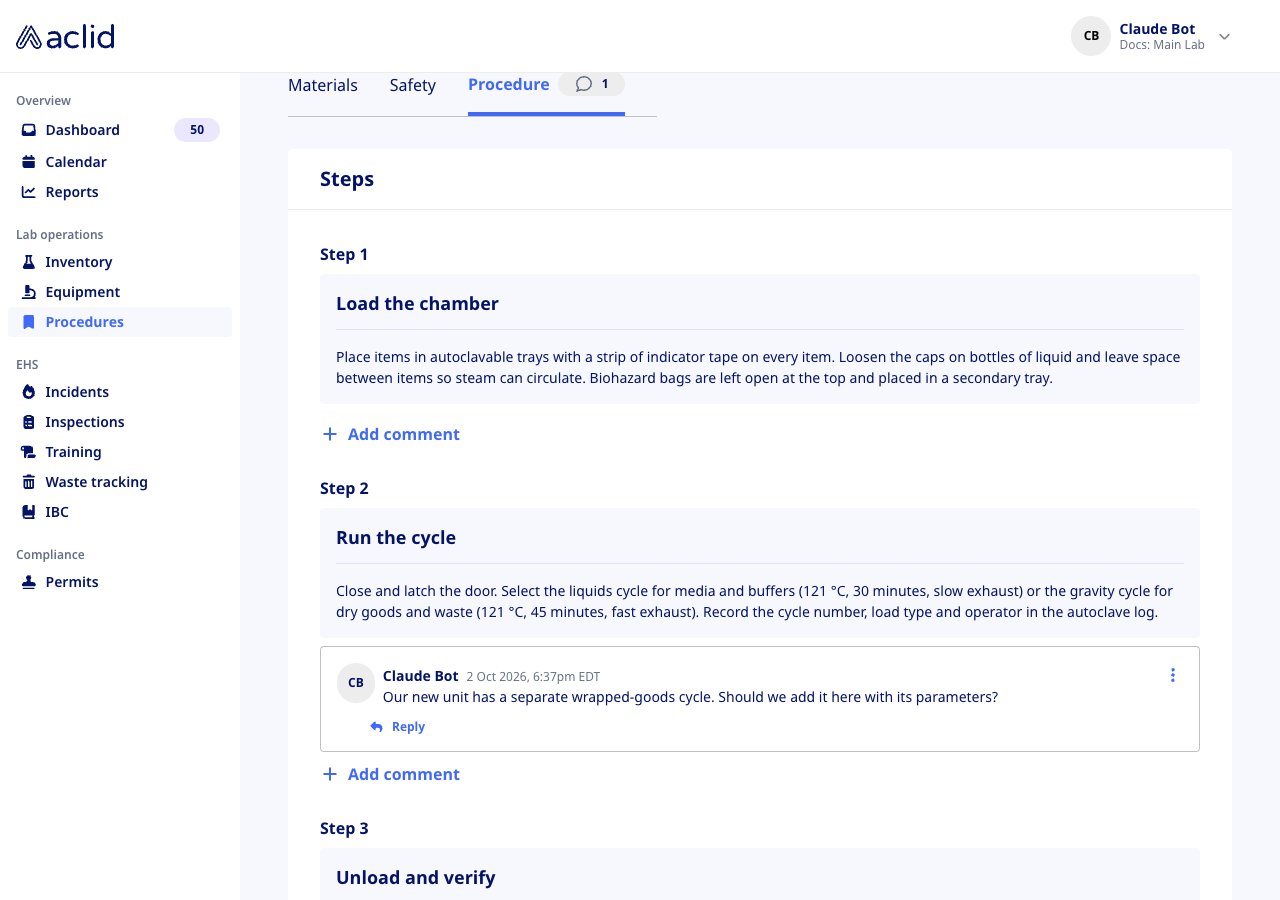
* **Overview**, **Materials**, **Safety**, **Procedure**: the four parts of a protocol. The overview is a description plus **Quick tip** boxes; materials come from a catalog shared by all protocols, each typed **Biological**, **Chemical**, **Consumable** or **Equipment**; safety holds **Personal protection**, **Disposal notes** and **Hazards**; the procedure is the ordered **Steps** (a **Title** and formatted **Details**) and the **Files** attached to the version.
* **Comments**: review threads on the Overview, Materials or Safety section or on one step. Open threads are counted in a speech-bubble badge on the list and on each tab; resolved threads are hidden until you click **Show resolved**.
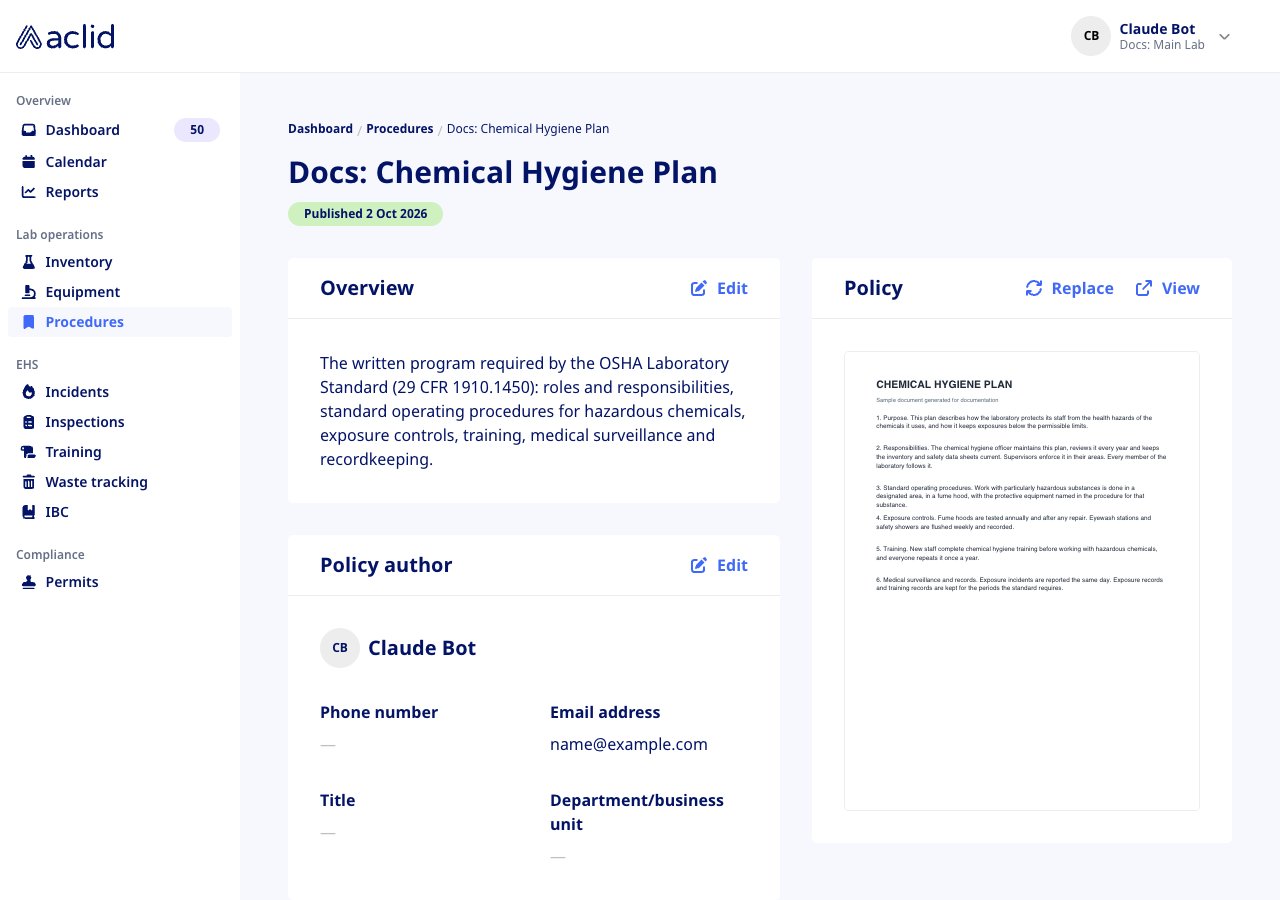
* **Policy**: a name, a description, a **Policy author** and one PDF in the **Policy** card. Its badge reads **Published** or, for a draft, **Updated** with the date.
* **Site access**: the sites a protocol or policy applies to. **All sites** means no restriction.
## Tasks
### Create a protocol
Admins only.
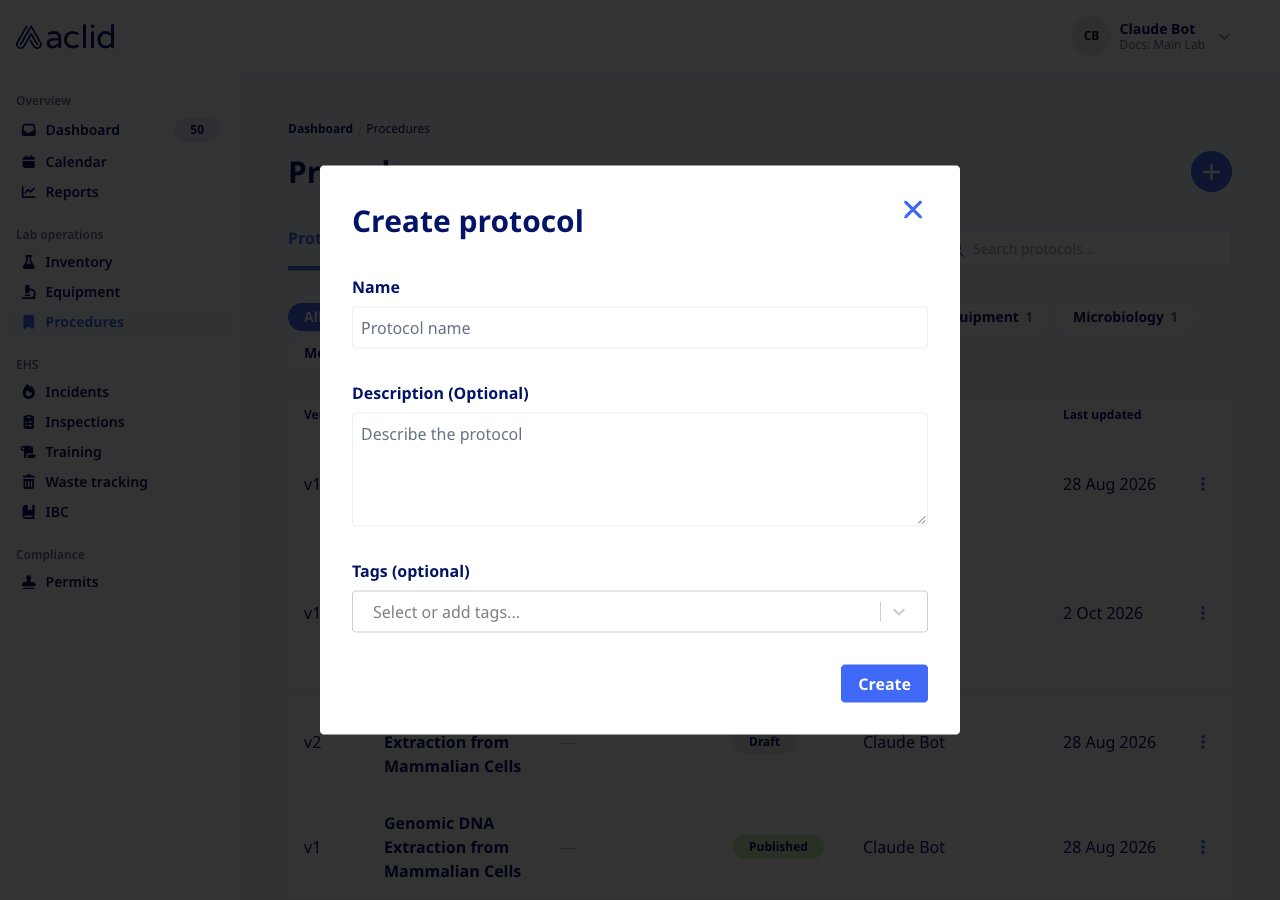
1. On the **Protocols** tab, click the **+** button. The **Create protocol** modal opens.
2. Enter a **Name**, and optionally a **Description (Optional)** and **Tags (optional)**. Type a new tag to add it to the organization's list.
3. In a multi-site organization, set **Site access**: one or more sites, or **All**.
4. Click **Create**. The new protocol opens as Version 1, a draft: the **Materials** and **Safety** tabs read **Not added**, and the **Procedure** tab offers **Add first step** or **Upload a file**.
## Key concepts
* **Version**: every protocol and policy carries a version number, starting at 1. A protocol's versions are listed in a picker on its page as **Version 1 (current)**, **Version 2 (draft)** and so on.
* **Draft**: the one editable version of a protocol. Only admins see it, and only one draft can exist at a time. Its page carries a *You're viewing a working draft* banner and the badge **Draft last updated** with the date.
* **Published**: a frozen version that everyone can read. The latest published version is the one the list opens; older ones show *Previous versions can't be edited*.
* **Overview**, **Materials**, **Safety**, **Procedure**: the four parts of a protocol. The overview is a description plus **Quick tip** boxes; materials come from a catalog shared by all protocols, each typed **Biological**, **Chemical**, **Consumable** or **Equipment**; safety holds **Personal protection**, **Disposal notes** and **Hazards**; the procedure is the ordered **Steps** (a **Title** and formatted **Details**) and the **Files** attached to the version.
* **Comments**: review threads on the Overview, Materials or Safety section or on one step. Open threads are counted in a speech-bubble badge on the list and on each tab; resolved threads are hidden until you click **Show resolved**.
* **Policy**: a name, a description, a **Policy author** and one PDF in the **Policy** card. Its badge reads **Published** or, for a draft, **Updated** with the date.
* **Site access**: the sites a protocol or policy applies to. **All sites** means no restriction.
## Tasks
### Create a protocol
Admins only.
1. On the **Protocols** tab, click the **+** button. The **Create protocol** modal opens.
2. Enter a **Name**, and optionally a **Description (Optional)** and **Tags (optional)**. Type a new tag to add it to the organization's list.
3. In a multi-site organization, set **Site access**: one or more sites, or **All**.
4. Click **Create**. The new protocol opens as Version 1, a draft: the **Materials** and **Safety** tabs read **Not added**, and the **Procedure** tab offers **Add first step** or **Upload a file**.
 ### Fill in the overview and materials
Admins only, on a draft.
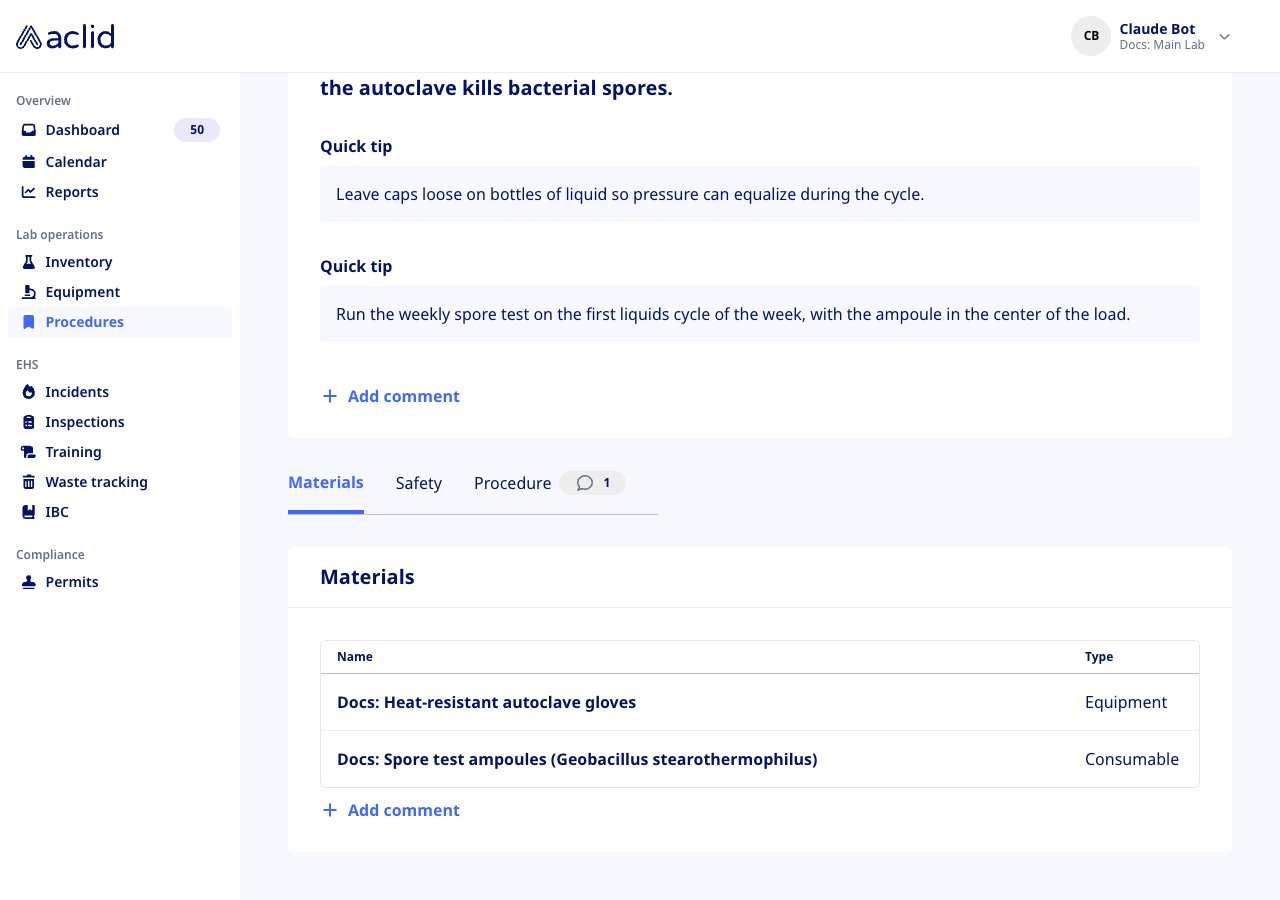
1. In the **Overview** card click **Edit** to change the description and, under **Quick tips**, click **Add tip** for each tip. **Update** at the top of the page changes the **Name**, **Author** and tags.
2. On the **Materials** tab click **Add material**. Pick an existing material from **Search or create a material...**, or type a new name and choose its **Type**.
3. The **Action** menu on a material row offers **Edit**, which renames the catalog entry everywhere it is used, and **Remove**, which takes it off this protocol only.
### Fill in the overview and materials
Admins only, on a draft.
1. In the **Overview** card click **Edit** to change the description and, under **Quick tips**, click **Add tip** for each tip. **Update** at the top of the page changes the **Name**, **Author** and tags.
2. On the **Materials** tab click **Add material**. Pick an existing material from **Search or create a material...**, or type a new name and choose its **Type**.
3. The **Action** menu on a material row offers **Edit**, which renames the catalog entry everywhere it is used, and **Remove**, which takes it off this protocol only.
 ### Write the safety notes
Admins only, on a draft.
1. On the **Safety** tab click **Edit**.
2. The **Edit safety** modal has **Personal protection**, **Disposal notes** and **Hazards**. Fill in the ones that apply and click **Save**; only the notes you fill in are shown, and a tab with none reads **Not added**.
### Write the safety notes
Admins only, on a draft.
1. On the **Safety** tab click **Edit**.
2. The **Edit safety** modal has **Personal protection**, **Disposal notes** and **Hazards**. Fill in the ones that apply and click **Save**; only the notes you fill in are shown, and a tab with none reads **Not added**.
 ### Add the steps and files
Admins only, on a draft.
1. On the **Procedure** tab, in the **Steps** card, click **Add step**. Give the **New step** a **Title** and the **Details**, which accept formatted text and pasted images, then click **Save**.
2. Each step has **Edit** and **Delete**. With more than one step, **Re-order steps** lets you drag them by the handle; click **Done** to keep the new order.
3. In the **Files** card click **Upload file**, optionally set a **File name (optional)**, and drop a PDF, Word document, video or spreadsheet. PDFs, Word documents and videos open inline when you click the file; every file has a download icon, and on a draft a bin icon removes it.
### Add the steps and files
Admins only, on a draft.
1. On the **Procedure** tab, in the **Steps** card, click **Add step**. Give the **New step** a **Title** and the **Details**, which accept formatted text and pasted images, then click **Save**.
2. Each step has **Edit** and **Delete**. With more than one step, **Re-order steps** lets you drag them by the handle; click **Done** to keep the new order.
3. In the **Files** card click **Upload file**, optionally set a **File name (optional)**, and drop a PDF, Word document, video or spreadsheet. PDFs, Word documents and videos open inline when you click the file; every file has a download icon, and on a draft a bin icon removes it.
 ### Publish, and start the next version
Admins only.
1. On the draft click **Publish**. A banner confirms *Version N of this protocol has been published*, the badge turns to **Published** with the date, and members can now open it.
2. To change a published protocol click **New draft**. The draft copies the current version and opens with the working-draft banner; while it exists, the published page shows **Edit vN draft** instead.
3. Use the version picker to read an earlier version. The download icon on a published version prints it.
### Publish, and start the next version
Admins only.
1. On the draft click **Publish**. A banner confirms *Version N of this protocol has been published*, the badge turns to **Published** with the date, and members can now open it.
2. To change a published protocol click **New draft**. The draft copies the current version and opens with the working-draft banner; while it exists, the published page shows **Edit vN draft** instead.
3. Use the version picker to read an earlier version. The download icon on a published version prints it.
 ### Comment on a protocol and resolve the thread
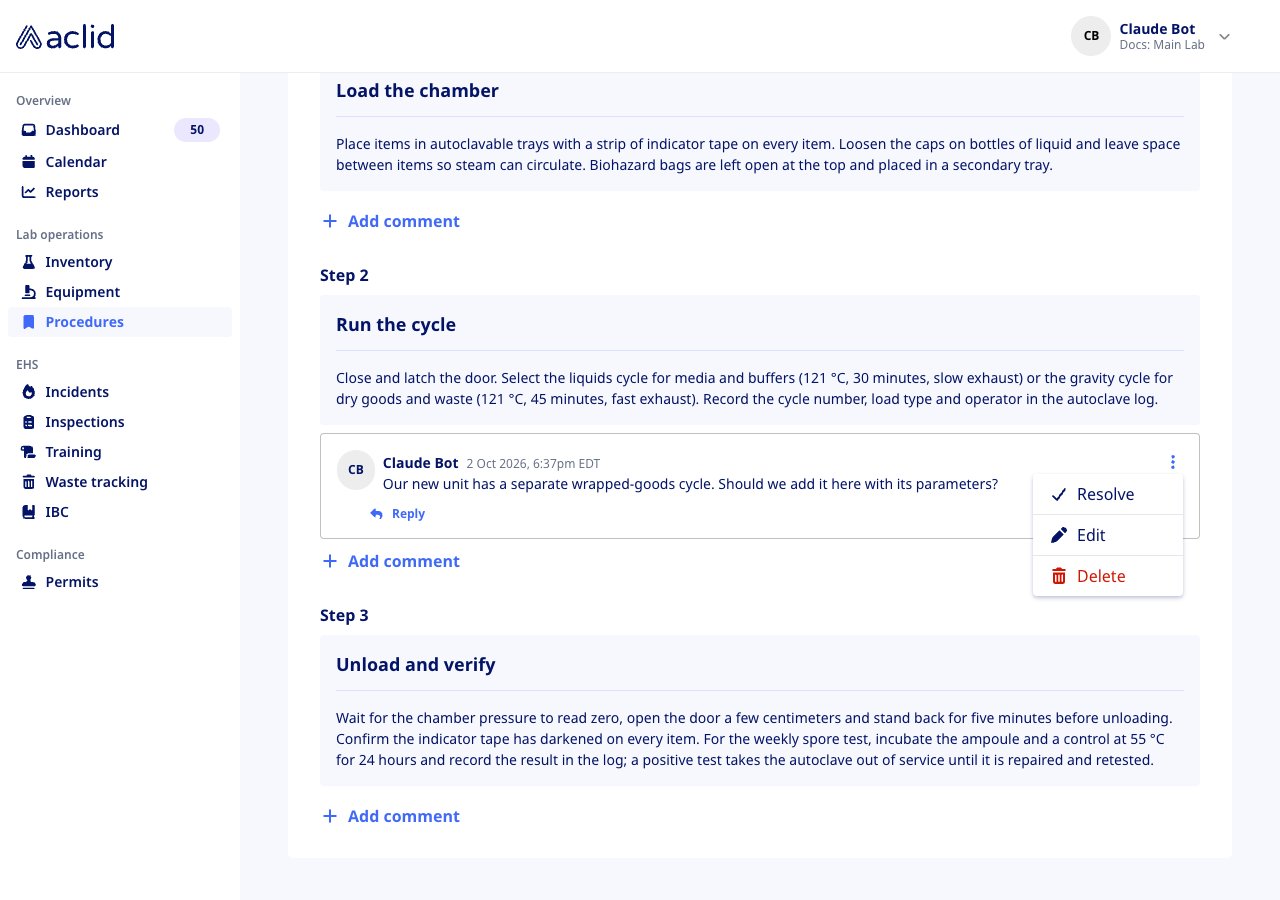
1. Click **Add comment** under the Overview, Materials or Safety card, or under a step, write the note and click **Comment**. Anyone can comment on the versions they can see.
2. **Reply** continues the thread. The menu on a comment offers **Edit** to its author and **Delete** to its author or any admin; deleting asks *Delete this comment?* and removes the replies too.
3. The protocol's author sees **Resolve** on the first comment of a thread. A resolved thread shows a **Resolved** mark, drops out of the counts and is hidden behind **Show resolved (n)**; **Reopen** brings it back.
### Comment on a protocol and resolve the thread
1. Click **Add comment** under the Overview, Materials or Safety card, or under a step, write the note and click **Comment**. Anyone can comment on the versions they can see.
2. **Reply** continues the thread. The menu on a comment offers **Edit** to its author and **Delete** to its author or any admin; deleting asks *Delete this comment?* and removes the replies too.
3. The protocol's author sees **Resolve** on the first comment of a thread. A resolved thread shows a **Resolved** mark, drops out of the counts and is hidden behind **Show resolved (n)**; **Reopen** brings it back.
 ### Create a policy and attach its document
Admins only.
1. Switch to the **Policies** tab and click **+**. In **Create policy** enter a **Name**, optionally a **Description (optional)** and, in a multi-site organization, **Site access**, then click **Create**.
2. On the policy page click **Upload** in the **Policy** card and drop the PDF (**Upload or drop PDF**). **Replace** swaps it later and **View** opens it in a new tab.
3. **Edit** on the **Overview** card changes the name and description; **Edit** on **Policy author** picks a member whose phone, email, title and department are then shown.
### Create a policy and attach its document
Admins only.
1. Switch to the **Policies** tab and click **+**. In **Create policy** enter a **Name**, optionally a **Description (optional)** and, in a multi-site organization, **Site access**, then click **Create**.
2. On the policy page click **Upload** in the **Policy** card and drop the PDF (**Upload or drop PDF**). **Replace** swaps it later and **View** opens it in a new tab.
3. **Edit** on the **Overview** card changes the name and description; **Edit** on **Policy author** picks a member whose phone, email, title and department are then shown.
 ### Limit a protocol or policy to certain sites
Admins only, and only admins who are not themselves limited to a site.
1. In a multi-site organization the page shows a **Site access** card listing the sites, or **All sites**.
2. Click **Edit**, choose the sites in **Edit site access** and click **Save**. Leaving the selection empty makes it available at every site. The restriction belongs to the protocol, not to one version.
## Reading the list
* **Version**: the version each row is, as **v1**, **v2**. Each protocol appears once for its latest published version and, for admins while one exists, once more for its draft; earlier published versions are reached from the version picker on the protocol's page.
* A speech-bubble badge before the **Name** counts the open comment threads on that version.
* **Tags**: the protocol's tags; the chips above the table filter by them and show how many protocols carry each.
* **Site**: shown while every site is in view. **All** means unrestricted; several sites read as **2 sites**.
* **Status**, **Author**, **Last updated**: **Published** (green) or **Draft** (grey), the credited author, and when the version last changed. The row menu offers **Details**.
* The **Policies** tab lists **Name**, **Site**, **Author** and **Last updated**; it has no status column, and members simply do not see drafts.
### Limit a protocol or policy to certain sites
Admins only, and only admins who are not themselves limited to a site.
1. In a multi-site organization the page shows a **Site access** card listing the sites, or **All sites**.
2. Click **Edit**, choose the sites in **Edit site access** and click **Save**. Leaving the selection empty makes it available at every site. The restriction belongs to the protocol, not to one version.
## Reading the list
* **Version**: the version each row is, as **v1**, **v2**. Each protocol appears once for its latest published version and, for admins while one exists, once more for its draft; earlier published versions are reached from the version picker on the protocol's page.
* A speech-bubble badge before the **Name** counts the open comment threads on that version.
* **Tags**: the protocol's tags; the chips above the table filter by them and show how many protocols carry each.
* **Site**: shown while every site is in view. **All** means unrestricted; several sites read as **2 sites**.
* **Status**, **Author**, **Last updated**: **Published** (green) or **Draft** (grey), the credited author, and when the version last changed. The row menu offers **Details**.
* The **Policies** tab lists **Name**, **Site**, **Author** and **Last updated**; it has no status column, and members simply do not see drafts.
 ## Tips and limits
* Search matches the name or description and runs separately for each tab; **Clear search** restores the list.
* Members only ever see published versions, in the list and by direct link. A protocol with no published version is invisible to them.
* Comments belong to one version. Publishing a draft or starting a new one does not carry threads across, and replies cannot be replied to.
* Protocol files and policy documents are limited to 25 MB. Protocol files can be PDF, Word (.docx), video (.mp4, .webm, .mov) or spreadsheet (.xlsx, .csv, .numbers); policies take PDF only.
* Policies have no **Publish** control in the app. A policy created here stays a draft, visible to admins only, until it is published for you.
## Related
* [Permits](/guides/permits)
* [Roles and sites](/api/roles-and-sites)
* [Uploads](/api/uploads)
* [GraphQL reference: Protocol](/api/reference/types/Protocol)
* [GraphQL reference: publishProtocol](/api/reference/mutations/publishProtocol)
This documentation is built and hosted on [Mintlify](https://mintlify.com), a developer documentation platform.
## Tips and limits
* Search matches the name or description and runs separately for each tab; **Clear search** restores the list.
* Members only ever see published versions, in the list and by direct link. A protocol with no published version is invisible to them.
* Comments belong to one version. Publishing a draft or starting a new one does not carry threads across, and replies cannot be replied to.
* Protocol files and policy documents are limited to 25 MB. Protocol files can be PDF, Word (.docx), video (.mp4, .webm, .mov) or spreadsheet (.xlsx, .csv, .numbers); policies take PDF only.
* Policies have no **Publish** control in the app. A policy created here stays a draft, visible to admins only, until it is published for you.
## Related
* [Permits](/guides/permits)
* [Roles and sites](/api/roles-and-sites)
* [Uploads](/api/uploads)
* [GraphQL reference: Protocol](/api/reference/types/Protocol)
* [GraphQL reference: publishProtocol](/api/reference/mutations/publishProtocol)
This documentation is built and hosted on [Mintlify](https://mintlify.com), a developer documentation platform.