> ## Documentation Index
> Fetch the complete documentation index at: https://wiki.aclid.bio/llms.txt
> Use this file to discover all available pages before exploring further.
# Permits
> Track the permits and licences your organization holds: application status, key dates, agency contacts, requirements and the tasks that get each renewal done. Admins only.
Permits keeps one card per permit or licence your organization holds, such as a fire safety permit or a lab registration. Each card is a **permit cycle**: the permit as it renews year after year, with the permit record currently in force on top. From a permit's detail page you record where the application stands, its key dates, the agency that issues it and who to talk to there, and the requirements and conditions the permit imposes, with the protocols, policies and documents that show each one is met. Every permit also carries tasks that appear in the **Actions** list on the Dashboard, so renewals do not slip.
## Who can do what
| Action | Admin | Member |
| - | - | - |
| See the Permits module in the navigation | Yes | No |
| View the permit list and detail pages | Yes | No |
| Create a permit | Yes | No |
| Update status, key dates, issuing agency and contacts | Yes | No |
| Add requirements, link protocols and policies, upload documents | Yes | No |
| Mark a permit's tasks as done | Yes | Only tasks assigned to them, from the Dashboard |
| Edit or delete a permit's tasks | Yes | No |
Members who open a permit page directly see an access-restricted message.
## Open Permits
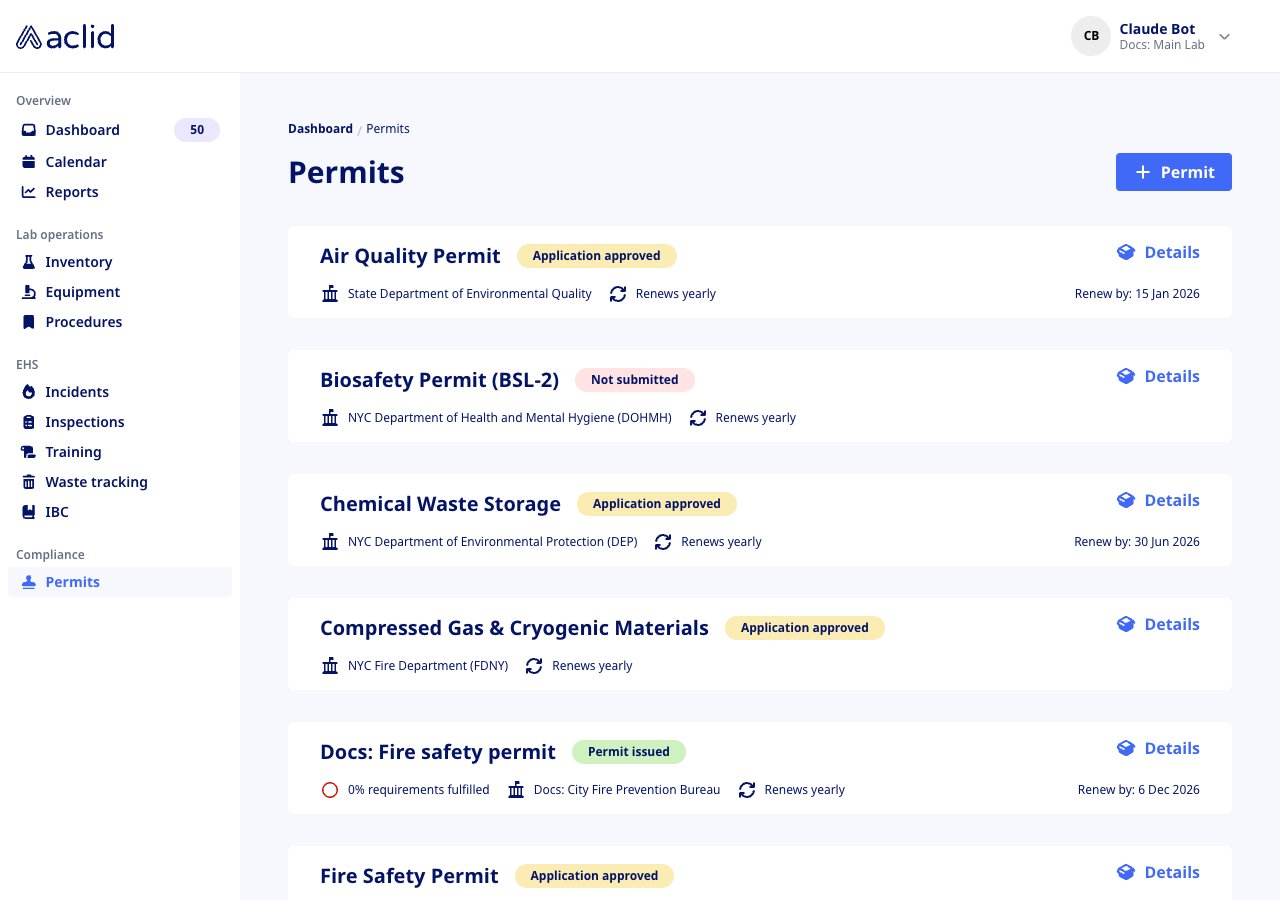
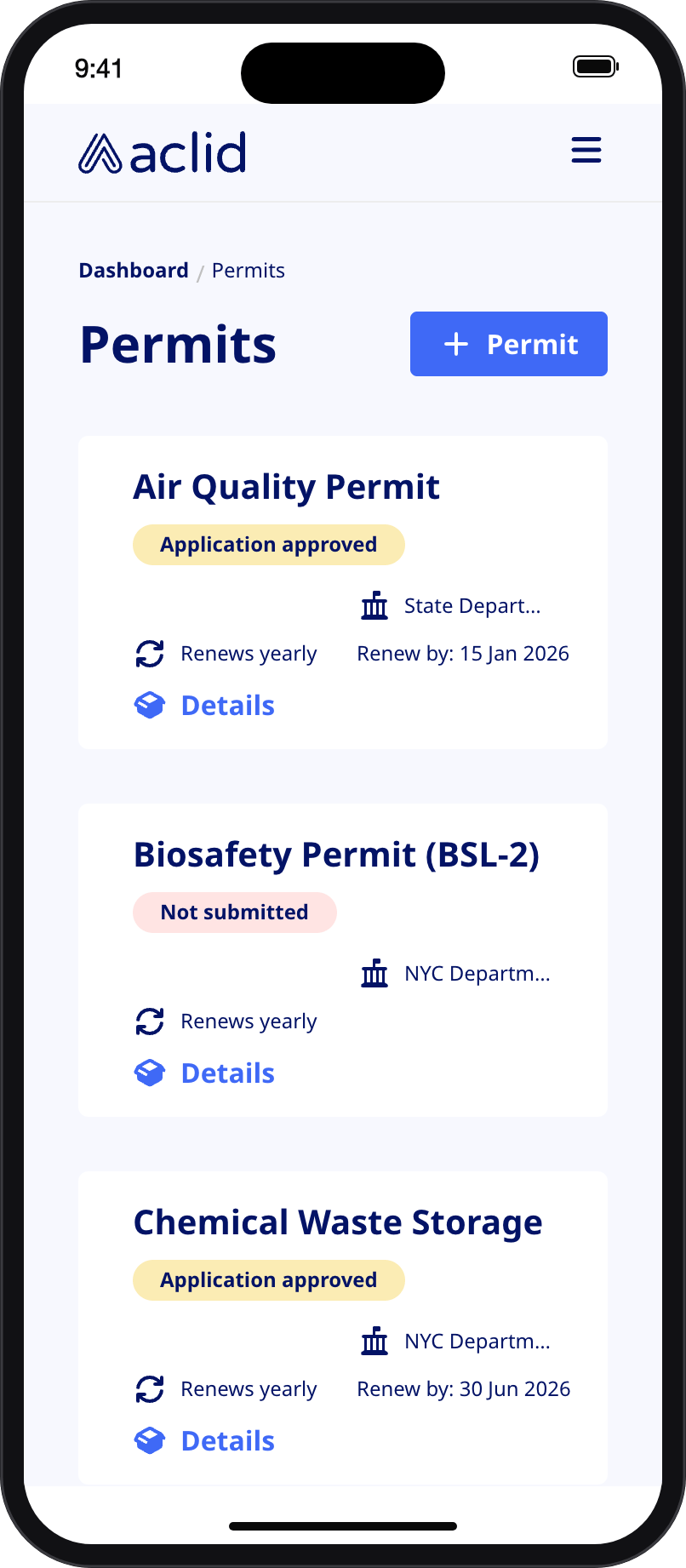
In the left navigation, under **Compliance**, choose **Permits** (the path is `/permits`). The page lists one card per permit cycle, sorted by name, with a **Permit** button in the top right to create a new one. If nothing has been created yet the page shows **No permit cycles** with the note **No permit cycles have been created yet**.
 ## Key concepts
* **Permit cycle**: a permit your organization holds across its applications and renewals. It has a name, a permit number and an issuing agency.
* **Permit**: the record currently in force for a cycle, with the status, key dates, requirements and tasks you see on the detail page.
* **Status**: where the current application stands. The five statuses, in order, are **Not submitted** (red badge), **Application submitted**, **Application accepted**, **Application approved** (all yellow) and **Permit issued** (green). A new permit starts as **Not submitted** unless you pick a status when creating it.
* **Key dates**: **Last issued**, **Expiration**, **Last inspection** and **Next inspection**. The expiration date drives the **Renew by** date on the card.
* **Issuing agency**: the government or regulatory body that issues the permit, with its location and a list of contact people (name and email).
* **Requirements & conditions**: what the permit obliges you to do, for example a yearly report or a suppression-system inspection. A requirement counts as met once at least one protocol, policy or document is linked to it.
* **Permit tasks**: actions linked to the permit. Every permit gets a **Submit permit application** task when it is created; it is created unassigned, so assign it to someone if a member should see it on their Dashboard.
## Tasks
### Create a permit
Admins only.
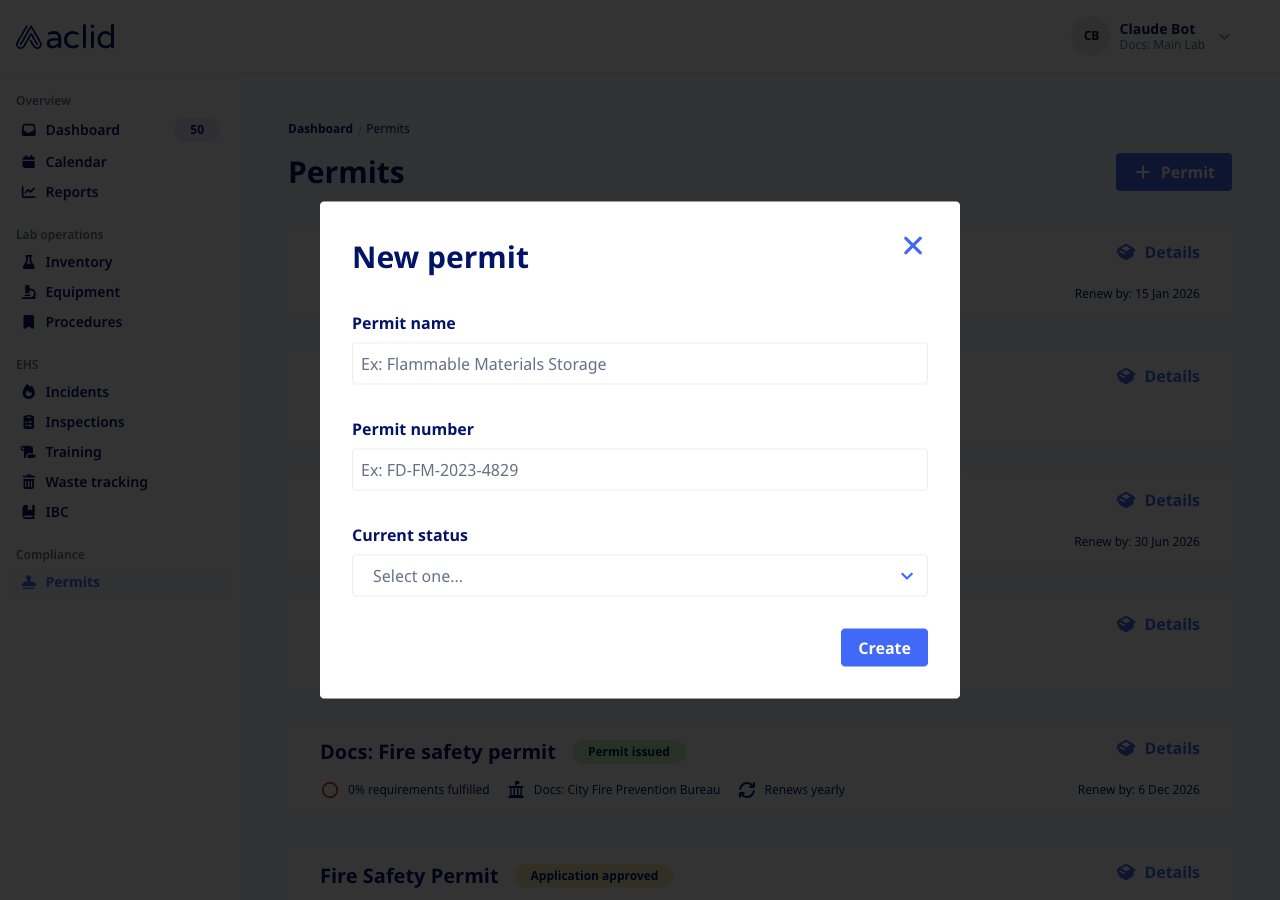
1. On the Permits page, click **Permit**.
2. In the **New permit** dialog, enter the **Permit name** and the **Permit number** as printed by the agency. Both are required.
3. Optionally pick the **Current status**. Leave it empty to start at **Not submitted**.
4. Click **Create**. The new card appears in the list in alphabetical order, and the permit gets its **Submit permit application** task. Open **Details** to add dates, the agency and requirements.
## Key concepts
* **Permit cycle**: a permit your organization holds across its applications and renewals. It has a name, a permit number and an issuing agency.
* **Permit**: the record currently in force for a cycle, with the status, key dates, requirements and tasks you see on the detail page.
* **Status**: where the current application stands. The five statuses, in order, are **Not submitted** (red badge), **Application submitted**, **Application accepted**, **Application approved** (all yellow) and **Permit issued** (green). A new permit starts as **Not submitted** unless you pick a status when creating it.
* **Key dates**: **Last issued**, **Expiration**, **Last inspection** and **Next inspection**. The expiration date drives the **Renew by** date on the card.
* **Issuing agency**: the government or regulatory body that issues the permit, with its location and a list of contact people (name and email).
* **Requirements & conditions**: what the permit obliges you to do, for example a yearly report or a suppression-system inspection. A requirement counts as met once at least one protocol, policy or document is linked to it.
* **Permit tasks**: actions linked to the permit. Every permit gets a **Submit permit application** task when it is created; it is created unassigned, so assign it to someone if a member should see it on their Dashboard.
## Tasks
### Create a permit
Admins only.
1. On the Permits page, click **Permit**.
2. In the **New permit** dialog, enter the **Permit name** and the **Permit number** as printed by the agency. Both are required.
3. Optionally pick the **Current status**. Leave it empty to start at **Not submitted**.
4. Click **Create**. The new card appears in the list in alphabetical order, and the permit gets its **Submit permit application** task. Open **Details** to add dates, the agency and requirements.
 ### Review a permit and set its key dates
Admins only.
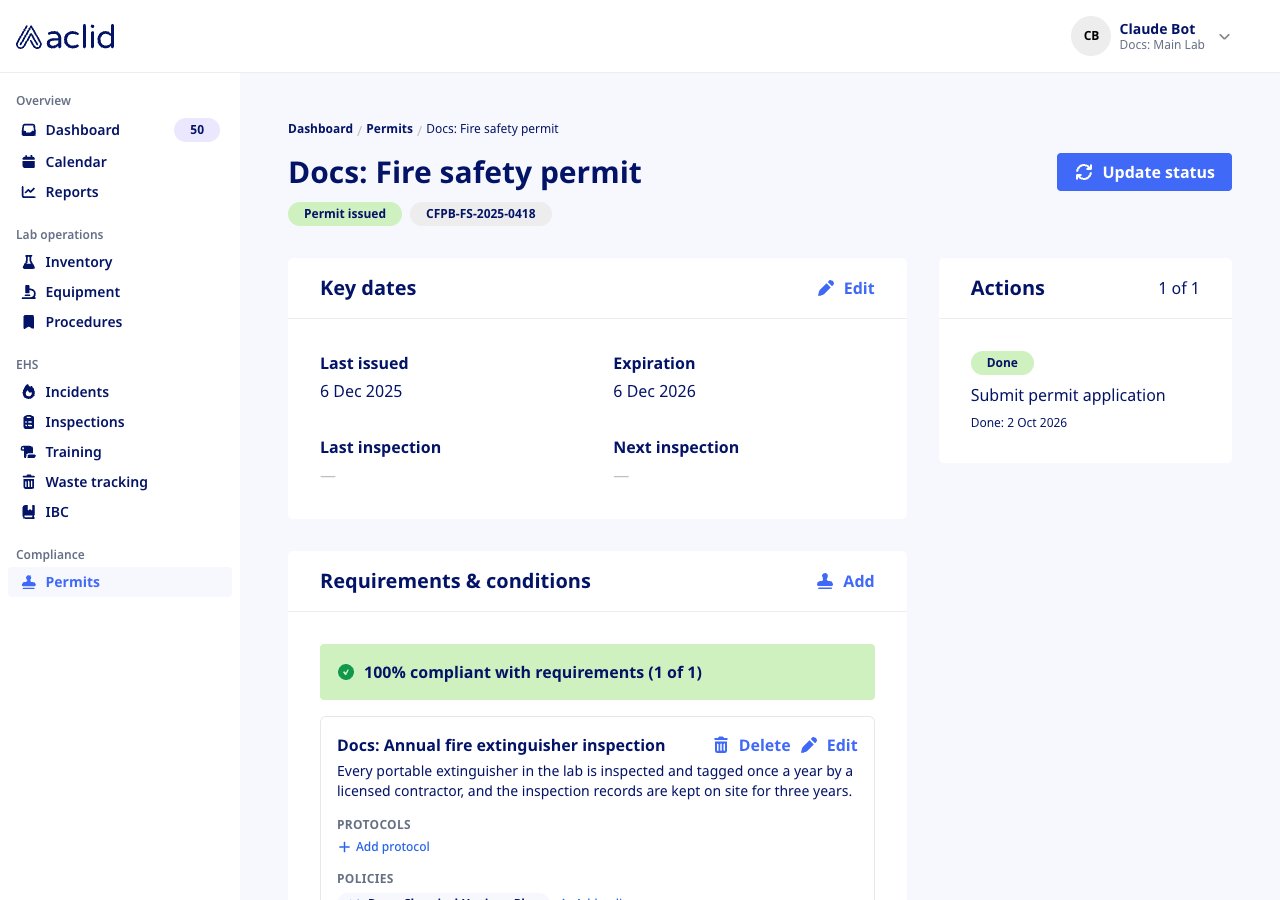
1. Click **Details** on a card. The detail page shows the permit name with its status and permit number badges, then **Key dates**, **Requirements & conditions** and **Issuing agency**, with **Actions** on the right.
2. In **Key dates**, click **Edit** to open **Edit key dates**, pick any of **Last issued**, **Expiration**, **Last inspection** and **Next inspection**, and click **Save**. Dates that have never been set show as a dash. Clearing a date that is already set and saving leaves it unchanged.
3. When a permit is still **Not submitted** and its expiration is 30 days away or less, a red **Reapplication deadline** banner appears above the dates, and the card in the list gets a warning triangle next to **Renew by**.
### Review a permit and set its key dates
Admins only.
1. Click **Details** on a card. The detail page shows the permit name with its status and permit number badges, then **Key dates**, **Requirements & conditions** and **Issuing agency**, with **Actions** on the right.
2. In **Key dates**, click **Edit** to open **Edit key dates**, pick any of **Last issued**, **Expiration**, **Last inspection** and **Next inspection**, and click **Save**. Dates that have never been set show as a dash. Clearing a date that is already set and saving leaves it unchanged.
3. When a permit is still **Not submitted** and its expiration is 30 days away or less, a red **Reapplication deadline** banner appears above the dates, and the card in the list gets a warning triangle next to **Renew by**.
 ### Update the application status
Admins only.
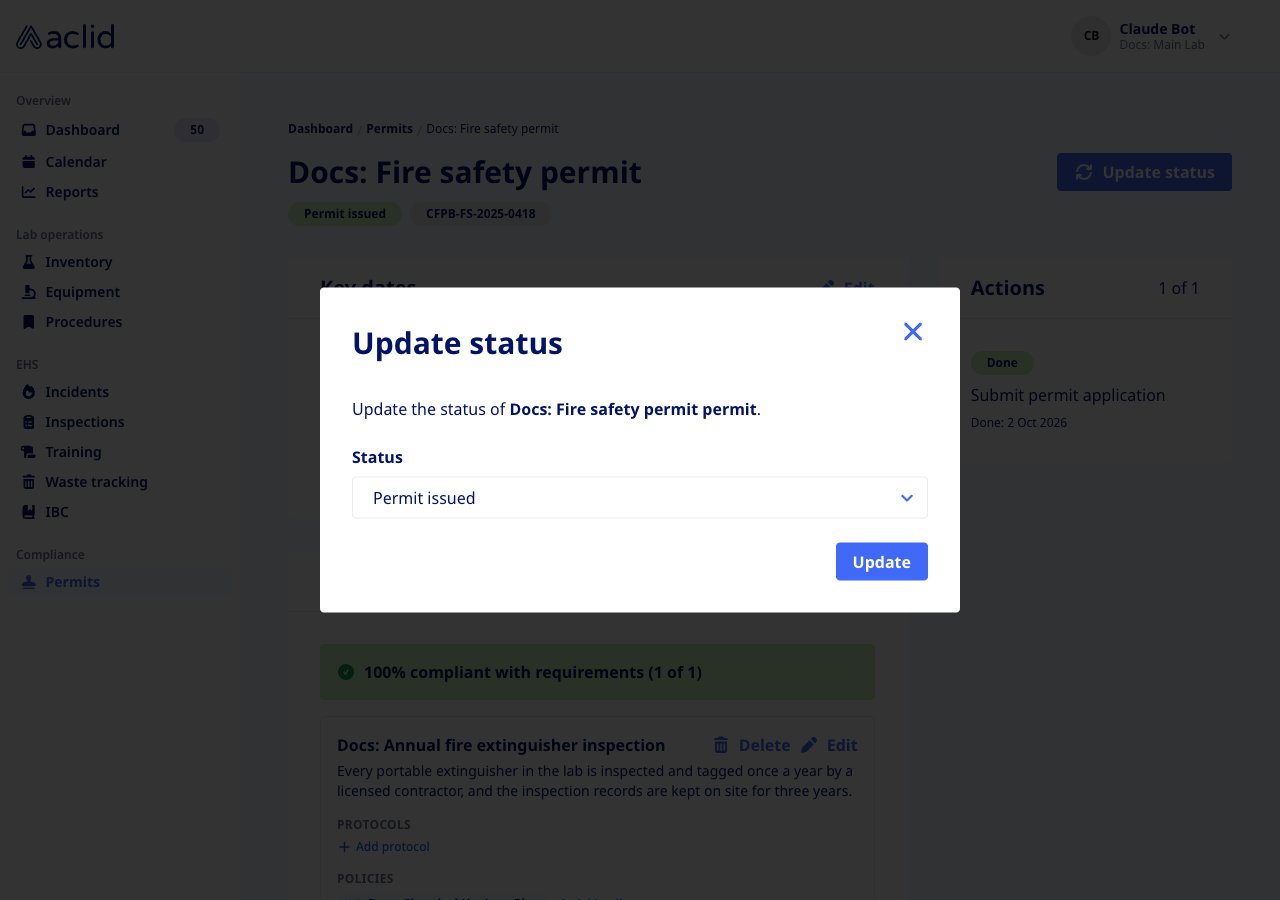
1. On the detail page, click **Update status** (top right, or on the **Submit permit application** task in **Actions**).
2. In the **Update status** dialog, choose the new **Status** and click **Update**. The banner **Permit status updated** confirms the change.
3. Moving a permit out of **Not submitted** marks its **Submit permit application** task as done; moving it back to **Not submitted** reopens that task. The other direction also works: when every task on a **Not submitted** permit is marked done, the status moves to **Application submitted** by itself.
### Update the application status
Admins only.
1. On the detail page, click **Update status** (top right, or on the **Submit permit application** task in **Actions**).
2. In the **Update status** dialog, choose the new **Status** and click **Update**. The banner **Permit status updated** confirms the change.
3. Moving a permit out of **Not submitted** marks its **Submit permit application** task as done; moving it back to **Not submitted** reopens that task. The other direction also works: when every task on a **Not submitted** permit is marked done, the status moves to **Application submitted** by itself.
 ### Record the issuing agency and its contacts
Admins only.
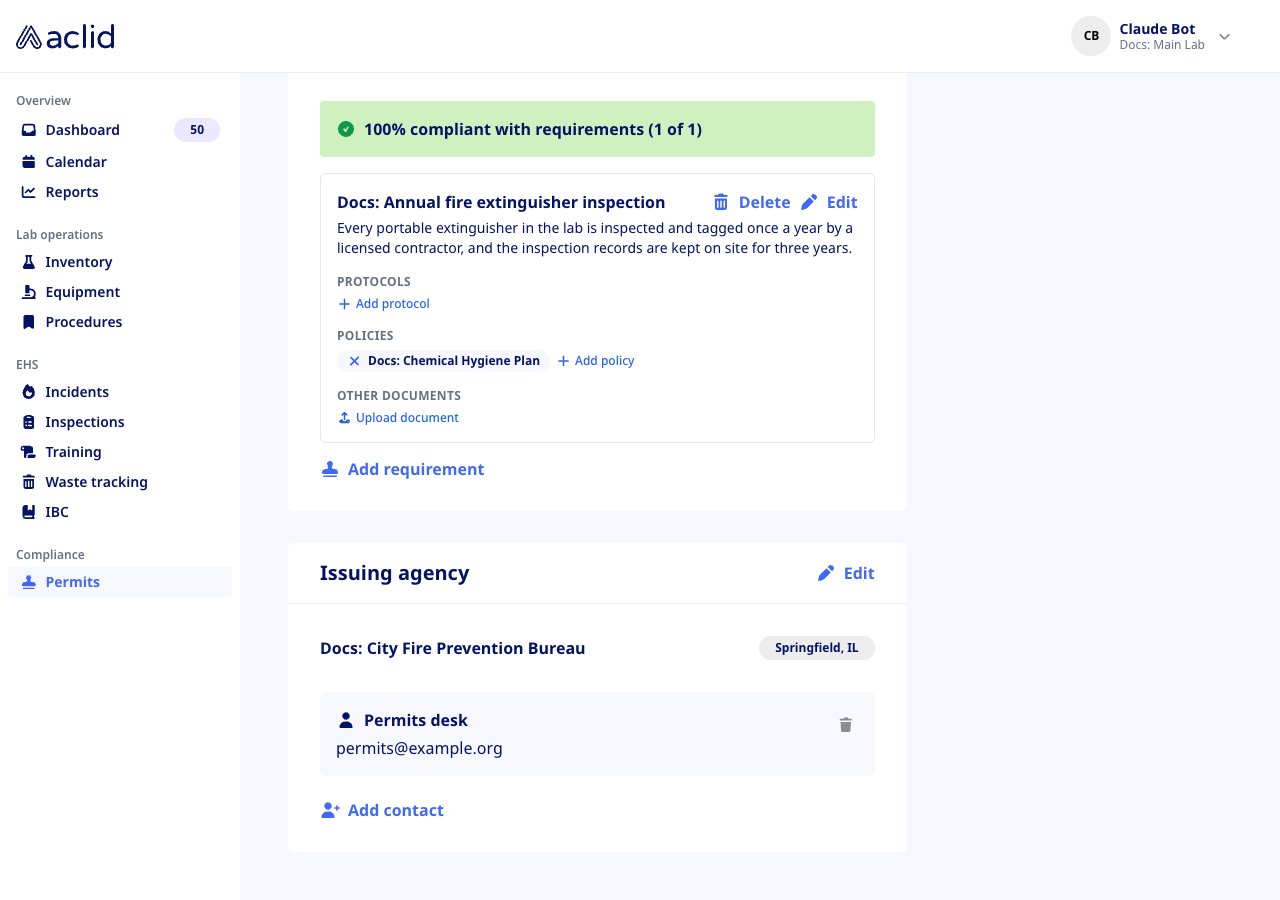
1. In **Issuing agency**, click **Add issuing agency** (or **Edit** if one is already set). Enter the **Agency name** and, optionally, its **Location**, then click **Save**. The location shows as a badge next to the agency name.
2. Click **Add contact**, enter the person's **Name** and **Email**, and click **Save**. Contacts are listed under the agency.
3. To remove a contact, click the trash icon on their row. The contact is removed immediately, without a confirmation step.
### Record the issuing agency and its contacts
Admins only.
1. In **Issuing agency**, click **Add issuing agency** (or **Edit** if one is already set). Enter the **Agency name** and, optionally, its **Location**, then click **Save**. The location shows as a badge next to the agency name.
2. Click **Add contact**, enter the person's **Name** and **Email**, and click **Save**. Contacts are listed under the agency.
3. To remove a contact, click the trash icon on their row. The contact is removed immediately, without a confirmation step.
 ### Add requirements and show they are met
Admins only.
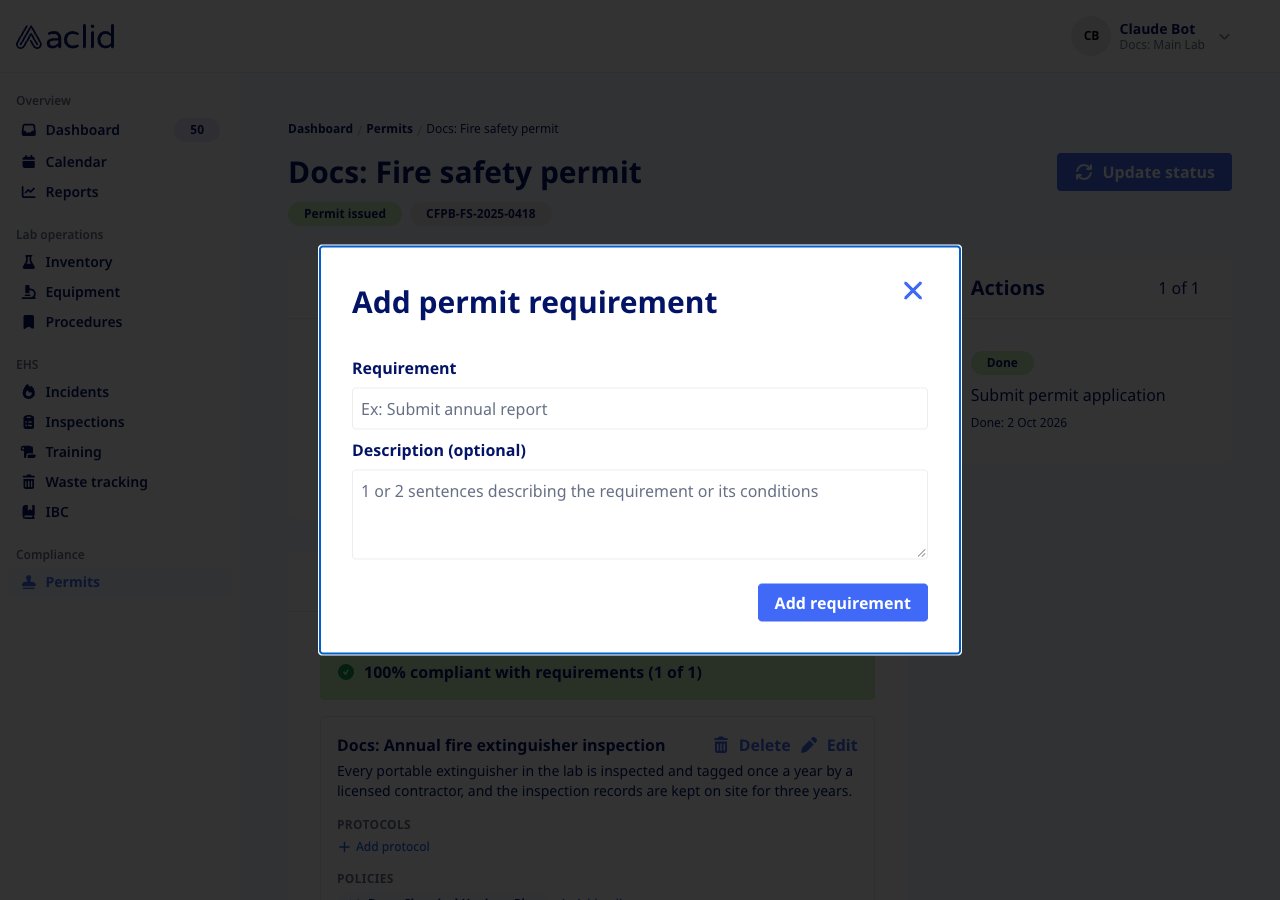
1. In **Requirements & conditions**, click **Add** (or **Add requirement**). In the **Add permit requirement** dialog, enter the **Requirement** and, if you like, a **Description (optional)**, then click **Add requirement**.
2. Each requirement lists its **Protocols**, **Policies** and **Other documents**. Click **Add protocol** or **Add policy** and pick from your organization's procedures (only published protocols are offered); the linked item appears as a chip that opens it in a new tab. Click the chip's cross to unlink it.
3. Click **Upload document**, drop or choose a file, adjust the **Document name** (it defaults to the file name without its extension) and click **Upload**. The document chip opens the file; its cross deletes the document.
4. Use **Edit** on a requirement to rename or describe it, or **Delete** and confirm with **Delete requirement** to stop tracking it.
### Add requirements and show they are met
Admins only.
1. In **Requirements & conditions**, click **Add** (or **Add requirement**). In the **Add permit requirement** dialog, enter the **Requirement** and, if you like, a **Description (optional)**, then click **Add requirement**.
2. Each requirement lists its **Protocols**, **Policies** and **Other documents**. Click **Add protocol** or **Add policy** and pick from your organization's procedures (only published protocols are offered); the linked item appears as a chip that opens it in a new tab. Click the chip's cross to unlink it.
3. Click **Upload document**, drop or choose a file, adjust the **Document name** (it defaults to the file name without its extension) and click **Upload**. The document chip opens the file; its cross deletes the document.
4. Use **Edit** on a requirement to rename or describe it, or **Delete** and confirm with **Delete requirement** to stop tracking it.
 ## Reading the list
Each card in the list shows:
* The permit name and its **status badge**: red for **Not submitted**, yellow for **Application submitted**, **Application accepted** and **Application approved**, green for **Permit issued**.
* A requirements indicator, once the permit has requirements: a green check for **100% requirements fulfilled**, a half-filled yellow circle for a partial percentage, a red outline for **0% requirements fulfilled**.
* The issuing agency name, **Renews yearly**, and **Renew by** followed by the expiration date. A red warning triangle before **Renew by** means the permit is **Not submitted** and expires within 30 days.
* **Details**, which opens the permit.
On the detail page, **Requirements & conditions** opens with a compliance banner, for example **0% compliant with requirements (0 of 3)**, that turns yellow and then green as requirements gain a protocol, policy or document. A requirement with none of the three carries a red triangle whose tooltip reads **No protocol, policy, or document added**. The **Actions** card counts done tasks against the total, labels each task **To do** or **Done** with its assignee and due date, and offers **Mark as done**, edit and delete; the application task shows **Update status** instead of **Mark as done**.
## Tips and limits
* The whole module is admin-only. The only way a member meets a permit is through a task assigned to them on the Dashboard.
* **Permit name** and **Permit number** are required to create a permit; everything else is added from the detail page.
* Creating a permit in the app creates just the **Submit permit application** task.
* The list card counts a requirement as fulfilled only when it has an uploaded document, while the detail page also counts linked protocols and policies, so the two percentages can differ for requirements met by a protocol or policy alone.
* **Renews yearly** is shown on every card; there is no renewal-frequency setting yet.
* Deleting a contact, unlinking a protocol or policy, and deleting a document all take effect immediately, with no confirmation. Deleting a requirement asks you to confirm.
* Requirement documents can be PDF, Word or Pages files, or PNG or JPEG images, up to 25 MB each. The file picker also lists other types, but those are rejected when you click **Upload**.
* Only published protocols can be linked to a requirement, and a protocol that is later unpublished disappears from the requirement until it is published again.
* The detail page shows only the permit record currently in force; earlier renewals are not shown in the app.
* Opening a permit that no longer exists shows **Permit cycle not found**.
## Related
* [Roles and sites](/api/roles-and-sites)
* [Uploads](/api/uploads)
* [GraphQL reference: PermitCycle](/api/reference/types/PermitCycle)
* [GraphQL reference: Permit](/api/reference/types/Permit)
* [GraphQL reference: PermitRequirement](/api/reference/types/PermitRequirement)
* [GraphQL reference: permitCycles](/api/reference/queries/permitCycles)
* [GraphQL reference: createPermitCycle](/api/reference/mutations/createPermitCycle)
* [GraphQL reference: updatePermitStatus](/api/reference/mutations/updatePermitStatus)
This documentation is built and hosted on [Mintlify](https://mintlify.com), a developer documentation platform.
## Reading the list
Each card in the list shows:
* The permit name and its **status badge**: red for **Not submitted**, yellow for **Application submitted**, **Application accepted** and **Application approved**, green for **Permit issued**.
* A requirements indicator, once the permit has requirements: a green check for **100% requirements fulfilled**, a half-filled yellow circle for a partial percentage, a red outline for **0% requirements fulfilled**.
* The issuing agency name, **Renews yearly**, and **Renew by** followed by the expiration date. A red warning triangle before **Renew by** means the permit is **Not submitted** and expires within 30 days.
* **Details**, which opens the permit.
On the detail page, **Requirements & conditions** opens with a compliance banner, for example **0% compliant with requirements (0 of 3)**, that turns yellow and then green as requirements gain a protocol, policy or document. A requirement with none of the three carries a red triangle whose tooltip reads **No protocol, policy, or document added**. The **Actions** card counts done tasks against the total, labels each task **To do** or **Done** with its assignee and due date, and offers **Mark as done**, edit and delete; the application task shows **Update status** instead of **Mark as done**.
## Tips and limits
* The whole module is admin-only. The only way a member meets a permit is through a task assigned to them on the Dashboard.
* **Permit name** and **Permit number** are required to create a permit; everything else is added from the detail page.
* Creating a permit in the app creates just the **Submit permit application** task.
* The list card counts a requirement as fulfilled only when it has an uploaded document, while the detail page also counts linked protocols and policies, so the two percentages can differ for requirements met by a protocol or policy alone.
* **Renews yearly** is shown on every card; there is no renewal-frequency setting yet.
* Deleting a contact, unlinking a protocol or policy, and deleting a document all take effect immediately, with no confirmation. Deleting a requirement asks you to confirm.
* Requirement documents can be PDF, Word or Pages files, or PNG or JPEG images, up to 25 MB each. The file picker also lists other types, but those are rejected when you click **Upload**.
* Only published protocols can be linked to a requirement, and a protocol that is later unpublished disappears from the requirement until it is published again.
* The detail page shows only the permit record currently in force; earlier renewals are not shown in the app.
* Opening a permit that no longer exists shows **Permit cycle not found**.
## Related
* [Roles and sites](/api/roles-and-sites)
* [Uploads](/api/uploads)
* [GraphQL reference: PermitCycle](/api/reference/types/PermitCycle)
* [GraphQL reference: Permit](/api/reference/types/Permit)
* [GraphQL reference: PermitRequirement](/api/reference/types/PermitRequirement)
* [GraphQL reference: permitCycles](/api/reference/queries/permitCycles)
* [GraphQL reference: createPermitCycle](/api/reference/mutations/createPermitCycle)
* [GraphQL reference: updatePermitStatus](/api/reference/mutations/updatePermitStatus)
This documentation is built and hosted on [Mintlify](https://mintlify.com), a developer documentation platform.