> ## Documentation Index
> Fetch the complete documentation index at: https://wiki.aclid.bio/llms.txt
> Use this file to discover all available pages before exploring further.
# Inventory
> Track the chemicals, biologicals and consumables your organization keeps, container by container, with locations, expiry dates, safety data sheets and handling notes.
Inventory is the record of what your organization keeps on its shelves. Each entry is a material: a **chemical** from a shared product catalog, a **biological** such as a cell line or strain, or a **consumable** such as gloves or pipettes. Under each material sit its **containers**: how many you hold, how much each one holds, where they are, when they were received and when they expire. A chemical also carries its safety data sheet (SDS), the hazard pictograms taken from it, and the notes your team adds about storage, protection and disposal. Chemicals and biologicals can be named in incident reports, and the counts of expiring and expired stock sit at the top of the list.
## Who can do what
| Action | Admin | Member |
| - | - | - |
| See the lists, the expiry metrics and every detail page | Yes | Yes |
| Add a chemical, biological or consumable | Yes | Yes |
| Add, edit and remove containers | Yes | Yes |
| Add notes, upload an SDS and edit a hand-entered chemical | Yes | Yes |
| Edit a biological's details and status, or a consumable's overview | Yes | Yes |
| Add, edit or delete a chemical's **Additional details** | Yes | No |
## Open Inventory
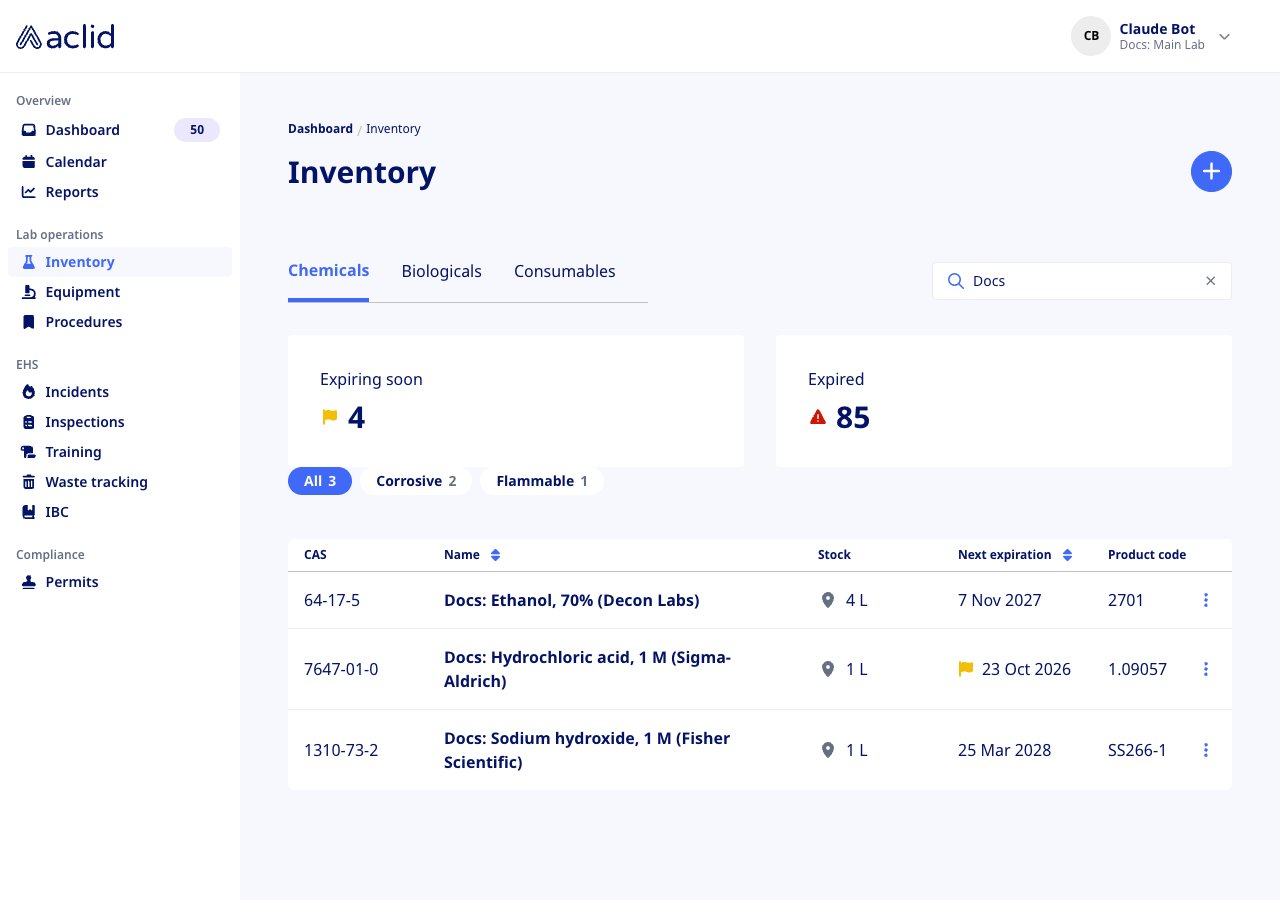
Inventory is in the **Lab operations** group of the left-hand navigation. The page opens on the **Chemicals** tab, with **Biologicals** and **Consumables** beside it, a search box bound to the active tab, and a **+** button for adding a material. The **Chemicals** and **Biologicals** tabs show two tiles, **Expiring soon** and **Expired**, and a row of type chips (**All** plus each type in use) that filter the table. An organization with nothing on a tab sees **No chemicals added** with an **Add chemical** button, **No biological inventory** or **No consumable inventory**.
 ## Key concepts
* **Chemical**: a product in the chemical catalog, shown as *name (manufacturer)* with its CAS number and product code. Chemicals can be filed under one or more **types** (for example *Corrosive*), which appear as badges on the detail page and as filter chips above the list.
* **Biological**: a cell line, strain, tissue or other biological material with a **Status** (**Active**, **Archived** or **Quarantined**), a **Biosafety level** (**BSL-1** to **BSL-4**) and a **Type** picked from the list or added as you type.
* **Consumable**: a supply such as gloves, tips or a kit, with an optional **Type**, **Manufacturer** and **Product code**.
* **Containers**: a stock entry is a number of identical containers of one material at one location. Each entry has a **Container type** (bottle, tube, vial, box, kit, cryovial, tissue cassette, microcentrifuge tube or screw cap tube), a **Container volume** with a **Unit of measure** (grams, kilograms, gallons, liters, milliliters, ounces, micrograms, nanomoles or pounds), a **Location**, an optional **Sublocation**, an **Expiration date**, a **Received date** and a **Batch/Lot ID**. A material stays in your inventory even when it has no containers left.
* **Sublocation**: a named spot within a location, such as a shelf, cabinet or freezer.
* **Quantities**: the **Stock** column adds up the containers of a chemical (two 500 mL bottles show as **1 L**); it shows **Various** when the volumes cannot be combined. Biologicals and consumables show a **Containers** count instead.
* **SDS**: the chemical's safety data sheet. A chemical added from the product-code search is linked to its sheet, so its CAS number, product code, hazards and handling text come from the sheet. A hand-entered chemical gets its SDS from a PDF you upload. Hazard statements from the sheet appear under **Hazard Classification Guidance from OSHA**, each with its GHS pictogram, **Hazard class**, **Category**, **Hazard statement** and **Code**; the signal word shows as a red **Danger** or yellow **Warning** badge, and **Chemical properties** lists the **Physical state**, **Flash point**, **Boiling point** and **Vapor pressure** when the sheet gives them.
* **Notes**: your organization's own text on one section of a material's **Safe handling** card: **Storage requirements**, **Personal protection**, **Disposal notes** or **Miscellaneous**. A note shows as *Note from* the person who wrote it, and adding another note to the same section replaces it. Consumables keep their notes in a **Notes** card.
* **Expiring soon** and **Expired**: the number of chemicals (or, on the Biologicals tab, biologicals) that have in-stock containers expiring within the next 30 days, or already expired.
## Tasks
### Find a chemical
1. Type in **Search chemicals...**; the table narrows as you type. The empty state reminds you to *Search by chemical name, CAS number, manufacturer, or product code*; **Clear search** restores the full list.
2. Click a type chip to show only chemicals of that type, and click **Name** or **Next expiration** to sort.
3. Click a row to open the chemical, or use its **⋮** menu: **Details** opens the page and **SDS** opens the sheet in a new tab when the chemical has one.
## Key concepts
* **Chemical**: a product in the chemical catalog, shown as *name (manufacturer)* with its CAS number and product code. Chemicals can be filed under one or more **types** (for example *Corrosive*), which appear as badges on the detail page and as filter chips above the list.
* **Biological**: a cell line, strain, tissue or other biological material with a **Status** (**Active**, **Archived** or **Quarantined**), a **Biosafety level** (**BSL-1** to **BSL-4**) and a **Type** picked from the list or added as you type.
* **Consumable**: a supply such as gloves, tips or a kit, with an optional **Type**, **Manufacturer** and **Product code**.
* **Containers**: a stock entry is a number of identical containers of one material at one location. Each entry has a **Container type** (bottle, tube, vial, box, kit, cryovial, tissue cassette, microcentrifuge tube or screw cap tube), a **Container volume** with a **Unit of measure** (grams, kilograms, gallons, liters, milliliters, ounces, micrograms, nanomoles or pounds), a **Location**, an optional **Sublocation**, an **Expiration date**, a **Received date** and a **Batch/Lot ID**. A material stays in your inventory even when it has no containers left.
* **Sublocation**: a named spot within a location, such as a shelf, cabinet or freezer.
* **Quantities**: the **Stock** column adds up the containers of a chemical (two 500 mL bottles show as **1 L**); it shows **Various** when the volumes cannot be combined. Biologicals and consumables show a **Containers** count instead.
* **SDS**: the chemical's safety data sheet. A chemical added from the product-code search is linked to its sheet, so its CAS number, product code, hazards and handling text come from the sheet. A hand-entered chemical gets its SDS from a PDF you upload. Hazard statements from the sheet appear under **Hazard Classification Guidance from OSHA**, each with its GHS pictogram, **Hazard class**, **Category**, **Hazard statement** and **Code**; the signal word shows as a red **Danger** or yellow **Warning** badge, and **Chemical properties** lists the **Physical state**, **Flash point**, **Boiling point** and **Vapor pressure** when the sheet gives them.
* **Notes**: your organization's own text on one section of a material's **Safe handling** card: **Storage requirements**, **Personal protection**, **Disposal notes** or **Miscellaneous**. A note shows as *Note from* the person who wrote it, and adding another note to the same section replaces it. Consumables keep their notes in a **Notes** card.
* **Expiring soon** and **Expired**: the number of chemicals (or, on the Biologicals tab, biologicals) that have in-stock containers expiring within the next 30 days, or already expired.
## Tasks
### Find a chemical
1. Type in **Search chemicals...**; the table narrows as you type. The empty state reminds you to *Search by chemical name, CAS number, manufacturer, or product code*; **Clear search** restores the full list.
2. Click a type chip to show only chemicals of that type, and click **Name** or **Next expiration** to sort.
3. Click a row to open the chemical, or use its **⋮** menu: **Details** opens the page and **SDS** opens the sheet in a new tab when the chemical has one.
 ### Add a chemical from its product code
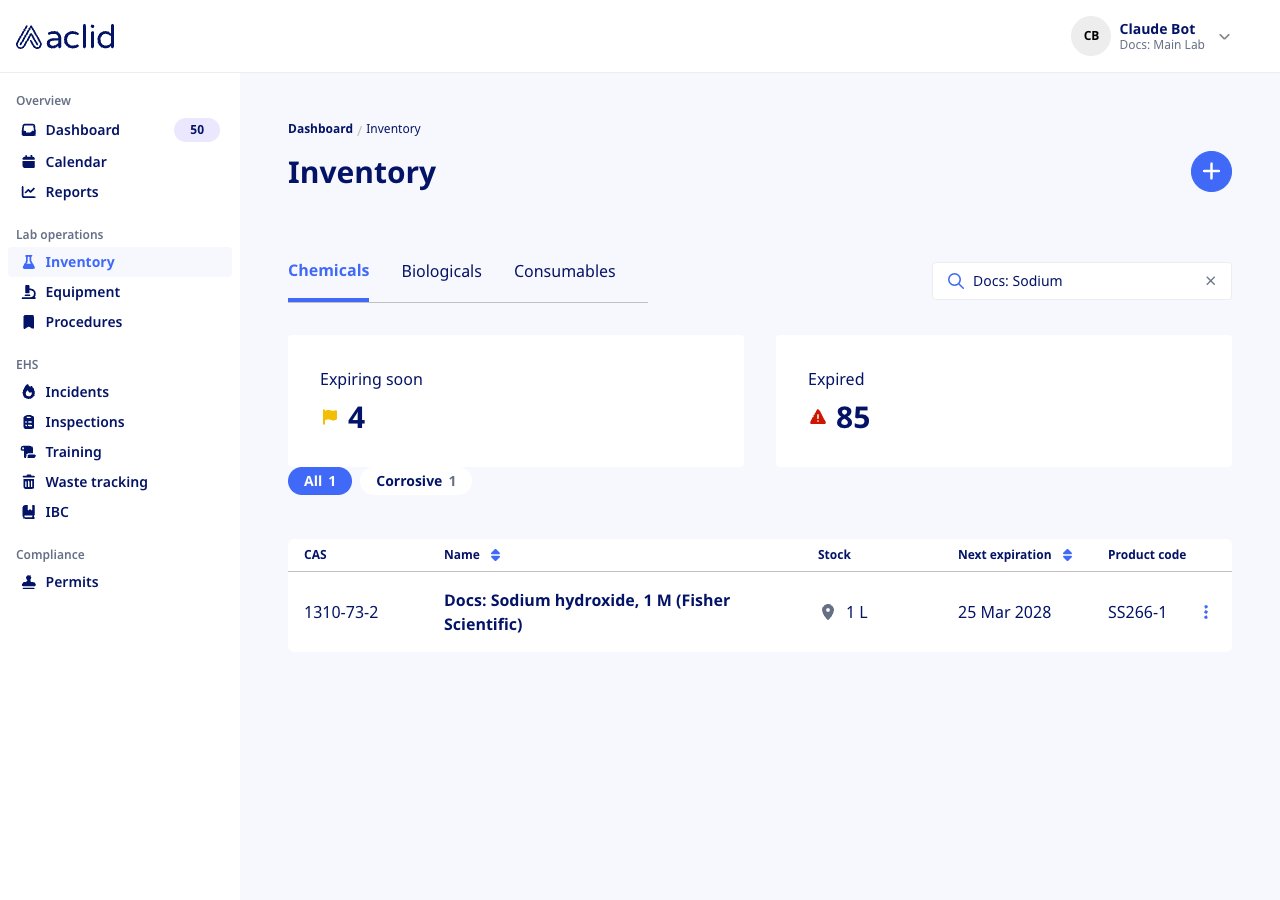
1. On the **Chemicals** tab click **+**. **Add a chemical** opens on **Chemical product code**; the hint says *Try the Product Number or Catalog Number from the label*.
2. Enter the code and click **Search**. Under **Find your chemical**, pick the matching *product code | name (manufacturer)* and click **Add to inventory**. If nothing matches, shorten the code (the hint suggests dropping the suffix after the dash) or click **Enter manually**.
3. The chemical's page opens with a banner, *added to inventory. Add containers below.*, and its SDS, CAS number and hazards already filled in.
### Add a chemical from its product code
1. On the **Chemicals** tab click **+**. **Add a chemical** opens on **Chemical product code**; the hint says *Try the Product Number or Catalog Number from the label*.
2. Enter the code and click **Search**. Under **Find your chemical**, pick the matching *product code | name (manufacturer)* and click **Add to inventory**. If nothing matches, shorten the code (the hint suggests dropping the suffix after the dash) or click **Enter manually**.
3. The chemical's page opens with a banner, *added to inventory. Add containers below.*, and its SDS, CAS number and hazards already filled in.
 ### Add a chemical by hand
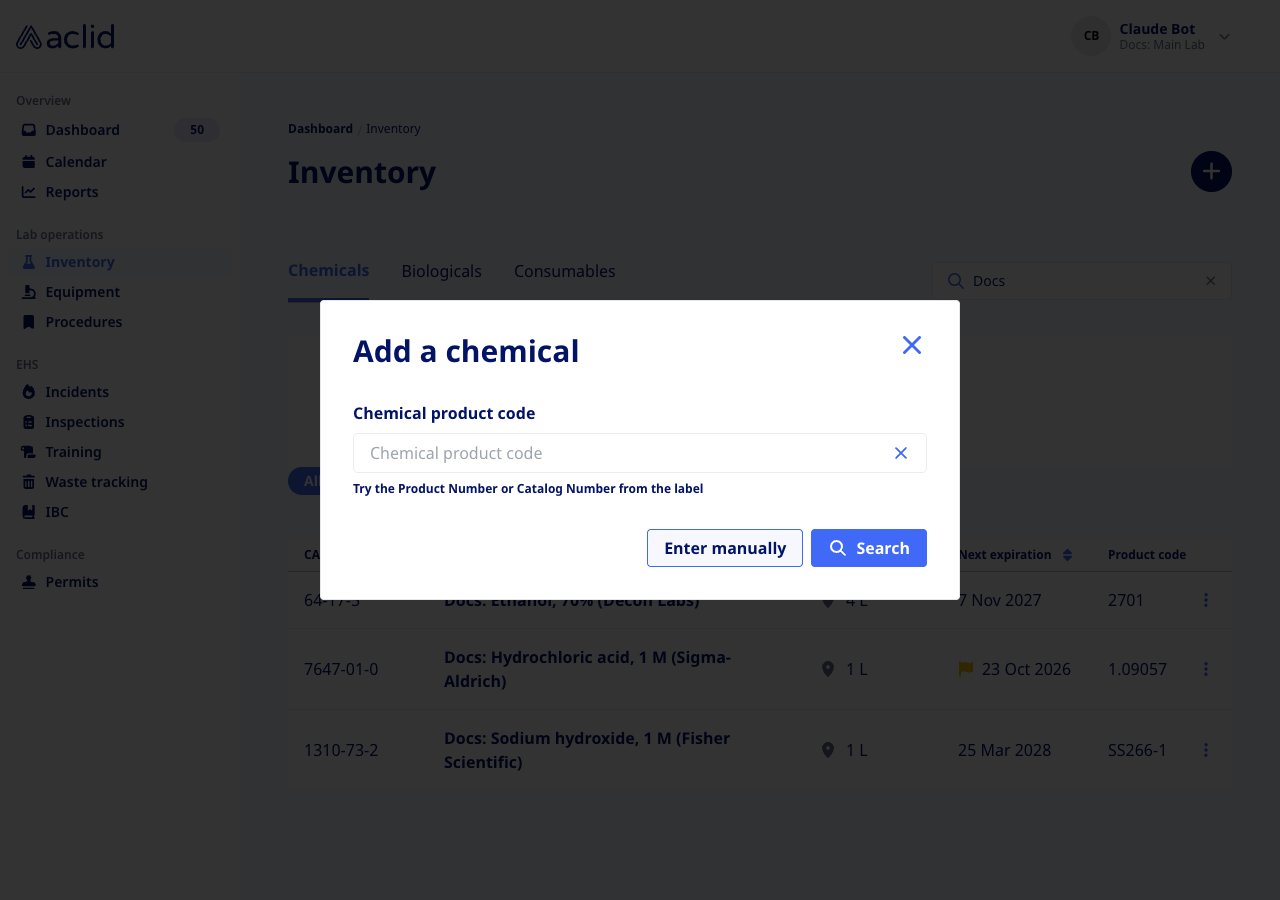
1. In **Add a chemical**, click **Enter manually**.
2. Fill in **Chemical name** and **Manufacturer** (both required), and optionally **Type (optional)**, **Product code (optional)**, **CAS number (optional)** and **Upload SDS file (optional)** (a PDF).
3. Click **Add to inventory**. The new chemical's page opens; use **Update** to change its name, manufacturer or types later, and **Edit** on the **CAS number**, **Product code** or **Safe handling** cards to fill in the sheet details yourself.
### Add a chemical by hand
1. In **Add a chemical**, click **Enter manually**.
2. Fill in **Chemical name** and **Manufacturer** (both required), and optionally **Type (optional)**, **Product code (optional)**, **CAS number (optional)** and **Upload SDS file (optional)** (a PDF).
3. Click **Add to inventory**. The new chemical's page opens; use **Update** to change its name, manufacturer or types later, and **Edit** on the **CAS number**, **Product code** or **Safe handling** cards to fill in the sheet details yourself.
 ### Scan a container label on your phone
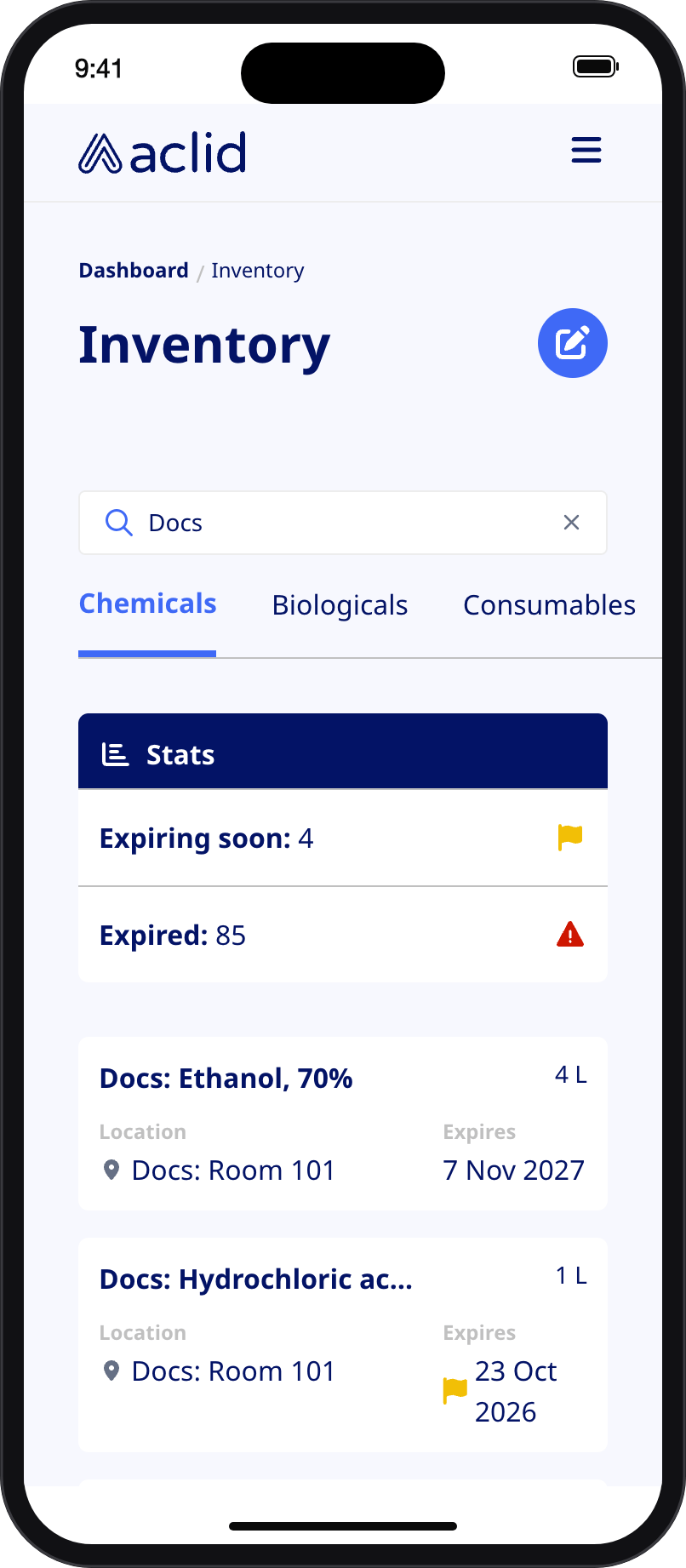
1. On a phone, the **Chemicals** tab shows a pencil button instead of **+**. Tap it: the add dialog opens on a **Scan** tab (with **Search** beside it) and starts the camera.
2. *Hover over the chemical name, product code, or CAS number* and take the photo. When the label is read, **Product detected** shows the code and name, with **Add** and, if you already hold that chemical, **Remove**.
3. **Add** opens the containers form for the chemical, creating it from its SDS first if it is new to your inventory; an expiry date read from the label is filled in for you. **Remove** asks for the **Container location**, **Container type**, **Expiration date** and **Number of containers to remove**.
4. If the label cannot be read, **Unable to find product** offers **Scan again** or **Search manually**.
### Scan a container label on your phone
1. On a phone, the **Chemicals** tab shows a pencil button instead of **+**. Tap it: the add dialog opens on a **Scan** tab (with **Search** beside it) and starts the camera.
2. *Hover over the chemical name, product code, or CAS number* and take the photo. When the label is read, **Product detected** shows the code and name, with **Add** and, if you already hold that chemical, **Remove**.
3. **Add** opens the containers form for the chemical, creating it from its SDS first if it is new to your inventory; an expiry date read from the label is filled in for you. **Remove** asks for the **Container location**, **Container type**, **Expiration date** and **Number of containers to remove**.
4. If the label cannot be read, **Unable to find product** offers **Scan again** or **Search manually**.
 ### Add, edit or remove containers
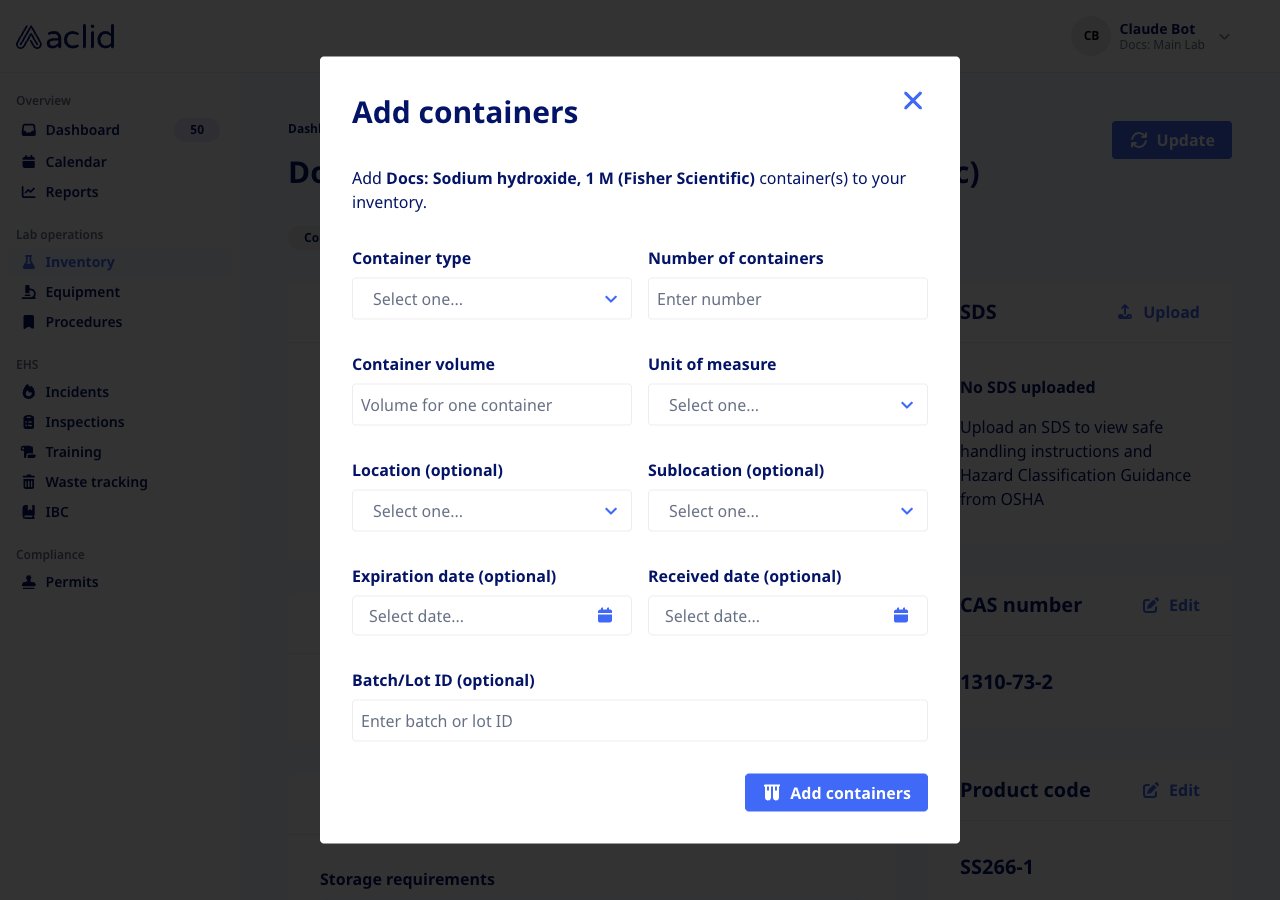
1. Open the material and click **Add containers** on the containers card (its heading counts what you hold, for example **2 containers (1 L)**, or reads **No containers added**).
2. Pick a **Container type** and enter the **Number of containers** (required). Add the **Container volume** and **Unit of measure** (not for kits), the **Location (optional)** and **Sublocation (optional)**, the **Expiration date (optional)** and **Received date (optional)**, and a **Batch/Lot ID (optional)**.
3. Click **Add containers**. A banner such as *2 bottles (500 mL each) added to inventory* confirms it, and the entry appears under its location with its **Batch/Lot ID**, **Rec:** and **Exp:** dates.
4. To change an entry, click its pencil icon: **Edit container** opens the same form, saved with **Save changes**. To take containers out, click the bin icon: **Remove from inventory** asks for the **Number of containers to remove** (or confirms directly when there is only one) and reports *removed from inventory*. An entry disappears from the page when its count reaches zero.
### Add, edit or remove containers
1. Open the material and click **Add containers** on the containers card (its heading counts what you hold, for example **2 containers (1 L)**, or reads **No containers added**).
2. Pick a **Container type** and enter the **Number of containers** (required). Add the **Container volume** and **Unit of measure** (not for kits), the **Location (optional)** and **Sublocation (optional)**, the **Expiration date (optional)** and **Received date (optional)**, and a **Batch/Lot ID (optional)**.
3. Click **Add containers**. A banner such as *2 bottles (500 mL each) added to inventory* confirms it, and the entry appears under its location with its **Batch/Lot ID**, **Rec:** and **Exp:** dates.
4. To change an entry, click its pencil icon: **Edit container** opens the same form, saved with **Save changes**. To take containers out, click the bin icon: **Remove from inventory** asks for the **Number of containers to remove** (or confirms directly when there is only one) and reports *removed from inventory*. An entry disappears from the page when its count reaches zero.
 ### Review a chemical
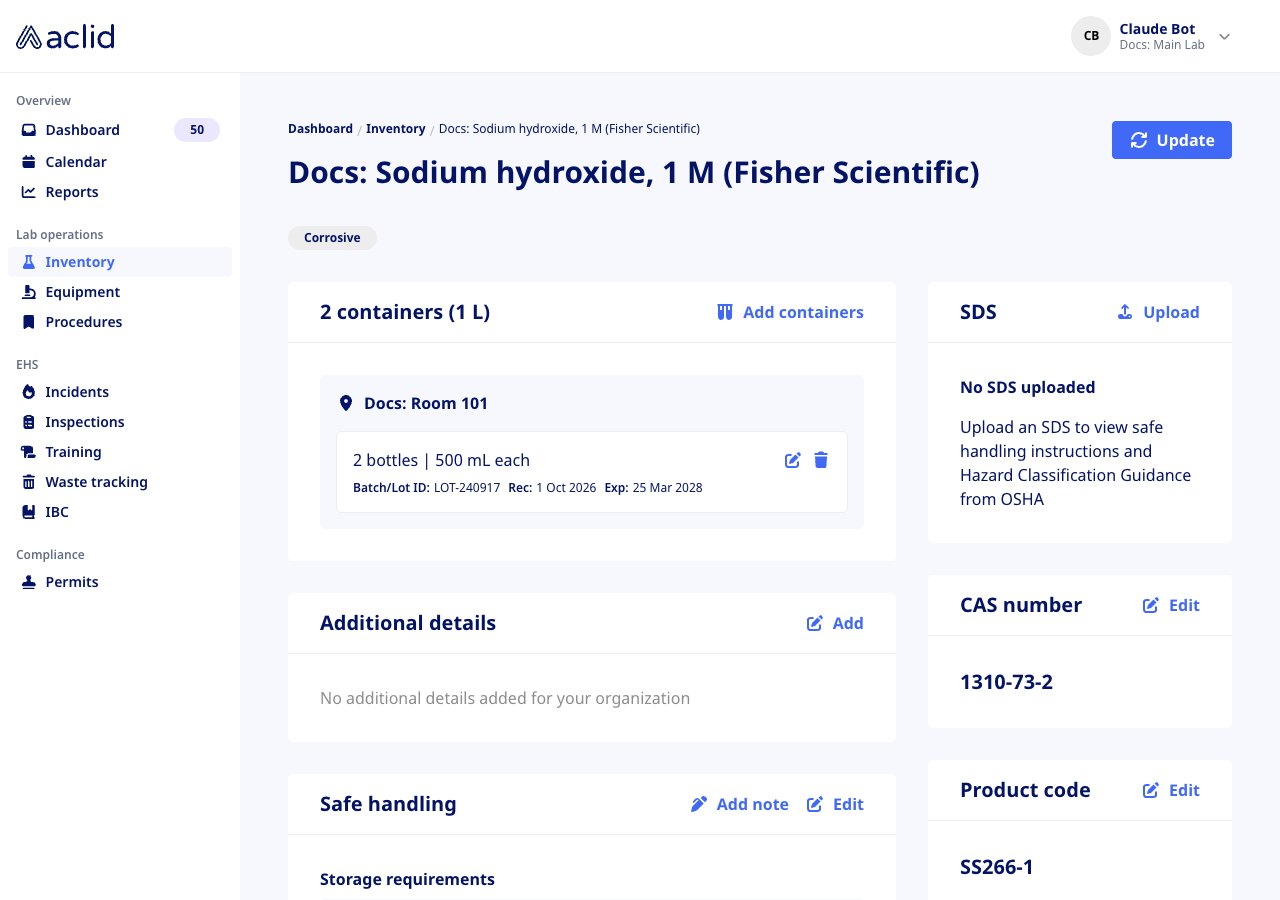
1. Open the chemical. Its badges show the signal word, GHS tags, types and, when recorded, **Owner**.
2. The left column holds the containers card, **Additional details** and **Safe handling**; the right column holds **SDS** (with **Upload**, or **Replace** and **View** once a sheet is attached; otherwise *No SDS uploaded*), **CAS number**, **Chemical properties** and **Product code**.
3. Admins click **Add** on **Additional details** to keep custom **Field name** / **Value** pairs for your organization (**Add field**, then **Save changes**), and **Delete** to clear them after confirming **Yes, delete**.
### Review a chemical
1. Open the chemical. Its badges show the signal word, GHS tags, types and, when recorded, **Owner**.
2. The left column holds the containers card, **Additional details** and **Safe handling**; the right column holds **SDS** (with **Upload**, or **Replace** and **View** once a sheet is attached; otherwise *No SDS uploaded*), **CAS number**, **Chemical properties** and **Product code**.
3. Admins click **Add** on **Additional details** to keep custom **Field name** / **Value** pairs for your organization (**Add field**, then **Save changes**), and **Delete** to clear them after confirming **Yes, delete**.
 ### Add a safe-handling note
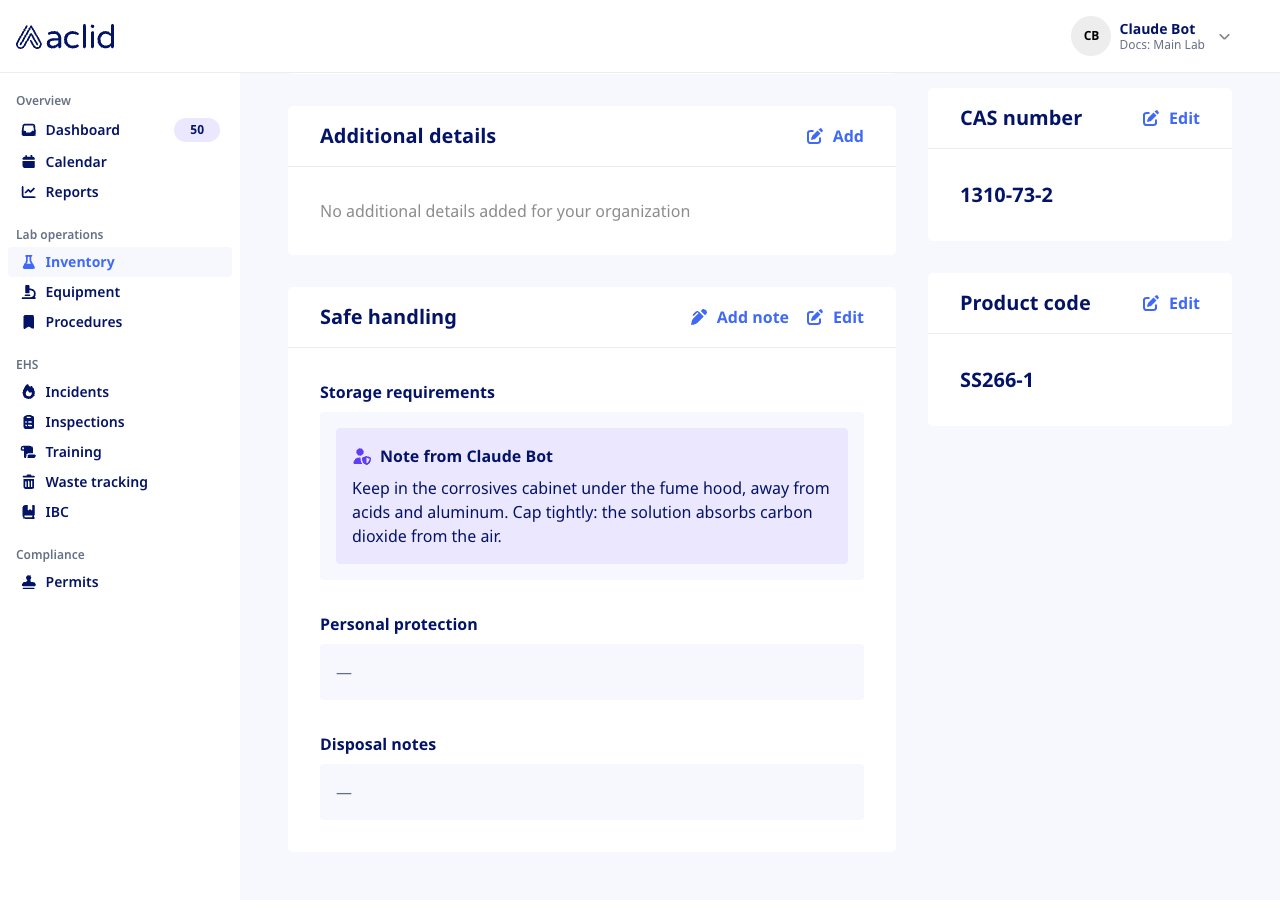
1. On the chemical's **Safe handling** card click **Add note**. The dialog says *Your name will automatically be added to the note.*
2. Answer **Which section is this note related to?** (**Storage requirements**, **Personal protection**, **Disposal notes** or **Miscellaneous**), write the **Note** and click **Add note**.
3. A banner such as *Storage requirements note added* confirms it, and the note appears in that section beside any text from the SDS. On a consumable, **Add note** on the **Notes** card files the note under Miscellaneous.
### Add a safe-handling note
1. On the chemical's **Safe handling** card click **Add note**. The dialog says *Your name will automatically be added to the note.*
2. Answer **Which section is this note related to?** (**Storage requirements**, **Personal protection**, **Disposal notes** or **Miscellaneous**), write the **Note** and click **Add note**.
3. A banner such as *Storage requirements note added* confirms it, and the note appears in that section beside any text from the SDS. On a consumable, **Add note** on the **Notes** card files the note under Miscellaneous.
 ### Add a biological or a consumable
1. Switch to the **Biologicals** or **Consumables** tab and click **+**.
2. **Add a biological** asks for a **Name**, an optional **Type** (pick one or add your own), a **Status** and a **Biosafety level**; click **Add biological** to open its page, where **Edit** fills in its **Overview**, **Source**, **Risk & compliance**, **Safe handling** and **Additional details** sections, and **Update status** moves it between **Active**, **Archived** and **Quarantined**.
3. **Add a consumable** asks for a **Name** plus **Type (optional)**, **Manufacturer (optional)** and **Product code or model number (optional)**; click **Add consumable** and the new row appears in the table. Open it and click **Edit** on the **Overview** card to change those fields later.
4. Open either one and click **Add containers** to record what you hold.
### Add a biological or a consumable
1. Switch to the **Biologicals** or **Consumables** tab and click **+**.
2. **Add a biological** asks for a **Name**, an optional **Type** (pick one or add your own), a **Status** and a **Biosafety level**; click **Add biological** to open its page, where **Edit** fills in its **Overview**, **Source**, **Risk & compliance**, **Safe handling** and **Additional details** sections, and **Update status** moves it between **Active**, **Archived** and **Quarantined**.
3. **Add a consumable** asks for a **Name** plus **Type (optional)**, **Manufacturer (optional)** and **Product code or model number (optional)**; click **Add consumable** and the new row appears in the table. Open it and click **Edit** on the **Overview** card to change those fields later.
4. Open either one and click **Add containers** to record what you hold.
 ## Reading the list
* **Chemicals**: **CAS** (**Various** when the sheet lists several components), **Name**, **Stock** (the combined volume, with a pin icon whose tooltip names the location), **Next expiration** and **Product code**.
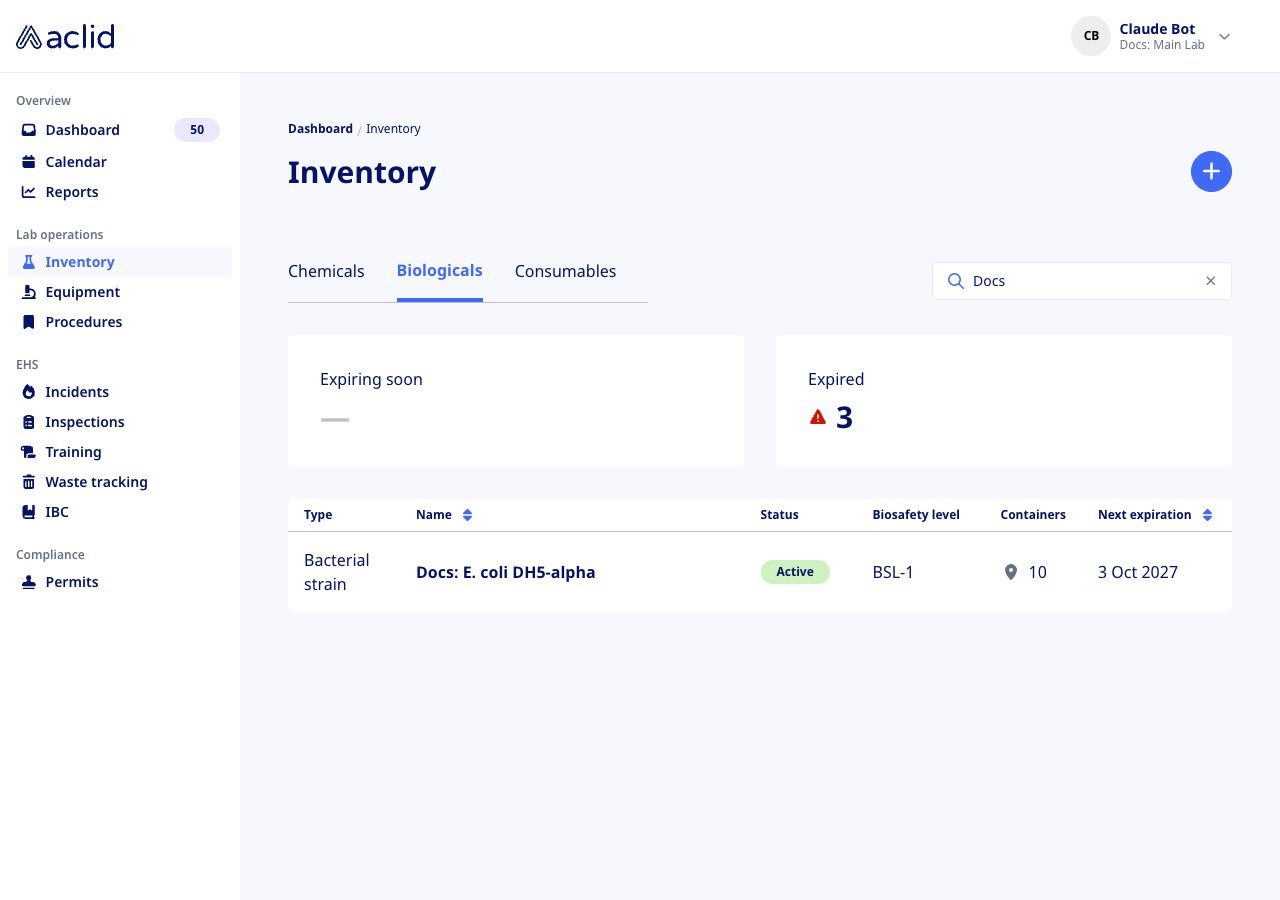
* **Biologicals**: **Type**, **Name**, a **Status** badge (green **Active**, yellow **Archived** or **Quarantined**), **Biosafety level**, **Containers** and **Next expiration**.
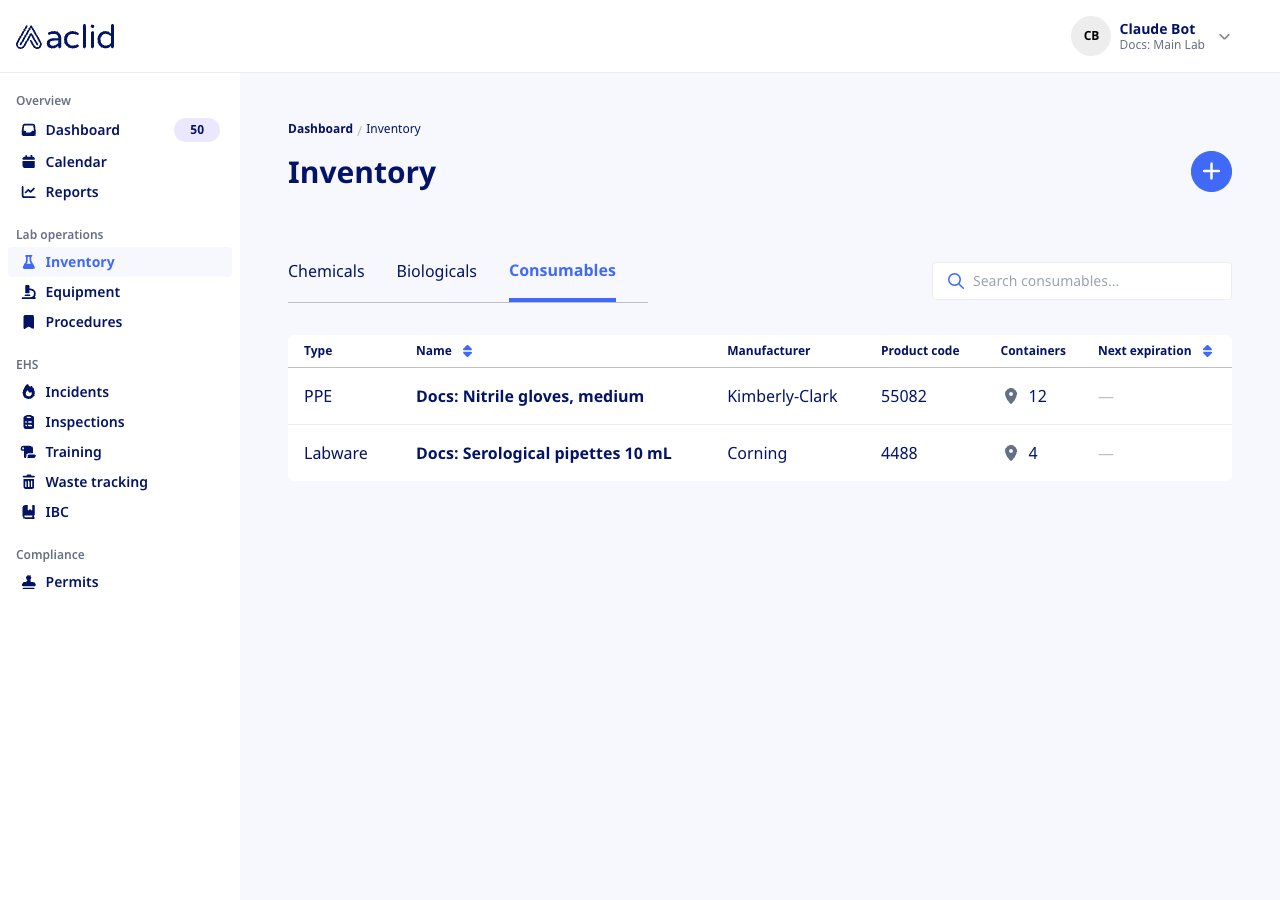
* **Consumables**: **Type**, **Name**, **Manufacturer**, **Product code**, **Containers** and **Next expiration**.
* **Next expiration** is the earliest expiry among the material's containers. A red triangle marks it **Expired**; an orange flag marks it **Expiring soon** (within 30 days). The same icons sit on the **Expired** and **Expiring soon** tiles, and an expired **Exp:** date is shown in red on the detail page.
* On a phone the tables become cards with **Location** and **Expires**, and the tiles become a **Stats** card.
## Reading the list
* **Chemicals**: **CAS** (**Various** when the sheet lists several components), **Name**, **Stock** (the combined volume, with a pin icon whose tooltip names the location), **Next expiration** and **Product code**.
* **Biologicals**: **Type**, **Name**, a **Status** badge (green **Active**, yellow **Archived** or **Quarantined**), **Biosafety level**, **Containers** and **Next expiration**.
* **Consumables**: **Type**, **Name**, **Manufacturer**, **Product code**, **Containers** and **Next expiration**.
* **Next expiration** is the earliest expiry among the material's containers. A red triangle marks it **Expired**; an orange flag marks it **Expiring soon** (within 30 days). The same icons sit on the **Expired** and **Expiring soon** tiles, and an expired **Exp:** date is shown in red on the detail page.
* On a phone the tables become cards with **Location** and **Expires**, and the tiles become a **Stats** card.
 ## Tips and limits
* The **Location (optional)** list in the containers form offers the locations set up for inventory; containers added without one are grouped under **Unspecified**.
* Chemicals linked to a sheet from the product-code search do not show **Update**, **Upload** or the **Edit** buttons: their details come from the sheet. Enter a chemical manually when you need to maintain those fields yourself.
* An SDS must be a PDF. The **SDS** card previews the first page; **View** opens the whole document.
* **Additional details** are admin-only and specific to your organization; other users see them but cannot change them.
* Scanning needs camera access; if the browser has refused it, the **Scan** tab shows **Camera access required** with the steps to allow it. Scanning is only offered on narrow screens.
* There is no delete for a material in the app: remove its containers instead, and it stays available with an empty containers card.
* Searching the Biologicals and Consumables tabs matches on name or type; the Chemicals search also matches CAS numbers, manufacturers, product codes and the names of locations that hold the chemical.
## Related
* [Incidents](/guides/incidents): name chemicals and biologicals involved in a report
* [Waste tracking](/guides/waste): manifests for what leaves the lab
* [Settings](/guides/settings): sites and who can see them
* [Chemical](/api/reference/types/Chemical), [Stock](/api/reference/types/Stock) and [InventoryMetrics](/api/reference/types/InventoryMetrics) in the API reference
* [chemicals](/api/reference/queries/chemicals), [addStock](/api/reference/mutations/addStock) and [processChemicalLabel](/api/reference/mutations/processChemicalLabel)
This documentation is built and hosted on [Mintlify](https://mintlify.com), a developer documentation platform.
## Tips and limits
* The **Location (optional)** list in the containers form offers the locations set up for inventory; containers added without one are grouped under **Unspecified**.
* Chemicals linked to a sheet from the product-code search do not show **Update**, **Upload** or the **Edit** buttons: their details come from the sheet. Enter a chemical manually when you need to maintain those fields yourself.
* An SDS must be a PDF. The **SDS** card previews the first page; **View** opens the whole document.
* **Additional details** are admin-only and specific to your organization; other users see them but cannot change them.
* Scanning needs camera access; if the browser has refused it, the **Scan** tab shows **Camera access required** with the steps to allow it. Scanning is only offered on narrow screens.
* There is no delete for a material in the app: remove its containers instead, and it stays available with an empty containers card.
* Searching the Biologicals and Consumables tabs matches on name or type; the Chemicals search also matches CAS numbers, manufacturers, product codes and the names of locations that hold the chemical.
## Related
* [Incidents](/guides/incidents): name chemicals and biologicals involved in a report
* [Waste tracking](/guides/waste): manifests for what leaves the lab
* [Settings](/guides/settings): sites and who can see them
* [Chemical](/api/reference/types/Chemical), [Stock](/api/reference/types/Stock) and [InventoryMetrics](/api/reference/types/InventoryMetrics) in the API reference
* [chemicals](/api/reference/queries/chemicals), [addStock](/api/reference/mutations/addStock) and [processChemicalLabel](/api/reference/mutations/processChemicalLabel)
This documentation is built and hosted on [Mintlify](https://mintlify.com), a developer documentation platform.