> ## Documentation Index
> Fetch the complete documentation index at: https://wiki.aclid.bio/llms.txt
> Use this file to discover all available pages before exploring further.
# Inspections
> Walk through a safety checklist, record what passed and what failed, raise findings with corrective actions, and keep the templates those checklists come from. Admins only.
Inspections is where admins walk a lab or an area against a checklist and record the result. A **template** is the checklist: a named list of prompts, each answered **Yes, in compliance**, **No, out of compliance** or **N/A**. An **inspection** is one completed run of a template on a given date, by a given inspector, with one answer per prompt. Every out-of-compliance answer carries a **finding**, and each finding can raise follow-up **actions** that land in the **Actions** card on the assignee's Dashboard. Findings are charted under Reports, and scheduled inspections appear on the Calendar.
## Who can do what
| Action | Admin | Member |
| - | - | - |
| Open Inspections, see the list, the metrics and the **Trends** button | Yes | No |
| Conduct an inspection and resume a draft | Yes (own drafts only) | No |
| Open a completed inspection and its findings | Yes | No |
| Mark, edit or delete an action raised from a finding | Yes | Mark as done, from their Dashboard, when it is assigned to them |
| Create, edit, clone and archive templates | Yes | No |
## Open Inspections
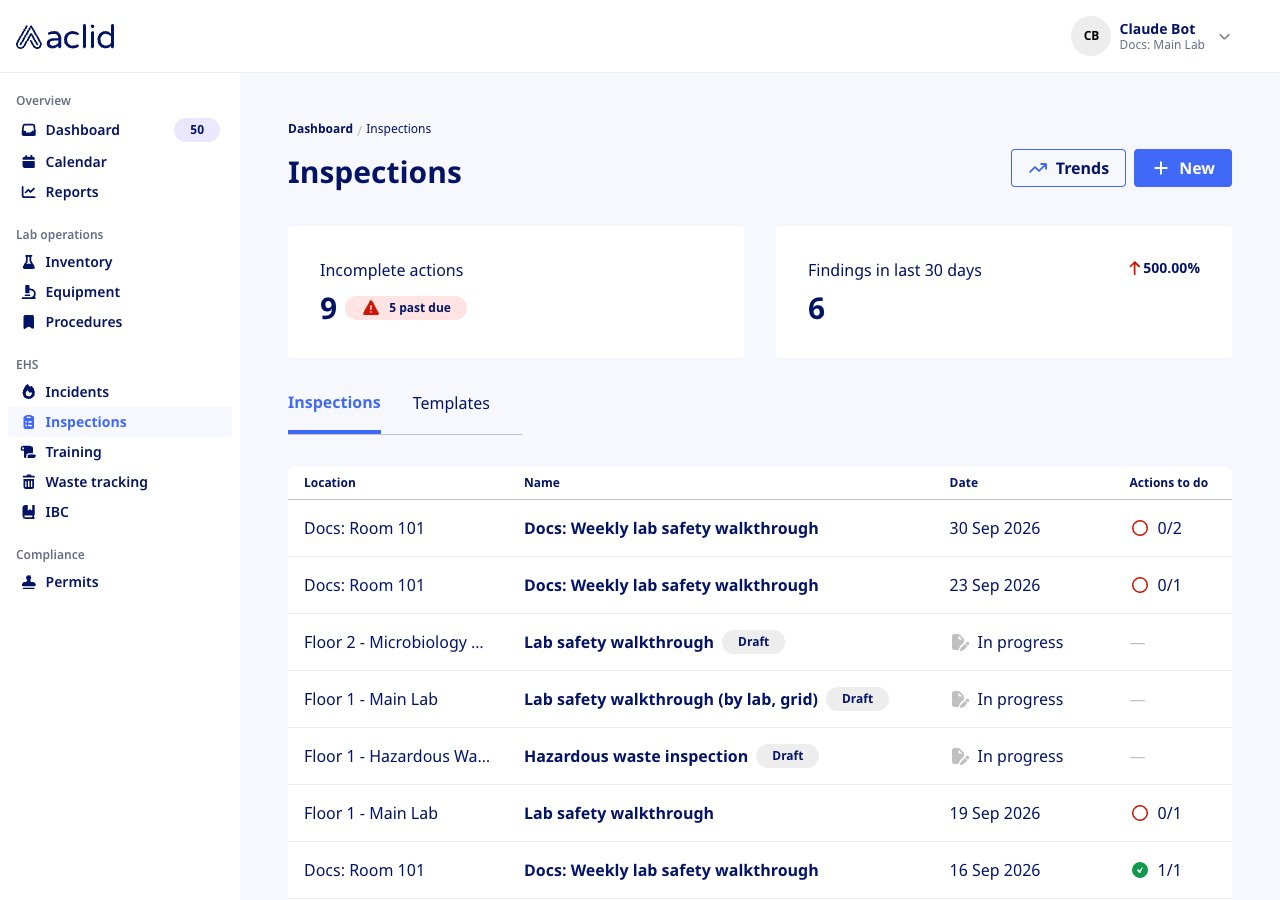
Inspections is in the **EHS** group of the left-hand navigation; members do not see the entry and get an access-restricted message if they open the address. The page shows a **Trends** button, a **New** button, two metric tiles and two tabs, **Inspections** and **Templates**. An organization with no results yet sees **No inspections recorded** with a **Conduct inspection** button.
 ## Key concepts
* **Template**: the checklist an inspection follows. Each **prompt** is a question with optional helper text, answered **Yes, in compliance**, **No, out of compliance** or **N/A**. Templates are listed on the **Templates** tab by name and number of prompts.
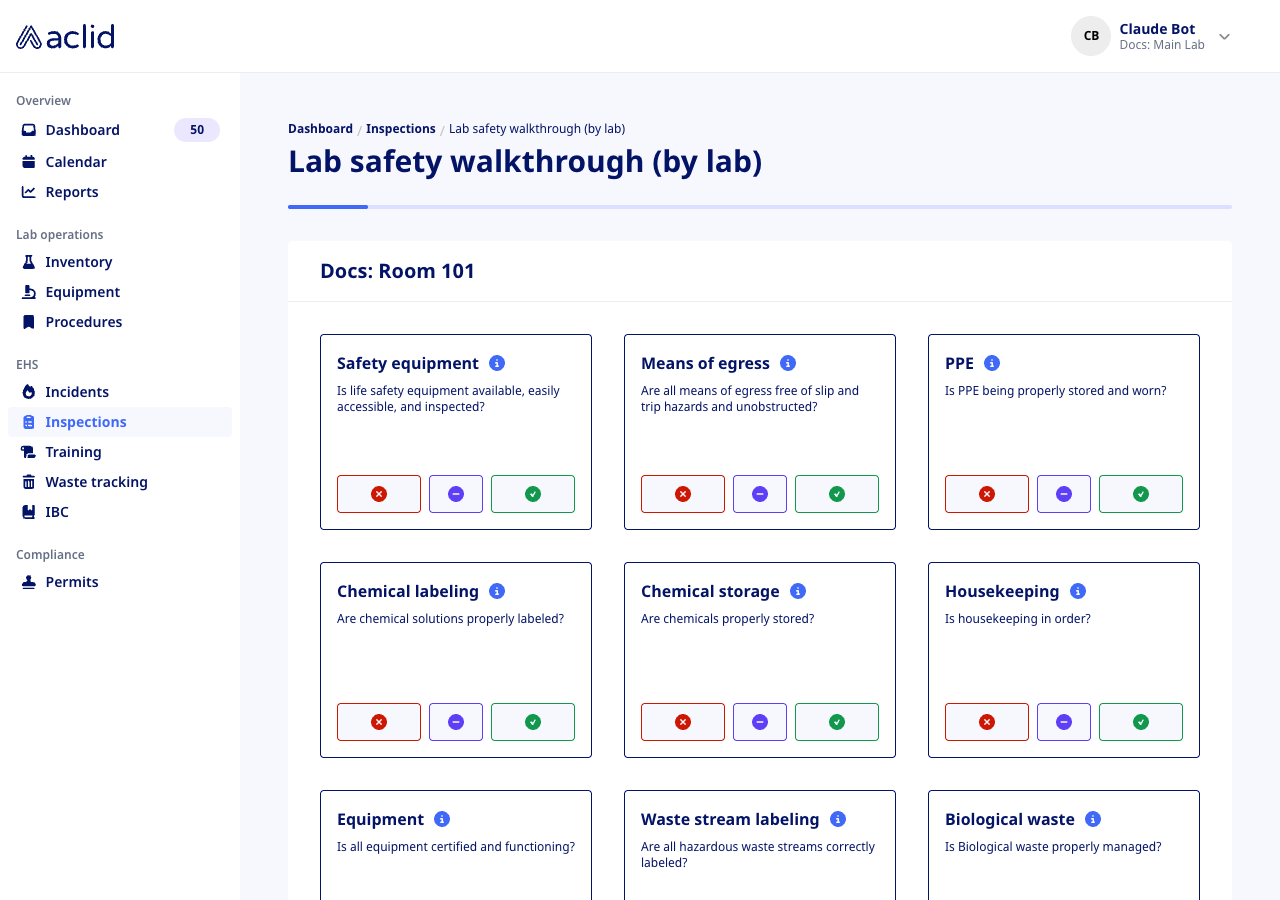
* **Sequential and grid templates**: a sequential template asks one prompt per screen with **Back** and **Next** and a progress bar. A grid template shows every prompt as a tile at once, with a cross, a dash and a check for the three answers and, once a tile is answered, a paper clip that opens a drawer for findings, observations and photos. Templates you create are sequential; the style belongs to the template, not to the inspection.
* **Single-location template**: asks **Which area are you inspecting?** before the walkthrough, and the result is filed under that area. Other templates cover the site in general, so their results show **Various** in the **Location** column.
* **Draft**: an inspection that has been started but not submitted. It is saved for you as you go, shows **Draft** and **In progress** in the list, and only the person who started it can open it; anyone else sees *Inspection being worked on*.
* **Completed**: an inspection that was submitted. It cannot be edited afterwards, only its actions can.
* **Pass**, **Fail**, **N/A**: how each answer is shown on a completed inspection.
* **Finding**: a description of what was wrong, required whenever a prompt is answered **No, out of compliance**. A prompt can have several findings.
* **Action**: a follow-up task attached to a finding, with a **Type of action** (**Corrective** or **Preventive**), an optional assignee and an optional due date. Actions appear on the assignee's Dashboard and count towards **Actions to do** and **Incomplete actions**.
* **Observations**: an optional note on a prompt answered **Yes, in compliance** or **N/A**.
* **Inspection event**: when your organization has a recurring inspection schedule, each occurrence appears on the Calendar as an **Inspection** event. **Start Inspection** on the event opens the form with the template already chosen, and **View Results** opens the completed inspection.
## Tasks
### Conduct an inspection
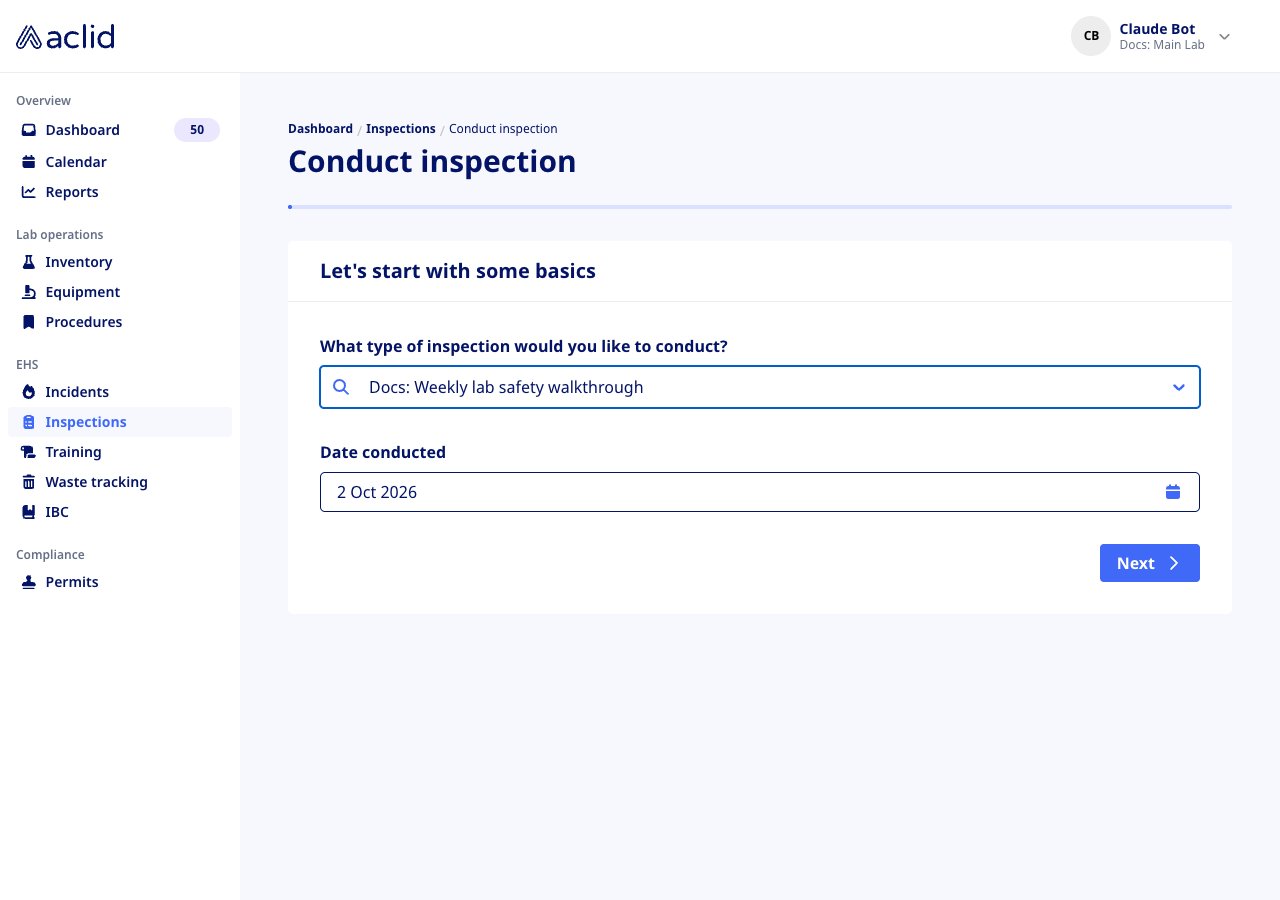
1. Click **New** on the **Inspections** tab. The **Conduct inspection** form opens on *Let's start with some basics*.
2. Choose the template under **What type of inspection would you like to conduct?**. If it is a single-location template, also choose the area under **Which area are you inspecting?**.
3. Check the **Date conducted** (it defaults to today and cannot be in the future) and click **Next**.
## Key concepts
* **Template**: the checklist an inspection follows. Each **prompt** is a question with optional helper text, answered **Yes, in compliance**, **No, out of compliance** or **N/A**. Templates are listed on the **Templates** tab by name and number of prompts.
* **Sequential and grid templates**: a sequential template asks one prompt per screen with **Back** and **Next** and a progress bar. A grid template shows every prompt as a tile at once, with a cross, a dash and a check for the three answers and, once a tile is answered, a paper clip that opens a drawer for findings, observations and photos. Templates you create are sequential; the style belongs to the template, not to the inspection.
* **Single-location template**: asks **Which area are you inspecting?** before the walkthrough, and the result is filed under that area. Other templates cover the site in general, so their results show **Various** in the **Location** column.
* **Draft**: an inspection that has been started but not submitted. It is saved for you as you go, shows **Draft** and **In progress** in the list, and only the person who started it can open it; anyone else sees *Inspection being worked on*.
* **Completed**: an inspection that was submitted. It cannot be edited afterwards, only its actions can.
* **Pass**, **Fail**, **N/A**: how each answer is shown on a completed inspection.
* **Finding**: a description of what was wrong, required whenever a prompt is answered **No, out of compliance**. A prompt can have several findings.
* **Action**: a follow-up task attached to a finding, with a **Type of action** (**Corrective** or **Preventive**), an optional assignee and an optional due date. Actions appear on the assignee's Dashboard and count towards **Actions to do** and **Incomplete actions**.
* **Observations**: an optional note on a prompt answered **Yes, in compliance** or **N/A**.
* **Inspection event**: when your organization has a recurring inspection schedule, each occurrence appears on the Calendar as an **Inspection** event. **Start Inspection** on the event opens the form with the template already chosen, and **View Results** opens the completed inspection.
## Tasks
### Conduct an inspection
1. Click **New** on the **Inspections** tab. The **Conduct inspection** form opens on *Let's start with some basics*.
2. Choose the template under **What type of inspection would you like to conduct?**. If it is a single-location template, also choose the area under **Which area are you inspecting?**.
3. Check the **Date conducted** (it defaults to today and cannot be in the future) and click **Next**.
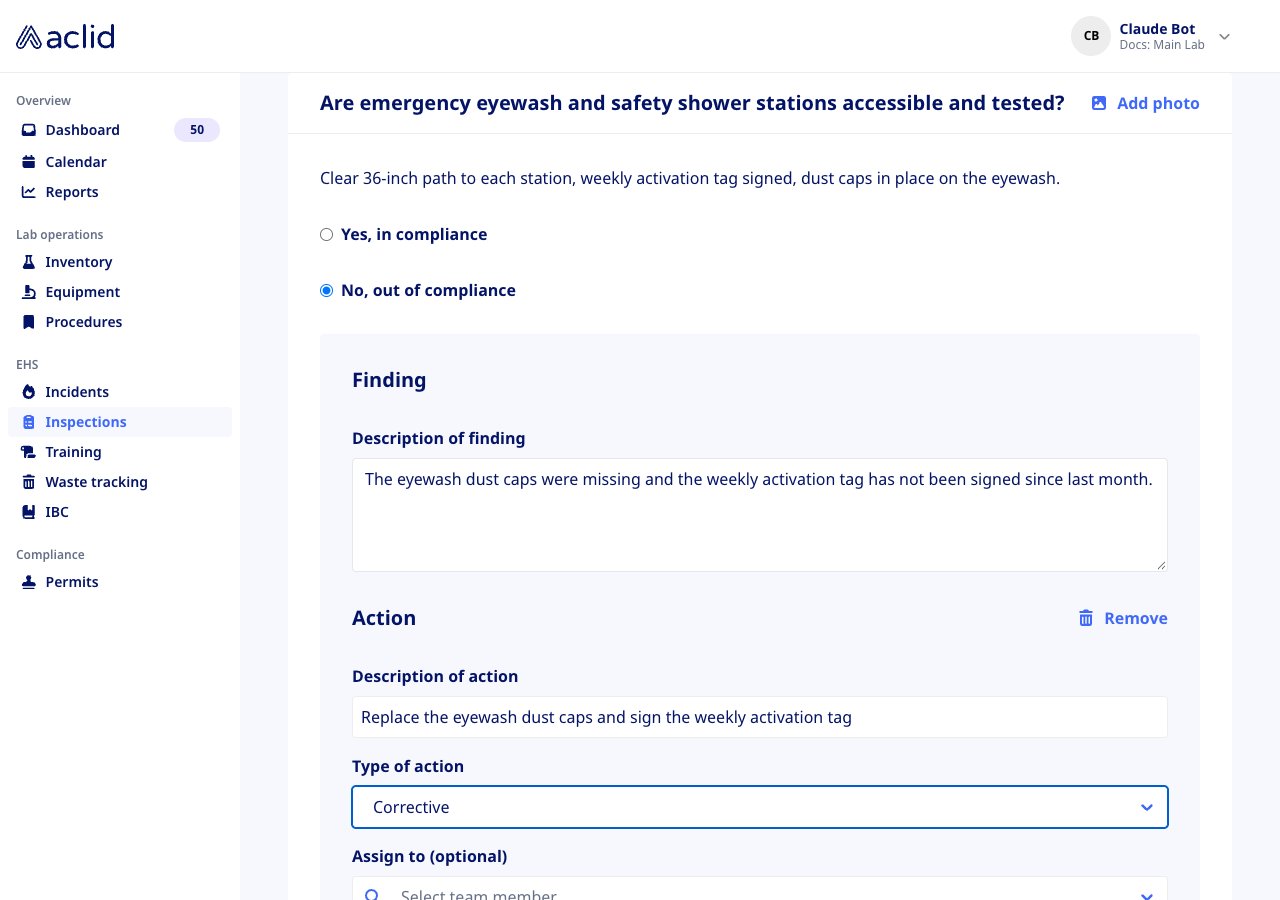
 4. Each screen shows one prompt with its helper text. Pick **Yes, in compliance**, **No, out of compliance** or **N/A**. A **Yes** or **N/A** answer offers **Observations (optional)**.
5. A **No** answer opens a **Finding** block. Fill in the **Description of finding**, then click **Add action** to add a **Description of action**, a **Type of action**, **Assign to (optional)** and **Due by (optional)**. **Add finding** adds another finding to the same prompt; **Remove** takes an added finding or action away again.
6. Use **Add photo** in the card header to attach a reference photo to the prompt.
7. Click **Next** to move on; each prompt is saved as a draft as you leave it, so you can come back later from the list. On the last prompt the button reads **Submit**. A banner confirms *recorded* and the completed inspection opens.
4. Each screen shows one prompt with its helper text. Pick **Yes, in compliance**, **No, out of compliance** or **N/A**. A **Yes** or **N/A** answer offers **Observations (optional)**.
5. A **No** answer opens a **Finding** block. Fill in the **Description of finding**, then click **Add action** to add a **Description of action**, a **Type of action**, **Assign to (optional)** and **Due by (optional)**. **Add finding** adds another finding to the same prompt; **Remove** takes an added finding or action away again.
6. Use **Add photo** in the card header to attach a reference photo to the prompt.
7. Click **Next** to move on; each prompt is saved as a draft as you leave it, so you can come back later from the list. On the last prompt the button reads **Submit**. A banner confirms *recorded* and the completed inspection opens.
 ### Conduct a grid inspection
1. Start as above and choose a grid template. After **Next**, every prompt appears as a tile under the area's name.
2. On each tile click the check for **Yes, in compliance**, the dash for **N/A** or the cross for **No, out of compliance**. Click the chosen answer again to clear it.
3. A cross opens the tile's drawer on the **Findings** tab. Enter the **Description of finding** and click **Add finding**; then **Add action** opens the same action fields as the sequential form, and **Save** attaches the action to the finding. Once a tile has an answer, its paper clip reopens the drawer: **Observations** (with **Add observation**) for a Yes or N/A answer, and **Photos** for all answers. Badges on the tile count what you added.
4. Answers are saved as a draft a few seconds after you make them. When every tile has an answer, click **Submit**.
### Conduct a grid inspection
1. Start as above and choose a grid template. After **Next**, every prompt appears as a tile under the area's name.
2. On each tile click the check for **Yes, in compliance**, the dash for **N/A** or the cross for **No, out of compliance**. Click the chosen answer again to clear it.
3. A cross opens the tile's drawer on the **Findings** tab. Enter the **Description of finding** and click **Add finding**; then **Add action** opens the same action fields as the sequential form, and **Save** attaches the action to the finding. Once a tile has an answer, its paper clip reopens the drawer: **Observations** (with **Add observation**) for a Yes or N/A answer, and **Photos** for all answers. Badges on the tile count what you added.
4. Answers are saved as a draft a few seconds after you make them. When every tile has an answer, click **Submit**.
 ### Review a completed inspection and its actions
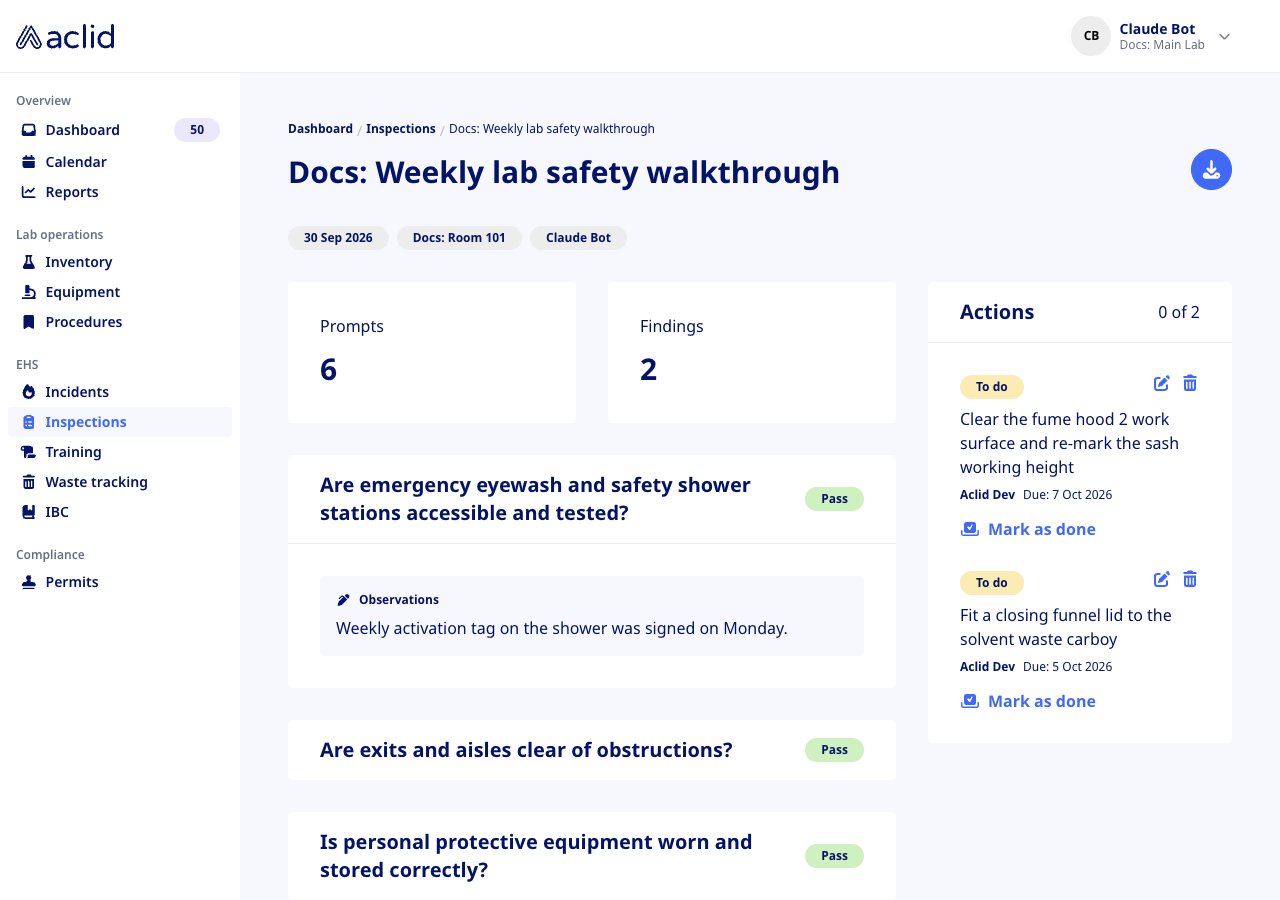
1. Click a row on the **Inspections** tab. The page shows the date, the location and the inspector as badges, the number of **Prompts** and **Findings**, then one card per prompt with its **Pass**, **Fail** or **N/A** badge, and the **Actions** card on the right.
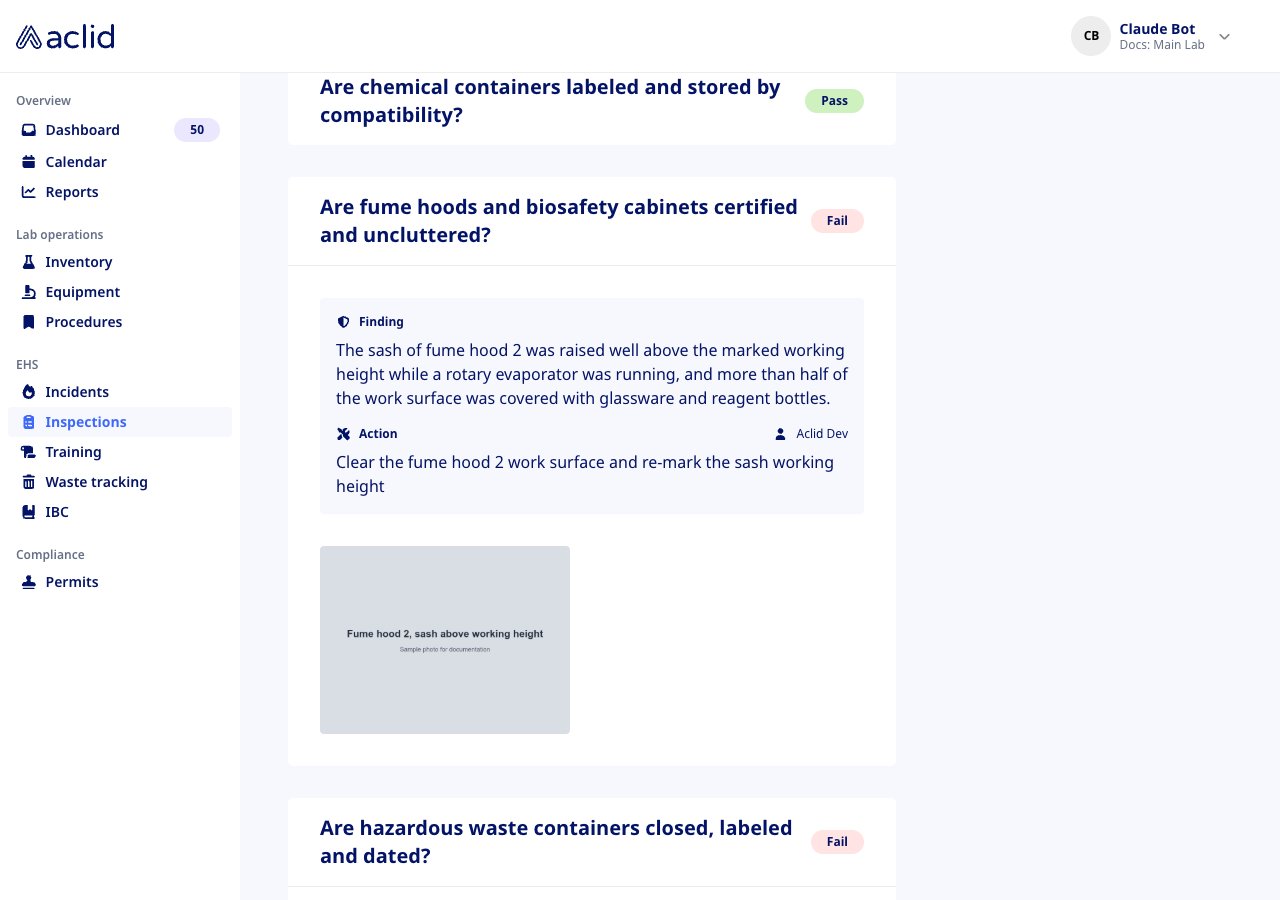
2. A **Fail** card lists each **Finding**, the **Action** raised from it with its assignee, and any photos; **Observations** show on the other cards.
3. In the **Actions** card, click **Mark as done** when an action is finished, or use the pencil and the trash icons to edit or delete it. The card counts how many are done, for example **0 of 2**.
4. The download icon at the top right prints the inspection or saves it as a PDF.
### Review a completed inspection and its actions
1. Click a row on the **Inspections** tab. The page shows the date, the location and the inspector as badges, the number of **Prompts** and **Findings**, then one card per prompt with its **Pass**, **Fail** or **N/A** badge, and the **Actions** card on the right.
2. A **Fail** card lists each **Finding**, the **Action** raised from it with its assignee, and any photos; **Observations** show on the other cards.
3. In the **Actions** card, click **Mark as done** when an action is finished, or use the pencil and the trash icons to edit or delete it. The card counts how many are done, for example **0 of 2**.
4. The download icon at the top right prints the inspection or saves it as a PDF.
 ### Create and edit a template
Admins only.
1. Open the **Templates** tab and click **New**. In **Create inspection template**, enter a **Template name** and click **Create template**. Names must be unique; otherwise the modal says *A template with this name already exists*.
2. The template page opens with **No prompts added**. Click **Add first prompt** or **Add prompt**, enter the **Question** and optional **Helper text (optional)**, and click **Add prompt**. Every prompt gets the three standard answers.
3. Use the pencil on a prompt to open **Edit inspection prompt** and **Save**, or the trash icon to **Delete inspection prompt** (confirm with **Yes, delete**).
4. With two or more prompts, **Re-order prompts** lets you drag them by the handle; click **Done** to keep the order.
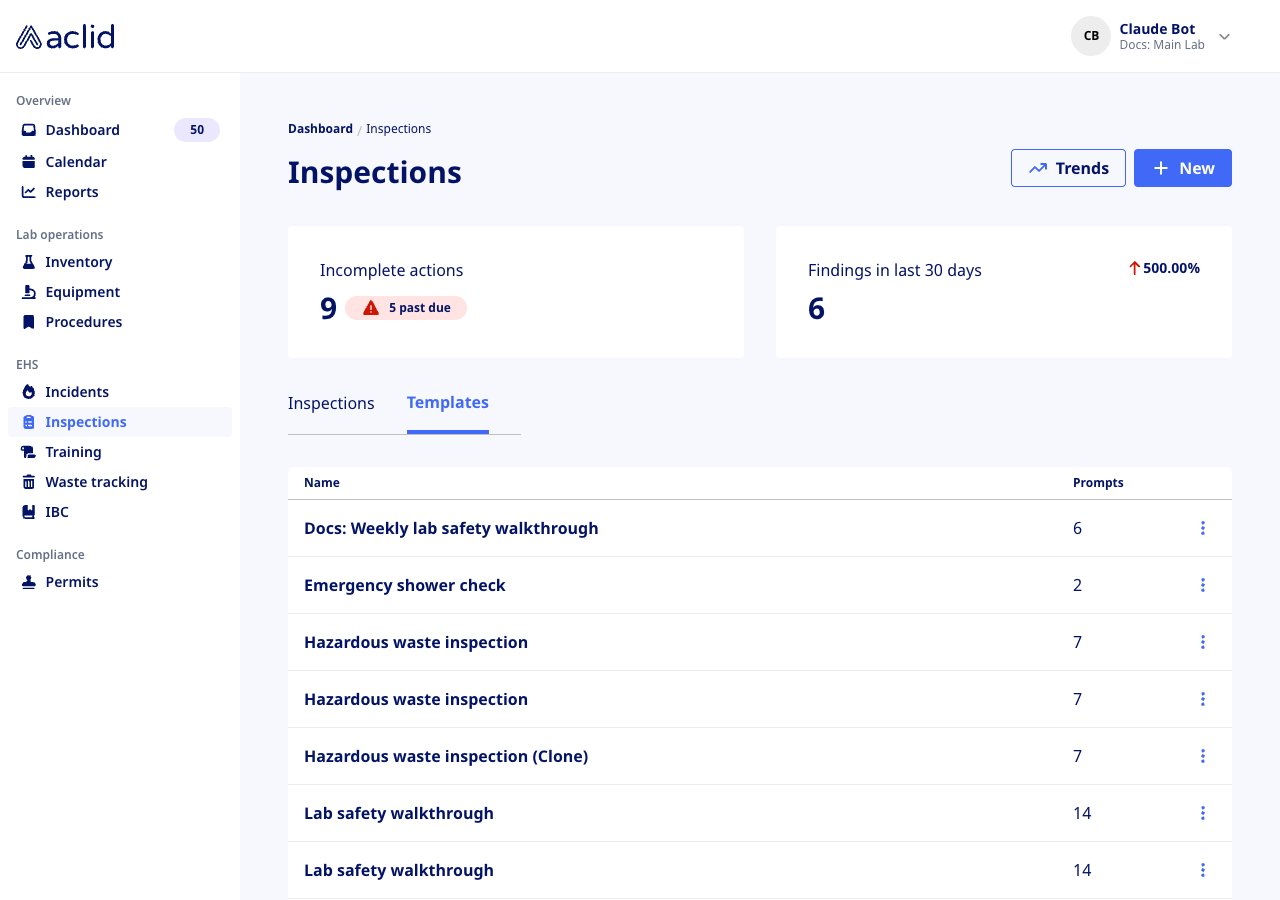
5. Back on the **Templates** tab, the three-dot menu on a row offers **Details**, **Clone** (which opens **Clone inspection template** with the name suffixed *(Clone)*; confirm with **Clone template**) and **Archive**. Archiving asks *Are you sure you want to archive …?*; confirm with **Yes, archive**. The template disappears from the picker, and existing inspections keep it.
### Create and edit a template
Admins only.
1. Open the **Templates** tab and click **New**. In **Create inspection template**, enter a **Template name** and click **Create template**. Names must be unique; otherwise the modal says *A template with this name already exists*.
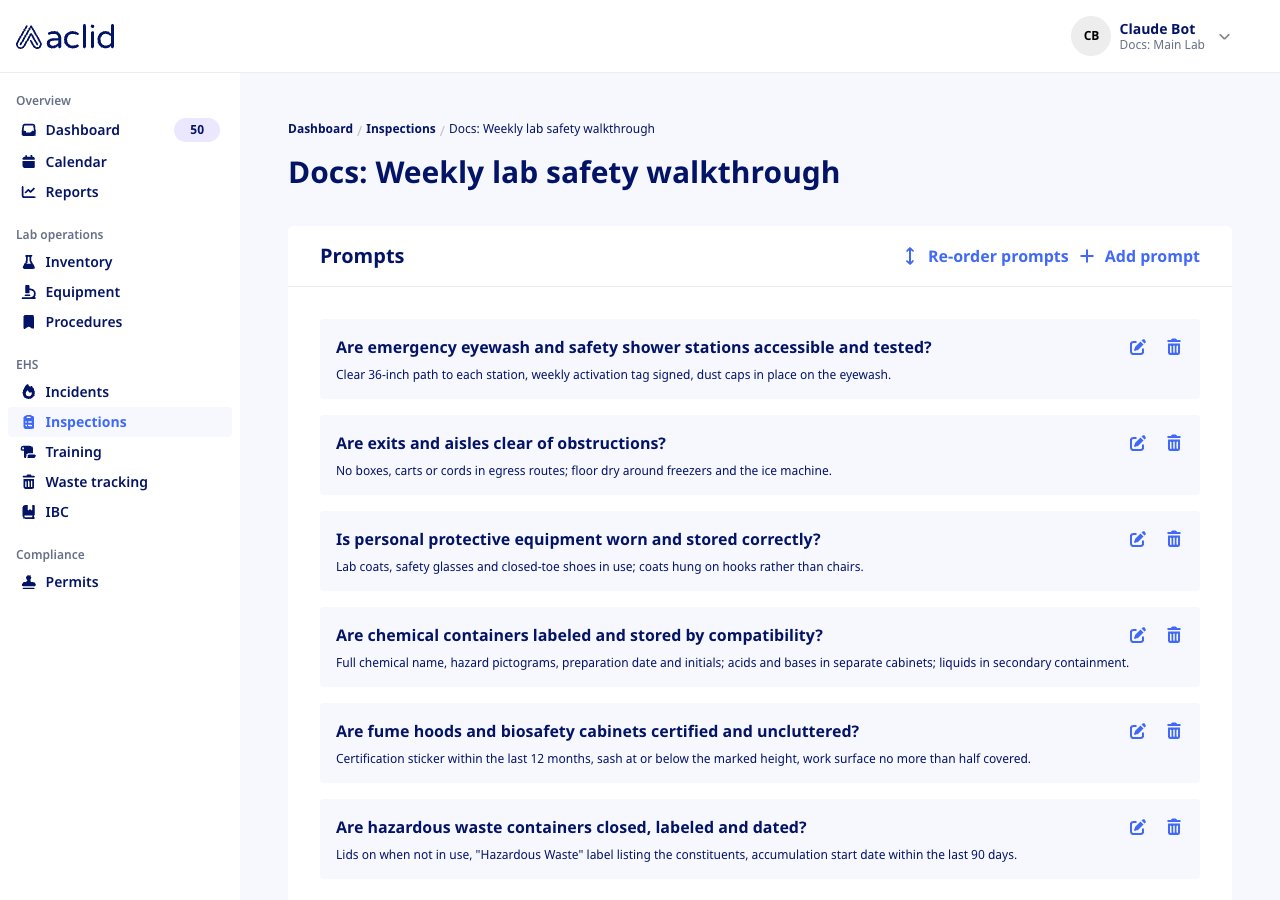
2. The template page opens with **No prompts added**. Click **Add first prompt** or **Add prompt**, enter the **Question** and optional **Helper text (optional)**, and click **Add prompt**. Every prompt gets the three standard answers.
3. Use the pencil on a prompt to open **Edit inspection prompt** and **Save**, or the trash icon to **Delete inspection prompt** (confirm with **Yes, delete**).
4. With two or more prompts, **Re-order prompts** lets you drag them by the handle; click **Done** to keep the order.
5. Back on the **Templates** tab, the three-dot menu on a row offers **Details**, **Clone** (which opens **Clone inspection template** with the name suffixed *(Clone)*; confirm with **Clone template**) and **Archive**. Archiving asks *Are you sure you want to archive …?*; confirm with **Yes, archive**. The template disappears from the picker, and existing inspections keep it.
 ## Reading the list
* **Location**: the area a single-location inspection was filed under, or **Various**.
* **Name**: the template, with a **Draft** badge while the inspection is in progress.
* **Date**: the **Date conducted**, or **In progress** for a draft.
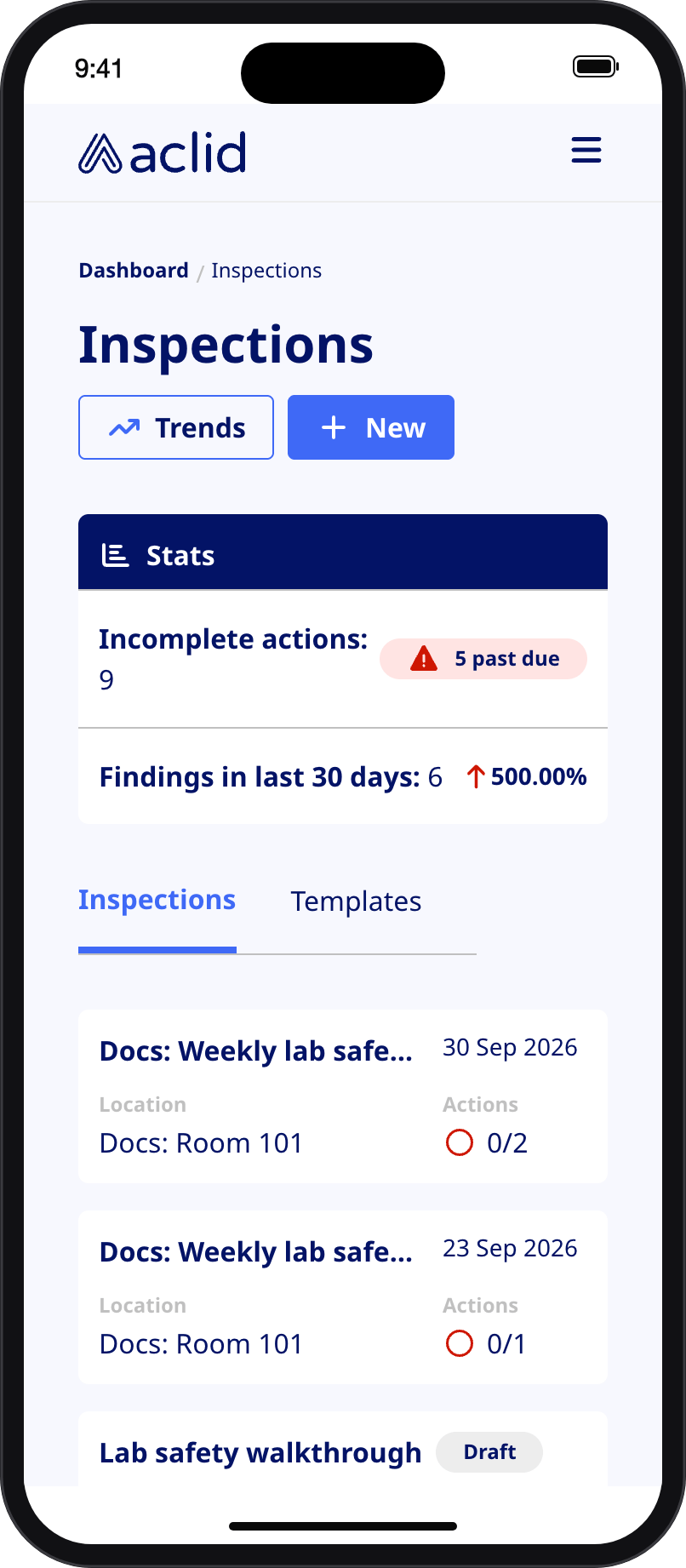
* **Actions to do**: done over total actions raised from the inspection's findings. An empty red circle means none are done, a half circle some, a green check all; a dash means the inspection raised no actions.
* **Incomplete actions**: open actions raised from inspection findings, with a red **past due** badge counting those past their due date.
* **Findings in last 30 days**: findings from inspections in the last 30 days, with the change against the 30 days before.
* Rows are newest first by date conducted. On a phone the tiles become a **Stats** card and each inspection is a card.
## Reading the list
* **Location**: the area a single-location inspection was filed under, or **Various**.
* **Name**: the template, with a **Draft** badge while the inspection is in progress.
* **Date**: the **Date conducted**, or **In progress** for a draft.
* **Actions to do**: done over total actions raised from the inspection's findings. An empty red circle means none are done, a half circle some, a green check all; a dash means the inspection raised no actions.
* **Incomplete actions**: open actions raised from inspection findings, with a red **past due** badge counting those past their due date.
* **Findings in last 30 days**: findings from inspections in the last 30 days, with the change against the 30 days before.
* Rows are newest first by date conducted. On a phone the tiles become a **Stats** card and each inspection is a card.
 ## Tips and limits
* Only the inspector who started a draft can open or finish it; other admins see *Inspection being worked on* when they click the row.
* A prompt answered **No, out of compliance** cannot be left without a finding: the sequential form requires the **Description of finding**, and a grid tile shows *At least one finding required* until one is added.
* Assignees are notified of their actions when the inspection is submitted, not while it is a draft.
* Photos are images only. The sequential form adds them per prompt with **Add photo**; the grid uses the **Photos** tab of the drawer.
* A completed inspection cannot be reopened or edited. Correct a mistake by conducting the inspection again, and edit or delete the actions on the result page.
* Some templates supplied with your account are locked: their page shows the prompts without **Add prompt**, edit or delete controls. Clone one to get an editable copy.
* Archived templates are hidden from the **Templates** tab and the template picker, and cannot be unarchived from the app.
* Grid and single-location templates are set up for you; the templates you create in the app are sequential and site-wide.
* **Trends** opens Reports on the **Inspections** tab, which charts findings by location and by template category.
## Related
* [Dashboard](/guides/dashboard) shows the actions raised from findings to their assignees.
* [Calendar](/guides/calendar) lists scheduled inspection events and lets you start one from the event.
* [Reports](/guides/reports) charts findings over time, by location and by category.
* [Roles and sites](/api/roles-and-sites) explains the admin and member roles.
* [GraphQL reference: inspections](/api/reference/queries/inspections)
* [GraphQL reference: createInspectionResult](/api/reference/mutations/createInspectionResult)
* [GraphQL reference: InspectionResult](/api/reference/types/InspectionResult)
* [GraphQL reference: InspectionTemplate](/api/reference/types/InspectionTemplate)
* [GraphQL reference: Finding](/api/reference/types/Finding)
This documentation is built and hosted on [Mintlify](https://mintlify.com), a developer documentation platform.
## Tips and limits
* Only the inspector who started a draft can open or finish it; other admins see *Inspection being worked on* when they click the row.
* A prompt answered **No, out of compliance** cannot be left without a finding: the sequential form requires the **Description of finding**, and a grid tile shows *At least one finding required* until one is added.
* Assignees are notified of their actions when the inspection is submitted, not while it is a draft.
* Photos are images only. The sequential form adds them per prompt with **Add photo**; the grid uses the **Photos** tab of the drawer.
* A completed inspection cannot be reopened or edited. Correct a mistake by conducting the inspection again, and edit or delete the actions on the result page.
* Some templates supplied with your account are locked: their page shows the prompts without **Add prompt**, edit or delete controls. Clone one to get an editable copy.
* Archived templates are hidden from the **Templates** tab and the template picker, and cannot be unarchived from the app.
* Grid and single-location templates are set up for you; the templates you create in the app are sequential and site-wide.
* **Trends** opens Reports on the **Inspections** tab, which charts findings by location and by template category.
## Related
* [Dashboard](/guides/dashboard) shows the actions raised from findings to their assignees.
* [Calendar](/guides/calendar) lists scheduled inspection events and lets you start one from the event.
* [Reports](/guides/reports) charts findings over time, by location and by category.
* [Roles and sites](/api/roles-and-sites) explains the admin and member roles.
* [GraphQL reference: inspections](/api/reference/queries/inspections)
* [GraphQL reference: createInspectionResult](/api/reference/mutations/createInspectionResult)
* [GraphQL reference: InspectionResult](/api/reference/types/InspectionResult)
* [GraphQL reference: InspectionTemplate](/api/reference/types/InspectionTemplate)
* [GraphQL reference: Finding](/api/reference/types/Finding)
This documentation is built and hosted on [Mintlify](https://mintlify.com), a developer documentation platform.