> ## Documentation Index
> Fetch the complete documentation index at: https://wiki.aclid.bio/llms.txt
> Use this file to discover all available pages before exploring further.
# Incidents
> Report incidents, near misses and good catches, review them as an admin, track the follow-up actions, and close them out.
The Incidents module is where anyone in your organization reports something that went wrong, or nearly did. A report captures what happened, where and when, who was involved, any equipment, chemicals or biologicals, exposure or injury details, photos, and the follow-up actions. Every report opens a review task for an admin, and the incident stays **Needs review** until an admin closes it. Follow-up actions show up in the **Actions** card on their assignee's Dashboard, and incident trends are charted under Reports.
## Who can do what
| Action | Admin | Member |
| - | - | - |
| Report an incident | Yes | Yes |
| Set the type and severity, add actions and answer the OSHA questions while reporting | Yes | No (an admin adds these during review) |
| See the incidents list | Every incident | Only incidents they reported, were involved in, or witnessed |
| See the metrics tiles and the **Trends** button | Yes | No |
| Edit, add photos or actions, and close an incident | Yes | No |
| Mark an action as done | Yes | Actions assigned to them |
| Edit or delete an action | Yes | No |
## Open Incidents
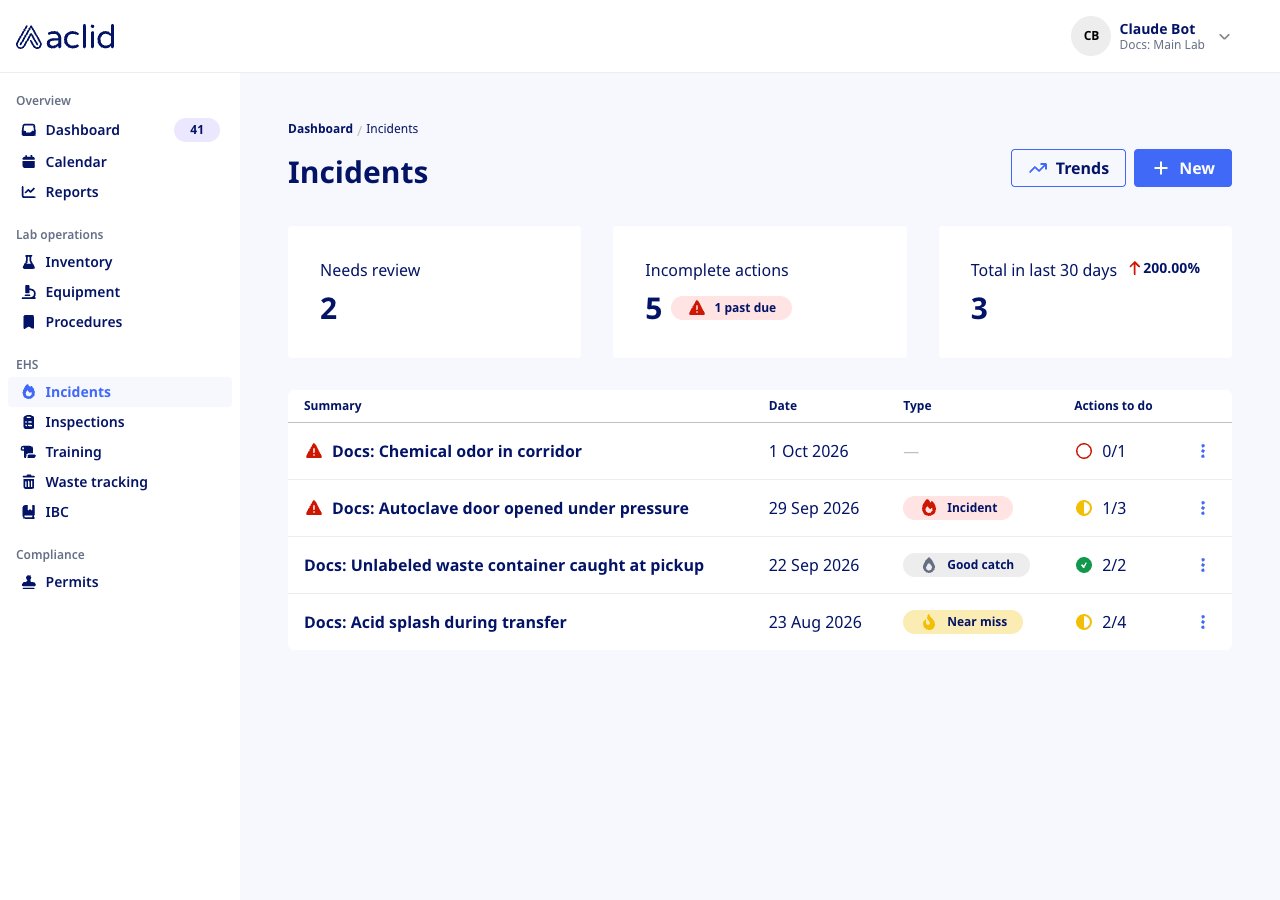
Incidents is in the **EHS** group of the left-hand navigation. The list shows a **New** button, and for admins a **Trends** button plus three metric tiles above the table. An organization with no reports yet sees **No incidents reported** with a **Report incident** button instead of the table.
 ## Key concepts
* **Incident, Near miss, Good catch**: the three types of report. Together with the severity (**Severe**, **Moderate**, **Minor**) the type is optional while reporting, and only admins can set it, either when they report or later during review. In the list the type badge is tinted by severity.
* **Needs review** and **Reviewed & closed**: the two states of an incident. Submitting a report creates a *Review & close* task for an admin. The incident shows **Needs review** until an admin closes it, and **Reviewed & closed** afterwards. Closing requires both a type and a severity.
* **Actions**: follow-up tasks attached to the incident, each with a **Type of action** (**Corrective** or **Preventive**), an optional assignee and an optional due date. Only admins add them. They appear in the **Actions** card on the assignee's Dashboard, and the list's **Actions to do** column counts how many are done.
* **OSHA questions**: two Yes/No questions that only admins see, inside the exposure/injury section while reporting or later in **Edit exposure/injury occurred**: whether the incident resulted in a fatality, amputation, loss of an eye or hospitalization, and whether it resulted in a work-related injury or illness needing treatment beyond first aid, a needlestick or sharps injury, medical removal, hearing loss or tuberculosis. Answering **Yes** shows *This incident must be reported to OSHA* or *This incident must be recorded for OSHA*, marks the incident **OSHA reportable** or **OSHA recordable**, and adds a *Report incident to OSHA* or *Record incident for OSHA* task, assigned to the closing admin, when the incident is closed.
* **Photos**: reference photos attached to the report. PNG, JPEG, GIF and WebP files up to 25 MB each.
## Tasks
### Report an incident
Anyone can report. Submit with whatever you know; the form itself says *Details can be added later*.
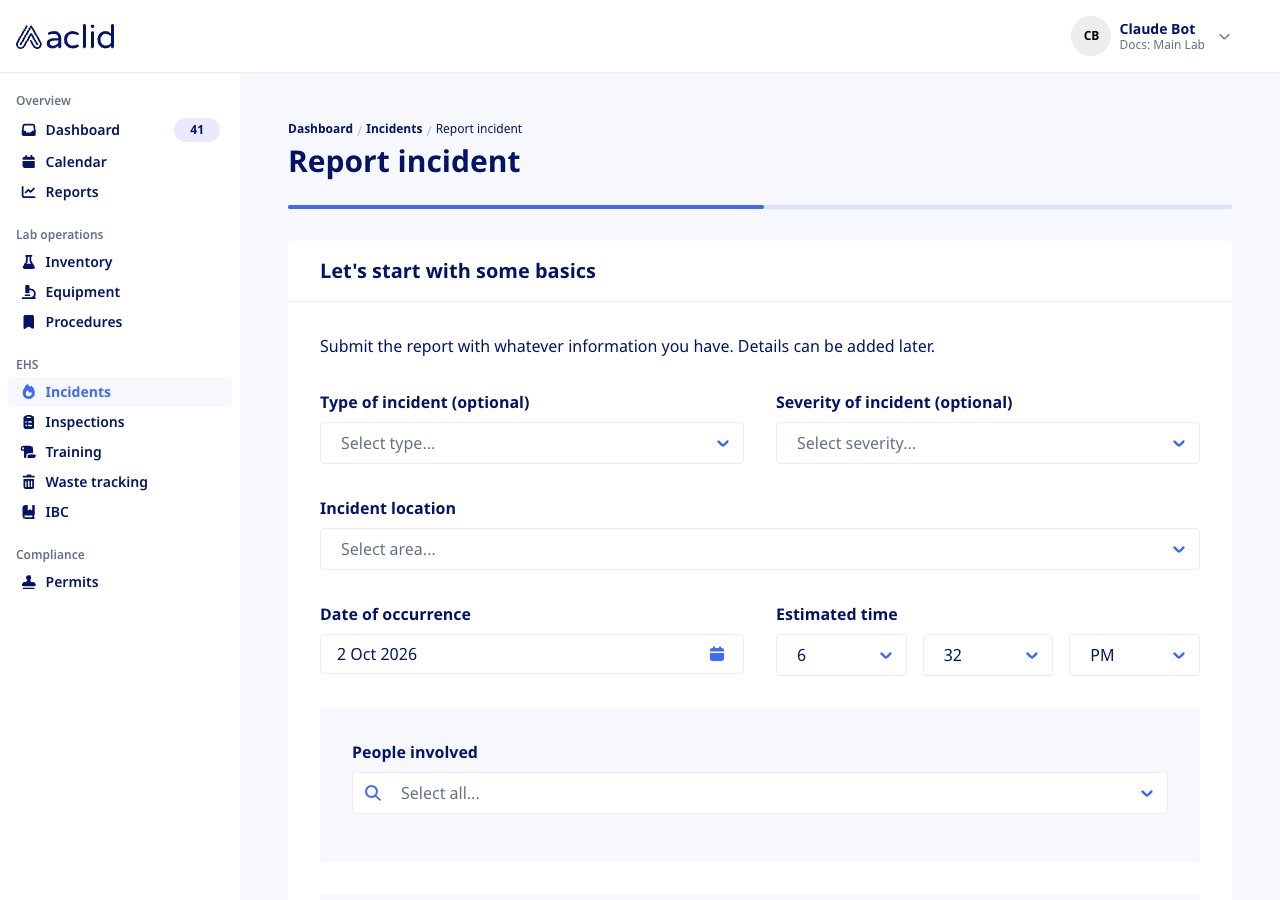
1. Click **New** on the Incidents page, or **Report incident** in the empty state. The **Report incident** form opens on *Let's start with some basics*.
2. Pick the **Incident location** and set the **Date of occurrence** and **Estimated time** (they default to now). Choose the **People involved**, and any **Witnesses (optional)**.
3. Admins also see **Type of incident (optional)** and **Severity of incident (optional)** here.
4. Switch on **Equipment involved**, **Chemicals involved** or **Biologicals involved** when they apply, and describe each one.
5. Click **Next**.
## Key concepts
* **Incident, Near miss, Good catch**: the three types of report. Together with the severity (**Severe**, **Moderate**, **Minor**) the type is optional while reporting, and only admins can set it, either when they report or later during review. In the list the type badge is tinted by severity.
* **Needs review** and **Reviewed & closed**: the two states of an incident. Submitting a report creates a *Review & close* task for an admin. The incident shows **Needs review** until an admin closes it, and **Reviewed & closed** afterwards. Closing requires both a type and a severity.
* **Actions**: follow-up tasks attached to the incident, each with a **Type of action** (**Corrective** or **Preventive**), an optional assignee and an optional due date. Only admins add them. They appear in the **Actions** card on the assignee's Dashboard, and the list's **Actions to do** column counts how many are done.
* **OSHA questions**: two Yes/No questions that only admins see, inside the exposure/injury section while reporting or later in **Edit exposure/injury occurred**: whether the incident resulted in a fatality, amputation, loss of an eye or hospitalization, and whether it resulted in a work-related injury or illness needing treatment beyond first aid, a needlestick or sharps injury, medical removal, hearing loss or tuberculosis. Answering **Yes** shows *This incident must be reported to OSHA* or *This incident must be recorded for OSHA*, marks the incident **OSHA reportable** or **OSHA recordable**, and adds a *Report incident to OSHA* or *Record incident for OSHA* task, assigned to the closing admin, when the incident is closed.
* **Photos**: reference photos attached to the report. PNG, JPEG, GIF and WebP files up to 25 MB each.
## Tasks
### Report an incident
Anyone can report. Submit with whatever you know; the form itself says *Details can be added later*.
1. Click **New** on the Incidents page, or **Report incident** in the empty state. The **Report incident** form opens on *Let's start with some basics*.
2. Pick the **Incident location** and set the **Date of occurrence** and **Estimated time** (they default to now). Choose the **People involved**, and any **Witnesses (optional)**.
3. Admins also see **Type of incident (optional)** and **Severity of incident (optional)** here.
4. Switch on **Equipment involved**, **Chemicals involved** or **Biologicals involved** when they apply, and describe each one.
5. Click **Next**.
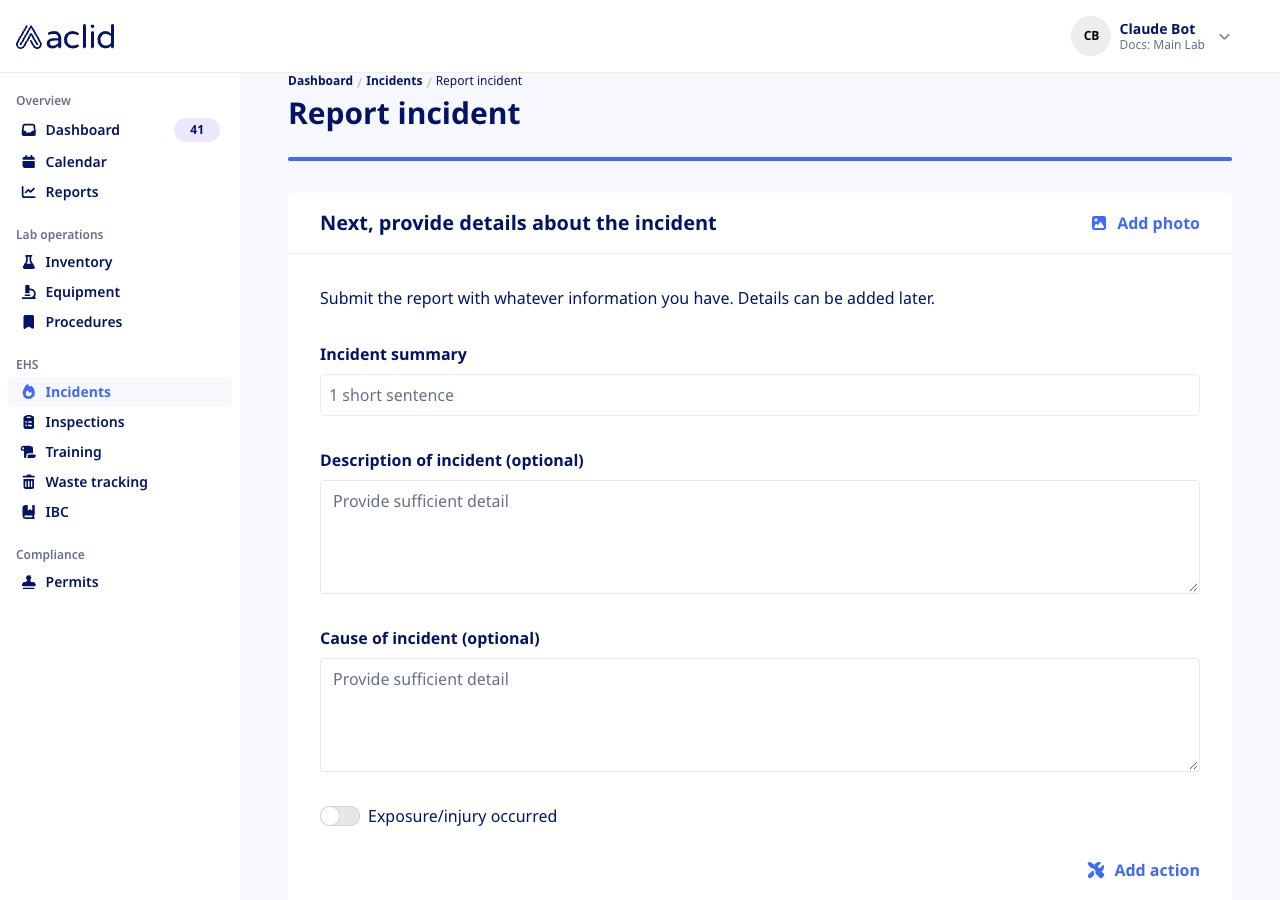
 6. On *Next, provide details about the incident*, write the **Incident summary** (one short sentence, required). Add a **Description of incident (optional)** and **Cause of incident (optional)**.
7. If someone was exposed or hurt, switch on **Exposure/injury occurred** and fill in **Exposure/injury that occurred**, **Medical treatment details**, **Description of immediate medical response** and **Personnel involved in immediate medical response**.
8. With **Exposure/injury occurred** switched on, admins also answer the two OSHA questions. Admins can add follow-up actions with **Add action**.
9. Optionally click **Add photo** at the top of the card (not shown on a phone) to *Add a reference photo for this incident*.
10. Click **Submit for review**. A banner confirms *Incident reported.* Members also see *An admin will review and follow up.*
6. On *Next, provide details about the incident*, write the **Incident summary** (one short sentence, required). Add a **Description of incident (optional)** and **Cause of incident (optional)**.
7. If someone was exposed or hurt, switch on **Exposure/injury occurred** and fill in **Exposure/injury that occurred**, **Medical treatment details**, **Description of immediate medical response** and **Personnel involved in immediate medical response**.
8. With **Exposure/injury occurred** switched on, admins also answer the two OSHA questions. Admins can add follow-up actions with **Add action**.
9. Optionally click **Add photo** at the top of the card (not shown on a phone) to *Add a reference photo for this incident*.
10. Click **Submit for review**. A banner confirms *Incident reported.* Members also see *An admin will review and follow up.*
 ### Review and update an incident
Admins only.
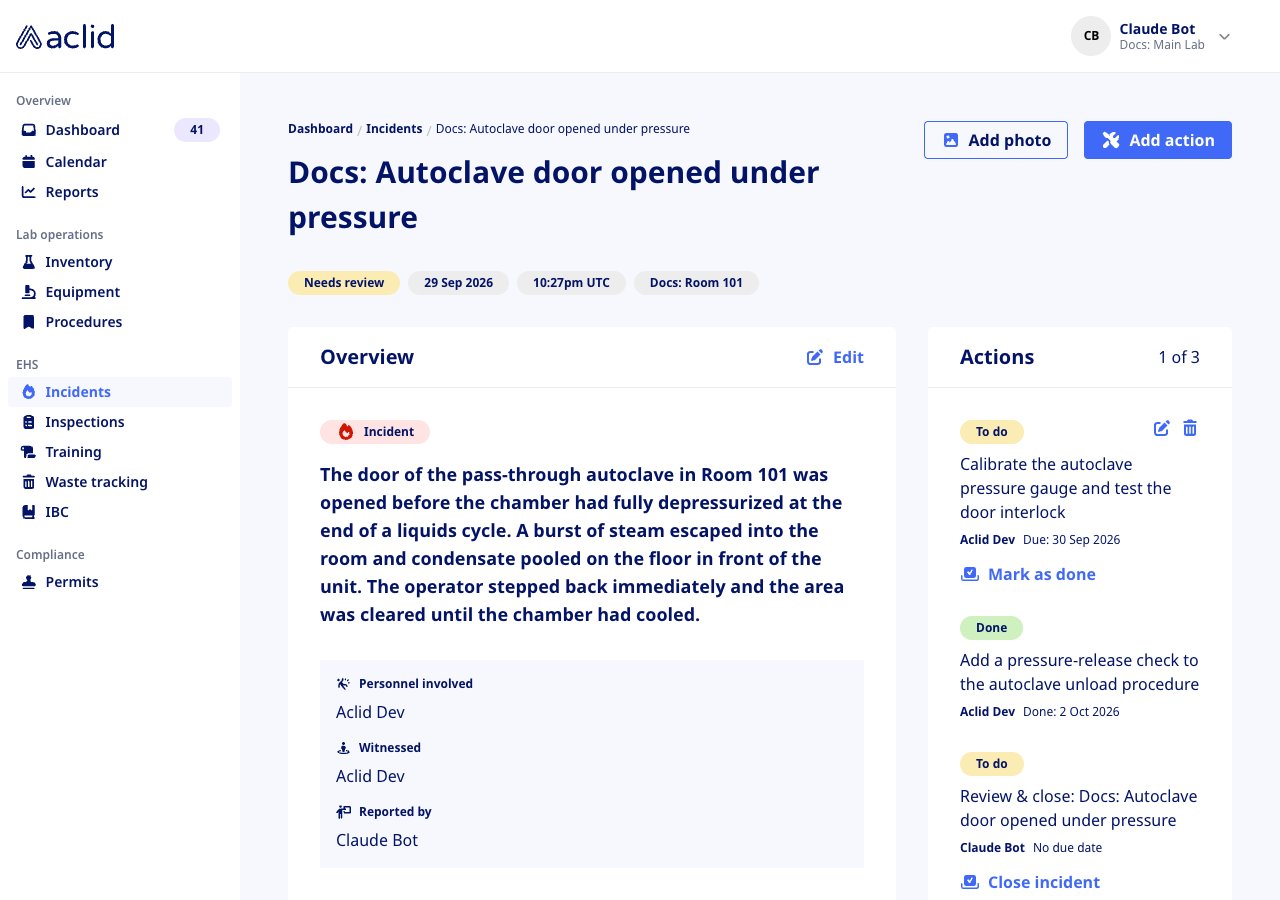
1. Open an incident marked with the red **Needs review** triangle, or choose **Review details** from its row menu.
2. While the incident needs review, the detail page is editable. Each section has an **Edit** button that opens **Edit overview**, **Edit materials involved**, **Edit cause of incident** or **Edit exposure/injury occurred**. Set the **Type of incident** and **Severity of incident** in the overview if they are missing.
3. Use **Add photo** and **Add action** at the top of the page to attach more photos and assign follow-up work.
4. In the **Actions** card, use **Mark as done** on completed actions, or the edit and delete icons to change them.
### Review and update an incident
Admins only.
1. Open an incident marked with the red **Needs review** triangle, or choose **Review details** from its row menu.
2. While the incident needs review, the detail page is editable. Each section has an **Edit** button that opens **Edit overview**, **Edit materials involved**, **Edit cause of incident** or **Edit exposure/injury occurred**. Set the **Type of incident** and **Severity of incident** in the overview if they are missing.
3. Use **Add photo** and **Add action** at the top of the page to attach more photos and assign follow-up work.
4. In the **Actions** card, use **Mark as done** on completed actions, or the edit and delete icons to change them.
 ### Close an incident
Admins only.
1. In the **Actions** card, click **Close incident**.
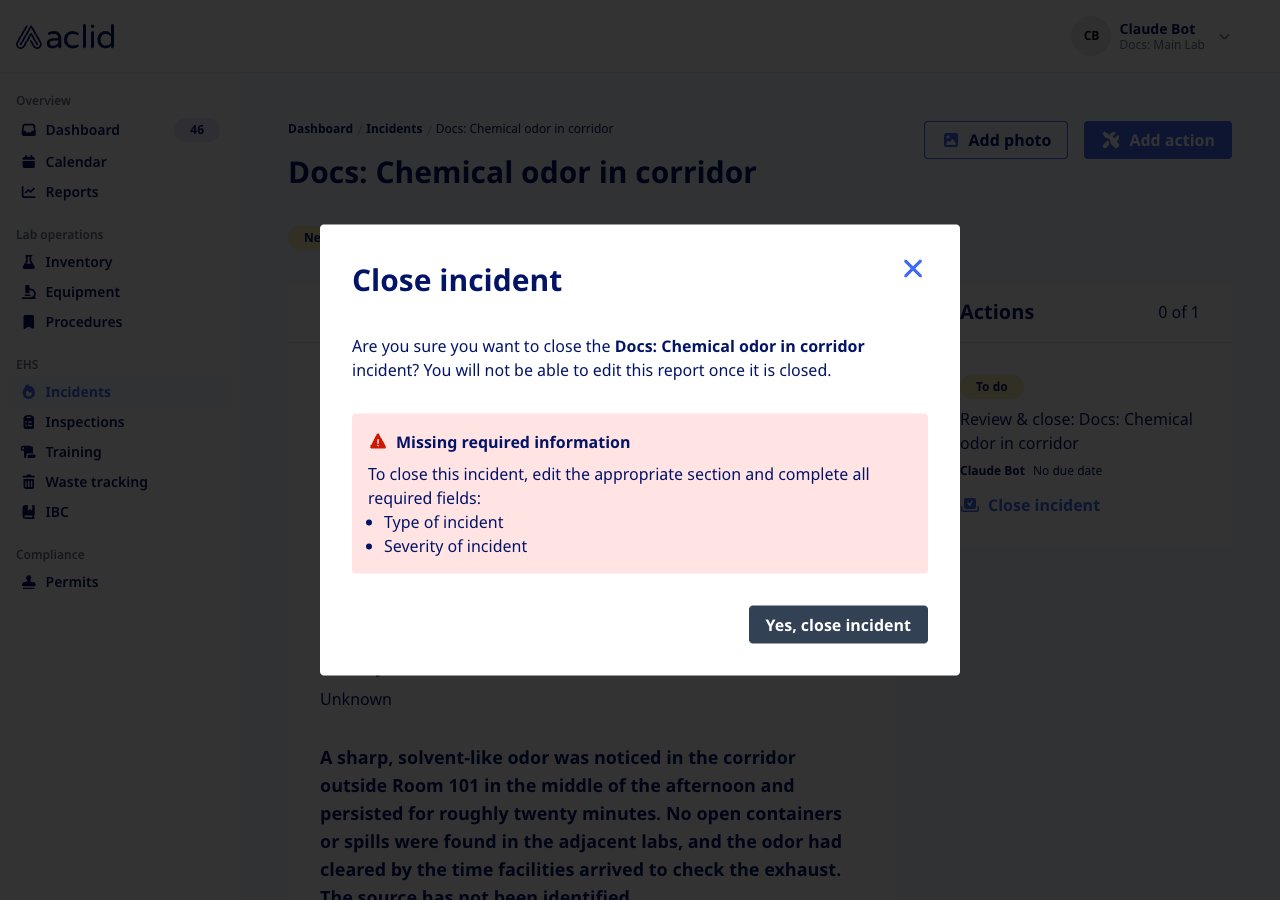
2. Confirm with **Yes, close incident**. If the type or severity is still missing, the dialog shows **Missing required information** and lists what to fill in first.
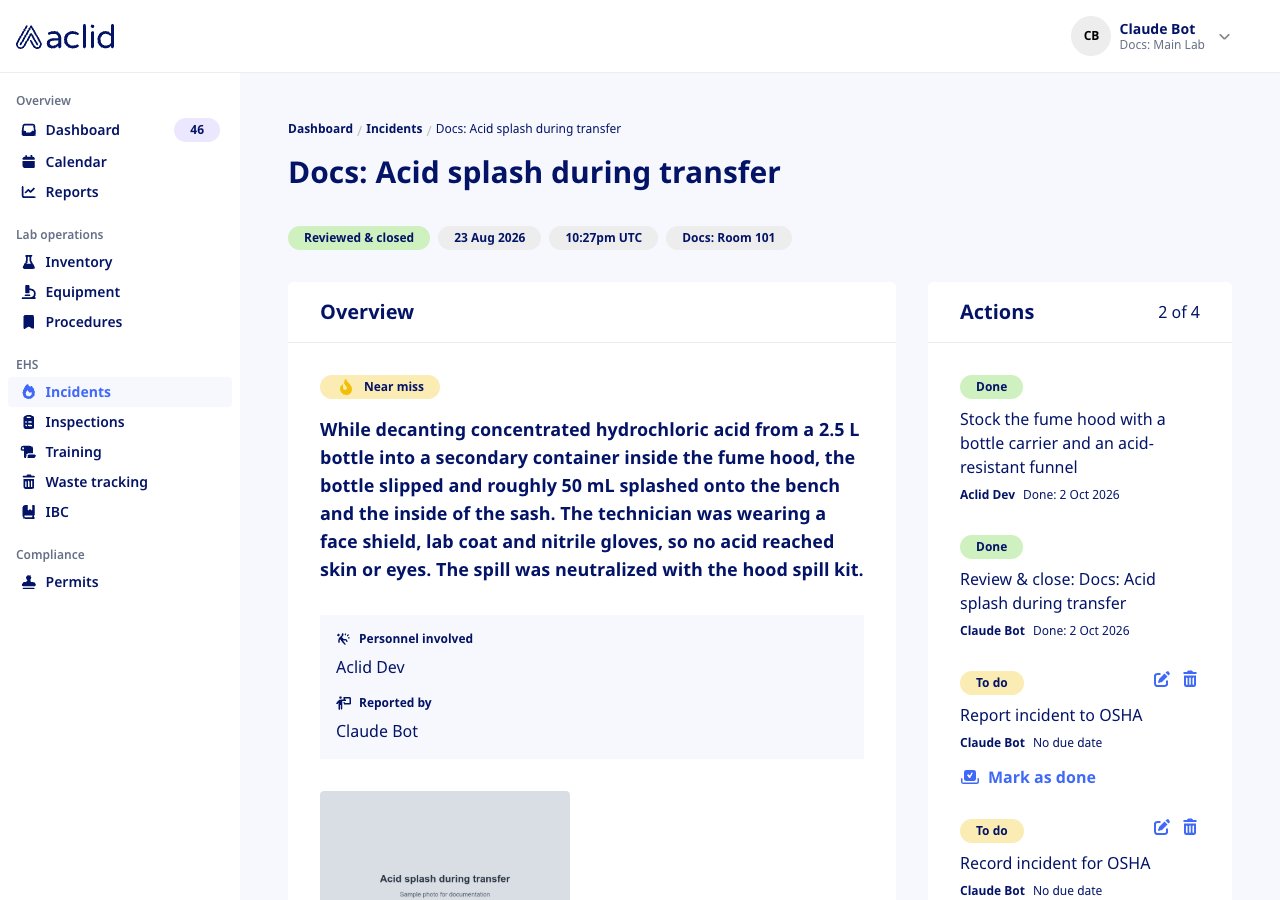
3. Once closed, the incident shows **Reviewed & closed** and the report becomes read-only; its remaining actions can still be marked as done. If an OSHA question was answered **Yes**, the matching OSHA task is added to the **Actions** card, assigned to you.
### Close an incident
Admins only.
1. In the **Actions** card, click **Close incident**.
2. Confirm with **Yes, close incident**. If the type or severity is still missing, the dialog shows **Missing required information** and lists what to fill in first.
3. Once closed, the incident shows **Reviewed & closed** and the report becomes read-only; its remaining actions can still be marked as done. If an OSHA question was answered **Yes**, the matching OSHA task is added to the **Actions** card, assigned to you.
 ### Complete a follow-up action
Actions assigned to you appear in the **Actions** card on your Dashboard and on the incident page. On the Dashboard choose **Mark as done** from the action's menu; on the incident page click **Mark as done** in the **Actions** card. Add **Notes (optional)** and confirm with **Yes, mark as done**. The incident's **Actions to do** count updates as actions are completed.
### View incident trends
Admins only.
Click **Trends** on the Incidents page to open Reports, then select the **Incidents** tab. It charts **Total incidents**, **Types of incidents**, **Severity of incidents** and **Incidents by location** for the **Last 7 days**, **Last 30 days**, **Last 6 months** or **Last 12 months**.
## Reading the list
Incidents are listed by date of occurrence, newest first. For admins, incidents that need review come first.
* **Summary**: the one-line summary. A red triangle in front of it (admins only) means the incident needs review.
* **Date**: the date of occurrence.
* **Type**: the type badge, tinted by severity. A dash means the type or severity has not been set yet.
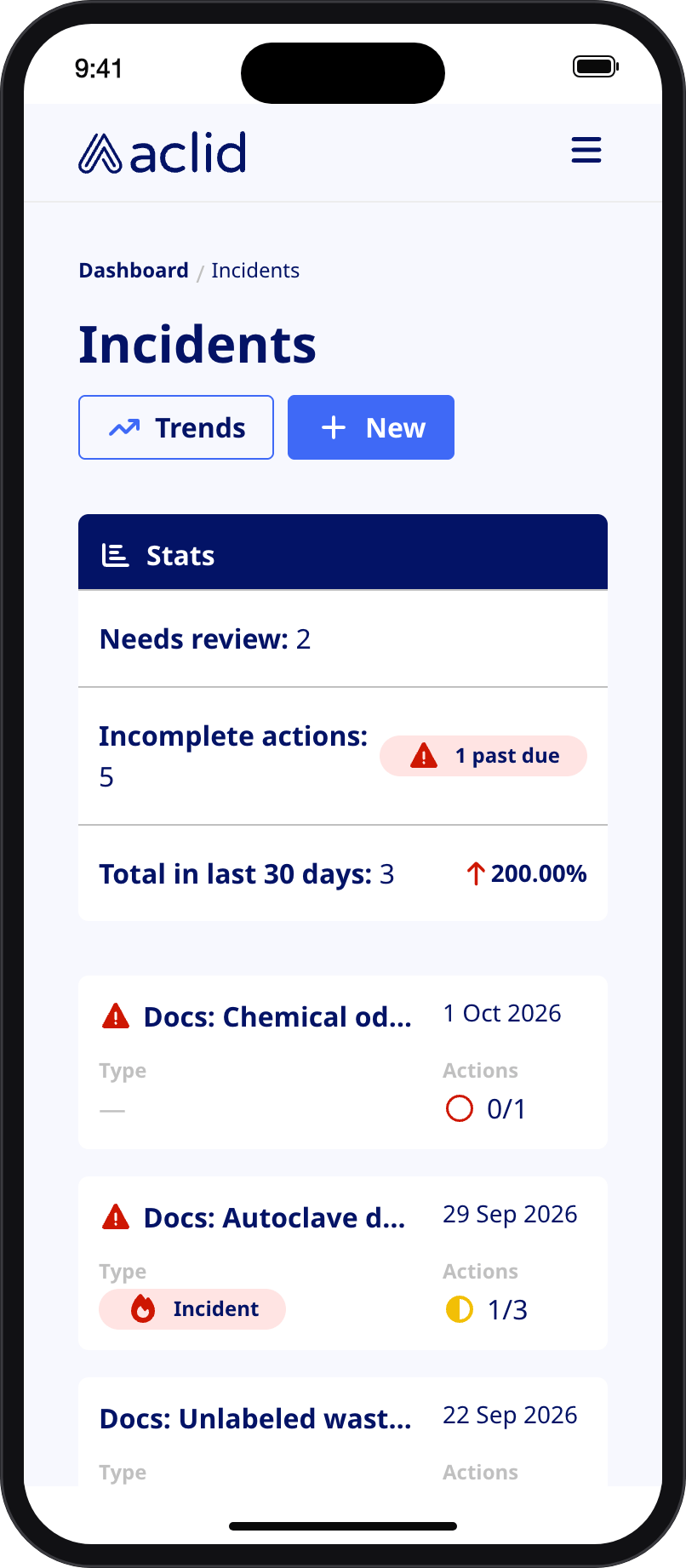
* **Actions to do**: done over total, with a red circle when nothing is done, a half-filled orange circle when some actions are done, and a green check when all are done. A dash means the incident has no actions.
* **Needs review** tile: how many incidents are waiting for an admin.
* **Incomplete actions** tile: open actions across all incidents, review tasks included, with a **past due** count.
* **Total in last 30 days** tile: incidents in the last 30 days, with the change against the 30 days before.
On a phone the tiles collapse into a **Stats** card and each incident becomes a card.
### Complete a follow-up action
Actions assigned to you appear in the **Actions** card on your Dashboard and on the incident page. On the Dashboard choose **Mark as done** from the action's menu; on the incident page click **Mark as done** in the **Actions** card. Add **Notes (optional)** and confirm with **Yes, mark as done**. The incident's **Actions to do** count updates as actions are completed.
### View incident trends
Admins only.
Click **Trends** on the Incidents page to open Reports, then select the **Incidents** tab. It charts **Total incidents**, **Types of incidents**, **Severity of incidents** and **Incidents by location** for the **Last 7 days**, **Last 30 days**, **Last 6 months** or **Last 12 months**.
## Reading the list
Incidents are listed by date of occurrence, newest first. For admins, incidents that need review come first.
* **Summary**: the one-line summary. A red triangle in front of it (admins only) means the incident needs review.
* **Date**: the date of occurrence.
* **Type**: the type badge, tinted by severity. A dash means the type or severity has not been set yet.
* **Actions to do**: done over total, with a red circle when nothing is done, a half-filled orange circle when some actions are done, and a green check when all are done. A dash means the incident has no actions.
* **Needs review** tile: how many incidents are waiting for an admin.
* **Incomplete actions** tile: open actions across all incidents, review tasks included, with a **past due** count.
* **Total in last 30 days** tile: incidents in the last 30 days, with the change against the 30 days before.
On a phone the tiles collapse into a **Stats** card and each incident becomes a card.
 ## Tips and limits
* The **Incident location** list only offers areas that have been set up for incident reporting. Ask your administrator if yours is missing.
* Both the type and the severity must be set before an incident can be closed. The close dialog tells you which is missing.
* Members can report, but cannot set the type or severity, add actions, answer the OSHA questions, or edit a report afterwards. An admin does that during review.
* Members only see incidents they reported, were involved in, or witnessed. Admins see everything.
* A closed incident's report cannot be edited. Its remaining follow-up actions can still be marked as done, and edited or deleted by an admin.
* Photos must be PNG, JPEG, GIF or WebP and at most 25 MB each.
## Related
* [Roles and sites](/api/roles-and-sites) explains the admin and member roles.
* [Incident](/api/reference/types/Incident) and [createIncident](/api/reference/mutations/createIncident) in the GraphQL reference.
This documentation is built and hosted on [Mintlify](https://mintlify.com), a developer documentation platform.
## Tips and limits
* The **Incident location** list only offers areas that have been set up for incident reporting. Ask your administrator if yours is missing.
* Both the type and the severity must be set before an incident can be closed. The close dialog tells you which is missing.
* Members can report, but cannot set the type or severity, add actions, answer the OSHA questions, or edit a report afterwards. An admin does that during review.
* Members only see incidents they reported, were involved in, or witnessed. Admins see everything.
* A closed incident's report cannot be edited. Its remaining follow-up actions can still be marked as done, and edited or deleted by an admin.
* Photos must be PNG, JPEG, GIF or WebP and at most 25 MB each.
## Related
* [Roles and sites](/api/roles-and-sites) explains the admin and member roles.
* [Incident](/api/reference/types/Incident) and [createIncident](/api/reference/mutations/createIncident) in the GraphQL reference.
This documentation is built and hosted on [Mintlify](https://mintlify.com), a developer documentation platform.