> ## Documentation Index
> Fetch the complete documentation index at: https://wiki.aclid.bio/llms.txt
> Use this file to discover all available pages before exploring further.
# Equipment
> Keep a register of your lab's instruments and safety equipment, log the service each one receives, schedule recurring maintenance, and keep manuals where the people who use the equipment can find them.
Equipment is the register of the instruments, cabinets, freezers and safety devices your organization relies on. Each record describes one piece of equipment: who made it, its model and serial number, where it sits, whether it is currently working, and when it was acquired. Against each record you keep a **service log** of the calibrations, repairs and other work done on it, and one or more **maintenance schedules** that put recurring service on the Calendar and raise a task on the Dashboard before each visit is due. A manual can be attached so anyone opening the record can read it.
## Who can do what
| Action | Admin | Member |
| - | - | - |
| See the Equipment module and open equipment details | Yes | Yes |
| Add equipment, update its details and change its status | Yes | Yes |
| Track service, edit service entries and upload a manual | Yes | Yes |
| Add, edit or delete maintenance schedules | Yes | Yes |
| Mark a maintenance task as done | Yes | Only tasks assigned to them |
| Edit or delete a maintenance task | Yes | No |
People assigned to specific sites see only the equipment located at those sites, and can act only on that equipment. Equipment with no location is visible only to people with access to every site. For the two task rows, a site admin counts as an admin for the equipment at their own site.
## Open Equipment
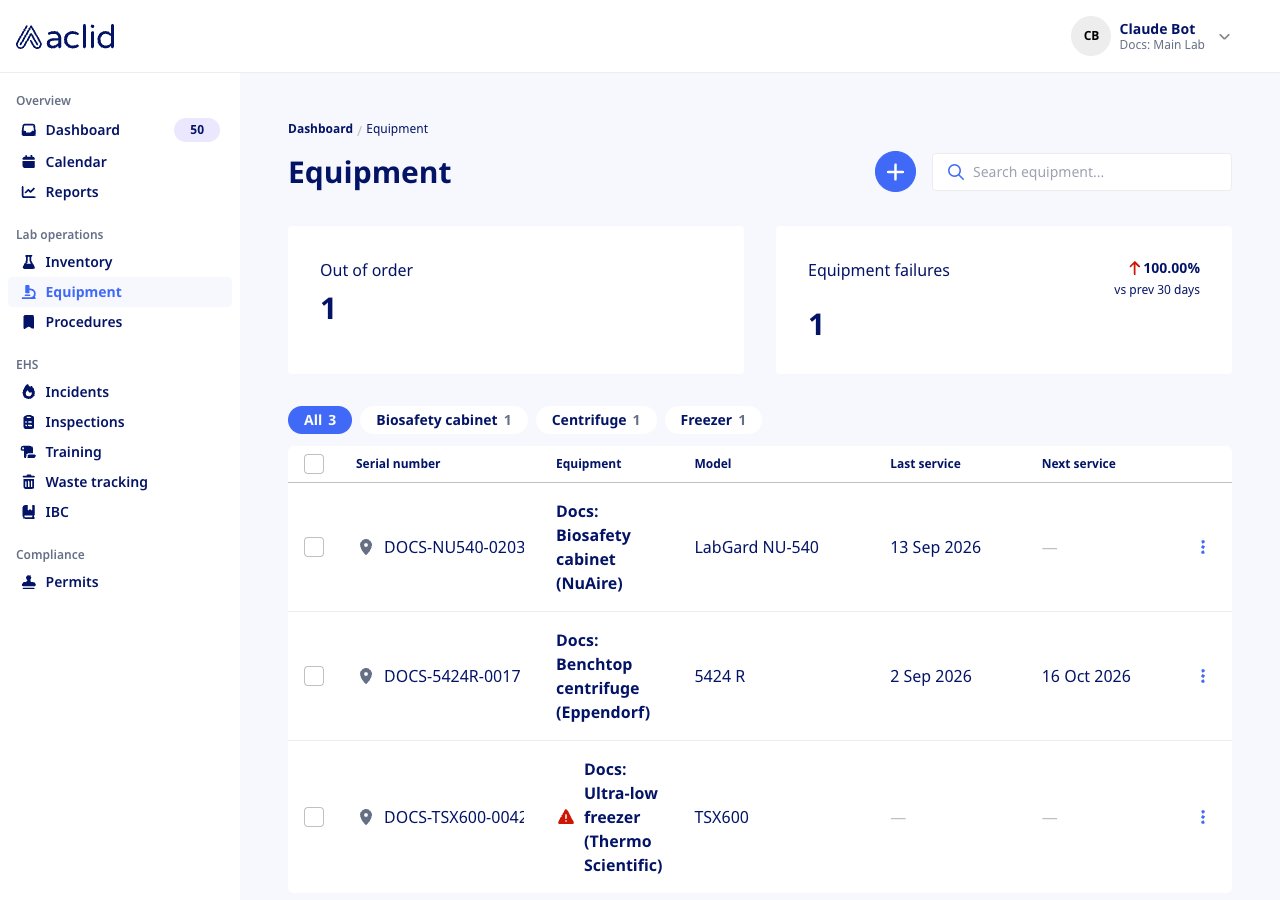
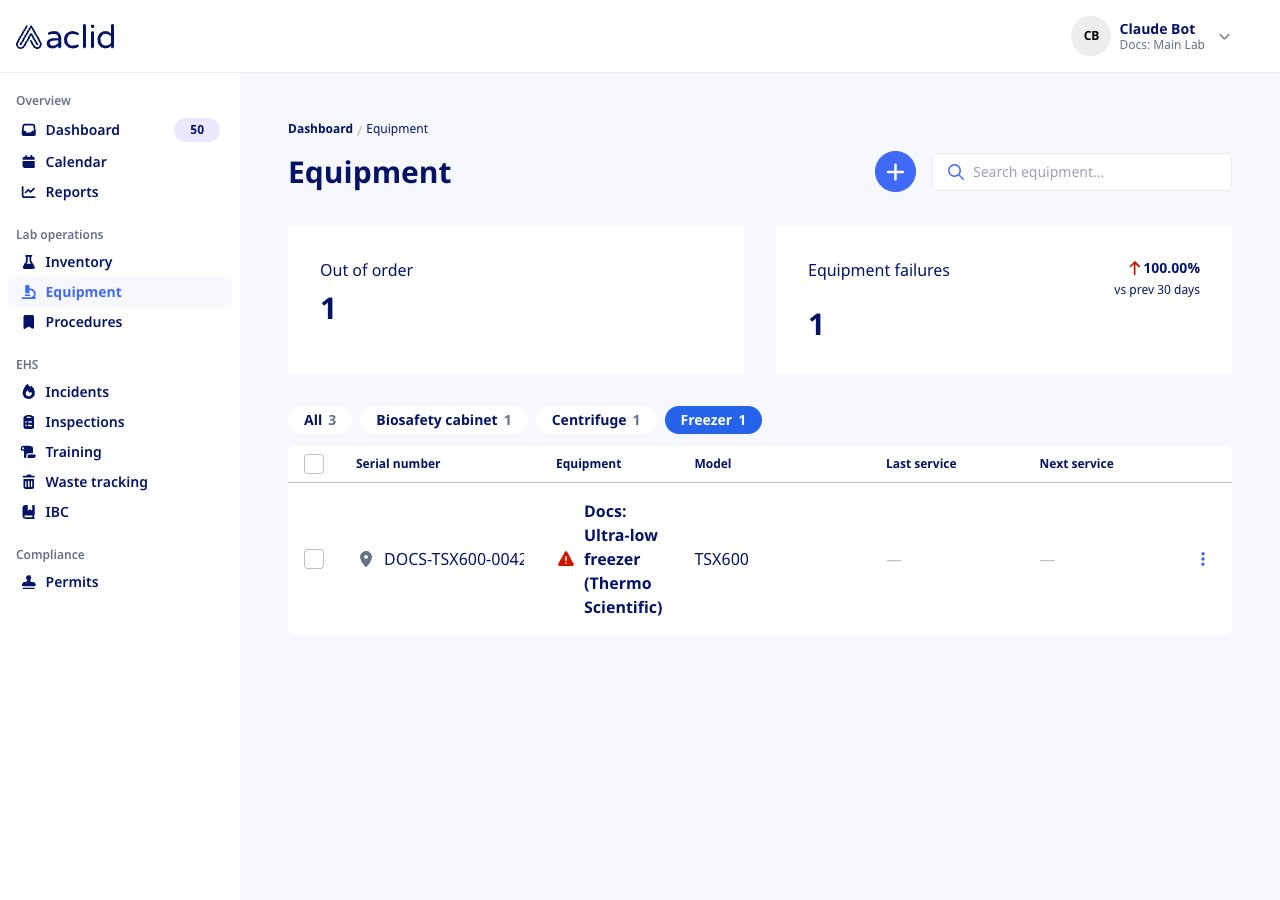
In the left navigation, under **Lab operations**, choose **Equipment** (the path is `/equipment`). The page opens with two metric tiles, a row of type filters and the equipment table, grouped by type and sorted by name. The **+** button next to the heading adds equipment; **Search equipment...** filters the table as you type. An organization that has not added anything yet sees **No equipment added** with the note **Track service and key dates by adding your equipment**.
 ## Key concepts
* **Equipment**: one instrument or device, identified by its name and manufacturer and optionally a model, serial number, type and location.
* **Status**: either **Operational** (green badge) or **Out of order** (red badge). Out-of-order items also carry a red warning triangle in the list. Every change of status is recorded with the date and the person who made it; those records feed the **Equipment failures** tile.
* **Type**: a free label such as Centrifuge or Freezer, used to group the list. Pick an existing type or add a new one when you create or edit equipment. Equipment without a type is listed under **Uncategorized**.
* **Service entry**: one piece of work done on the equipment, dated, with a type, a provider, optional notes and optional PDF documents. The types are **Calibration**, **Inspection**, **Part replacement**, **Cleaning**, **Repair**, **Preventative maintenance** and **Other**.
* **Service provider**: who did the work: one of your users, an outside contractor you have named before, or a new **Outside contractor** you name on the spot. Contractors you name are remembered for next time.
* **Maintenance schedule**: a recurring plan for one service type, with a frequency, a first date and an optional assignee. It generates events on the Calendar two years ahead and a task 30 days before each event.
* **Last service** and **Next service**: the date of the most recent service entry, and the earliest upcoming schedule date. Equipment without a schedule shows the **Next service date** entered under its key dates, if any.
## Tasks
### Add equipment
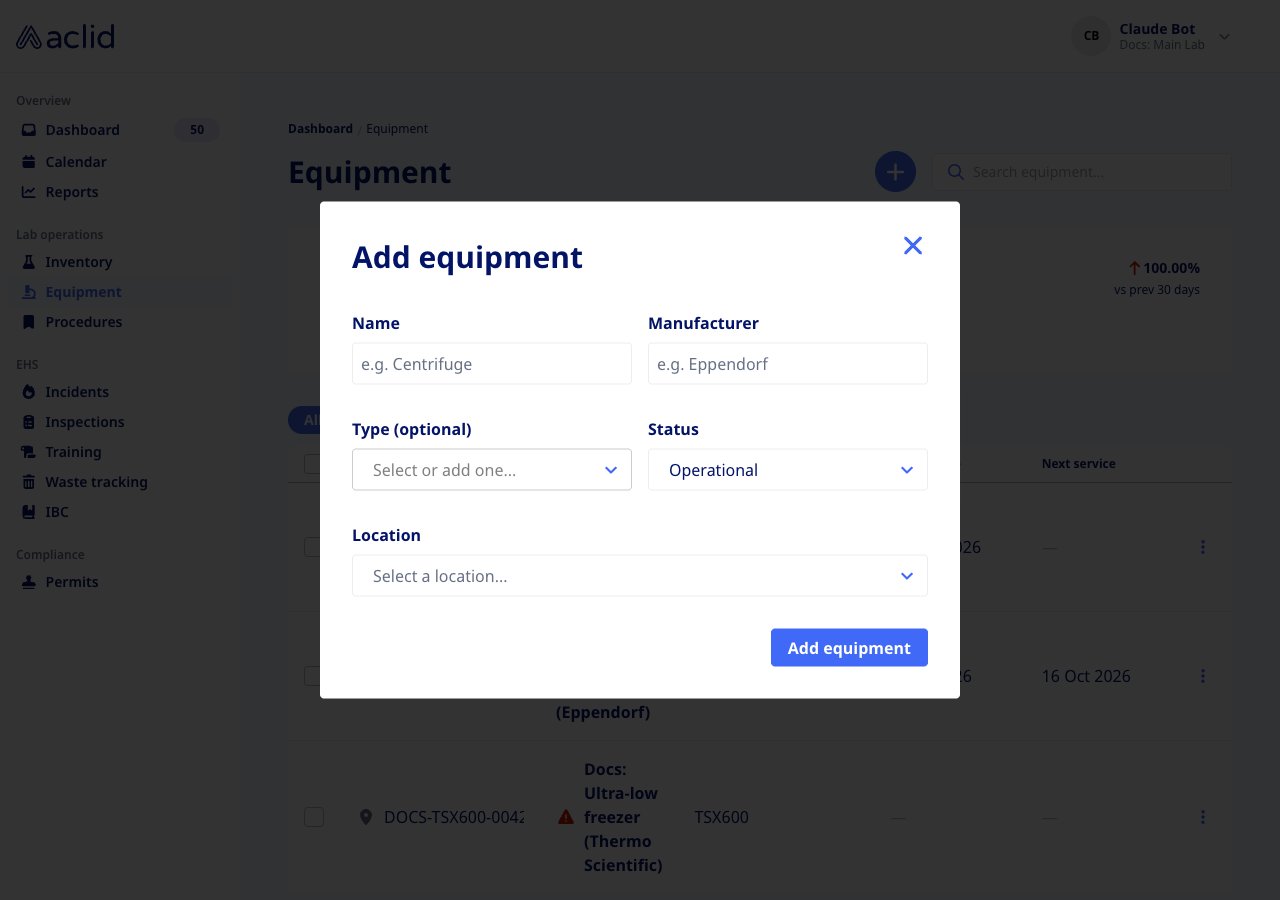
1. On the Equipment page, click the **+** button next to the heading.
2. In **Add equipment**, enter the **Name** and **Manufacturer**; both are required.
3. Optionally pick a **Type (optional)**, or type a new one and choose **Add "..."**. **Status** starts as **Operational**. If your organization has sites, choose a **Location**.
4. Click **Add equipment**. The new record's detail page opens, where you can add the model, serial number, key dates and a manual.
## Key concepts
* **Equipment**: one instrument or device, identified by its name and manufacturer and optionally a model, serial number, type and location.
* **Status**: either **Operational** (green badge) or **Out of order** (red badge). Out-of-order items also carry a red warning triangle in the list. Every change of status is recorded with the date and the person who made it; those records feed the **Equipment failures** tile.
* **Type**: a free label such as Centrifuge or Freezer, used to group the list. Pick an existing type or add a new one when you create or edit equipment. Equipment without a type is listed under **Uncategorized**.
* **Service entry**: one piece of work done on the equipment, dated, with a type, a provider, optional notes and optional PDF documents. The types are **Calibration**, **Inspection**, **Part replacement**, **Cleaning**, **Repair**, **Preventative maintenance** and **Other**.
* **Service provider**: who did the work: one of your users, an outside contractor you have named before, or a new **Outside contractor** you name on the spot. Contractors you name are remembered for next time.
* **Maintenance schedule**: a recurring plan for one service type, with a frequency, a first date and an optional assignee. It generates events on the Calendar two years ahead and a task 30 days before each event.
* **Last service** and **Next service**: the date of the most recent service entry, and the earliest upcoming schedule date. Equipment without a schedule shows the **Next service date** entered under its key dates, if any.
## Tasks
### Add equipment
1. On the Equipment page, click the **+** button next to the heading.
2. In **Add equipment**, enter the **Name** and **Manufacturer**; both are required.
3. Optionally pick a **Type (optional)**, or type a new one and choose **Add "..."**. **Status** starts as **Operational**. If your organization has sites, choose a **Location**.
4. Click **Add equipment**. The new record's detail page opens, where you can add the model, serial number, key dates and a manual.
 ### Review an item and change its status
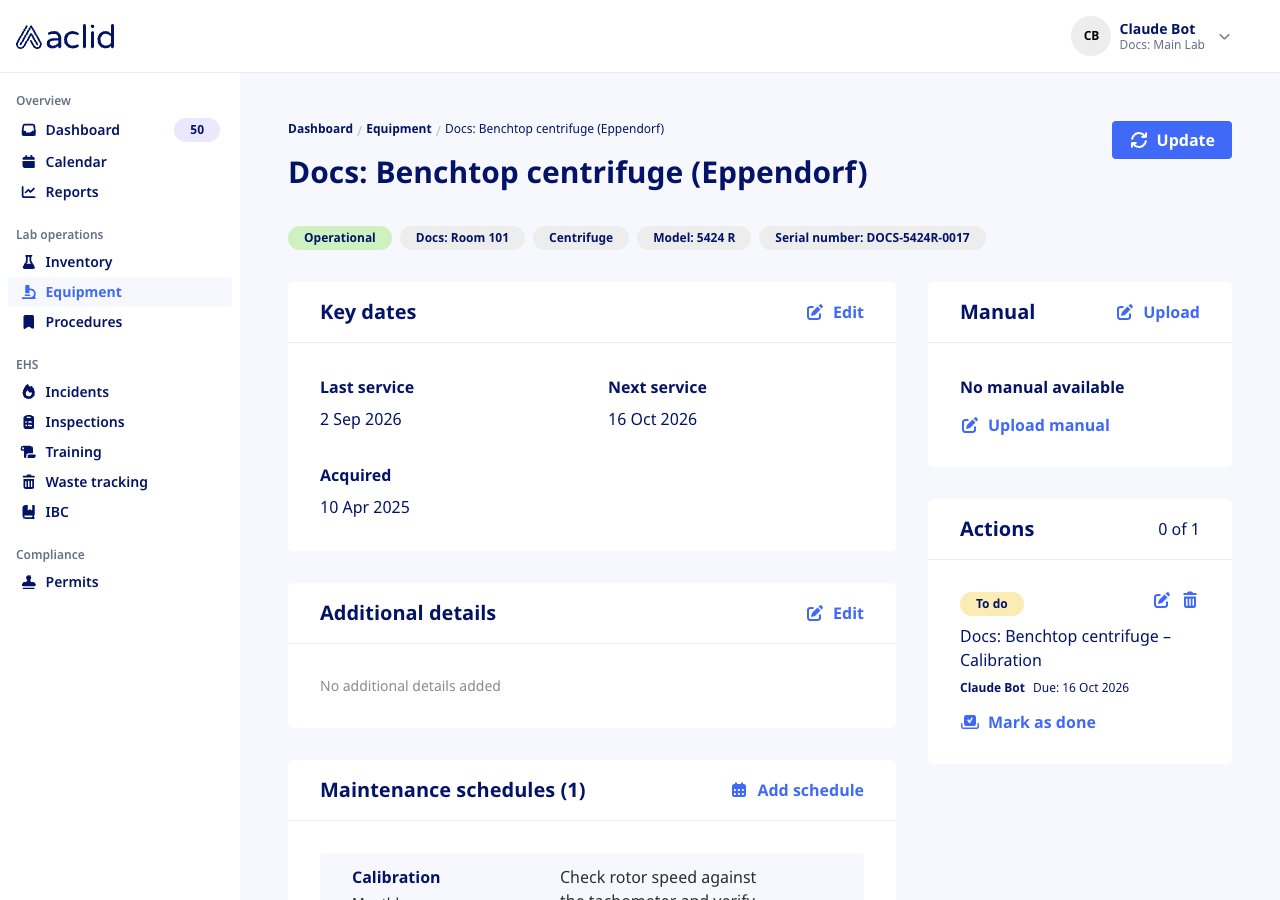
1. Click a row in the list, or open its **⋮** menu and choose **Details**. The detail page shows the status badge, the location, type, model and serial number, then **Key dates** (**Last service**, **Next service**, **Acquired**), **Additional details**, **Maintenance schedules**, **Service log**, **Manual** and, when a maintenance task is open, **Actions**.
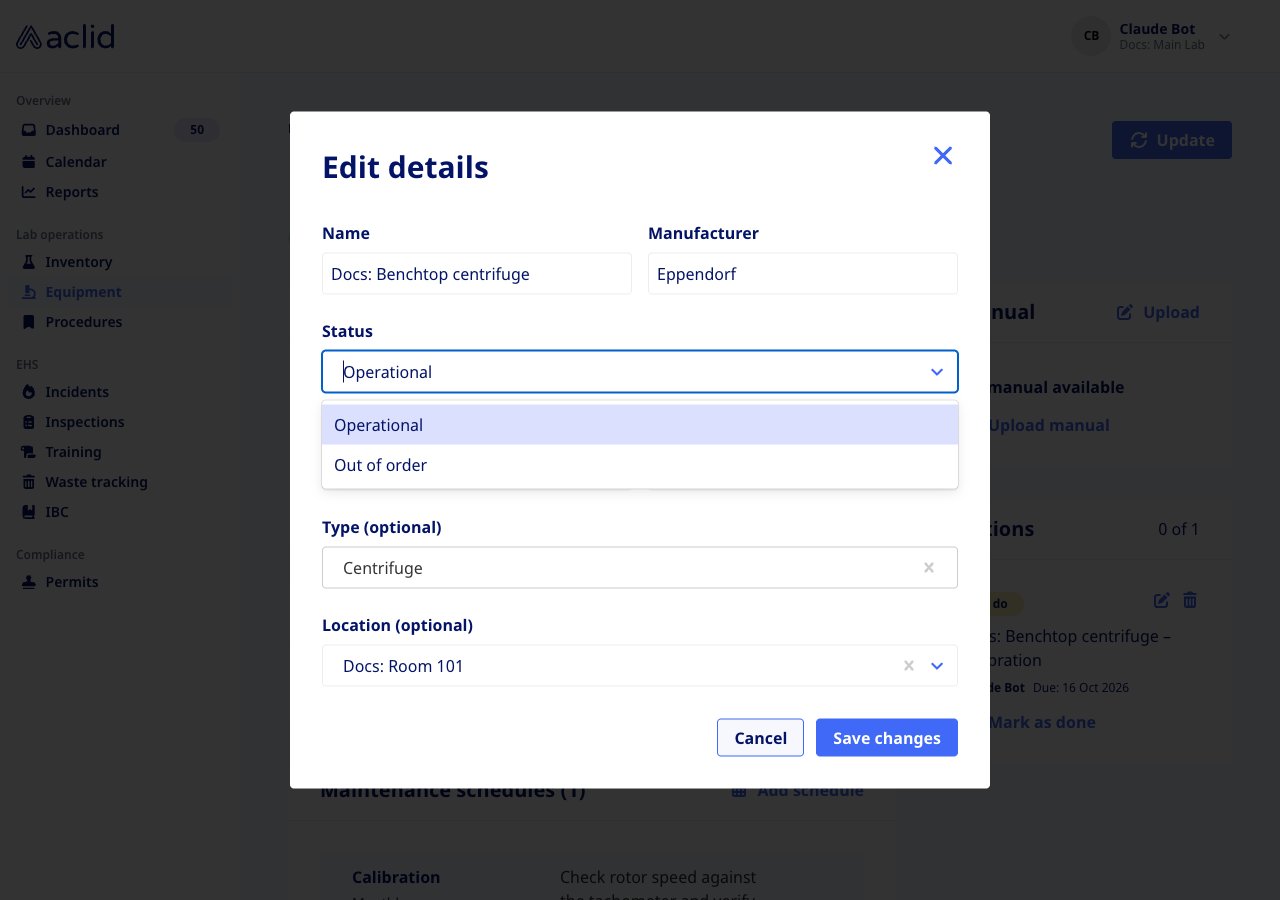
2. Click **Update** to open **Edit details**. Change **Status** between **Operational** and **Out of order**, correct the name, manufacturer, model, serial number, type or location, then click **Save changes**. The badge updates at once.
3. Use **Edit** on **Key dates** to set **Acquired (optional)** and **Next service date (optional)**, and **Edit** on **Additional details** to keep free-form fields such as a warranty end or service contract number (**Add field**, then a **Field name** and **Value**; a value that starts with http becomes a link).
### Review an item and change its status
1. Click a row in the list, or open its **⋮** menu and choose **Details**. The detail page shows the status badge, the location, type, model and serial number, then **Key dates** (**Last service**, **Next service**, **Acquired**), **Additional details**, **Maintenance schedules**, **Service log**, **Manual** and, when a maintenance task is open, **Actions**.
2. Click **Update** to open **Edit details**. Change **Status** between **Operational** and **Out of order**, correct the name, manufacturer, model, serial number, type or location, then click **Save changes**. The badge updates at once.
3. Use **Edit** on **Key dates** to set **Acquired (optional)** and **Next service date (optional)**, and **Edit** on **Additional details** to keep free-form fields such as a warranty end or service contract number (**Add field**, then a **Field name** and **Value**; a value that starts with http becomes a link).
 ### Track service
1. On the detail page, click **Track service** in the **Service log** card.
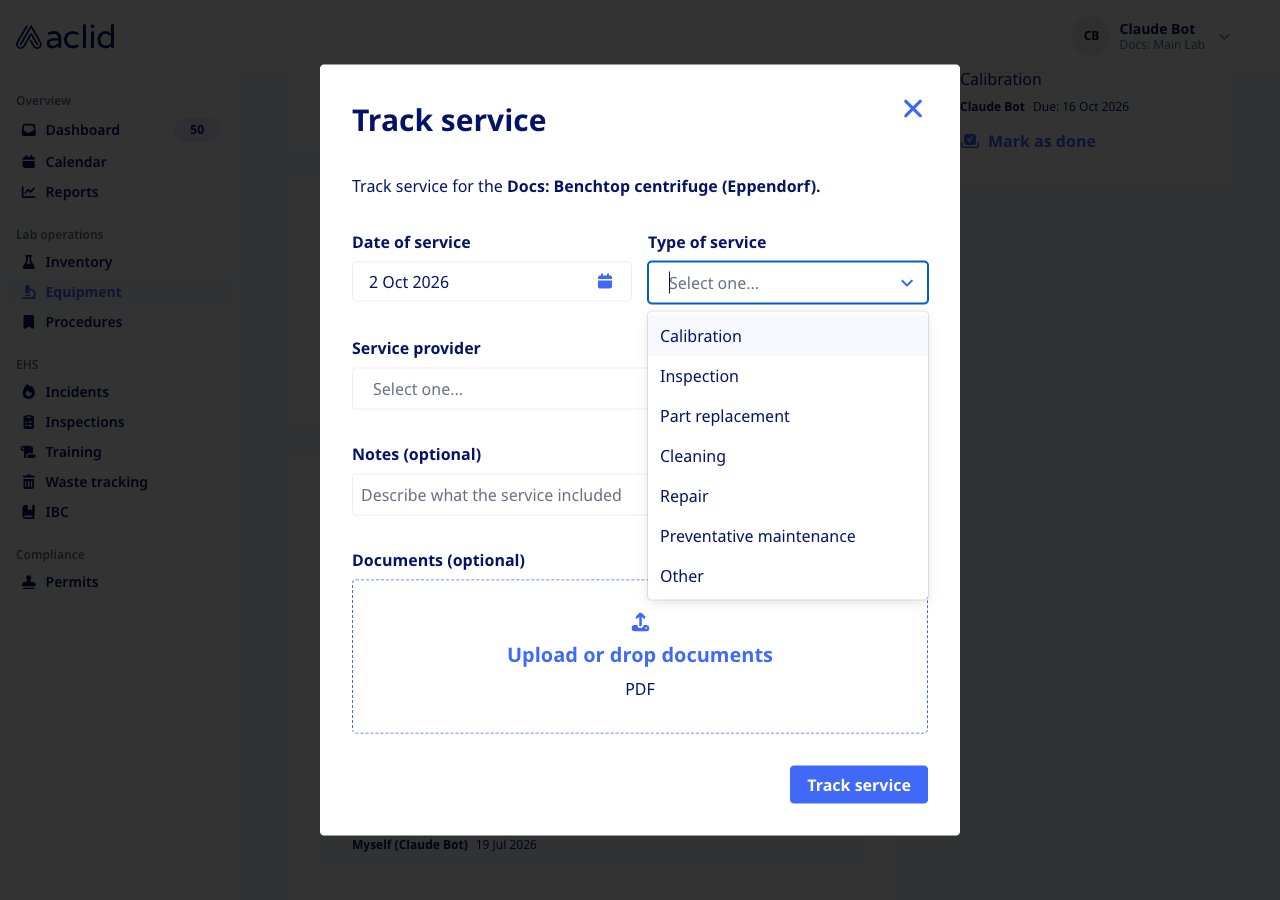
2. Set the **Date of service** (today or earlier) and the **Type of service**.
3. Choose the **Service provider**. Pick a user or a known contractor, or choose **Outside contractor** and enter the name and/or company name in the **Outside contractor** field that appears.
4. Add **Notes (optional)** describing what the service included, and drop PDF documents under **Documents (optional)**, such as a calibration certificate.
5. Click **Track service**. The banner **Service tracked** appears, the entry tops the **Service log** and **Last service** updates. The pencil on an entry opens **Edit service entry**, where you can also remove a document.
### Track service
1. On the detail page, click **Track service** in the **Service log** card.
2. Set the **Date of service** (today or earlier) and the **Type of service**.
3. Choose the **Service provider**. Pick a user or a known contractor, or choose **Outside contractor** and enter the name and/or company name in the **Outside contractor** field that appears.
4. Add **Notes (optional)** describing what the service included, and drop PDF documents under **Documents (optional)**, such as a calibration certificate.
5. Click **Track service**. The banner **Service tracked** appears, the entry tops the **Service log** and **Last service** updates. The pencil on an entry opens **Edit service entry**, where you can also remove a document.
 To record the same service on many items at once, tick the checkboxes in the list. A bar appears with the count **selected**, **View selected** and **Track service**; the dialog then adds one entry to every selected item (up to 50 items and one document).
### Add a maintenance schedule
1. On the detail page, click **Add schedule** in the **Maintenance schedules** card.
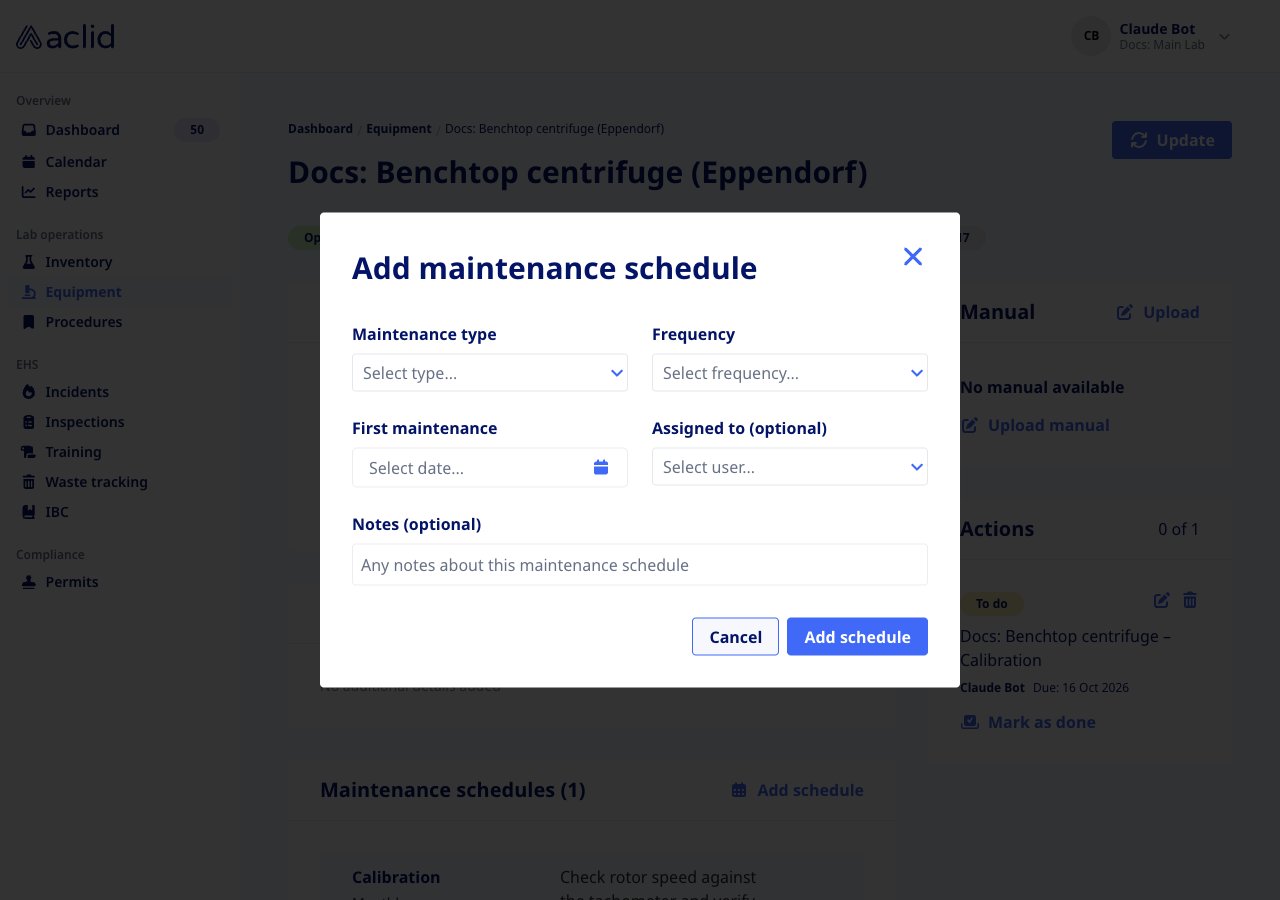
2. In **Add maintenance schedule**, pick the **Maintenance type** and the **Frequency**: **Weekly**, **Every 2 weeks**, **Every 3 weeks**, **Monthly**, **Quarterly**, **Every 2 months**, **Every 4 months**, **Semi-annually**, **Annually** or **Every 2 years**.
3. Set the **First maintenance** date (today or later), optionally an **Assigned to (optional)** user and **Notes (optional)**.
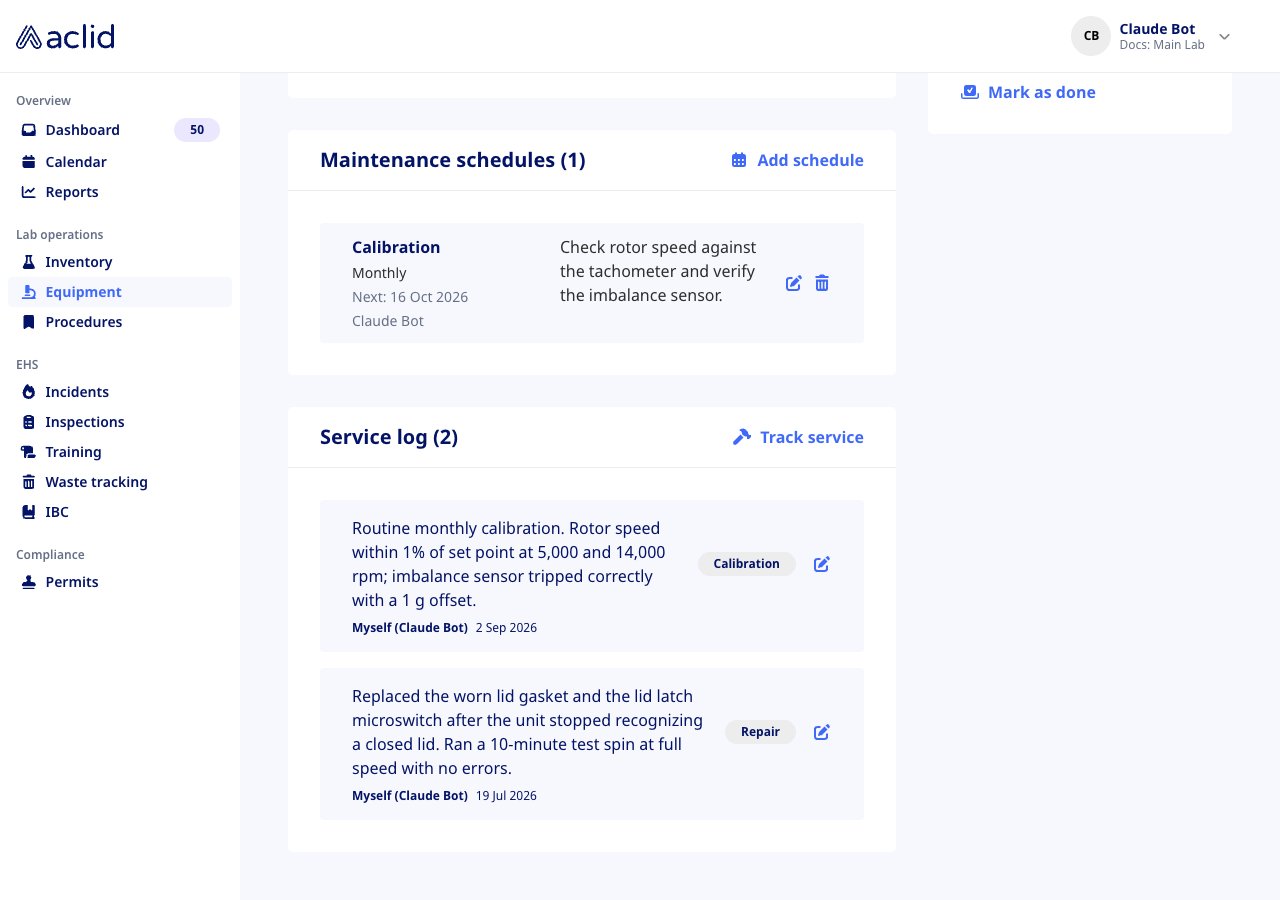
4. Click **Add schedule**. The banner **Maintenance schedule added** appears and the card lists the schedule with its frequency, **Next:** date and assignee.
To record the same service on many items at once, tick the checkboxes in the list. A bar appears with the count **selected**, **View selected** and **Track service**; the dialog then adds one entry to every selected item (up to 50 items and one document).
### Add a maintenance schedule
1. On the detail page, click **Add schedule** in the **Maintenance schedules** card.
2. In **Add maintenance schedule**, pick the **Maintenance type** and the **Frequency**: **Weekly**, **Every 2 weeks**, **Every 3 weeks**, **Monthly**, **Quarterly**, **Every 2 months**, **Every 4 months**, **Semi-annually**, **Annually** or **Every 2 years**.
3. Set the **First maintenance** date (today or later), optionally an **Assigned to (optional)** user and **Notes (optional)**.
4. Click **Add schedule**. The banner **Maintenance schedule added** appears and the card lists the schedule with its frequency, **Next:** date and assignee.
 From then on each occurrence appears on the **Calendar** as an equipment maintenance event, and 30 days before it a task named after the equipment and service type is created, assigned to the schedule's assignee. The task shows in the **Actions** card on the detail page and in the Actions list on the **Dashboard**; whoever does the work marks it done with **Mark as done**. The pencil on a schedule opens **Edit maintenance schedule**, where the date field is **Next maintenance**; saving replaces the future events and their open tasks. The trash icon asks **Are you sure you want to delete** the schedule; **Yes, delete** removes its future events and tasks.
 ### Upload a manual
1. On the detail page, click **Upload** or **Upload manual** in the **Manual** card. Once a manual is attached the button reads **Replace**.
2. In **Upload equipment manual**, drop or choose a PDF, Microsoft Word or Apple Pages file of up to 25 MB and click **Upload**.
3. The banner **Manual uploaded** appears. A PDF shows its first page in the card; **View** opens the file in a new tab and **Replace** swaps it for another.
## Reading the list
* **Out of order**: how many items currently have that status. A dash means none.
* **Equipment failures**: how many times equipment was set to Out of order in the last 30 days, with the change against the 30 days before.
* Type chips: **All** with the total, then one chip per type with its count. Click chips to combine types; clicking **All** resets.
* **Serial number**: the serial, with a pin icon when the item has a location (hover it to see where). **Equipment** shows the name and manufacturer, with a red triangle for **Out of order**. **Model**, **Last service** and **Next service** follow; a dash means not set. A **Site** column and a site dropdown above the table appear only when your organization has several sites and the header is showing **All sites**; the dropdown narrows the list to one site.
* **Search** matches the name, serial number, manufacturer, model, location and the name of anyone who serviced the item. **No matches found** offers **Clear search**.
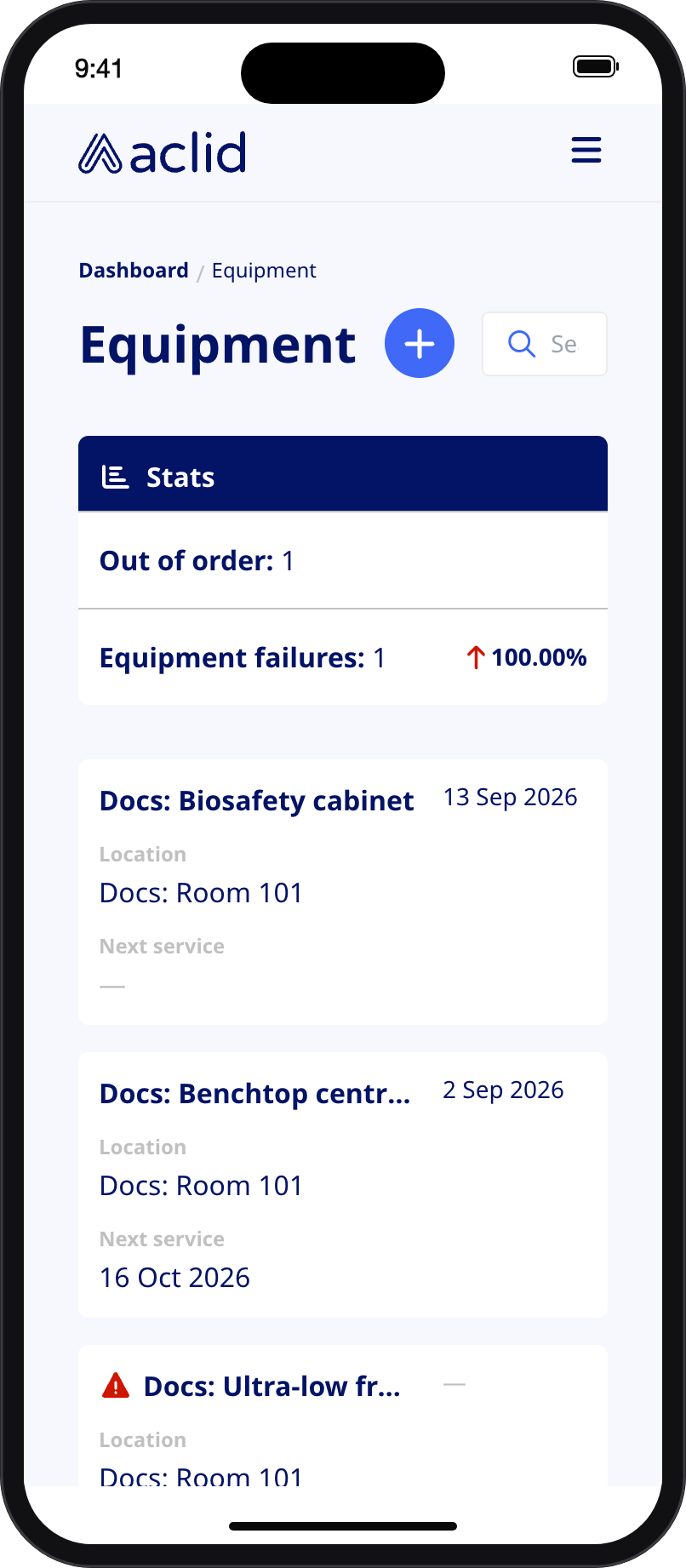
* On a phone each card shows the name, the last service date, the **Location** and the **Next service** date; the filters and bulk selection are not available.
### Upload a manual
1. On the detail page, click **Upload** or **Upload manual** in the **Manual** card. Once a manual is attached the button reads **Replace**.
2. In **Upload equipment manual**, drop or choose a PDF, Microsoft Word or Apple Pages file of up to 25 MB and click **Upload**.
3. The banner **Manual uploaded** appears. A PDF shows its first page in the card; **View** opens the file in a new tab and **Replace** swaps it for another.
## Reading the list
* **Out of order**: how many items currently have that status. A dash means none.
* **Equipment failures**: how many times equipment was set to Out of order in the last 30 days, with the change against the 30 days before.
* Type chips: **All** with the total, then one chip per type with its count. Click chips to combine types; clicking **All** resets.
* **Serial number**: the serial, with a pin icon when the item has a location (hover it to see where). **Equipment** shows the name and manufacturer, with a red triangle for **Out of order**. **Model**, **Last service** and **Next service** follow; a dash means not set. A **Site** column and a site dropdown above the table appear only when your organization has several sites and the header is showing **All sites**; the dropdown narrows the list to one site.
* **Search** matches the name, serial number, manufacturer, model, location and the name of anyone who serviced the item. **No matches found** offers **Clear search**.
* On a phone each card shows the name, the last service date, the **Location** and the **Next service** date; the filters and bulk selection are not available.
 ## Tips and limits
* The equipment list follows the site chosen in the header. If your organization has one site, it is selected automatically and equipment without a location is hidden; give every item a location so it stays visible.
* A service entry dated after today is not accepted, and a schedule's first date cannot be in the past. Schedule dates are calendar days.
* Setting equipment to **Out of order** does not pause its schedules or close its tasks; delete or edit the schedule if the item will be out of service for long.
* The status history is not shown on the detail page; it is counted in the **Equipment failures** tile only.
* Service documents must be PDF; the manual accepts PDF, Word and Pages files. Files over 25 MB are rejected. Deleting equipment or a service entry is not possible from the app.
* Bulk **Track service** accepts at most 50 items and one document per entry. The selection survives searches and type filters until you clear it.
## Related
* [Calendar](/guides/calendar) for the maintenance events a schedule creates
* [Dashboard](/guides/dashboard) for the maintenance tasks and how to mark them done
* [Roles and sites](/api/roles-and-sites) for how site assignments limit what you see
* [GraphQL reference: Equipment](/api/reference/types/Equipment)
* [GraphQL reference: EventTemplate](/api/reference/types/EventTemplate)
* [GraphQL reference: equipmentList](/api/reference/queries/equipmentList)
* [GraphQL reference: createMaintenanceSchedule](/api/reference/mutations/createMaintenanceSchedule)
This documentation is built and hosted on [Mintlify](https://mintlify.com), a developer documentation platform.
## Tips and limits
* The equipment list follows the site chosen in the header. If your organization has one site, it is selected automatically and equipment without a location is hidden; give every item a location so it stays visible.
* A service entry dated after today is not accepted, and a schedule's first date cannot be in the past. Schedule dates are calendar days.
* Setting equipment to **Out of order** does not pause its schedules or close its tasks; delete or edit the schedule if the item will be out of service for long.
* The status history is not shown on the detail page; it is counted in the **Equipment failures** tile only.
* Service documents must be PDF; the manual accepts PDF, Word and Pages files. Files over 25 MB are rejected. Deleting equipment or a service entry is not possible from the app.
* Bulk **Track service** accepts at most 50 items and one document per entry. The selection survives searches and type filters until you clear it.
## Related
* [Calendar](/guides/calendar) for the maintenance events a schedule creates
* [Dashboard](/guides/dashboard) for the maintenance tasks and how to mark them done
* [Roles and sites](/api/roles-and-sites) for how site assignments limit what you see
* [GraphQL reference: Equipment](/api/reference/types/Equipment)
* [GraphQL reference: EventTemplate](/api/reference/types/EventTemplate)
* [GraphQL reference: equipmentList](/api/reference/queries/equipmentList)
* [GraphQL reference: createMaintenanceSchedule](/api/reference/mutations/createMaintenanceSchedule)
This documentation is built and hosted on [Mintlify](https://mintlify.com), a developer documentation platform.