> ## Documentation Index
> Fetch the complete documentation index at: https://wiki.aclid.bio/llms.txt
> Use this file to discover all available pages before exploring further.
# Dashboard
> Your home page: the actions assigned to you or your team, what is overdue, and where to mark work as done.
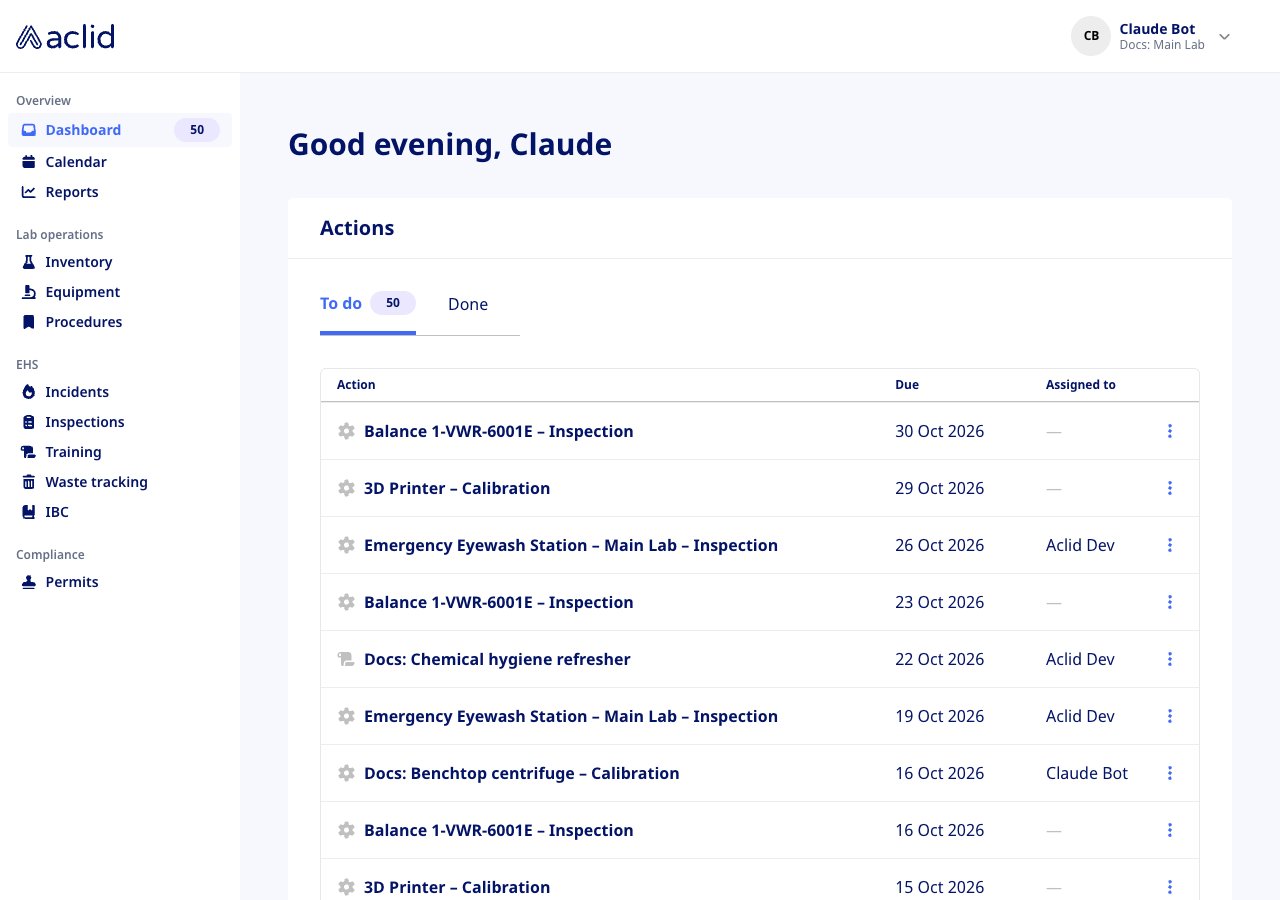
The Dashboard is the page you land on after signing in. It greets you by name and shows one card, **Actions**: the follow-up work raised across the app. An action is a task that hangs off something else, such as an incident, an inspection finding, a training, a permit, an inventory item or a piece of equipment that is due for maintenance. The Dashboard gathers them in one inbox so you can see what is due, open the record each one came from, and mark them done. The count of open actions also appears as a badge next to **Dashboard** in the navigation.
## Who can do what
| Action | Admin | Member |
| - | - | - |
| See actions | Every action in the organization | Only actions assigned to them |
| Open the related training or equipment | Yes | Yes |
| Open the related incident | Yes | Only incidents they reported, were involved in or witnessed |
| Open the related inspection | Yes | No |
| Mark an action as done | Yes | Yes |
| Edit or delete an action | Yes, Corrective and Preventive actions on the To do tab | No |
## Open Dashboard
Choose **Dashboard** under **Overview** in the navigation, or go to the root of the app. The page opens on the **To do** tab with a count of open actions. If there is nothing to do, the card reads **All caught up**.
 ## Key concepts
* **Action**: a follow-up task raised by an incident, inspection finding, training, permit, inventory item or equipment maintenance. Each has a name, an optional due date and an optional assignee.
* **Corrective action**: fixes something that already went wrong. Raised from an incident or an inspection finding.
* **Preventive action**: stops a problem from happening again. Also raised from an incident or a finding.
* **Task**: a plain to-do, such as a permit step, an equipment maintenance visit or an incident's review task.
* **Training**: an action that tracks a training you must complete. It is finished by completing the training, not from the Dashboard.
* **To do**: the action is open. **Done**: it has been completed and shows a completion date.
* **Related record**: the incident, inspection, training or equipment the action belongs to. The grey icon before the action name tells you which: a flame for an incident, a clipboard for an inspection finding, a scroll for a training, a gear for equipment, a flask for inventory and an inbox for a permit.
## Tasks
### Review what is due
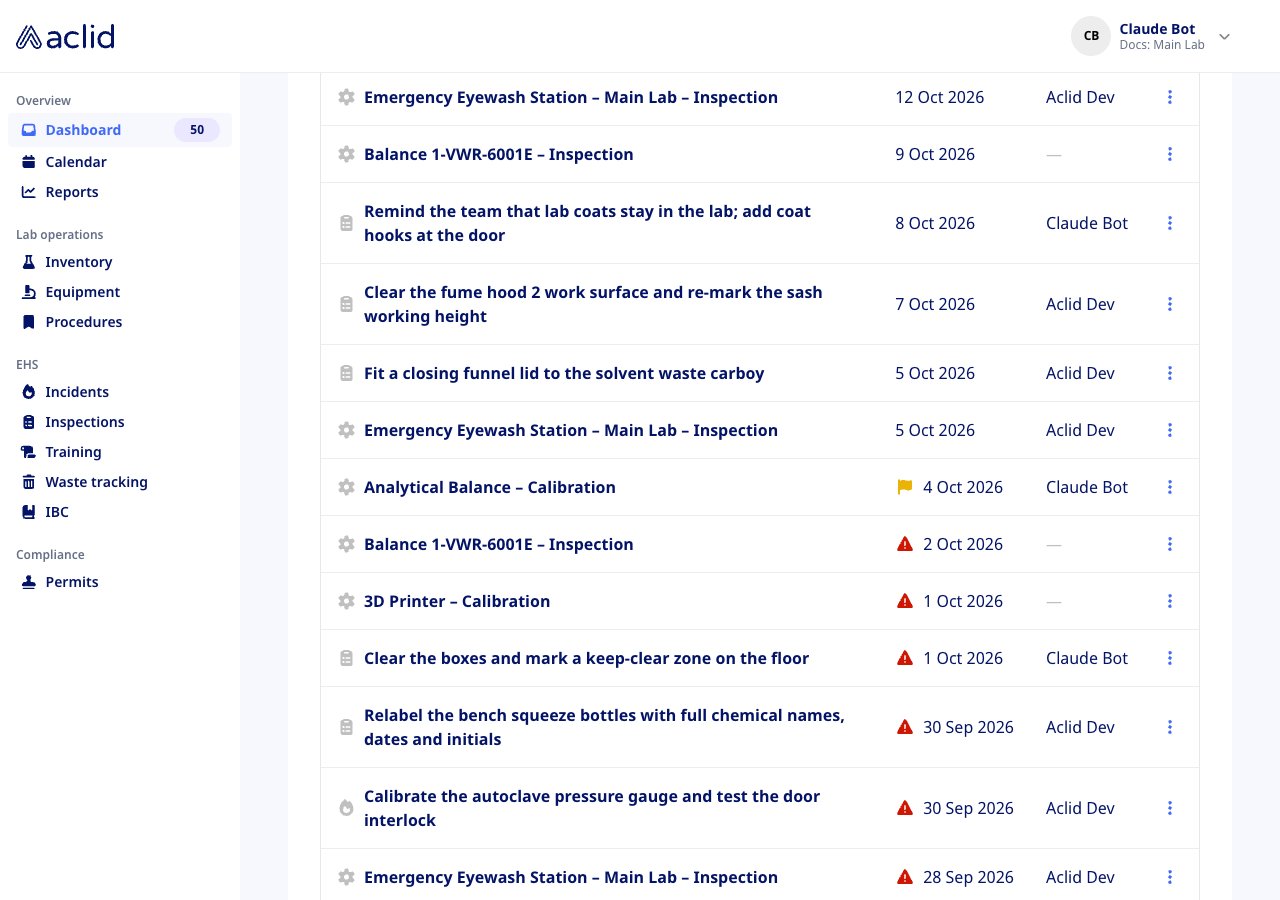
1. Open the **To do** tab. Actions are sorted by due date with the latest first; actions without a due date are listed last.
2. Scan the **Due** column. A red triangle means the due date has passed. A yellow flag means the action is due within the next 48 hours.
3. Check **Assigned to** to see who owns each action. A dash means nobody is assigned yet.
4. Hover the icon before a Corrective or Preventive action to see its type.
## Key concepts
* **Action**: a follow-up task raised by an incident, inspection finding, training, permit, inventory item or equipment maintenance. Each has a name, an optional due date and an optional assignee.
* **Corrective action**: fixes something that already went wrong. Raised from an incident or an inspection finding.
* **Preventive action**: stops a problem from happening again. Also raised from an incident or a finding.
* **Task**: a plain to-do, such as a permit step, an equipment maintenance visit or an incident's review task.
* **Training**: an action that tracks a training you must complete. It is finished by completing the training, not from the Dashboard.
* **To do**: the action is open. **Done**: it has been completed and shows a completion date.
* **Related record**: the incident, inspection, training or equipment the action belongs to. The grey icon before the action name tells you which: a flame for an incident, a clipboard for an inspection finding, a scroll for a training, a gear for equipment, a flask for inventory and an inbox for a permit.
## Tasks
### Review what is due
1. Open the **To do** tab. Actions are sorted by due date with the latest first; actions without a due date are listed last.
2. Scan the **Due** column. A red triangle means the due date has passed. A yellow flag means the action is due within the next 48 hours.
3. Check **Assigned to** to see who owns each action. A dash means nobody is assigned yet.
4. Hover the icon before a Corrective or Preventive action to see its type.
 ### Open the related record
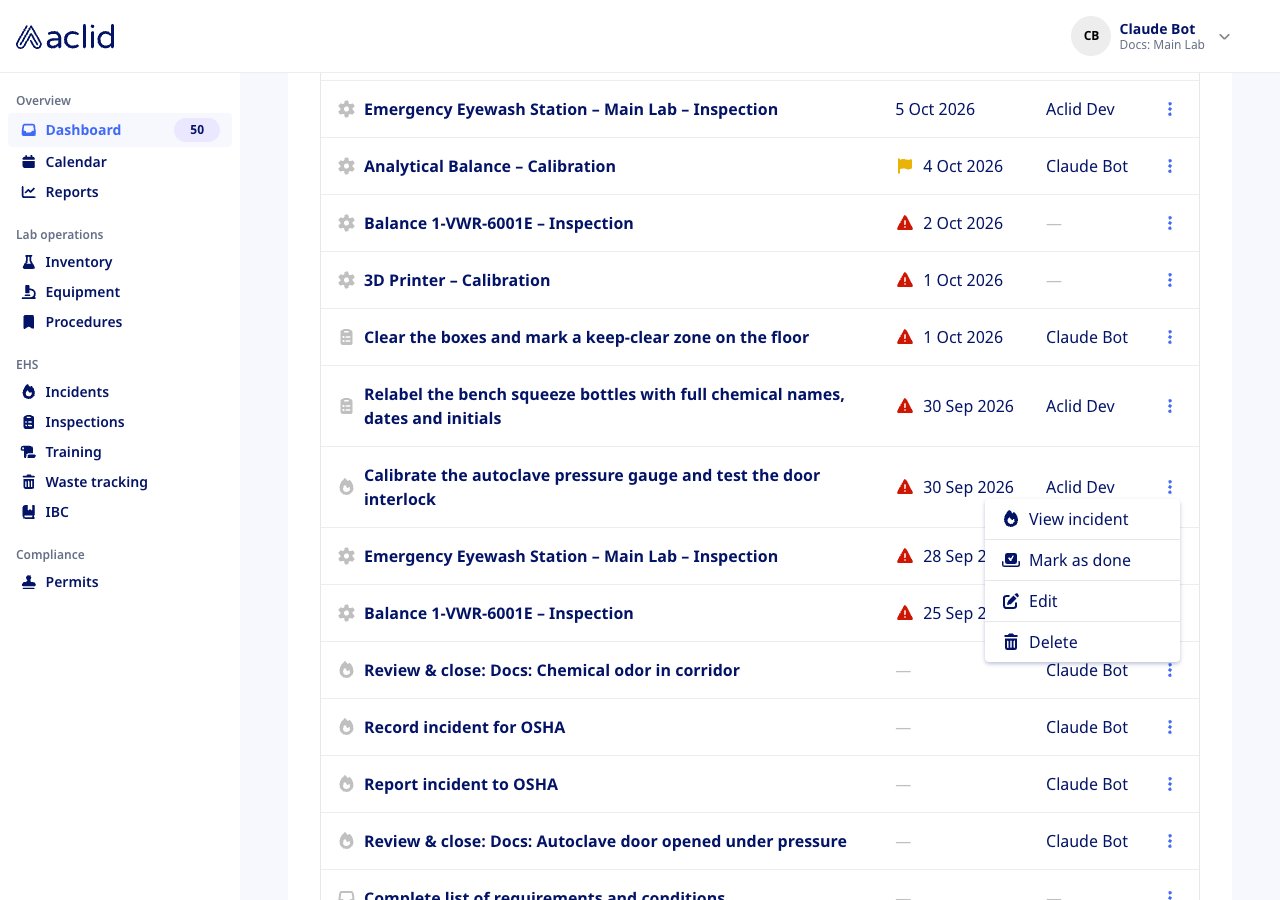
1. Click the three dots at the end of a row.
2. Choose **View incident**, **View inspection** or **View equipment** to open the record the action came from. For a training action, choose **View training** if it is yours, or **View assignments** to see the assignee's training record.
3. The record opens in its own module, where you can see the full context and the other actions raised with it.
### Open the related record
1. Click the three dots at the end of a row.
2. Choose **View incident**, **View inspection** or **View equipment** to open the record the action came from. For a training action, choose **View training** if it is yours, or **View assignments** to see the assignee's training record.
3. The record opens in its own module, where you can see the full context and the other actions raised with it.
 ### Mark an action as done
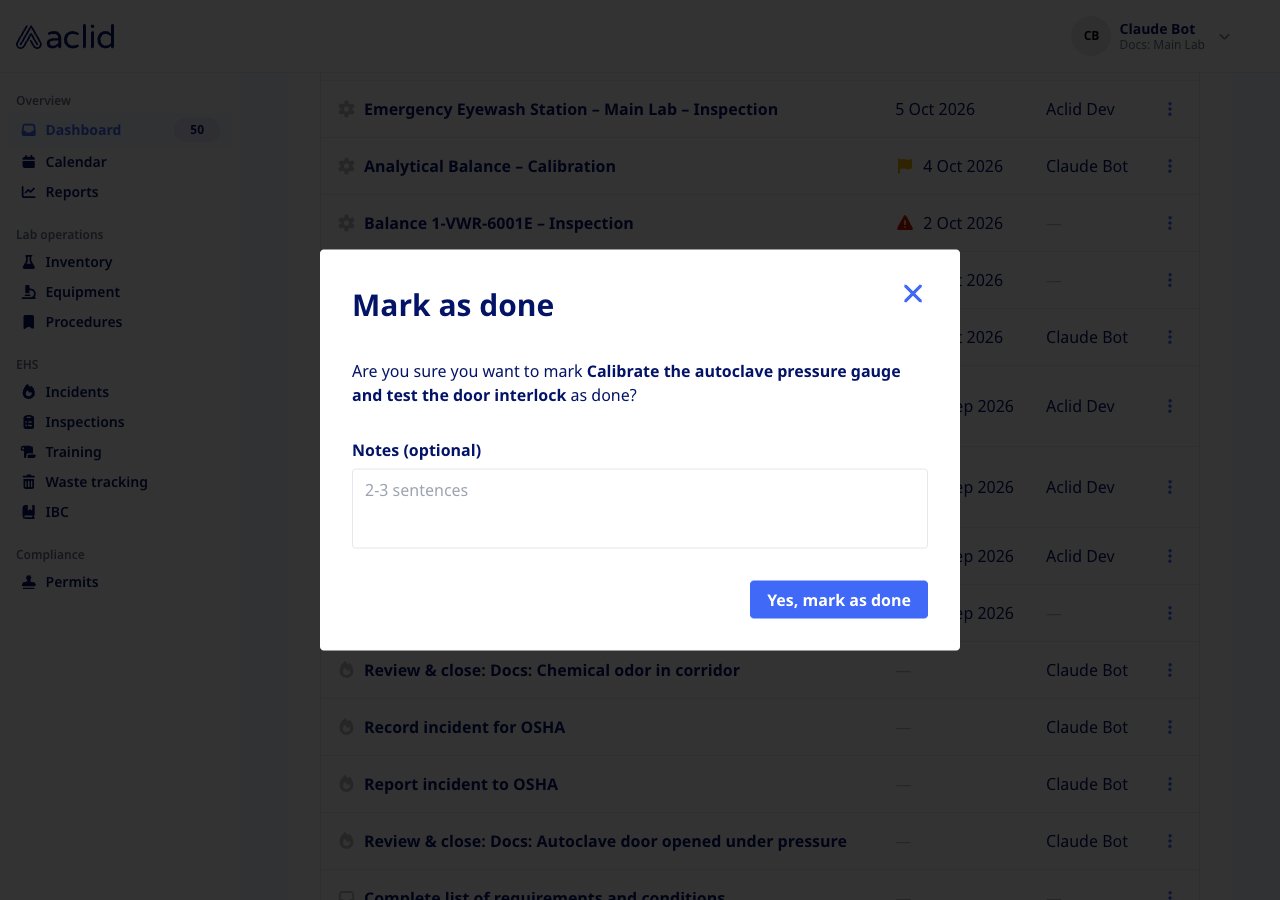
1. On the **To do** tab, click the three dots on the action and choose **Mark as done**.
2. In the **Mark as done** dialog, confirm the action named in the question. Add **Notes (optional)** to record what was done.
3. Click **Yes, mark as done**. A banner confirms **Action marked as done** followed by the action's name, the action moves to the **Done** tab and the **To do** count goes down by one.
### Mark an action as done
1. On the **To do** tab, click the three dots on the action and choose **Mark as done**.
2. In the **Mark as done** dialog, confirm the action named in the question. Add **Notes (optional)** to record what was done.
3. Click **Yes, mark as done**. A banner confirms **Action marked as done** followed by the action's name, the action moves to the **Done** tab and the **To do** count goes down by one.
 ### Edit or delete an action
Admins only.
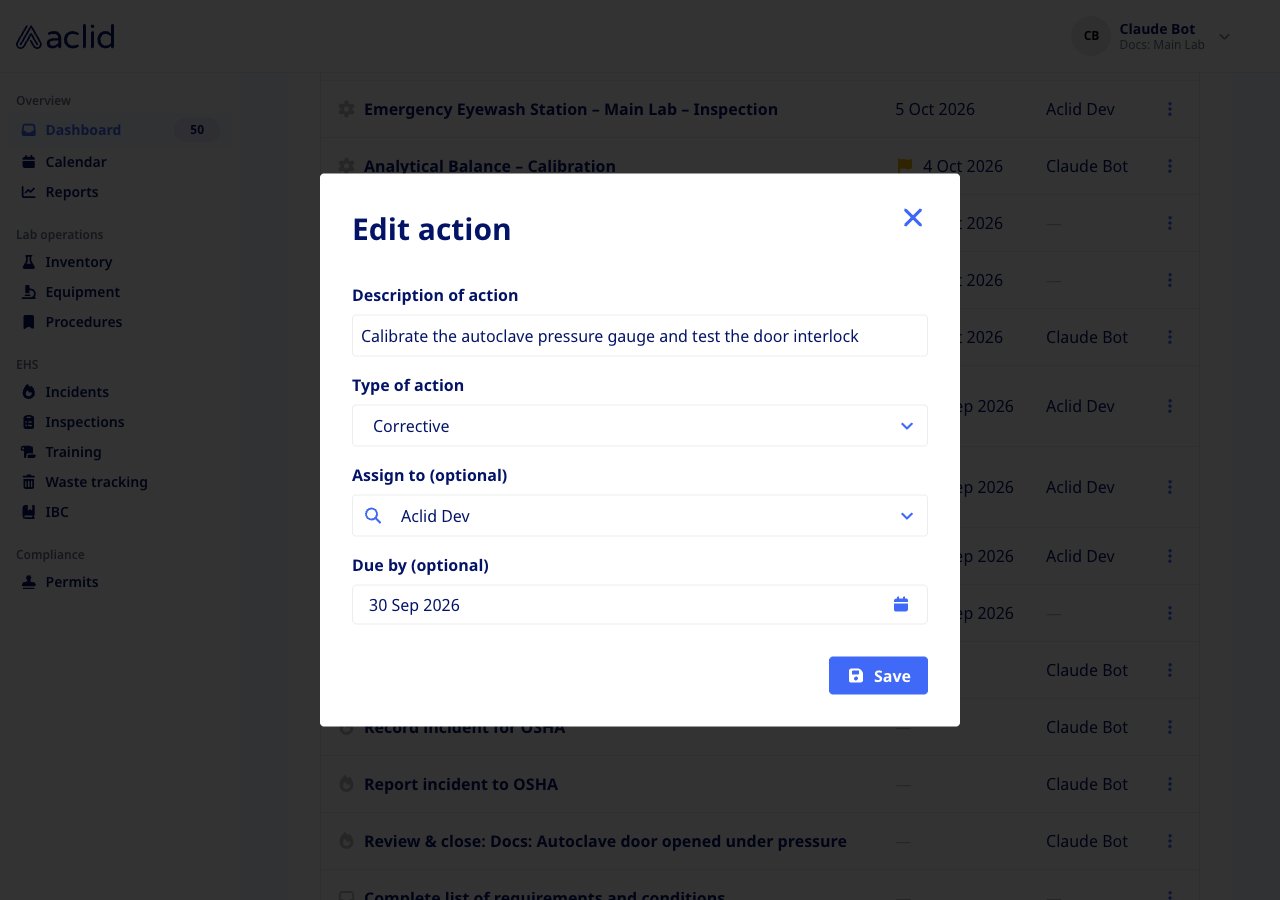
1. On the **To do** tab, click the three dots on a Corrective or Preventive action and choose **Edit**.
2. In **Edit action**, change the **Description of action**, switch the **Type of action** between Corrective and Preventive, pick someone under **Assign to (optional)** or set **Due by (optional)** to today or a later date.
3. Click **Save**. A banner confirms **Action updated**.
4. To remove the action instead, choose **Delete** and confirm with **Yes, delete**. A banner confirms **Action deleted**.
### Edit or delete an action
Admins only.
1. On the **To do** tab, click the three dots on a Corrective or Preventive action and choose **Edit**.
2. In **Edit action**, change the **Description of action**, switch the **Type of action** between Corrective and Preventive, pick someone under **Assign to (optional)** or set **Due by (optional)** to today or a later date.
3. Click **Save**. A banner confirms **Action updated**.
4. To remove the action instead, choose **Delete** and confirm with **Yes, delete**. A banner confirms **Action deleted**.
 ### Check completed actions
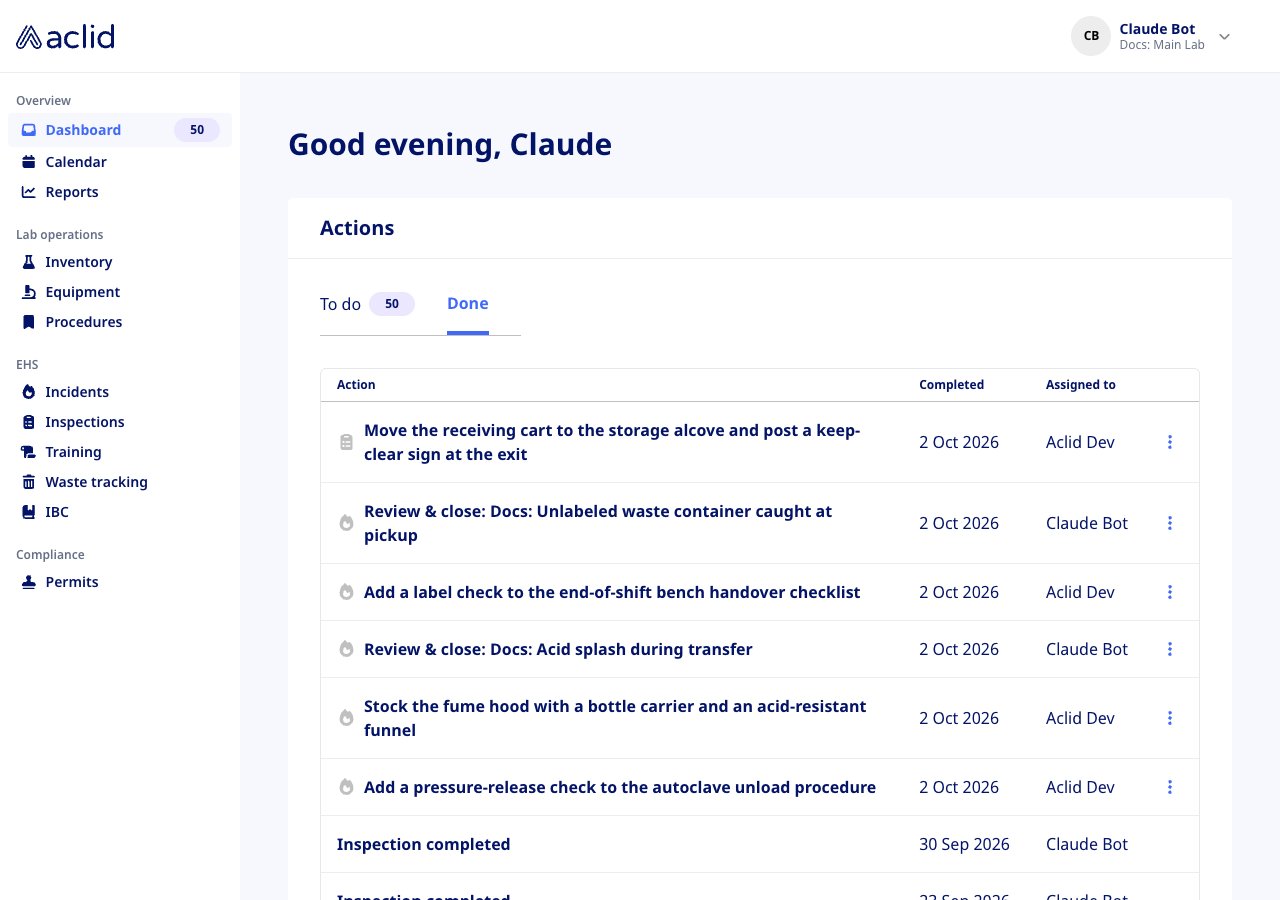
1. Click the **Done** tab. The **Due** column is replaced by **Completed**, showing when each action was finished.
2. Click the three dots on a row to open the related record. Done actions cannot be edited, deleted or reopened here.
3. If nothing has been completed yet, the tab reads **No completed actions** with an **Actions to do** button that returns you to the To do tab.
### Check completed actions
1. Click the **Done** tab. The **Due** column is replaced by **Completed**, showing when each action was finished.
2. Click the three dots on a row to open the related record. Done actions cannot be edited, deleted or reopened here.
3. If nothing has been completed yet, the tab reads **No completed actions** with an **Actions to do** button that returns you to the To do tab.
 ### Use the Dashboard on a phone
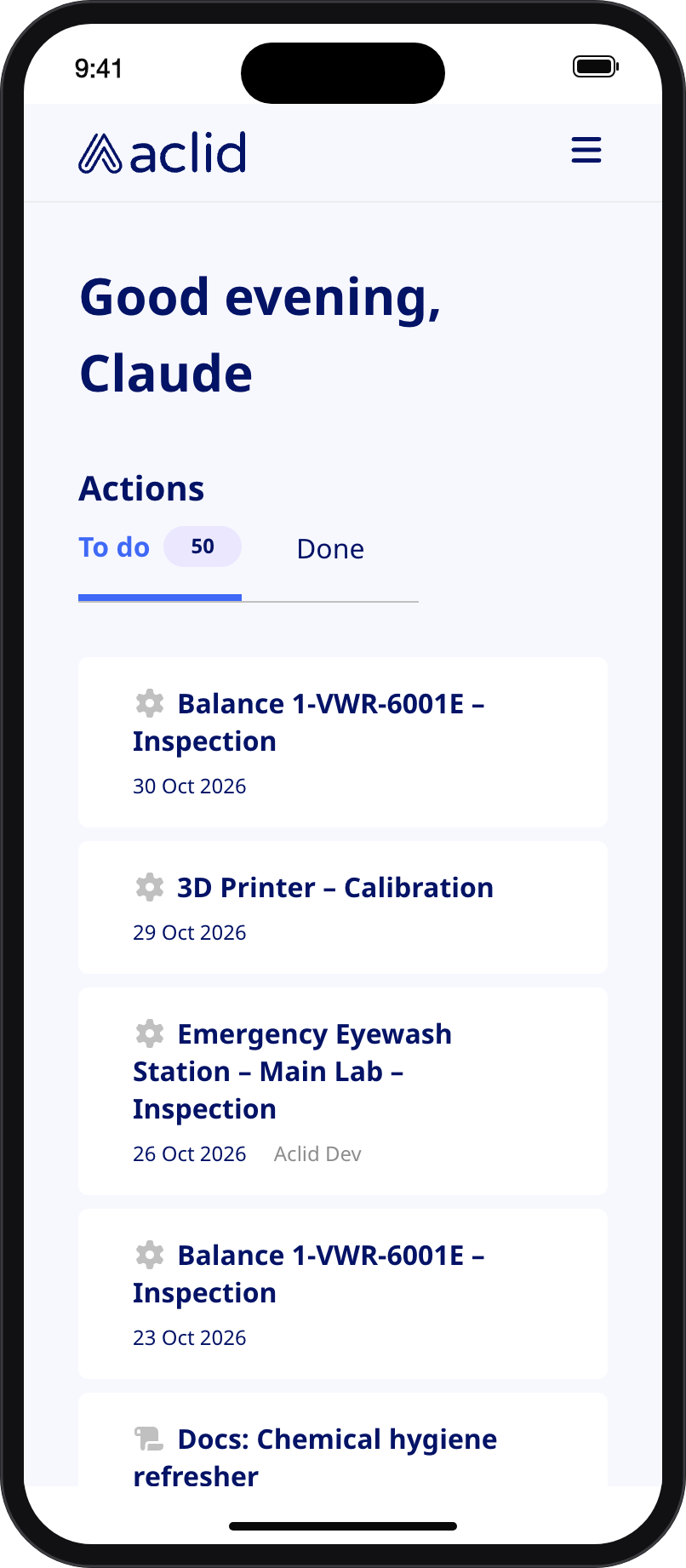
1. Open the app on a phone. Actions appear as cards with the due date and assignee beneath the name; a card without a due date reads **No due date**.
2. Tap a card to open its options. The same choices appear as in the desktop row menu. A card with no record to open and nothing to mark as done does not respond to a tap.
### Use the Dashboard on a phone
1. Open the app on a phone. Actions appear as cards with the due date and assignee beneath the name; a card without a due date reads **No due date**.
2. Tap a card to open its options. The same choices appear as in the desktop row menu. A card with no record to open and nothing to mark as done does not respond to a tap.
 ## Reading the list
* **To do** badge: the number of open actions you can see. It matches the badge on **Dashboard** in the navigation.
* **Action**: the action's name, with the related-record icon in front of it. Hovering the icon on a Corrective or Preventive action shows **Corrective action** or **Preventive action**.
* **Due** (To do tab): the due date. A red triangle marks an overdue action and a yellow flag one due within 48 hours. A dash means no due date was set.
* **Completed** (Done tab): the date the action was marked done.
* **Assigned to**: the assignee's name, or a dash when nobody is assigned.
* Three dots at the end of the row: present only when the row has something to do, that is a related record to open or a status you can change.
## Tips and limits
* An incident's **Review & close** task is completed by closing the incident from its page, so its menu offers **View incident** only.
* Training actions have no **Mark as done**; they close when the training is completed.
* **Edit** and **Delete** appear only for Corrective and Preventive actions, and only while they are on the To do tab. Equipment, permit and incident review tasks are managed from their own modules.
* Marking an action as done is final. There is no way to move it back to To do from the Dashboard.
* When the last open action on a permit is marked done, the permit's status updates on its own.
* Actions that are in progress, such as an interactive training package someone has opened but not yet completed, appear in neither tab and are not counted in the badges.
* Permit and inventory actions have no link to their record from the Dashboard; open them from the Permits or Inventory module.
* Members see the incident link only for incidents they reported, were involved in or witnessed, and never see the inspection link.
* The Actions card lists actions from every site in your organization; the site shown in the header does not filter it.
## Related
* [Incidents](/guides/incidents) explains how follow-up actions are raised and how the review task is closed.
* [Roles and sites](/api/roles-and-sites) explains the admin and member roles.
* [Action](/api/reference/types/Action), [actions](/api/reference/queries/actions) and [markActionDone](/api/reference/mutations/markActionDone) in the GraphQL reference.
This documentation is built and hosted on [Mintlify](https://mintlify.com), a developer documentation platform.
## Reading the list
* **To do** badge: the number of open actions you can see. It matches the badge on **Dashboard** in the navigation.
* **Action**: the action's name, with the related-record icon in front of it. Hovering the icon on a Corrective or Preventive action shows **Corrective action** or **Preventive action**.
* **Due** (To do tab): the due date. A red triangle marks an overdue action and a yellow flag one due within 48 hours. A dash means no due date was set.
* **Completed** (Done tab): the date the action was marked done.
* **Assigned to**: the assignee's name, or a dash when nobody is assigned.
* Three dots at the end of the row: present only when the row has something to do, that is a related record to open or a status you can change.
## Tips and limits
* An incident's **Review & close** task is completed by closing the incident from its page, so its menu offers **View incident** only.
* Training actions have no **Mark as done**; they close when the training is completed.
* **Edit** and **Delete** appear only for Corrective and Preventive actions, and only while they are on the To do tab. Equipment, permit and incident review tasks are managed from their own modules.
* Marking an action as done is final. There is no way to move it back to To do from the Dashboard.
* When the last open action on a permit is marked done, the permit's status updates on its own.
* Actions that are in progress, such as an interactive training package someone has opened but not yet completed, appear in neither tab and are not counted in the badges.
* Permit and inventory actions have no link to their record from the Dashboard; open them from the Permits or Inventory module.
* Members see the incident link only for incidents they reported, were involved in or witnessed, and never see the inspection link.
* The Actions card lists actions from every site in your organization; the site shown in the header does not filter it.
## Related
* [Incidents](/guides/incidents) explains how follow-up actions are raised and how the review task is closed.
* [Roles and sites](/api/roles-and-sites) explains the admin and member roles.
* [Action](/api/reference/types/Action), [actions](/api/reference/queries/actions) and [markActionDone](/api/reference/mutations/markActionDone) in the GraphQL reference.
This documentation is built and hosted on [Mintlify](https://mintlify.com), a developer documentation platform.