> ## Documentation Index
> Fetch the complete documentation index at: https://wiki.aclid.bio/llms.txt
> Use this file to discover all available pages before exploring further.
# Calendar
> One grid of every scheduled compliance activity in your organization: equipment maintenance, inspections, training due dates, permit and report deadlines, and IBC meetings. Admins only.
The Calendar shows upcoming trainings, inspections, and other scheduled compliance activities on a month or week grid. Each chip is an **event**: a dated item generated by a schedule set up elsewhere in the app, such as an equipment maintenance plan, a recurring inspection, a training due date, a permit or report deadline, or an IBC meeting. Nothing is created on the calendar itself; it is the place to see what is coming up and to open the task behind an event.
## Who can do what
| Action | Admin | Member |
| - | - | - |
| Open the Calendar | Yes | No |
| Browse months and weeks | Yes | No |
| Open an event and mark its action done | Yes | No |
| Edit an event's action, or delete one raised from an inspection finding | Yes | No |
| Create or edit events | No (events come from schedules) | No |
Members do not see **Calendar** in the navigation. Opening the page directly shows an access-restricted message.
## Open Calendar
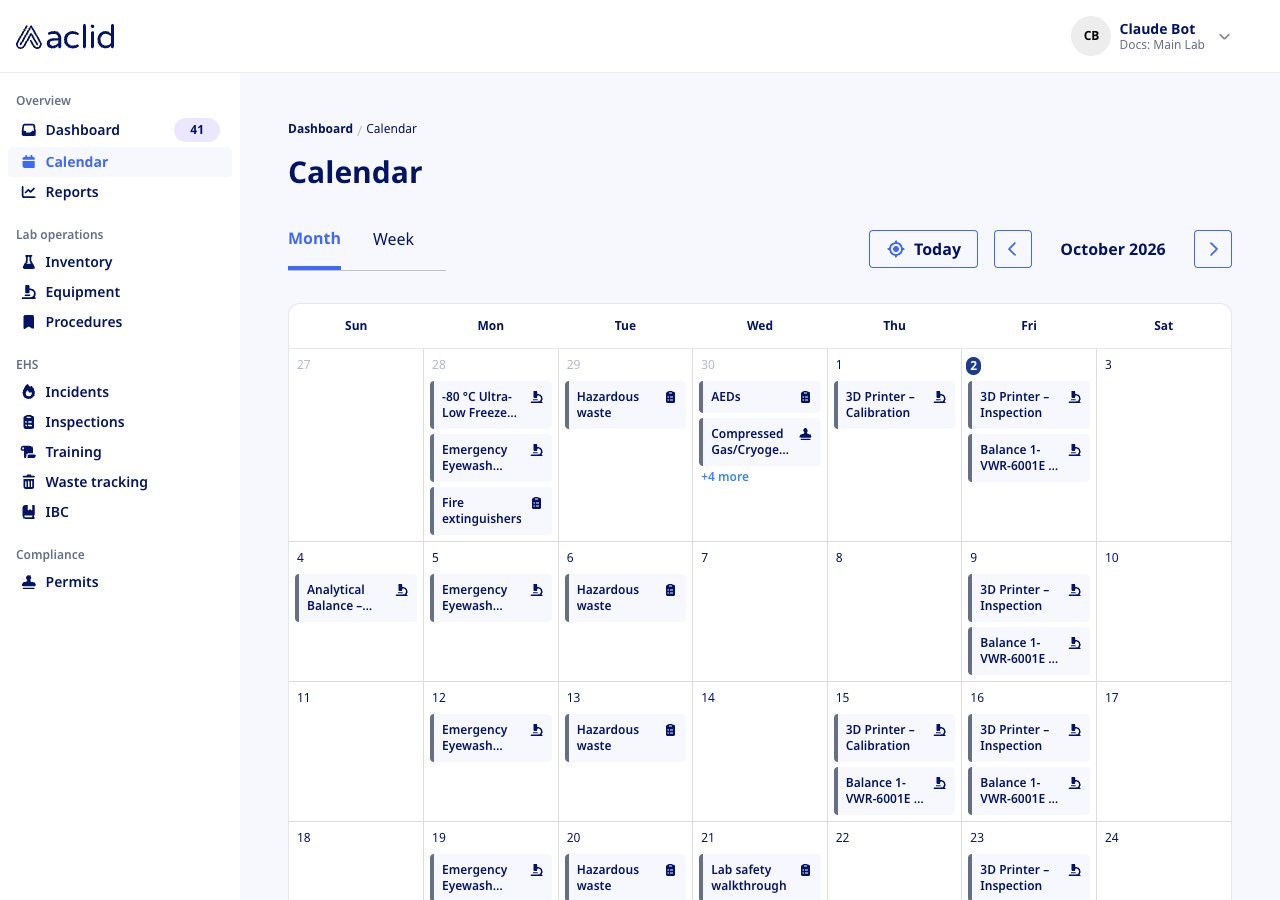
In the **Overview** group of the navigation, choose **Calendar** (the path is `/calendar`). The page opens on the current month with today's date circled in dark blue, the **Month** tab selected, and the month label (for example **October 2026**) between the period arrows. Event chips appear a moment after the grid; if your organization has no schedules yet, the grid stays empty.
 ## Key concepts
* **Event**: a dated item on the organization's calendar, such as a training due date or an equipment maintenance visit. Every event has a title, a type, a date and, usually, an owner.
* **Schedule**: the recurring plan that generates events, for example an equipment maintenance schedule. Its recurrence is shown on the event as a badge: **Weekly**, **Every 2 weeks**, **Every 3 weeks**, **Monthly**, **Every 2 months**, **Quarterly**, **Every 4 months**, **Semi-annually**, **Annually** or **Every 2 years**. Events without a schedule show **One-time**.
* **Event type**: tells you which module the event belongs to. It is shown as an icon on the right of each chip and as a label at the top of the event details.
* **Event owner**: the user the event is assigned to. Events with nobody assigned show **No event owner**.
* **Action**: the task that tracks an event. Equipment maintenance actions are created automatically 30 days before the service date; inspection and training actions appear once the inspection run or training assignment exists.
| Event type | Icon on the chip |
| - | - |
| **Inspection** | Clipboard with a list |
| **Training** | Scroll |
| **Incident** | Flame |
| **Permit deadline** | Rubber stamp |
| **Equipment maintenance** | Microscope |
| **Report deadline** | Shield over a document |
| **IBC meeting** | Group of people |
| **Event** (anything else) | Clock |
Chips are the same light-blue colour whatever their type, with dark-blue text and a grey bar on the left edge; the icon is what distinguishes the types.
## Tasks
### Browse the month
Admins only.
1. Open **Calendar**. The **Month** tab is selected and the grid shows only the weeks that belong to the month; days from the neighbouring months are greyed out.
2. Hover a chip to highlight it. Titles wrap to two lines and are then cut short; open the event to read the full title.
3. A day with more than three events shows a **+N more** link. Click it to open a pop-over listing every event on that day, titled with the date (for example **30 Sep 2026**). Clicking an event in the pop-over opens its details and closes the pop-over.
4. Click the right-pointing arrow button to move forward one month, or the left-pointing one to move back. The grid changes to the new month and the label between the arrows follows it. In **Week** view the same arrows move one week at a time.
5. Click **Today** to jump back to the period that contains today's date.
### Switch to the week view
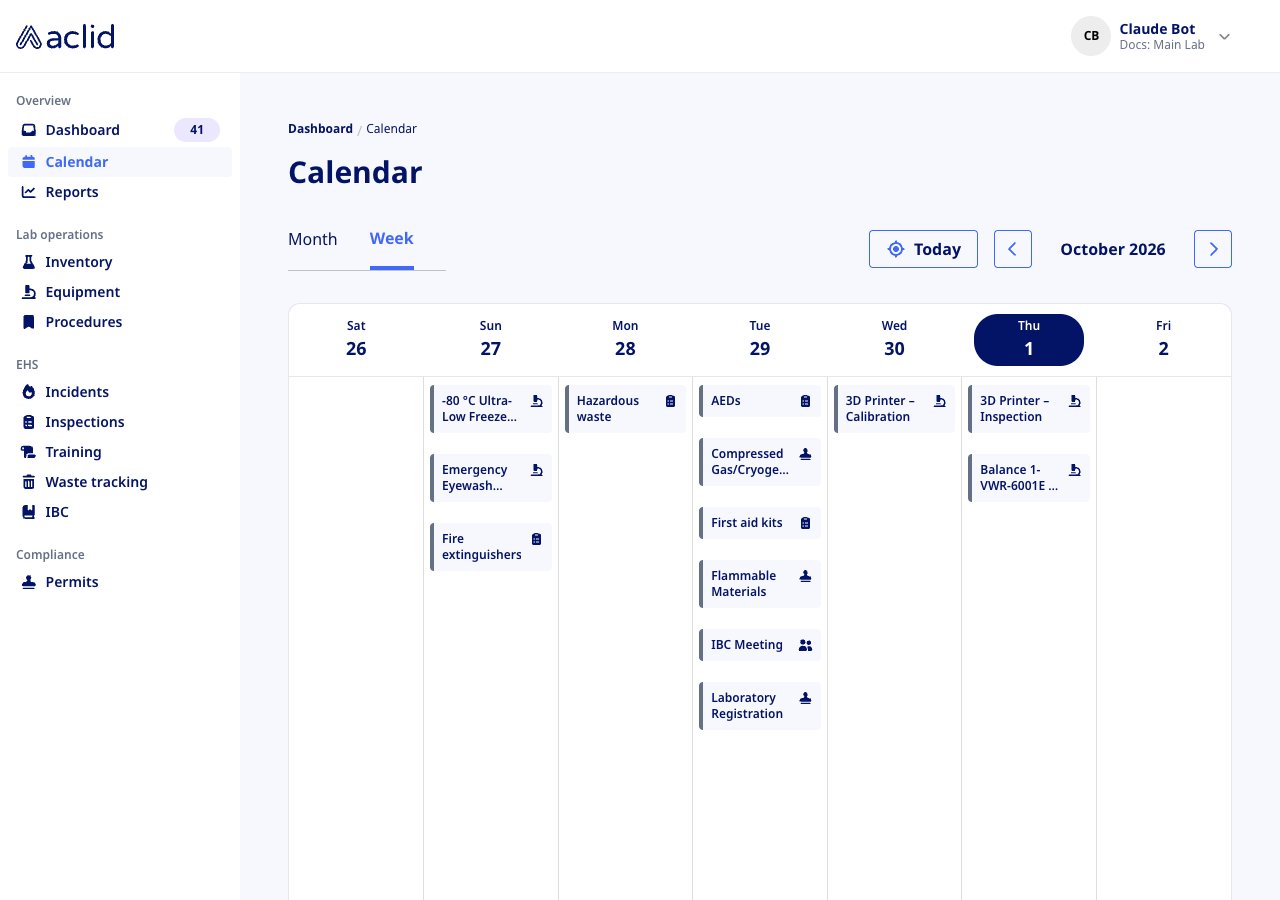
1. Click the **Week** tab. The grid becomes a single row of seven days, Sunday to Saturday, with the weekday and date in each column header and today's column header filled in dark blue.
2. Week view lists every event on each day; there is no **+N more** link, so columns grow as tall as they need to.
3. Click **Month** to return to the month grid. The view you pick is not remembered between visits.
## Key concepts
* **Event**: a dated item on the organization's calendar, such as a training due date or an equipment maintenance visit. Every event has a title, a type, a date and, usually, an owner.
* **Schedule**: the recurring plan that generates events, for example an equipment maintenance schedule. Its recurrence is shown on the event as a badge: **Weekly**, **Every 2 weeks**, **Every 3 weeks**, **Monthly**, **Every 2 months**, **Quarterly**, **Every 4 months**, **Semi-annually**, **Annually** or **Every 2 years**. Events without a schedule show **One-time**.
* **Event type**: tells you which module the event belongs to. It is shown as an icon on the right of each chip and as a label at the top of the event details.
* **Event owner**: the user the event is assigned to. Events with nobody assigned show **No event owner**.
* **Action**: the task that tracks an event. Equipment maintenance actions are created automatically 30 days before the service date; inspection and training actions appear once the inspection run or training assignment exists.
| Event type | Icon on the chip |
| - | - |
| **Inspection** | Clipboard with a list |
| **Training** | Scroll |
| **Incident** | Flame |
| **Permit deadline** | Rubber stamp |
| **Equipment maintenance** | Microscope |
| **Report deadline** | Shield over a document |
| **IBC meeting** | Group of people |
| **Event** (anything else) | Clock |
Chips are the same light-blue colour whatever their type, with dark-blue text and a grey bar on the left edge; the icon is what distinguishes the types.
## Tasks
### Browse the month
Admins only.
1. Open **Calendar**. The **Month** tab is selected and the grid shows only the weeks that belong to the month; days from the neighbouring months are greyed out.
2. Hover a chip to highlight it. Titles wrap to two lines and are then cut short; open the event to read the full title.
3. A day with more than three events shows a **+N more** link. Click it to open a pop-over listing every event on that day, titled with the date (for example **30 Sep 2026**). Clicking an event in the pop-over opens its details and closes the pop-over.
4. Click the right-pointing arrow button to move forward one month, or the left-pointing one to move back. The grid changes to the new month and the label between the arrows follows it. In **Week** view the same arrows move one week at a time.
5. Click **Today** to jump back to the period that contains today's date.
### Switch to the week view
1. Click the **Week** tab. The grid becomes a single row of seven days, Sunday to Saturday, with the weekday and date in each column header and today's column header filled in dark blue.
2. Week view lists every event on each day; there is no **+N more** link, so columns grow as tall as they need to.
3. Click **Month** to return to the month grid. The view you pick is not remembered between visits.
 ### Open an event and act on it
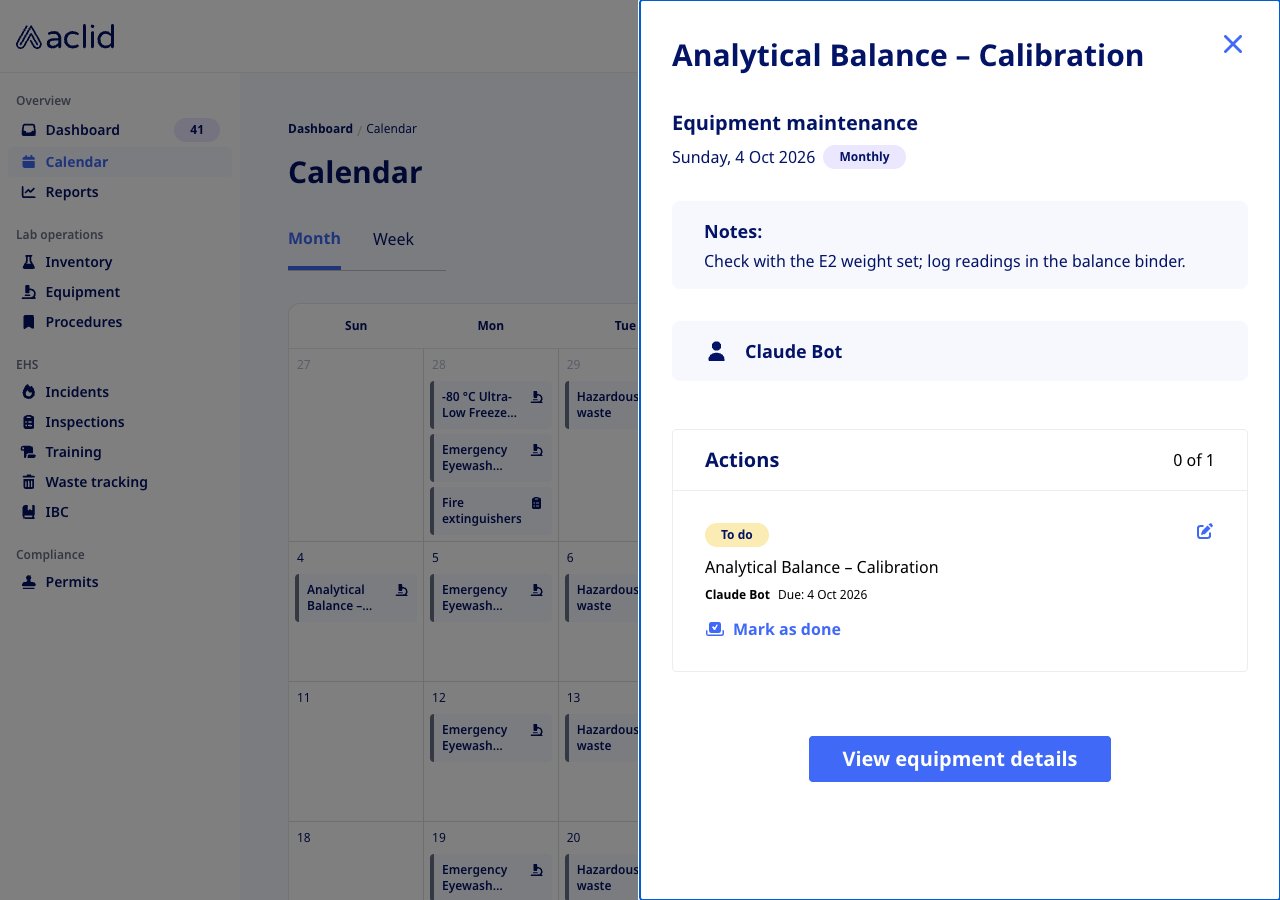
1. Click any chip. A panel slides in from the right with the event title, its type (for example **Equipment maintenance**; an equipment event whose schedule names a service type shows it instead, such as **Equipment calibration**), the date and the recurrence badge, any **Notes:** from the schedule, and the event owner.
2. If the event already has an action, an **Actions** card shows it with a **To do** or **Done** badge, who it is assigned to, its **Due:** date and a running count such as **0 of 1**. Click **Mark as done**, add a note under **Notes (optional)** if you want one, and click **Yes, mark as done** to complete it. Click the pencil to open **Edit action** and change the assignee, due date or details; actions raised from inspection findings also show a trash icon that opens **Delete action**. Training actions can only be marked done here, not edited.
3. Use the button at the bottom to go to the related record:
* Equipment maintenance: **View equipment details** opens the equipment page. If no action exists yet, the panel says **You're all set** and reminds you that actions are created automatically 30 days before the service date.
* Inspection: **Start Inspection** opens a new inspection from the scheduled template, or **View Results** once the inspection is complete. The card lists the completion action (which has no **Mark as done**; completing the inspection closes it) and any actions raised from findings.
* Training: **Start training**, **Resume training** (when it is partly done) or **View results** opens the assignment.
4. Click the close button (an X) in the top-right corner to close the panel.
### Open an event and act on it
1. Click any chip. A panel slides in from the right with the event title, its type (for example **Equipment maintenance**; an equipment event whose schedule names a service type shows it instead, such as **Equipment calibration**), the date and the recurrence badge, any **Notes:** from the schedule, and the event owner.
2. If the event already has an action, an **Actions** card shows it with a **To do** or **Done** badge, who it is assigned to, its **Due:** date and a running count such as **0 of 1**. Click **Mark as done**, add a note under **Notes (optional)** if you want one, and click **Yes, mark as done** to complete it. Click the pencil to open **Edit action** and change the assignee, due date or details; actions raised from inspection findings also show a trash icon that opens **Delete action**. Training actions can only be marked done here, not edited.
3. Use the button at the bottom to go to the related record:
* Equipment maintenance: **View equipment details** opens the equipment page. If no action exists yet, the panel says **You're all set** and reminds you that actions are created automatically 30 days before the service date.
* Inspection: **Start Inspection** opens a new inspection from the scheduled template, or **View Results** once the inspection is complete. The card lists the completion action (which has no **Mark as done**; completing the inspection closes it) and any actions raised from findings.
* Training: **Start training**, **Resume training** (when it is partly done) or **View results** opens the assignment.
4. Click the close button (an X) in the top-right corner to close the panel.
 ## Reading the list
* **Month label**: the month and year of the period on screen. In week view it names the month that contains the week's reference date.
* **Dark-blue circle on a date** (month view) or **filled column header** (week view): today.
* **Grey date numbers**: days that belong to the previous or next month.
* **Chip**: event title on the left, type icon on the right. All chips share one colour; use the icon and the title to tell them apart.
* **+N more**: the day has more events than fit in the cell. Click to list them all.
* **To do / Done** badges and the **0 of 1** counter in the details panel refer to the event's action, not the event itself; events have no status of their own.
On a phone the grid keeps all seven columns, so chips shrink to their icon only. Open an event to see its title.
## Tips and limits
* **Events are read-only here.** There is no add button and no edit form. To add, move or stop events, change the schedule that generates them: the maintenance schedule on the equipment, the inspection schedule, the training assignment, the permit or report deadline, or the IBC meeting.
* **Training events are personal.** You only see training events that are assigned to you, even as an admin; all other event types are shown for the whole organization.
* **Clicking an empty day does nothing.** Use the modules named above to schedule something on that date.
* **Only Month and Week views exist.** There is no list or agenda view, and no filter by type, owner or site; use the period arrows and the type icons to find what you need.
* **Marking an action done from the calendar** is the same as marking it done on the Dashboard; the change shows up in both places.
## Related
* [Dashboard](/guides/dashboard) explains the actions that calendar events track.
* [Roles and sites](/api/roles-and-sites) explains the admin and member roles.
* [GraphQL reference: events](/api/reference/queries/events)
* [GraphQL reference: event](/api/reference/queries/event)
* [GraphQL reference: Event](/api/reference/types/Event)
* [GraphQL reference: EventTemplate](/api/reference/types/EventTemplate)
This documentation is built and hosted on [Mintlify](https://mintlify.com), a developer documentation platform.
## Reading the list
* **Month label**: the month and year of the period on screen. In week view it names the month that contains the week's reference date.
* **Dark-blue circle on a date** (month view) or **filled column header** (week view): today.
* **Grey date numbers**: days that belong to the previous or next month.
* **Chip**: event title on the left, type icon on the right. All chips share one colour; use the icon and the title to tell them apart.
* **+N more**: the day has more events than fit in the cell. Click to list them all.
* **To do / Done** badges and the **0 of 1** counter in the details panel refer to the event's action, not the event itself; events have no status of their own.
On a phone the grid keeps all seven columns, so chips shrink to their icon only. Open an event to see its title.
## Tips and limits
* **Events are read-only here.** There is no add button and no edit form. To add, move or stop events, change the schedule that generates them: the maintenance schedule on the equipment, the inspection schedule, the training assignment, the permit or report deadline, or the IBC meeting.
* **Training events are personal.** You only see training events that are assigned to you, even as an admin; all other event types are shown for the whole organization.
* **Clicking an empty day does nothing.** Use the modules named above to schedule something on that date.
* **Only Month and Week views exist.** There is no list or agenda view, and no filter by type, owner or site; use the period arrows and the type icons to find what you need.
* **Marking an action done from the calendar** is the same as marking it done on the Dashboard; the change shows up in both places.
## Related
* [Dashboard](/guides/dashboard) explains the actions that calendar events track.
* [Roles and sites](/api/roles-and-sites) explains the admin and member roles.
* [GraphQL reference: events](/api/reference/queries/events)
* [GraphQL reference: event](/api/reference/queries/event)
* [GraphQL reference: Event](/api/reference/types/Event)
* [GraphQL reference: EventTemplate](/api/reference/types/EventTemplate)
This documentation is built and hosted on [Mintlify](https://mintlify.com), a developer documentation platform.